Breach Path
To assist you in identifying and addressing the findings and vulnerabilities that require your attention, Breach Path analyzes and correlates multiple data sources to build a visual representation of the sequence of steps that an attacker could take in order to compromise your assets. This context-driven approach reduces noise and allows you to prioritize the risks that are most likely to be exploited.
A breach path always leads to a main resource that a potential attacker may target, such as a server or container. Each path also includes the intermediate nodes that an attacker may use to reach the main resource. These nodes may include two types of entities:
Entities that are part of your resource inventory, such as security groups and load balancers.
Derived resources, which are not part of the resource inventory but are included in the breach path because they provide crucial insight into how an attacker may reach the main resource. For example, a breach path may include the SMB service running on a server as a derived resource, because the exposed SMB service can act as an entry point for attackers looking to gain access to the server.
For information on using Breach Path, refer to the following sections:
Eligibility
To use the feature, you must meet the following requirements:
Your company has a valid license key that provides access to the Risk Management feature.
You have access to My company > Early access in the user menu to select Breach Path and enroll your company in the program.
The Breach Path page
To open the Breach Path page, select Risk management > Breach Path from the left-hand navigation pane. The page displays a centralized list of potential attack paths, as well as essential information on the main resource targeted by each path, such as the risk factors and the number of CVEs associated with the resource. The main sections of the page are outlined below.
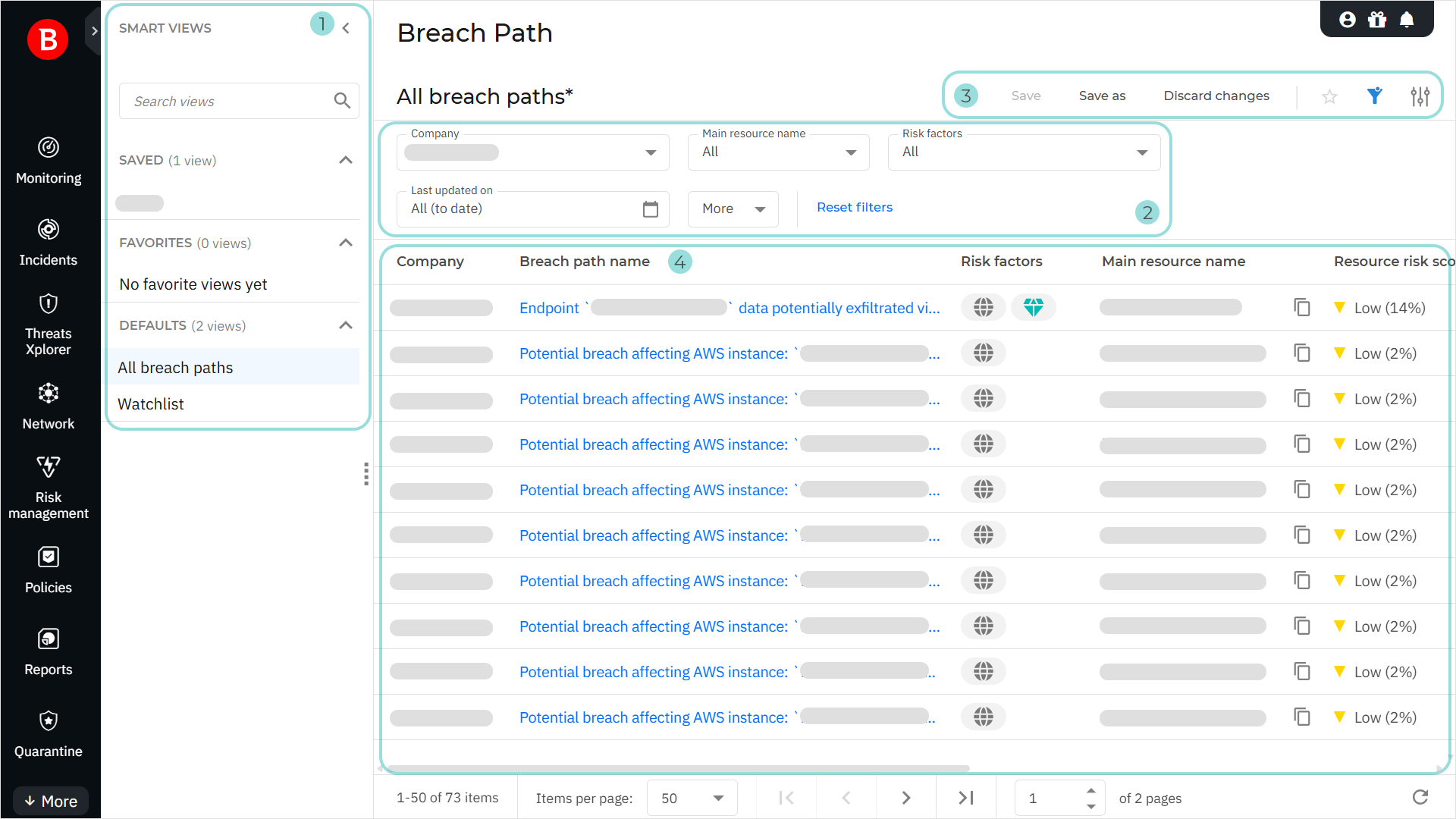
The Smart views panel. This feature allows you to customize, save, and switch between different loadouts of the Breach Path page. The panel has the following sections:
Search views - Use this search field to filter the views displayed in the sections below, by name.
Saved - This section displays a list of all your saved views that have not been marked as favorites.
Favorites - All views marked as favorites are displayed under this section.
Defaults - This section displays the views that are available by default:
All breach paths
Watchlist
For any view in the Saved and Favorites categories, you can click the actions button
 to Rename or Delete the view.
The Filters section. You can use these options to customize the information displayed in the grid. The following filters are available:
Filtering option
Details
Company
Select the company for which you want to view breach paths.
Main resource name
Use the searchable dropdown list to filter the list of breach paths by the name of the main resource targeted by the path. Select the main resource names you want and click Apply.
Only the breach paths whose main resource names you selected are displayed.
Risk factors
Use the searchable dropdown list to filter the list of breach paths by the risk factors involved. Select the risk factors you want and click Apply. Possible values:
Internet exposure - One or more of the resources in the breach path have vulnerabilities or configurations that expose them to an attack from the internet.
Exploitable CVE - One or more of the resources in the breach path have Common Vulnerabilities and Exposures (CVEs) that attackers have been proven to actively use, or which can easily be exploited in real environments using publicly known tools.
High-severity CVE - One or more of the resources in the breach path have CVEs with a risk score of 70% or higher.
Critical asset - One or more of the resources in the breach path are critical assets. A critical asset is a highly valuable, mission-critical resource, such as a server. A critical asset may power core systems, run unique processes, or hold sensitive data, such as customer information. Therefore, a critical asset being compromised would cause severe financial loss, operational disruption, or reputational damage.
Last updated on
Use the date selector to display only breach paths that were last updated during a set interval (Last 24 hours, Last 7 days, etc.), or select Custom to define a custom interval.
Only entries that were last updated during the interval you select are displayed.
Resource risk score
Select a risk score range between 0 and 100.
Only breach paths whose main resource has a risk score within the specified range are displayed.
Platform
Use the searchable dropdown list to filter the list of breach paths by the platform that they affect. Select the platforms you want and click Apply. Possible values:
Unknown
Windows
Linux
macOS
AWS
GCP
Azure
Kubernetes
Only breach paths that affect the selected platforms are displayed.
Cloud account ID
Use the searchable dropdown list to filter the list of breach paths by the cloud account ID associated with the main resource. Select the relevant cloud account IDs and click Apply.
Only breach paths whose main resource is associated with one of the selected cloud account IDs are displayed.
Created on
Use the date selector to display only breach paths that were created during a set interval (Last 24 hours, Last 7 days, etc.), or select Custom to define a custom interval.
Only entries that were created during the interval you select are displayed.
In watchlist
Use this option to filter the breach paths based on whether or not they are included in the watchlist.
The View options menu. This section provides you with multiple functions for working with views:
Save - Store your customized preferences as a saved view.
Save as - Save a modified view under a different name.
Discard changes - Revert a modified view to its original state.
Add to favorites - Add the view to the Favorites category.
Show or hide filters - Display or hide the filters menu.
Open settings - Display the Settings panel. You can use this panel to customize what columns are displayed in the view and enable or disable the Compact view option.
The breach paths table. The table displays all the breach paths identified for your company. The information available for each breach path is displayed under the following columns:
Company - The company where the breach path has been identified.
Breach path name - The name of the breach path.
Risk factors - Icons indicating the risk factors associated with the path:
 Internet exposure
 Exploitable CVE
 High-severity CVE
 Critical asset
Main resource name - The name of the main resource that the breach path targets.
Resource risk score - The risk score of the main resource.
CVEs - The number of CVEs that apply to the main resource. Note that this is the total number of CVEs for the resource, not the number of CVEs that are involved in this specific breach path.
Resource type - The type of the main resource.
Platform - The platform or operating system of the main resource.
Last updated on - The date and time of the last update made to the breach path.
In watchlist - Indicates whether or not the breach path is in the watchlist.
To add a breach path to the watchlist or remove it from the watchlist, click the actions button
at the end of its row and select either Add to watchlist or Remove from watchlist.Note
The actions button is not visible when the Smart views panel is displayed.
Viewing breach path details
You can view detailed information about a breach path by selecting its entry on the main Breach Path page. Depending on where you click in the row, either the breach path side panel or the breach path details screen is displayed.
Breach path side panel
For any entry in the grid, you can click anywhere in its row, except for the breach path name and the actions button, to open a side panel that provides additional information about the breach path.
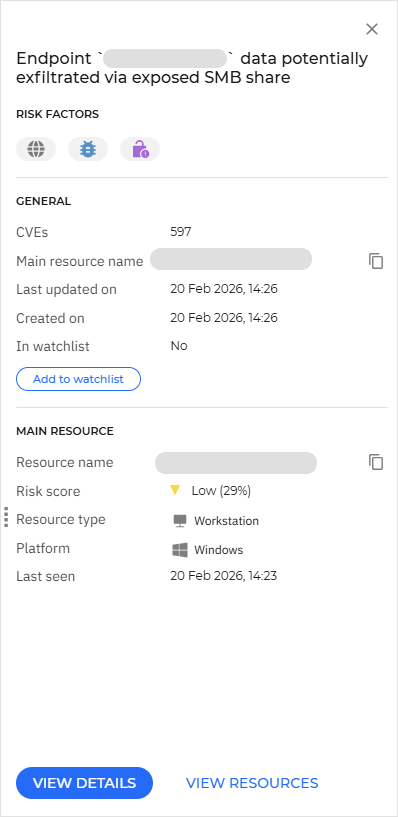
Risk factors
This section contains icons that indicate the risk factors associated with the breach path:
- Internet exposure
- Exploitable CVE
- High-severity CVE
- Critical asset
General
This section contains general information regarding the breach path:
CVEs - The number of CVEs that apply to the main resource. Note that this is the total number of CVEs for the resource, not the number of CVEs that are involved in this specific breach path.
Main resource name - The name of the main resource that the breach path targets.
Last updated on - The date and time of the when the entry was last updated.
Created on - The date and time when the breach path was created.
In watchlist - Indicates whether or not the breach path is included in the watchlist. To add the breach path to the watchlist or remove it from the watchlist, click Add to watchlist or Remove from watchlist at the bottom of the General section.
Main resource
This section contains information on the main resource targeted by the breach.
Resource name - The name of the main resource. You can click the name to view the main resource on the Risk management > Resources page.
Risk score - The risk score of the main resource.
Resorce ID - (visible only for cloud resources) The identifier of the main resource.
Resource type - The type of the main resource.
Platform - The platform or operating system of the main resource.
Cloud account ID - (visible only for cloud resources) The cloud account that the main resource is associated with.
Region - (visible only for cloud resources) The region where the main resource is located.
Last seen - (visible only for non-cloud resources) Date and time when the resource was last seen online.
To view more detailed information about the breach path, click either View details or View resources at the bottom of the side panel. More information about these views is available below.
Breach path details screen
For each breach path, you can view more in-depth information on a path details screen that includes two tabs: Graph and Resources.
Graph tab - You can access this tab directly from the Breach Path main page, by clicking the value in the Breach path name column for the desired entry. Alternatively, you can access the breach path side panel for an entry in the list, then click View details at the bottom to access the breach path graph for the selected entry.
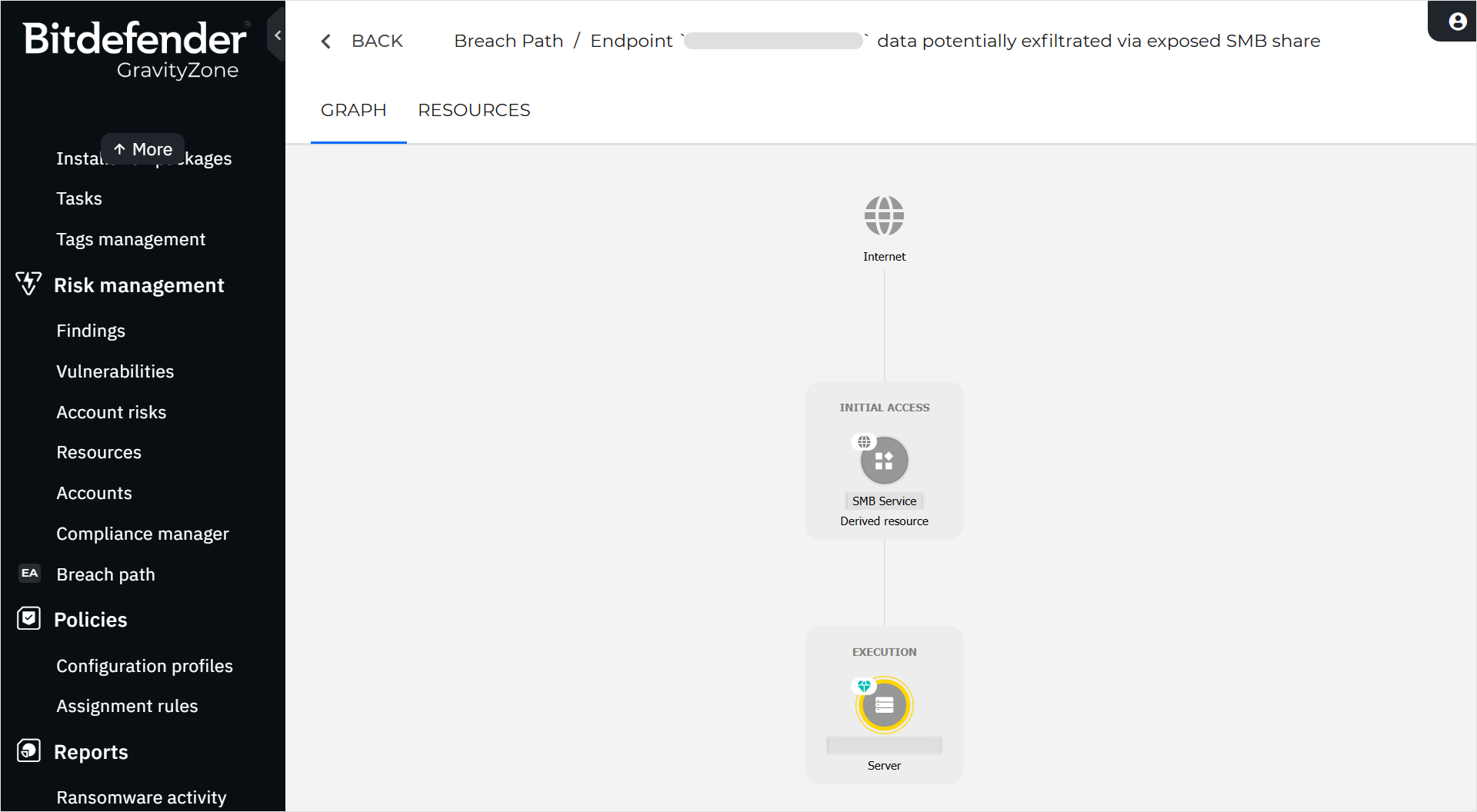
The breach path graph provides a graphical representation of the sequence of steps that an attacker could take in order to reach and compromise the main resource. Each node in the graph represents a resource involved in the path, whose configurations or vulnerabilities attackers can exploit to move toward the main resource. The color of the outline around each resource icon provides a quick indication of the risk level for that resource:
yellow - low risk
orange - medium risk
red - high risk
Note
To move the graph, click and drag anywhere in the graph window.
Nodes may feature badges that indicate the risk factors associated with them:
- Internet exposure
- Exploitable CVE
- High-severity CVE
- Critical asset
You can click any node in the graph to open a side panel that displays further information on the selected resource.
Note
Not all the sections and fields in the side panel are displayed for all resource types.
General
Risk score - The risk score of the resource.
Resource type - The type of the resource.
Resource ID - (visible only for cloud resources) The resource identifier.
Platform - The platform or operating system of the resource.
Last updated on - The date and time when the entry was last updated.
Depends on - (visible only for derived resources) The actual resource that the derived resource is associated with.
Cloud account ID - (visible only for cloud resources) The identifier of the cloud account that the resource is associated with.
Region - (visible only for cloud resources) The region where the resource is located.
Vulnerabilities
This section displays a searchable list of CVEs found for the selected resource.
Path-related findings
This section is visible only for non-cloud resources. It displays a subset of findings for the resource that are relevant to the current breach path.
Resources tab - You can access this tab from the breach path list by opening the breach path side panel and clicking View resources at the bottom. If you are on the graph page for a breach path, you can display the resources involved in the path by clicking the Resources tab in the top-left corner of the page.
The Resources tab contains two sections: Main resource and Other path-related resources. To view additional information on any of the entries, click its row in the table. A side panel opens, displaying the following information:
General
Risk score - The risk score of the resource.
Resource type - The type of the resource.
Resource ID - (visible only for cloud resources) The resource identifier.
Platform - The platform or operating system of the resource.
Last updated on - The date and time when the entry was last updated.
Cloud account ID - (visible only for cloud resources) The identifier of the cloud account that the resource is associated with.
Region - (visible only for cloud resources) The region where the resource is located.
To view the resource metadata in JSON format, click View metadata at the bottom of the General section. You can then use the Copy to clipboard
 button in the top-right corner of the metadata window to copy the contents of the JSON file to the clipboard.
Vulnerabilities
This section displays a searchable list of CVEs found for the selected resource.
Path-related findings
This section is visible only for non-cloud resources. It displays a subset of findings that affect the resource and are relevant to the current breach path.
Submitting feedback
Let us know your thoughts by using the Feedback button available in the upper right corner of the Breach Path page. Additionally, you can use the feedback form available if you opt out of the program. We eagerly await and value your input on this feature.