The Office 365 sensors
The Microsoft Office 365 platform includes the Mail and Audit sensors, which enhance the XDR detections with data about email traffic and content, as well as user and admin operations retrieved from the Microsoft 365 unified audit log.
The Mail sensor accesses events such as when mail items were accessed, when mail items were replied to and forwarded, and when and what a user searched for in Exchange Online and SharePoint Online.
The Audit sensor accesses user and admin operations performed in Microsoft 365 services and solutions. These operations are captured, recorded, and retained in your organization's unified audit log.
Prerequisites
Before you integrate the Office 365 sensor platform with GravityZone, you must configure the Mail and Audit sensors.
Begin by registering a Microsoft Entra application, which can then be used for both Mail and Audit sensor configurations. A single-tenant setup for the application is sufficient. The app registration's Overview page should then be displayed.
Set up the required permissions for the Microsoft Entra application:
Click API permissions > Add a permission.
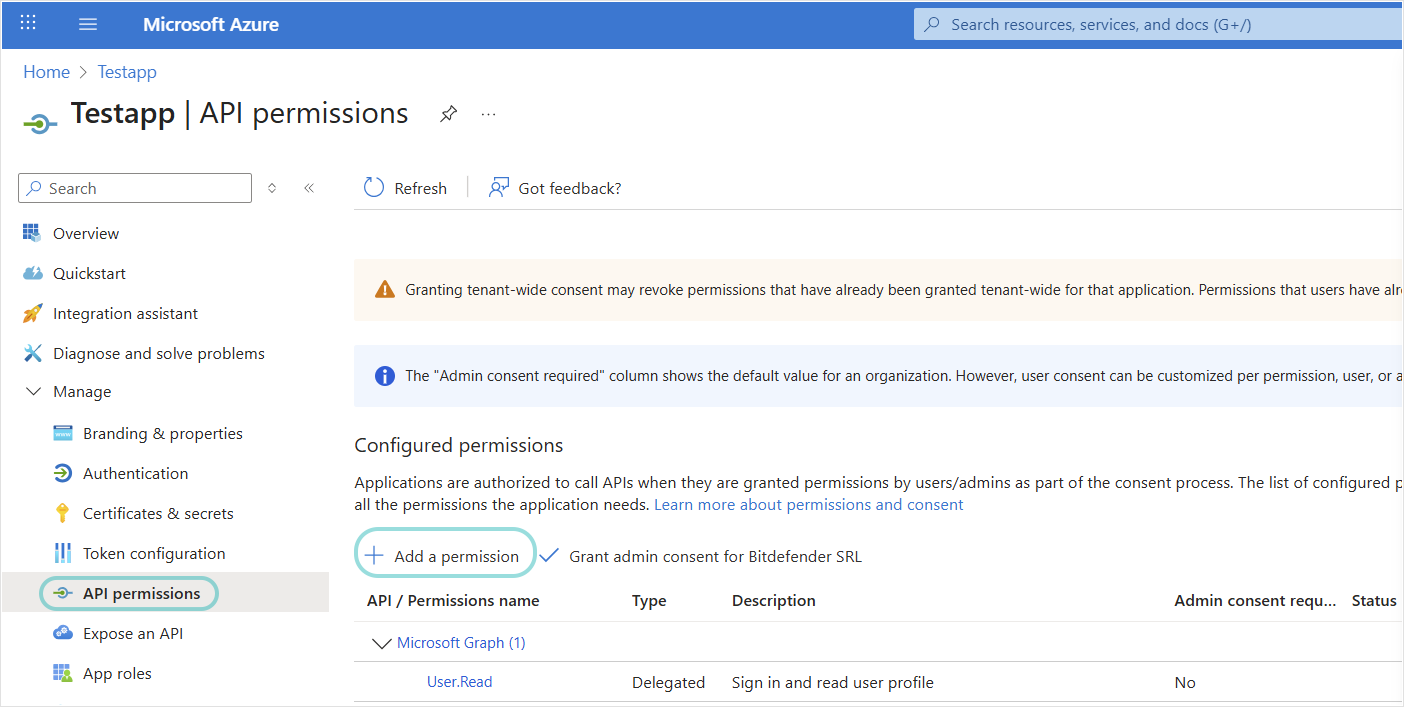
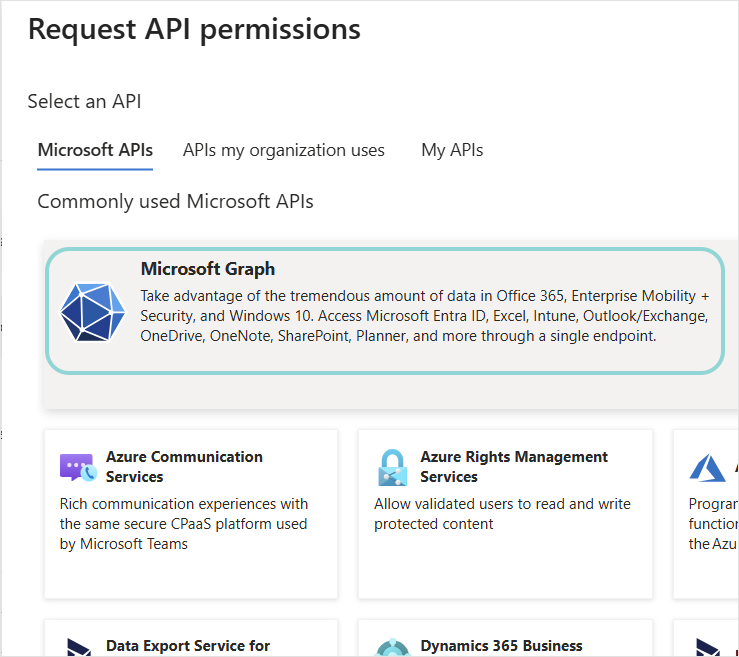
Click Microsoft APIs > Microsoft Graph.
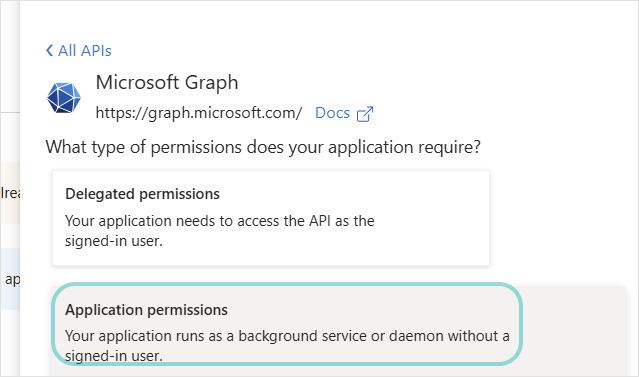
Select Application permissions.
Under Select permissions, select the permissions the app should have, according to how you want to configure the sensor integration:
If you want to be able to receive events and also be able to take response actions for O365 incidents directly from GravityZone, the following permissions are needed:
Files.ReadWrite.All: Allows analysts to remove malicious or unwanted files directly from the alerts generated by the sensor.Mail.ReadWrite: Allows the security analysts to take response actions on email resources involved in XDR incidents.User.ReadWrite.All,User.EnableDisableAccount.All: Allow the security analysts to disable user accounts involved in XDR incidents.User.ReadWrite.All,User.RevokeSessions.All,User-PasswordProfile.ReadWrite.All: Allow the security analysts to force password resets for user accounts involved in XDR incidents.IdentityRiskyUser.ReadWrite.All, for marking a user account as compromisedImportant
IdentityRiskyUser.ReadWrite.Allbecomes available only if at least one user who owns the Microsoft Entra application has a Microsoft Entra ID P2 license. The other permissions require a Microsoft Entra ID P1 license.Microsoft Entra ID Free is also supported for Office 365 sensor deployment; however, detections are limited to the information available in the directory audit logs included with the Entra ID Free license.
If you only want to be able to receive events but not take response actions for O365 incidents directly from GravityZone incidents, the following permissions are sufficient:
Mail.ReadandUser.Read.All.
Click Add permissions.
Note
For more information on adding permissions to access Microsoft Graph, refer to Add permissions to access Microsoft Graph.
To enforce password resets on O365 accounts directly from GravityZone XDR incidents, you must assign the User administrator role to the Microsoft Entra app.
In the Microsoft Entra admin center, navigate to Roles & admins > User Administrator role > Add assignments, search for the application name used for the GravityZone O365 Mail sensor integration, and assign it.
Generate client secret value.
Note
Learn more about Mail sensor requirements here.
Set up the required permissions for the Microsoft Entra application:
Click API permissions > Add a permission.
Click Microsoft APIs > Microsoft Graph.
Select Application permissions.
Under Select permissions, select the permissions the app should have, according to how you want to configure the sensor integration:
If you want to be able to receive events and also be able to take response actions for O365 incidents directly from GravityZone, add the following permissions:
User.ReadWrite.All,Files.ReadWrite.All,Sites.Read.All,User.EnableDisableAccount.All,User.RevokeSessions.All,User-PasswordProfile.ReadWrite.All, andIdentityRiskyUser.ReadWrite.All.Important
IdentityRiskyUser.ReadWrite.Allbecomes available only if at least one user who owns the Microsoft Entra application has a Microsoft Entra ID P2 license. The other permissions require a Microsoft Entra ID P1 license.Microsoft Entra ID Free is also supported for Office 365 sensor deployment; however, detections are limited to the information available in the directory audit logs included with the Entra ID Free license.
If you only want to be able to receive events but not take response actions for O365 incidents directly from GravityZone incidents, add the
Sites.Read.Allpermission.
Click Add permissions.
Click API permissions > Add a permission.
Click Microsoft APIs > Office 365 Management APIs.
Select Application permissions.
Under Select permissions, select the permissions the app should have:
ActivityFeed.ReadandActivityFeed.ReadDlp.Click Add permissions.
Generate the client secret value.
To enforce password resets on O365 accounts directly from GravityZone XDR incidents, you must assign the User administrator role to the Microsoft Entra app.
In the Microsoft Entra admin center, navigate to Roles & admins > User administrator role > Add assignments, search for the application name used for the GravityZone O365 Audit sensor integration, and assign it.
In the Microsoft Purview portal, turn on auditing.
Important
You must be assigned the Audit Logs role in Exchange Online to turn auditing on or off. Refer to Before you turn auditing on or off.
Auditing is enabled by default in most Microsoft 365 tenants. However, it may be disabled in some Business Basic, Business Standard, Business Premium, and trial tenants.
After enabling auditing, allow up to 60 minutes for the change to take effect, and note that audit records may take several hours to appear in search results.
Note
It might take up to 12 hours for the systems to synchronize and send data.
Learn more about Audit sensor requirements here.
Setting up Office 365 sensors
To configure the Mail and Audit sensors, follow these steps:
In the Configuration > Sensors Management page, click Add new to integrate a new sensor platform.
Select the company where you want to deploy the sensor.
Select the Office 365 sensor platform and click Integrate.
On the Check requirements page, confirm that the prerequisite steps have been completed.
Name your sensor integration.
Fill out your Office 365 credentials: Application ID, Tenant ID, and Client Secret value.
Click Test connectivity to make sure the link between the Office 365 platform and GravityZone is working properly.
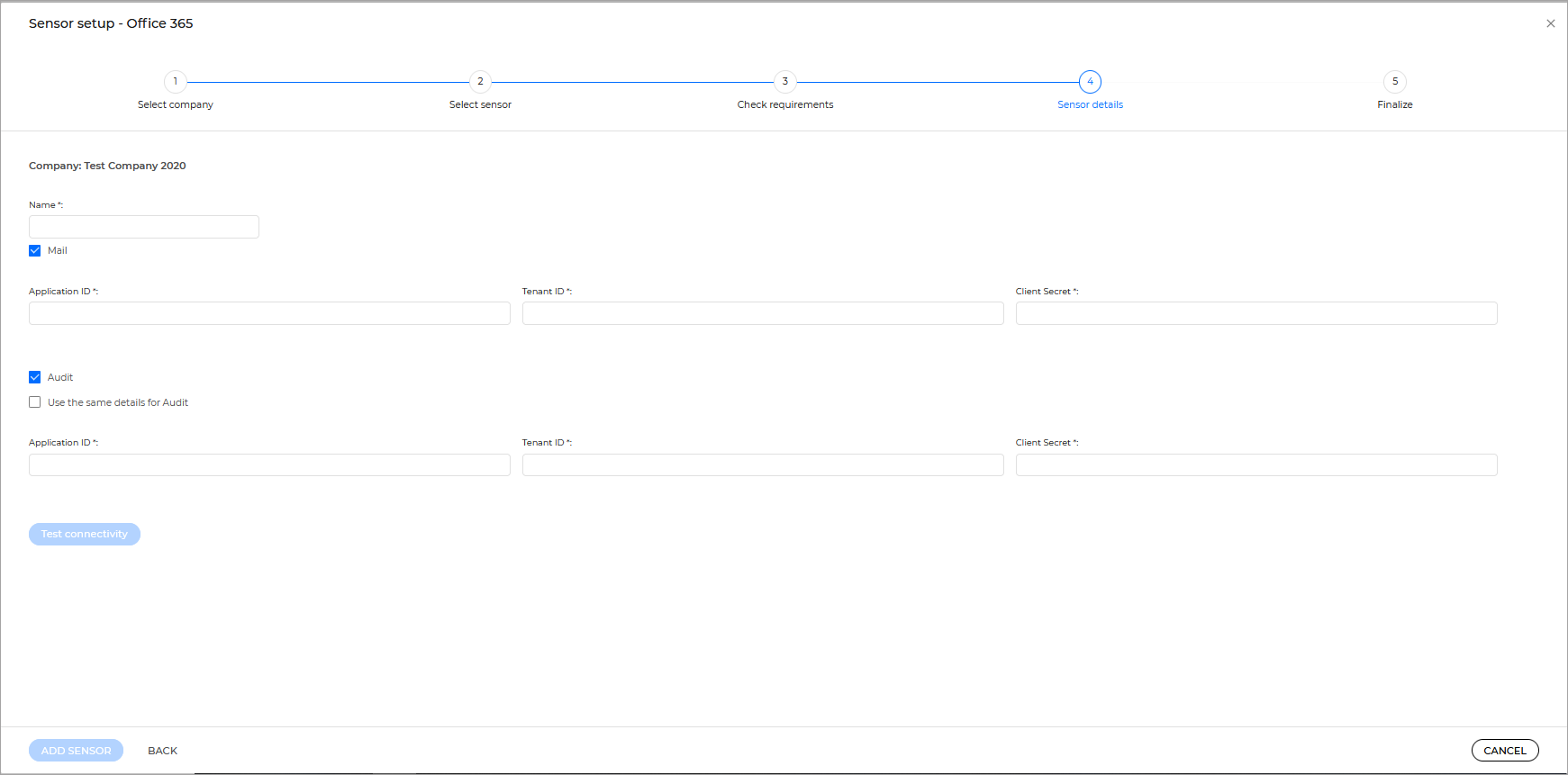
Click APPLY to save the sensor integration setup.
The new integration will be available in the Sensors Management grid, with the status: Active.
Troubleshooting the Audit sensor
If the Audit sensor integration is not successful, you can use the PowerShell below to enable the following subscriptions:
Audit.ExchangeAudit.GeneralAudit.SharePointDLP.All
Replace the values in the first lines of code, and run the script:
# Replace the three values below with your own details.
$TenantID      = "tenant_id"       # Directory (tenant) ID, e.g. ac593d47-7293-47ed-a8fc-c5824d38673a
$ApplicationID = "application_id"  # Application (client) ID, e.g. f5b17a13-6e4e-4c3e-81f4-51fb9a377182
$ClientSecret  = "client_secret"   # Client secret VALUE (not the secret ID)

[Net.ServicePointManager]::SecurityProtocol = [Net.SecurityProtocolType]::Tls12

$body = @{
    grant_type    = "client_credentials"
    resource      = "https://manage.office.com"
    client_id     = $ApplicationID
    client_secret = $ClientSecret
}

try {
    $oauth = Invoke-RestMethod -Method Post -Uri "https://login.microsoftonline.com/$TenantID/oauth2/token" -Body $body
} catch {
    Write-Host "Could not get an access token. Check the tenant ID, application ID, and client secret." -ForegroundColor Red
    Write-Host $_.ErrorDetails.Message
    return
}

$headers = @{ Authorization = "Bearer $($oauth.access_token)" }

foreach ($contentType in "Audit.Exchange", "Audit.SharePoint", "Audit.General", "DLP.All") {
    try {
        Invoke-RestMethod -Method Post -Headers $headers -Uri "https://manage.office.com/api/v1.0/$TenantID/activity/feed/subscriptions/start?contentType=$contentType" | Out-Null
        Write-Host "$contentType : enabled" -ForegroundColor Green
    } catch {
        if ($_.ErrorDetails.Message -match "already enabled") {
            Write-Host "$contentType : already enabled" -ForegroundColor Yellow
        } else {
            Write-Host "$contentType : failed - $($_.ErrorDetails.Message)" -ForegroundColor Red
        }
    }
}