Integrating with IntelliZone Portal and accessing Threat Intelligence data
Bitdefender IntelliZone Portal is a graphical interface to access Bitdefender's threat intelligence data.
Companies that use IntelliZone Portal can also benefit from an integration with GravityZone. This enables GravityZone users that are investigating XDR incidents to pivot to the IntelliZone Portal console and view additional information on specific threat actors or indicators of compromise.
Requirements
A GravityZone yearly license.
Access to the EDR and XDR features.
Your license key must not expire in the next 30 days.
Getting access to IntelliZone Portal
To get access to the IntelliZone Portal console, follow the steps below:
Log in to GravityZone with your administrator account.
Click the
 button on the upper-right side of the console to access the Products Hub page.
Select Learn more under the IntelliZone Portal section.

The IntelliZone Portal page is displayed.
Select Request a trial.
The enrolment process is automatic. When the process is complete, your new IntelliZone Portal account will be automatically integrated with GravityZone. Also, a new IntelliZone entry will appear in the left-hand pane of the GravityZone interface.
Note
IntelliZone Portal will be available during the 30-day trial period, and will then be removed unless you choose a a paid plan.
Log in to the IntelliZone Portal console at https://intellizone.bitdefender.com. You can log in with your GravityZone account by selecting Log in with GravityZone. Click the button that corresponds to your GravityZone instance.
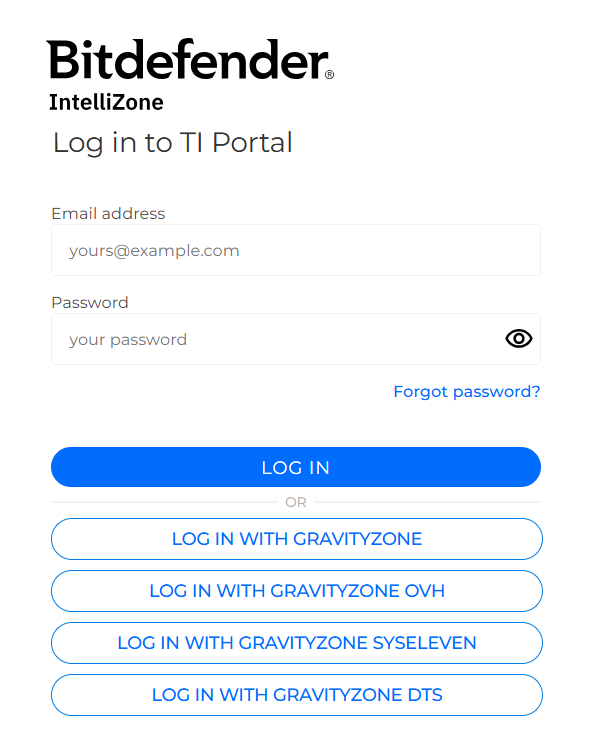
Note
Enrolling for a product trial is also available from the Bitdefender website; however, this will not automatically integrate the account with GravityZone.
Using the added functionality
Once your IntelliZone Portal account has been activated, the integration will allow you to pivot from organizational incidents to the IntelliZone Portal console. This will provide you with additional information regarding the actor involved in the incident or any related indicators of compromise.
This feature is available in the following situations:
On the Organization Incident Overview, page, when viewing the Suspected actors section. To access the feature, click Search in IntelliZone.
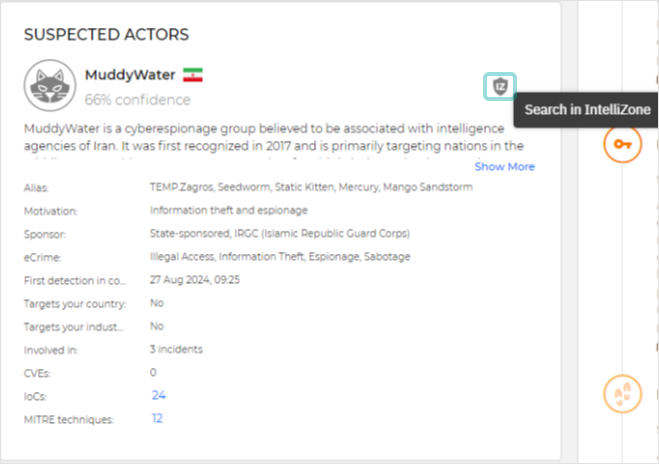
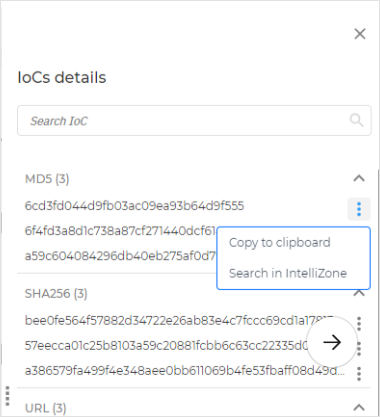
On the Organization Incident Overview, page, when viewing the IoC details side panel. To access the feature, click the menu button on the right side of the IoC you want to search for and select Search in IntelliZone:
Note
This feature is available only for these IoC types:
MD5,SHA256,URL,IP, anddomain.Under the Graph tab for an incident, on the Node details panel for a node. To access the feature, click the Actions button on the panel, then select Search IPs in IntelliZone or Search domains in IntelliZone.
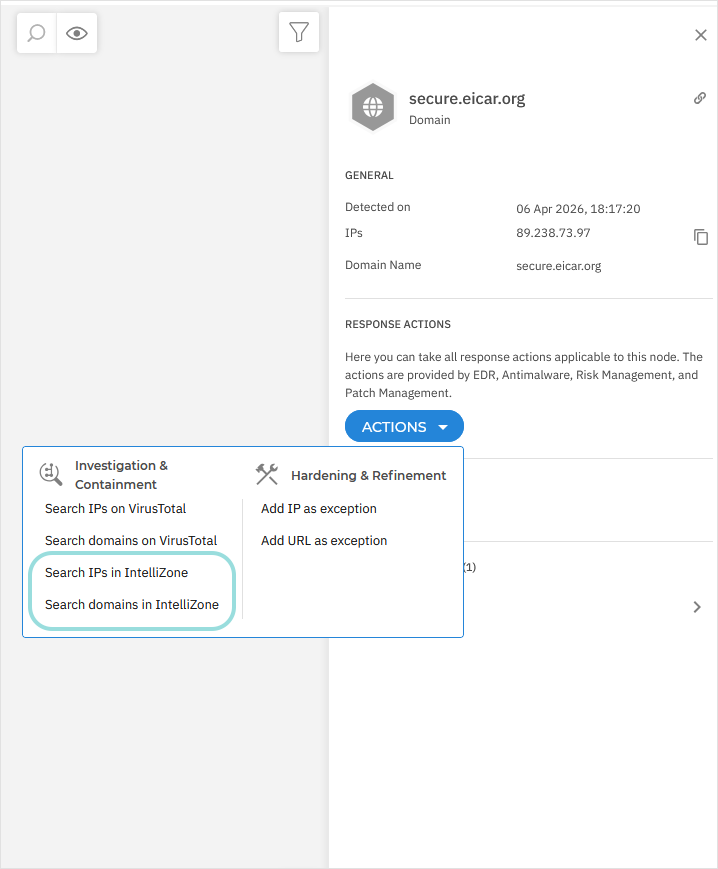
For more information on the Incidents section, refer to Investigating Incidents.