Banners
Customizable banners can be applied to emails to warn of danger or advise caution, helping end-users safely navigate their inbox.
Banners are available only for customers on Mesh Unified and Mesh 365.
Banners are applied based on both email verdicts and contextual analysis.
Banners can be added to emails delivered to the inbox or moved to the junk folder in Outlook.
Banners are applied based on policy actions. If no policy actions include banners, they will not be added to emails.
Customizing banners - Partner level
1. Navigate to the Settings page
Navigate to the Settings page.
2. Select the Banners tab
Select the Banners tab.
3. Customize content
Banners are pre-populated, but both the color and text of banners can be customized. Customizations made to banners in the partner settings page apply to all customers, except if the Customer Banners option has been enabled for a client, as you can see below.
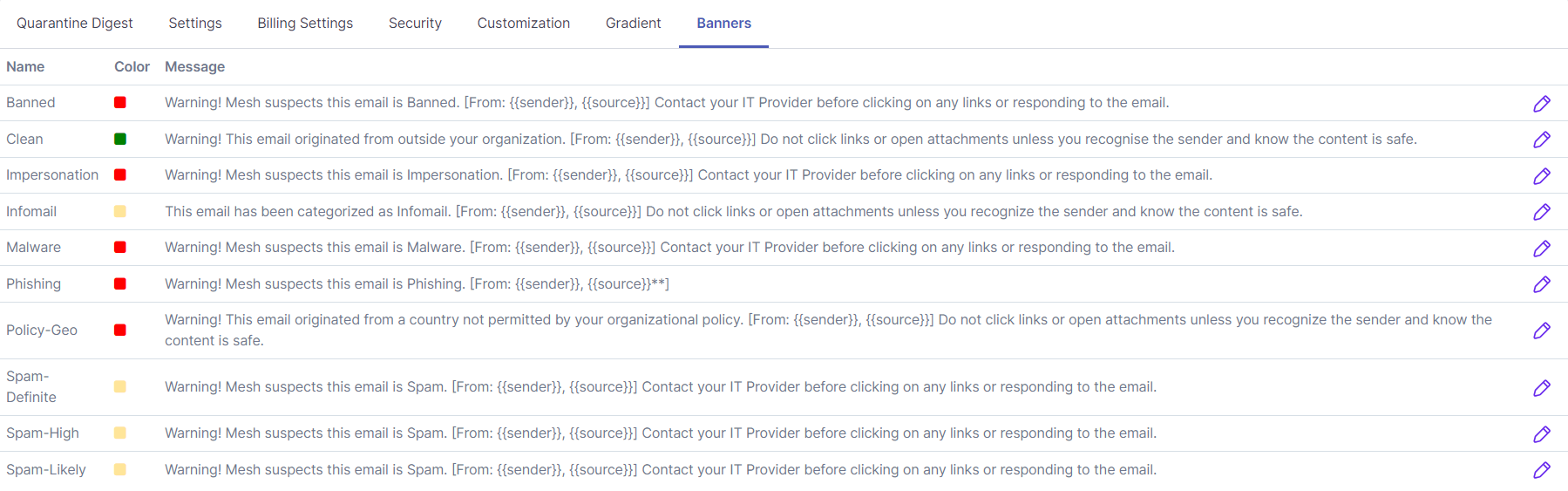

Customizing banners - Customer level
To enable customer level banner customisation, it must first be enabled from the partner level customers page.
1. Navigate to the Customers page
Navigate to the Customers page.
2. Edit Customer
Click the pencil icon beside the customer you want to edit.
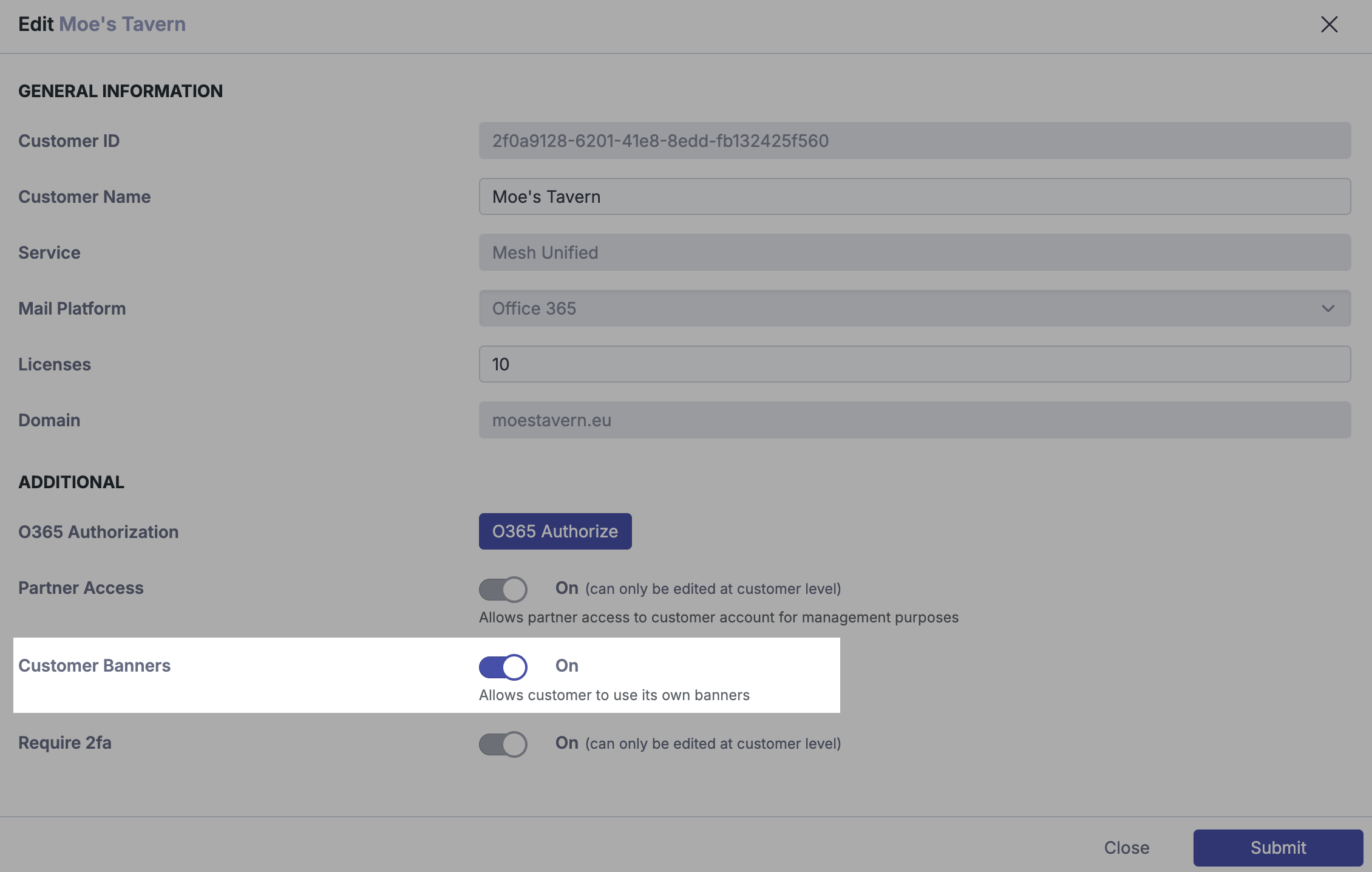
3. Enable the Customer Banners slider
Enable Customer Banners and click submit.
4. Customize content
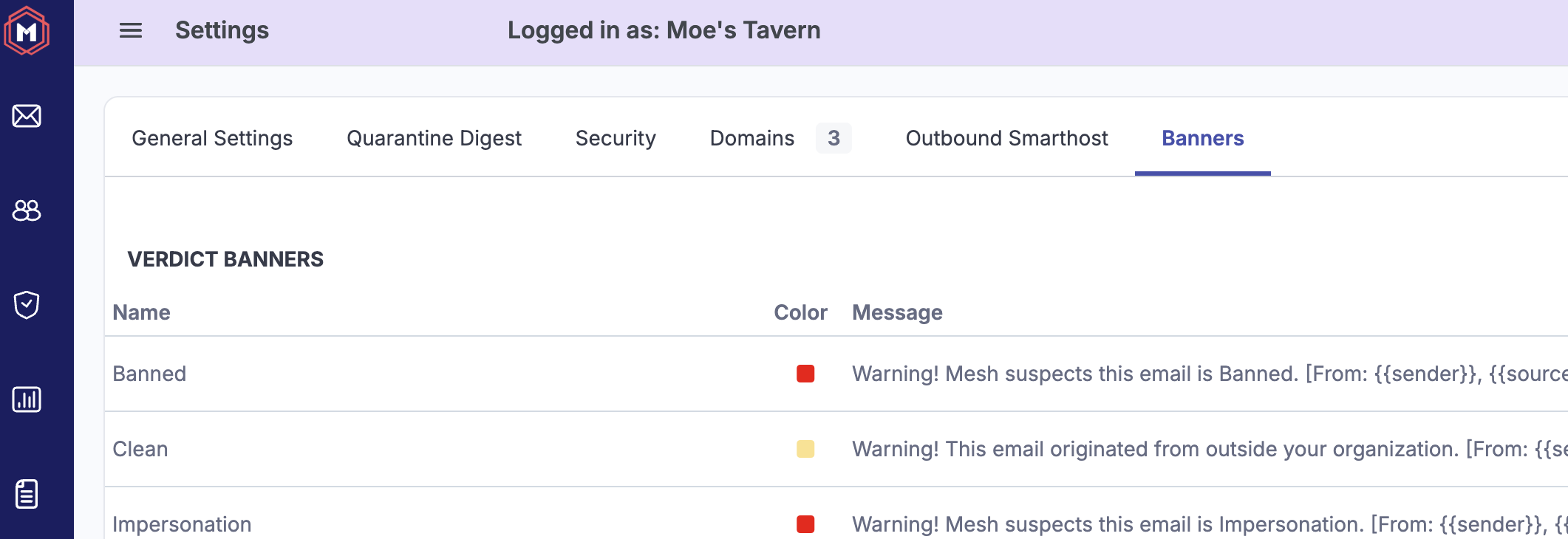
The Banners tab now appears when logged in. Banners are pre-populated, but both the color and text of banners can be customized.
Contextual Banners
Our Contextual Banners feature displays when an email has received a clean verdict but there are certain characteristics our filters have noticed. The idea of this feature is to advise caution and encourage end-users to think about the context of the requests being made.
Note
These banners are automatically enabled for policies that have the clean verdict action set to “Deliver + Banner”. Learn more about policies here: Creating Policies
 |
Contextual Banner Categories
Clean-Invoice | This email contains invoice/payment related content. |
Clean-DisplayName | The email sender closely matches someone in the customer’s organization. Learn more about impersonation and display name matching here: User population & Impersonation Detection |
Clean-Payroll | This email contains payroll related content. |
Clean-Financial | This email contains financial related content. |