Company details
The following fields are available for editing:
Note
Fields marked with * are mandatory.
Basic company details
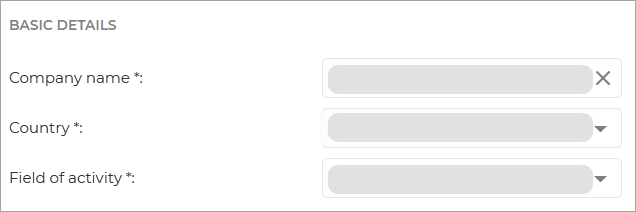
Company name - enter the name of the company.
Country - select the country the company is based in.
Field of activity - the main field of activity the company operates in.
Management permissions
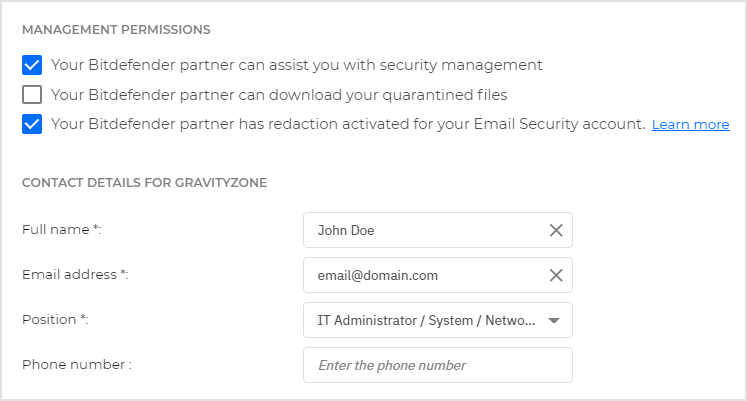
Your Bitdefender partner can assist with the security management - Select this option if you want your partner to have access to managing endpoint security directly. If this option is not selected:
The company will still appear in the Network page, but its network will be invisible to its partner.
The company's partner will not be able to modify specific settings.
The company's partner will be able to manage its subscription further on.
The company's partner cannot manage its user accounts.
The company's partner will be able to create only specific reports, which do not disclose network information.
Note
This option is mandatory when using the MDR service. If this option is not selected:
The MDR service cannot be enabled.
You cannot add an MDR product.
The MDR contact details section is unavailable.
All companies in the management chain, from the target to the Distributor, must allow their direct Partner to assist with security management.
You cannot disable this option if you or at least one managed company is using the MDR service.
Your Bitdefender partner can download your quarantined files - This option allows your direct partner to retrieve and download quarantined files from your company. To enable the option, you must have Manage Company and Manage Network user rights.
Your Bitdefender partner has redaction activated for your Email Security account - When enabled, GravityZone masks sensitive information when you are accessing emails through reports in the Email Security console.

Contact details for GravityZone
This information is used by Bitdefender staff to contact you for GravityZone related issues.
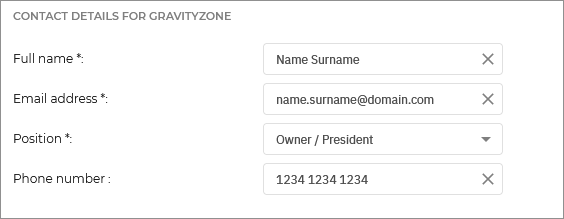
Full name - The name of the designated contact person for GravityZone issues.
Email address - The email address of the designated contact person.
Position - The position of this person in your company.
Phone number - The phone number of the designated contact person.
Contact details for MDR
Partner
The information in this section is mandatory for Partners who want to be enrolled in the MDR service and have access to the MDR portal. The MDR contact can either be an existing user account from your company or a custom contact.
Note
This section is visible if you have enabled assistance from your Bitdefender partner for security management.
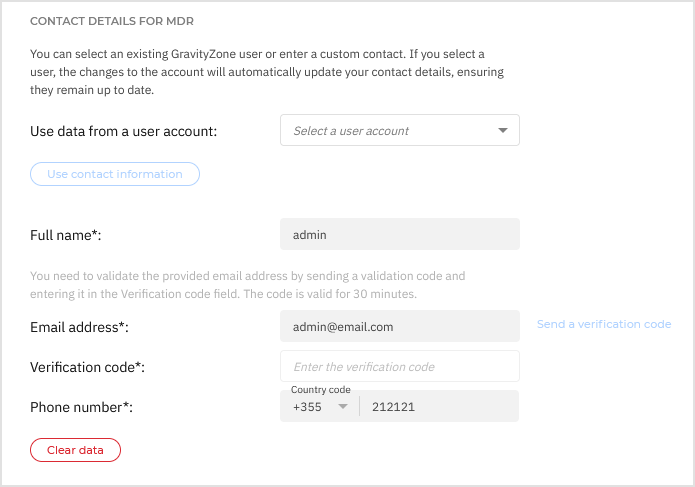
To use information from an existing account:
If this section already contains data, click Clear data to make updates.
Select a user account from the drop-down menu.
Click Use contact information.
The Full name, Email address, and optionally the Phone number will get auto-filled.
If the previously selected contact has never been verified, click Send a verification code.
An email with the verification code will be sent to the provided email address.
The code is valid for 30 minutes.
Enter the verification code received via email.
If no phone number is associated with the selected account, manually provide a valid one. This phone number will be saved to the user account information after you click Save.
Note
Any changes made to the selected account will automatically update the contact details, keeping them up to date.
To use a custom contact:
If this section already contains data, click Clear data to make updates.
Enter the Full name, Email address, and Phone number manually.
Click Send a verification code.
An email with the verification code will be sent to the provided email address.
The code is valid for 30 minutes.
Enter the verification code received via email.
After saving, the new emergency contact is automatically generated in the MDR portal. Additional contacts can be added later in the portal. For information on emergency contacts, refer to Emergency Contacts.
Important
Once enrolled in the MDR service:
Your account and all accounts in your company are automatically migrated to the Login with GravityZone Identity Provider authentication method, which enables access to the MDR portal from GravityZone Control Center.
You can access the MDR service page from GravityZone Control Center.
If you are an MSP Partner with MDR enabled for resale, you can create other Partners with MDR enabled for resale or Customers with MDR enabled for own use.
Note
For information about creating and editing companies with MDR, refer to License and Editing companies, respectively.
For information about monitoring your companies with MDR, refer to MDR service.
Additional company details
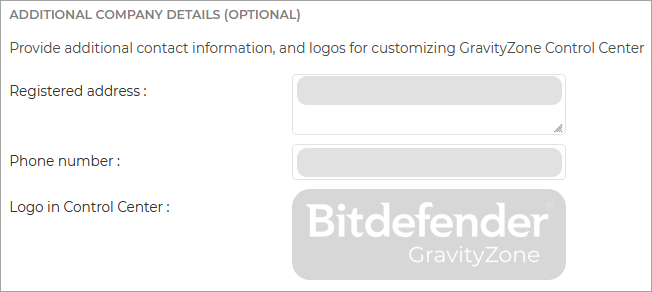
Registered address - Enter the physical address of the company’s office
Phone number - enter the company's official phone number.
Logo. You can add the company's logo image. All reports and email notifications issued for your company will include the logo image.
To add the company’s logo:
Click the Change button.
Browse for the image logo on your computer.
Click Open.
To reset the logo to the image provided by Bitdefender, click the Default button.