Onboarding guide
This article explains how to get started with the IntelliZone console and provision customer companies.
To take your first steps in using your new Bitdefender product, refer to the sections below.
(Optional) Request a trial account
You can request access to a trial account and test out IntelliZone and Threat Intelligence features. To obtain a trial account, either contact a Bitdefender sales representative or use the Product Trial feature from GravityZone.
Request an IntelliZone Partner account
To request a Partner account, contact a Bitdefender sales representative, who will create the account for you. Once your IntelliZone account has been created, you will receive an automatic email message containing an activation link.
Your first login
To log in for the first time, take the following steps:
Open the email and click the included link to activate your IntelliZone account.

Once the account is activated, you will be prompted to create a new password.
Set up a new password for your account and click Set password.
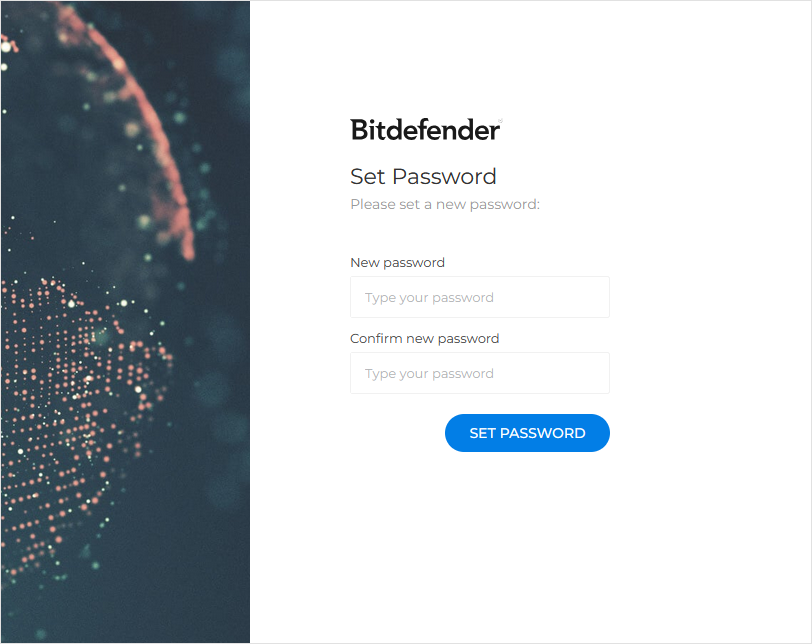
You will be redirected to the the IntelliZone login page.
Log in to IntelliZone.
Note
Depending on your initial conversation with the sales representative, your partner account will have specific features activated. You can view your assigned products in the Licensing tab. Your account does not provide you with the ability to add additional products; only administrators can add license keys.
If you would like to test out other features, contact your sales representative.
Create your first customer company
To create a company for a customer, you must first purchase at least one IntelliZone-compatible product from the PAN platform. Once you have completed the transaction, you will receive an email containing an order ID and the keys for the products you purchased.
To get your customer started, create a company for them in IntelliZone by taking the following steps:
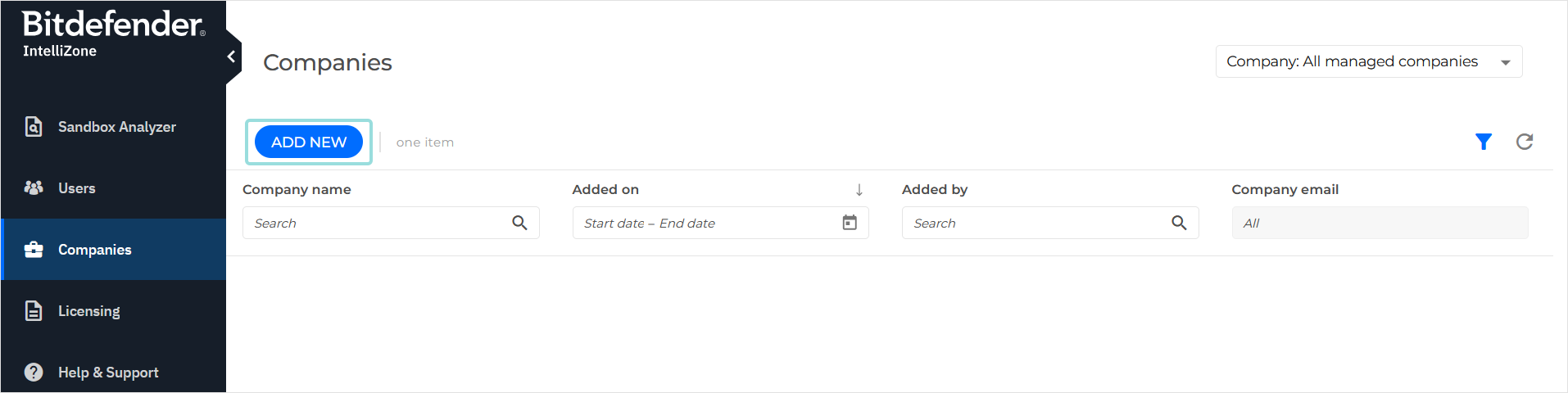
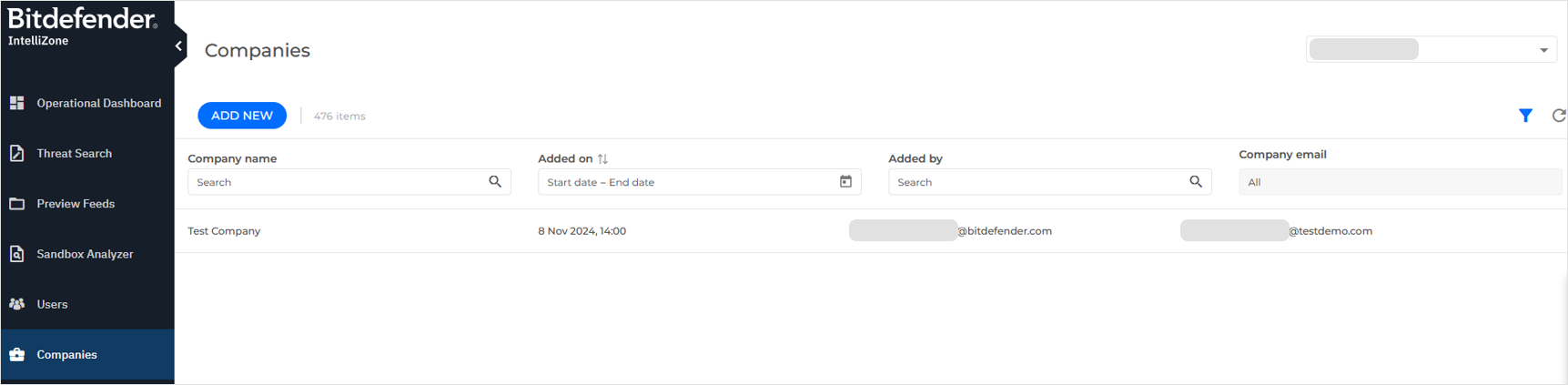
Log in to your IntelliZone account and go to the Companies page.
Click Add new.
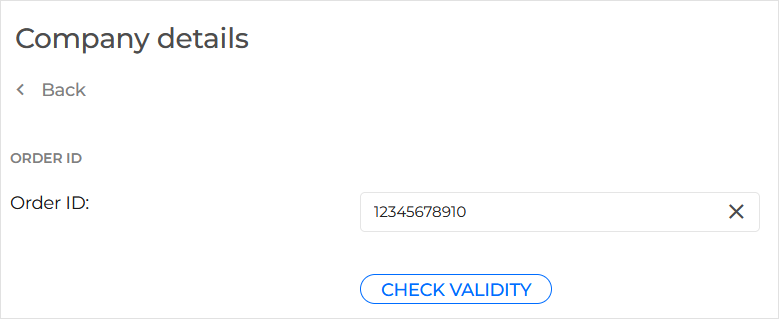
Under Company details, add the order ID and click Check validity.
Note
It is not currently possible to add a company based on a Not-for-Resale (NFR) order ID. If your customer is interested in a product trial via a NFR order but does not have an existing GravityZone account, please contact intellizone@bitdefender.com for assistance.
In the Company details section, add a company name and an email address for the company administrator.
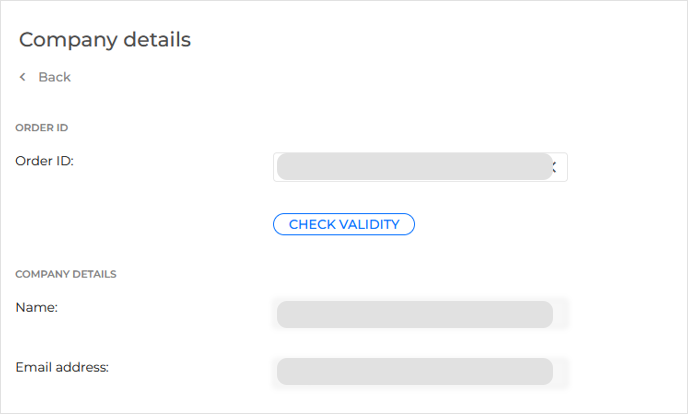
The company is created and displayed under the grid on the Companies page.
Create a user for the company administrator:
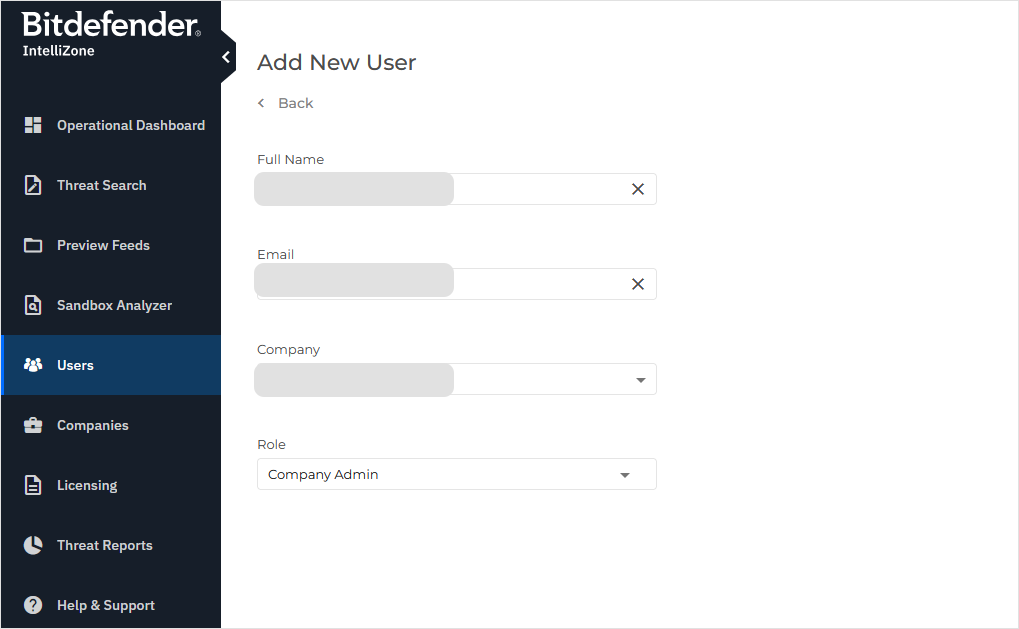
Go to the Users page and select Add user.
In the Add new user window, enter the following information:
Full Name - Enter the name of the company administrator.
Email - Enter the email address of the company administrator.
Company - Select the name of the recently created company.
Role - Select Company Admin.
Select Add user.
The user will now appear in the Users grid.
Contact your customer and provide them with the following resources:
The IntelliZone user onboarding guide.
The license keys for their products.
Products compatible with IntelliZone
Bitdefender Intellizone Portal
Bitdefender IntelliZone Portal - GravityZone Edition
Bitdefender Sandbox Malware Analysis
Bitdefender TI Threats API
Bitdefender Threat Intelligence API
Bitdefender TI IP Feed
Bitdefender TI File Feed
Bitdefender TI Web Feed
Bitdefender TI Vulnerabilities-extended feed
Bitdefender TI IP Blocklist