Checking the company status
You can check the company status on the Network and Companies pages in GravityZone Control Center.
On the Network page, you can view the company type and security status:
In both the tree view and the table, the icon shape indicates the company type:
Icon
Company type

Partner

Customer
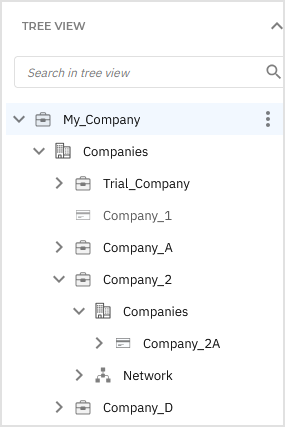
You can also monitor whether each company manages its own security or is assisted by a partner.
To do this:
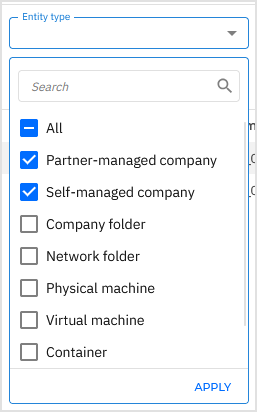
Enable the Entity type filter and column.
In the table, filter companies by the following entity type values:
Partner-managed company - The partner manages the company's network security.
Self-managed company - The company self manages its network security.
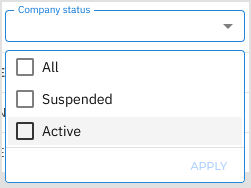
On the Companies page, you can monitor the company account status. To do this:
In the Companies table, enable the Company status filter and column.
In the table, filter company accounts by the following status values:
Active - The company account is active.
Suspended - The company account has been suspended.