Exposure Management Standalone
Exposure Management Standalone is a standalone base license that combines preventive hardening, attack surface visibility, identity context, and attack path analysis. It does not require GravityZone Business Security Enterprise, XDR, MDR, or any other EDR base license, and it can run alongside third-party endpoint security solutions.
Exposure Management Standalone includes:
PHASR - Proactive hardening and attack surface reduction based on user and system behavior.
Risk Management - Risk assessment and prioritization across endpoints, applications, user behavior, and misconfigurations.
Attack path (Early Access) - Analysis of the paths an attacker can follow to reach your critical assets.
Unified Identities (Early Access) - Identity and account context used across Risk Management and Attack path.
EASM - Discovery and scanning of internet-facing assets.
You can purchase AI Visibility and Control and Patch Management as separate add-ons. For details, refer to Compatible add-ons.
Note
GravityZone Exposure Management Standalone was previously named PHASR Standalone.
Important
If your company has an active PHASR Standalone license, it has been upgraded to GravityZone Exposure Management Standalone automatically. You can now use Risk Management, Attack path, Unified Identities, and EASM in addition to PHASR. You do not need to activate a new license key. Your seat count and expiration date remain unchanged.
PHASR Standalone is the independent deployment of Bitdefender’s PHASR technology, designed for integration into existing multi-vendor security environments. PHASR delivers targeted hardening recommendations to mitigate risks such as Living off the Land Binaries, Crypto miners, Piracy tools, Tampering tools, and Remote admin utilities based on observed behavior per user-device pair, without requiring organizations to replace their current endpoint agent or full protection suite.
PHASR Standalone is also available for customers that have a base license and PHASR-add on. This means that you will be able to install PHASR Standalone on any endpoint that has a different vendor security solution.
Components
For the PHASR Standalone feature to operate on an endpoint, the following prerequisites need to be met:
GravityZone Exposure Management Standalone license
Installation package with PHASR Standalone
The PHASR Standalone feature enabled in the policy
Bitdefender Endpoint Security Tools installed on Windows, macOS, or Linux endpoints
Note
To see the Risk Management, EASM, Attack path, and Unified Identities pages, your user account must have the entire company as its management target.
Feature compatibility
PHASR Standalone can be deployed on Windows, macOS, and Linux endpoints.
Licensing
GravityZone Exposure Management Standalone is a base license. Its seat count and expiration date apply to all included capabilities. When the license expires, access to the included capabilities is removed, except for capabilities that another active license also provides.
To activate the license:
Click on the drop down button on the upper right side of the screen and select My Company.
Go to the Licensing tab, enter the GravityZone Exposure Management Standalone license key, and click Check validity.
Click Save.
PHASR, Risk Management, Attack path, Unified Identities, and EASM become available in the console.
Install and configure PHASR Standalone
Log in to GravityZone Control Center.
Go to the Installation Packages page from the left side menu.
Click the Create button in the upper-right side of the screen.
Type in the Name and Description for the new installation package.
In Security modules and roles > Operation mode, select PHASR Standalone.
The PHASR module will be automatically selected.
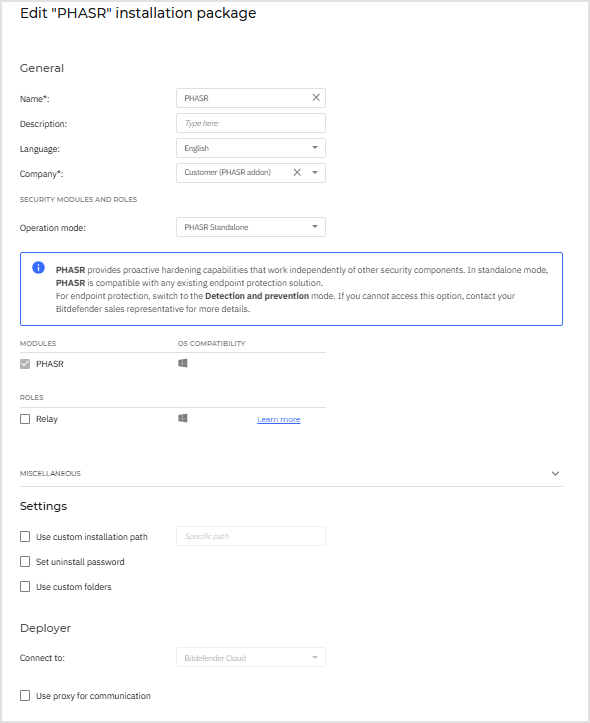
Click Save.
Select the newly created package from the list of packages and click Send download links.

Enter the email addresses of the recipients and click Send.
Log in to GravityZone Control Center.
Go to the Network page from the left side menu and select the endpoints you want to deploy the module on.
Click the Actions button at the upper side of the table and choose Reconfigure agent.
Under Modules select Match list. The PHASR Standalone module will automatically be enabled .
Click Save.
The task will now deploy the PHASR Standalone module on all selected endpoints.

Important
To ensure proper product operation, make sure to perform a reconfiguration after applying the Standalone license or during PHASR Standalone installation.
Policies are used to enable and configure features both on endpoints and in terms of general functionality.
GravityZone comes with a default set of policy settings, that are custom tailored to meet the most common customer needs. These policies are applied, by default, to endpoints, after the BEST agent is installed. You cannot modify or delete the default GravityZone policy.
You can use these default policy settings and leave the configuration of the policy for a later date, or customize the feature using the steps below:
Log in to GravityZone Control Center.
Go to the Policies page from the left side menu.
You can either:
If this is a new policy, under Risk Management, make sure the PHASR toggle is enabled, and enable each activity type you would like to monitor.
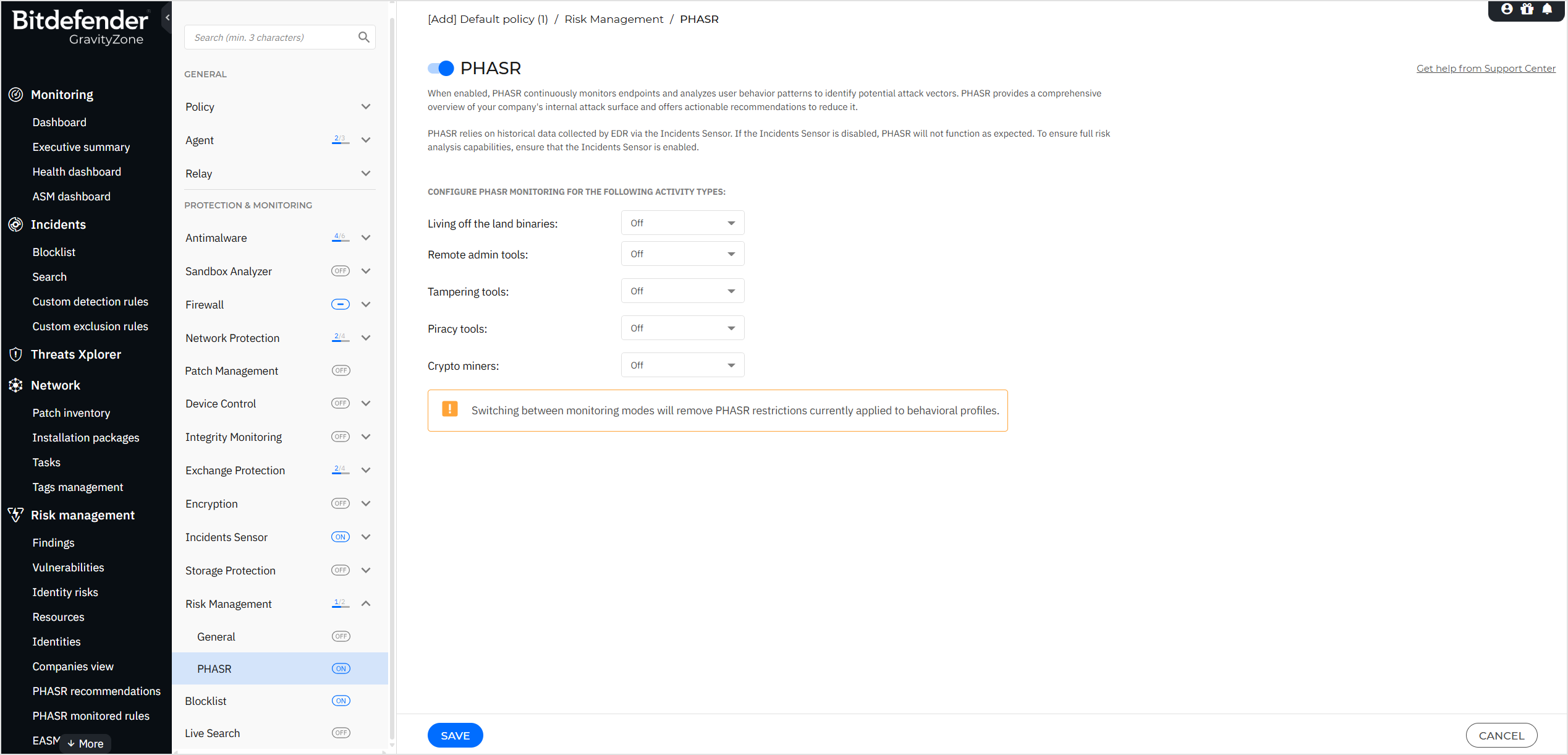
There are 3 available settings for each activity type:
Off - PHASR will not gather any related data, and the associated widget will not display any data in the PHASR Dashboard.
Autopilot - PHASR will gather the data of the selected type, based on which recommendations will be created and automatically applied.
Note
When Autopilot is selected, all PHASR recommendations are applied automatically by the Bitdefender Autopilot technology integrated with BEST. As a result, no individual recommendations will appear in the Recommendations grid, as Autopilot handles enforcement without requiring user intervention. You can review the restrictions applied to behavioral profiles by Autopilot, by opening the Restricted Behavioral Profiles panel from the PHASR attack vectors.
Direct control - PHASR will gather the data of the selected type, based on which recommendations will be created and presented in the console. The actions recommended will only be taken if manually approved.
Warning
When switching from Autopilot to Direct control mode, all attack vector restrictions enforced by Autopilot are reset. Changing the setting for a specific PHASR category to Off will disable restrictions, but will not remove them. They will still be available when the setting is changed again to the previous setting before turning it off.
Save your policy.
If you created a new policy, apply it on the endpoints where the feature is deployed:
Go to the Network page from the left side menu.
Select the endpoints you want to apply the policy to.
In the Actions menu, select Assign Policy.
Select the policy you want to apply.
Click Finish.
Note
For more information, refer to this kb article.
If you have edited an existing policy, make sure it is applied to all endpoints where the feature is deployed.
This will ensure that the feature is enabled and configured to best suit your company's needs.
You can check if the PHASR module has been enabled on your endpoints in the Bitdefender Endpoint Security Tools interface.
Compatible add-ons
The GravityZone Exposure Management Standalone license supports the following add-ons:
AI Visibility and Control
Note
EASM is included in the GravityZone Exposure Management Standalone license and cannot be added as a separate add-on.
Managing PHASR recommendations
Recommendations in PHASR are security actions suggested based on observed user and device behavior. They indicate whether access to certain tool categories should be restricted or allowed, helping reduce attack surface while adapting dynamically if user behavior changes.
After PHASR is activated and the module is installed on endpoints, the learning phase begins. This phase lasts a minimum of 30 days and can extend up to 60 days, depending on attack vector severity. During this period, PHASR builds behavioral profiles by analyzing user and device activity, and gradually starts generating recommendations. When no usage is detected for certain tools, PHASR generates Restrict access recommendations to limit the attack surface.
Important
Behavioral profiles are unique pairs that are being created by combining user and device.
Examples of Behavioral profiles:
John Doe - Desktop
John Doe - Laptop
Kelly Doe - Laptop 1
Kelly Doe - Laptop 2
After the initial learning phase is completed and recommendations are generated, PHASR continues learning in the background, continually adapting to changes in user behavior.
Note
PHASR has the capability to leverage historical EDR data to reduce the duration of the learning phase, depending on the volume of the historical data at its disposal, meaning that the learning phase can be reduced to several days or get recommendations immediately.
When PHASR detects that user behavior has changed for a user which currently has access to certain assets, it will generate a Restrict access recommendation. Once this recommendation is generated you can review the behavioral profiles for which it was generated and allow the recommendation to be applied.
To view the generated recommendations and reduce the attack surface by applying them, go to the PHASR recommendations page.
Managing attack vectors
Attack vectors are mechanisms used by PHASR to identify possible attack scenarios, thus enabling the user to reduce the attack surface exposure. Each attack vector can produce multiple recommendations.
To view the vectors that form the basis of recommendations, or to understand how to manually apply or remove restrictions, go to the Managing attack vectors page.
Test out PHASR
To test out PHASR follow these steps:
In the GravityZone console navigate to PHASR attack vectors.
Select a process that is available in one of the targeted activity types by PHASR, e.g.
teamviewer.exe.Click the process name under the Vector name column. The Attack vector details side panel is displayed.
Select Edit access.
In the Edit access window, under the Behavioral profiles section, select the device for which you wish to restrict access.
Select Edit access to apply your changes.
On the selected device try to the access the earlier restricted process, e.g.
teamviewer.exe..
When PHASR blocks a process on a specific endpoint, the restriction is visible in the Bitdefender Endpoint Security Tools interface. This information appears only if the process actually attempts to run or access resources, and it may take several seconds or even minutes for the change to synchronize.