Sorting Columns in the Live Email Tracker
This option lets you choose which columns are displayed in the Live Email Tracker.
Sort columns
Open Live Email Tracker
Go to Live Email Tracker in the sidebar.
Select columns
Select the Columns (slider) icon, and then choose the columns to display.

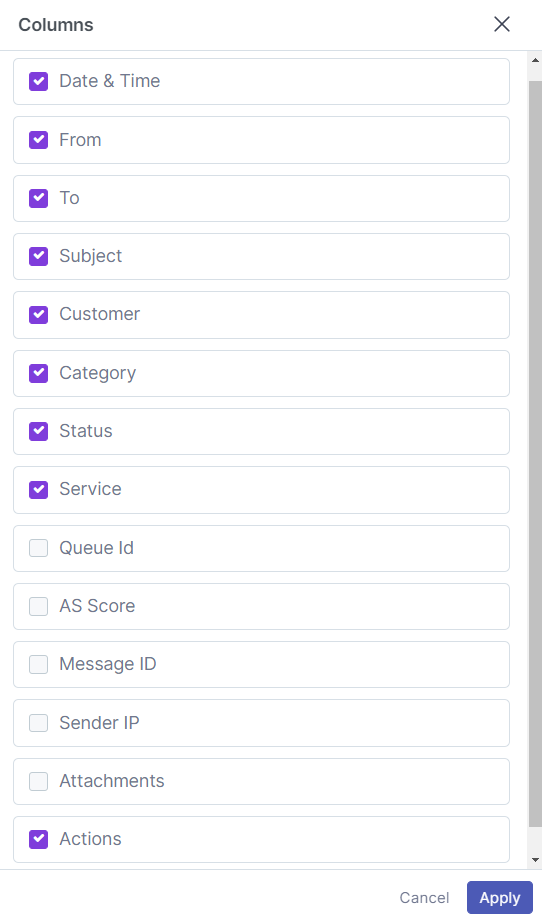
Apply changes
Select Apply.
Available columns:
Date & Time - Shows the date and time the email was received.
From - Shows the sender email address.
To - Shows the recipient email address.
Subject - Shows the email subject.
Customer - Shows which customer received the email.
Category - Shows the email classification.
Status - Shows whether the email was delivered or quarantined.
Service - Shows whether the customer uses Mesh Gateway or Mesh 365.
Queue ID - Shows the internal email identifier.
AS Score - Shows the anti-spam score.
Message ID - Shows the message ID from the email headers.
Sender IP - Shows the sender IP address.
Attachments - Shows whether the email contains attachments.
Actions - Shows the preview (eye) icon.