Remediate
The Remediate feature is available to partners using Mesh 365 or Mesh Unified. It allows you to remove one or more emails across multiple tenants at the same time, providing an email incident response capability for MSPs. Within 30 seconds, you can go from a user report to resolving an incident across all customers.
Note
Emails older than 28 days cannot be remediated.
For information about automatic remediation, see Auto Remediate.
Select the emails
Select the email or emails you want to remediate.

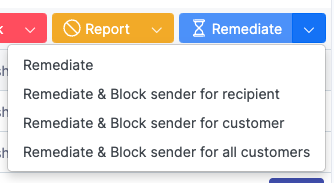
Remediate or create block rules
Select Remediate, or use the drop-down arrow to create block rules for the recipient, the customer, or all customers.
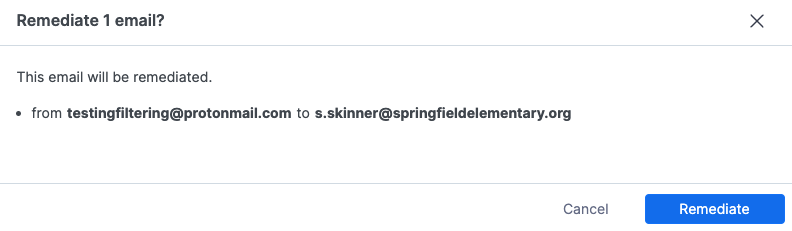
Confirm the action
In the confirmation dialog, select Remediate.
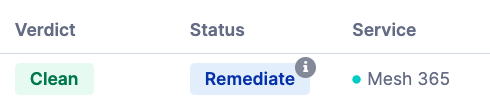
Verify the updated status
The status changes to Remediate, indicating that the email has been removed from the user’s mailbox.
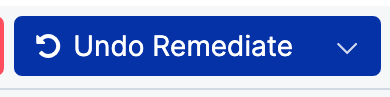
Undo remediation (optional)
To reverse the action, select the email again, and then select Undo Remediate. The email is returned to the user’s mailbox.
Note
You cannot undo the action if the email has remained in the Remediate status for more than 14 days.