Policy Templates & Policies
Overview
Policies can be applied to determine the actions taken on emails based on their verdicts.
Policies can be configured globally, for specific mailboxes, and everything in between, ensuring the required level of granularity.
MSP Level (Global Policy Templates): Create a policy template that applies to new customers, or update policy templates and apply changes to existing customers.
Customer Level: Create a policy that applies to a specific customer account.
Domain Level: Create a policy that applies to a specific domain.
End-User Level: Create a policy that applies to specific mailboxes.
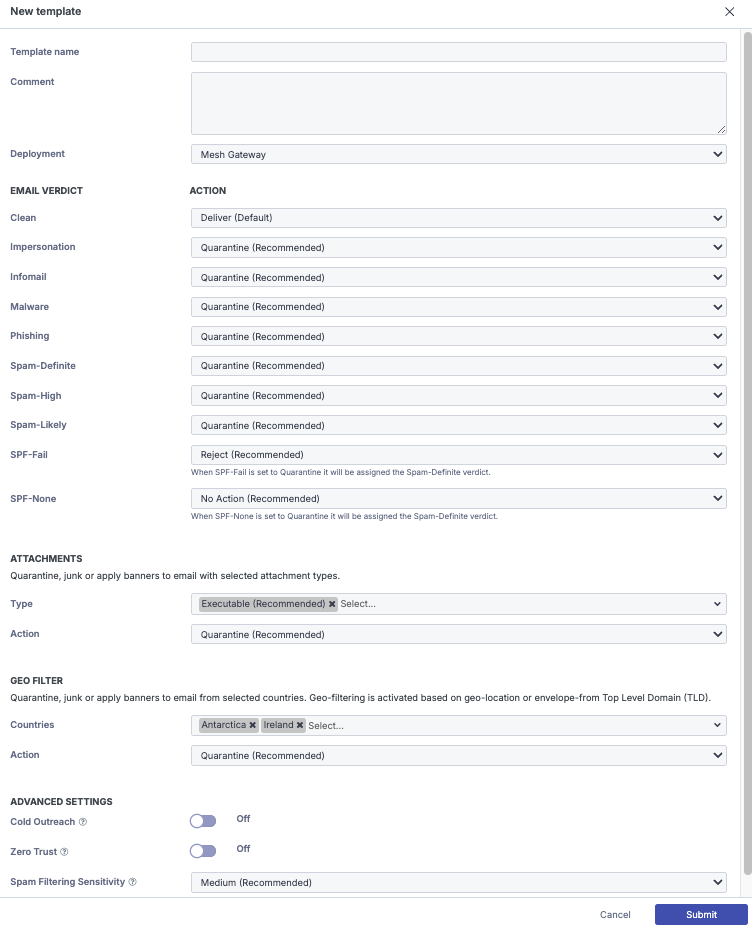 |
Creating policies
This topic describes policy creation and configuration in Mesh.
Go to the Policy page and select New. Alternatively, select Clone to duplicate an existing policy.
Note
At the partner level, you can create only policy templates, which can then be applied to customers. For more information, see Updating policies from MSP level.
Choose who the policy applies to: Organization, Domain, or User.
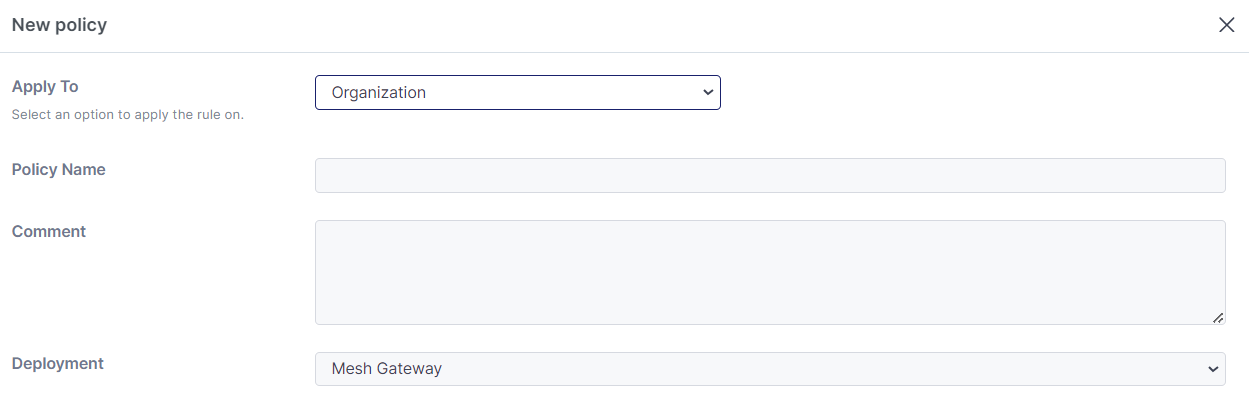
Enter a Policy name and Description.
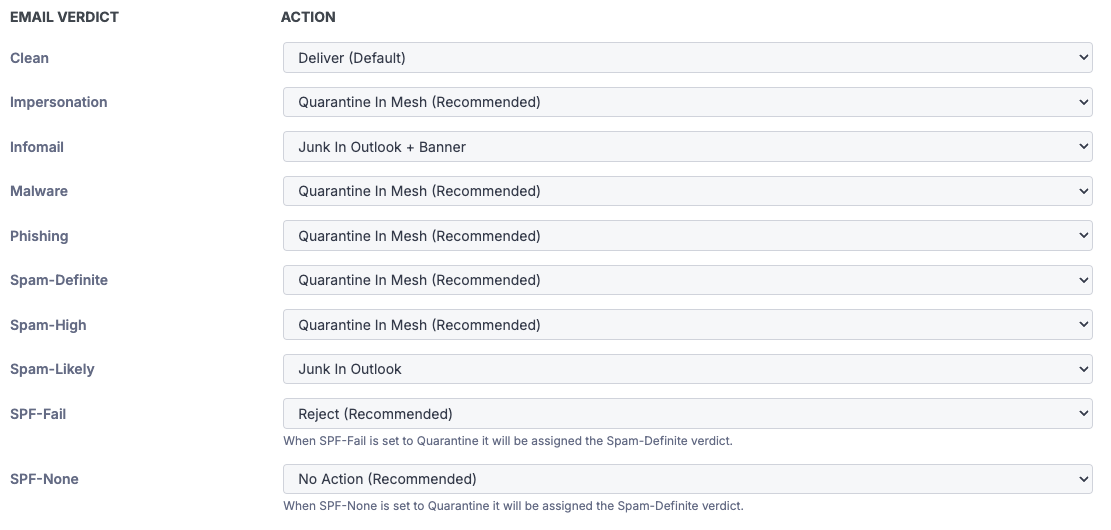
Configure the policy by selecting the action applied to each verdict. For recommendations, see the policy best practices.
Configure Banned Attachments and Geo Filter.
Banned Attachments - Attachment extensions are grouped into the following categories: Executable, Encrypted, Video, Audio, Compressed, Macros, and HTML. If an email contains an attachment from a selected category, the configured action is applied.

Geo Filter - Geo-filtering is based on Geolocation or the envelope-from Top-Level Domain (TLD). Use this setting to filter, quarantine, or mark as junk email from locations that customers rarely contact or from regions associated with high volumes of spam.

If configured to Quarantine in Mesh, only partner team members or administrators can release emails blocked by Banned Attachments or Geo Filter. For more information, see Quarantine Digests.
Note
Geo Filter and Banned Attachments actions can be bypassed only through a custom rule. For more information, see Custom Rules.
Configure Cold Outreach, Zero Trust, and Spam Filtering Sensitivity.

Cold Outreach - Filters unsolicited marketing and sales emails more aggressively. Enabling this option may increase false positives, so it is recommended for user-specific policies, such as those for executives, managers, and directors, or when an organization wants to reduce this type of content as much as possible.
Zero Trust - Applies a quarantine-by-default approach to email. Clean and Infomail verdicts are reclassified as Spam-Likely unless the message is sent by a known contact or allowed sender. This can be useful during a mail bomb attack.
Note
A Known Contact is a sender to whom the recipient has previously sent outbound email.
When using Mesh Unified or Mesh 365, known contacts are identified automatically. For Mesh Gateway, the Outbound Smarthost is required.
To use this feature, configure the Infomail and Spam-Likely verdicts as Quarantine in Mesh or Junk in Outlook.
Spam Filtering Sensitivity - Increases or decreases the threshold for the Spam-Likely verdict. Use this setting to make filtering more or less restrictive globally or for specific mailboxes.
Low classifies emails with a spam score of 7.5 as Spam-Likely.
Medium is the default setting. It classifies emails with a spam score of 6.25 as Spam-Likely.
High classifies emails with a spam score of 5.0 as Spam-Likely.
Note
For spam score thresholds, see the following best-practice guides:
Updating Policies from MSP Level
Policy templates can be updated and applied to existing customers in real time.
Note
Applying a global policy overwrites all active policies, including user-level policies, for the selected customers.
Open the policy template
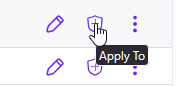
Select the shield icon for the policy template you want to apply.
Select customers
Select one or more customers, or enable Select all Customers to select every eligible customer.
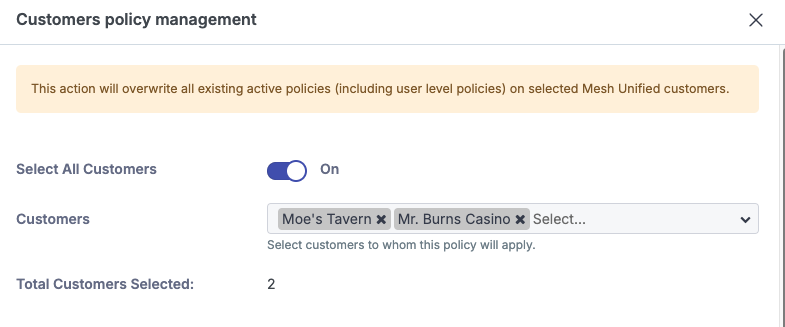
Apply the policy
Select Apply to deploy the policy to the selected customers.
Best Practice - Mesh Unified
The default policy settings are designed to be best practice and are explained below.
Verdicts
Verdict | Recommended action | What the verdict means |
|---|---|---|
CLEAN | DELIVER | The email has been scanned and given a clean verdict. |
IMPERSONATION | QUARANTINE | The email contains Business Email Compromise indicators and sender information matches, or is similar to an internal user. |
INFOMAIL | QUARANTINE | The email contains an unsubscribe link and/or advertising, marketing, newsletter type content. NoteMany transactional emails will contain unsubscribe links and will be quarantined if your policy is configured to quarantine Infomail. |
MALWARE | QUARANTINE | The email contains malicious content such as a URL, attachment, or other suspicious characteristics. Allow rules DO NOT bypass this verdict. Emails quarantined with the malware verdict can only be released by an administrator or partner team member. |
PHISHING | QUARANTINE | The email contains phishing content such as a URL, attachment, or other suspicious characteristics. Allow rules DO NOT bypass this verdict. Emails quarantined for phishing verdict can only be released by an administrator or partner team member. |
SPAM-DEFINITE | QUARANTINE | The email has received a spam score of 18.00+ |
SPAM-HIGH | QUARANTINE | The email has received a spam score of 9.00-18.00 |
SPAM-LIKELY | QUARANTINE | The email has received a spam score of 6.25-9.00 |
Authentication
Connection verdict | Recommended action | What the verdict means |
|---|---|---|
DMARC-FAIL | SENDER DMARC POLICY | The email sender has failed DMARC.
|
SPF-FAIL | REJECT | The email sender has failed SPF.
An SPF softfail will not be rejected even if action is set to reject. Instead, a spam score will be applied. |
SPF-NONE | NO ACTION | The email sender has no SPF record in place. Many legitimate senders send email without an SPF record in place e.g. Microsoft Out Of Office Notifications
|
Additional Options
Policy Option | Recommended action | What the verdict means |
|---|---|---|
Banned Attachments | QUARANTINE EXECUTABLES | If an email contains a banned attachment, it will be automatically quarantined. Allow rules DO NOT bypass this verdict. Emails quarantined for banned attachments can only be released by an administrator or partner team member. |
Bypass Internal Banned Attachments | DISABLED | If enabled, internal emails containing a banned attachment will not be quarantined. |
Geo Filter | QUARANTINE | Quarantine, junk, or banner actions on emails from different regions and countries. Policy is triggered based on the country of origin or the envelope-from TLD. Allow rules DO NOT bypass this verdict. To bypass the policy-geo verdict, you must create a custom rule or remove the country from the policy option. Emails quarantined due to the policy-geo verdict can only be released by an administrator or partner team member. |
Advanced Settings
Policy Option | Recommended action | What the setting means |
|---|---|---|
Cold Outreach | OFF | The Cold Outreach toggle allows you to filter unsolicited marketing and sales emails more aggressively. When enabled, emails will have an increased spam score applied. This is more useful to C-Suite or users that receive more than normal levels of marketing content or sales directed at their mailbox. A user level policy would be most appropriate. |
Zero Trust | OFF | The Zero Trust toggle allows you to achieve a quarantine by default approach to email. Clean and Infomail verdict will be reclassified as Spam-Likely unless sent from a known contact or allowed sender. Not recommended as a global setting unless end users understand it has been enabled. Enabling during a mail / spam bomb can help mitigate impact. Read more about the mail / spam bomb. |
Spam Filtering Level | MEDIUM | This feature increases or reduces the sensitivity of the spam filtering. This can be useful if you require filtering to be more or less restrictive for everyone or for certain mailboxes.
|
Actions Explained
Actions | What it means |
|---|---|
DELIVER | Emails are delivered to the inbox. |
DELIVER + BANNER | Emails are delivered to the inbox with a verdict dependant or a contextual banner applied. Read more on banners. |
QUARANTINE | Emails are quarantined in Mesh for 28 days. |
JUNK | Emails are moved to the Junk folder in Outlook. |
BANNER | A warning banner is applied to the top of the email. |
JUNK + BANNER | A warning banner is applied to the top of the email and the email is moved to the Junk folder in Outlook. |
DELETE | Emails are deleted entirely and will not appear in the quarantine or inbox. Deleted emails cannot be delivered. |
REJECT | Emails are rejected before content scanning. Rejected emails cannot be delivered. |
Best Practice - Mesh Gateway
The default policy settings are designed to be best practice and are explained below.
Verdicts
Verdict | Recommended action | What the verdict means |
|---|---|---|
CLEAN | DELIVER | The email has been scanned and given a clean verdict. |
IMPERSONATION | QUARANTINE | The email contains Business Email Compromise indicators and sender information matches, or is similar to an internal user. |
INFOMAIL | QUARANTINE | The email contains an unsubscribe link and/or advertising, marketing, newsletter type content. NoteMany transactional emails will contain unsubscribe links and will be quarantined if your policy is configured to quarantine Infomail. |
MALWARE | QUARANTINE | The email contains malicious content such as a URL, attachment, or other suspicious characteristics. Allow rules DO NOT bypass this verdict. Emails quarantined with the malware verdict can only be released by an administrator or partner team member. |
PHISHING | QUARANTINE | The email contains phishing content such as a URL, attachment, or other suspicious characteristics. Allow rules DO NOT bypass this verdict. Emails quarantined for phishing verdict can only be released by an administrator or partner team member. |
SPAM-DEFINITE | QUARANTINE | The email has received a spam score of 18.00+ |
SPAM-HIGH | QUARANTINE | The email has received a spam score of 9.00-18.00 |
SPAM-LIKELY | QUARANTINE | The email has received a spam score of 6.25-9.00 |
Authentication
Connection verdict | Recommended action | What the verdict means |
|---|---|---|
DMARC-FAIL | SENDER DMARC POLICY | The email sender has failed DMARC.
|
SPF-FAIL | REJECT | The email sender has failed SPF.
An SPF softfail will not be rejected even if action is set to reject. Instead, a spam score will be applied. |
SPF-NONE | NO ACTION | The email sender has no SPF record in place. Many legitimate senders send email without an SPF record in place e.g. Microsoft Out Of Office Notifications
|
Additional Options
Policy Option | Recommended action | What the verdict means |
|---|---|---|
Banned Attachments | QUARANTINE EXECUTABLES | If an email contains a banned attachment, it will be automatically quarantined. Allow rules DO NOT bypass this verdict. Emails quarantined for banned attachments can only be released by an administrator or partner team member. |
Geo Filter | QUARANTINE | Quarantine, junk, or banner actions on emails from different regions and countries. Policy is triggered based on the country of origin or the envelope-from TLD. Allow rules DO NOT bypass this verdict. To bypass the policy-geo verdict, you must create a custom rule or remove the country from the policy option. Quarantine, junk, or banner actions on emails from different regions and countries. Policy is triggered based on the country of origin or the envelope-from TLD. Allow rules DO NOT bypass this verdict. To bypass the policy-geo verdict, you must create a custom rule or remove the country from the policy option. Emails quarantined due to the policy-geo verdict can only be released by an administrator or partner team member. |
Advanced Settings
Policy Option | Recommended action | What the setting means |
|---|---|---|
Cold Outreach | OFF | The Cold Outreach toggle allows you to filter unsolicited marketing and sales emails more aggressively. When enabled, emails will have an increased spam score applied. This is more useful to C-Suite or users that receive more than normal levels of marketing content or sales directed at their mailbox. A user level policy would be most appropriate. |
Zero Trust | OFF | The Zero Trust toggle allows you to achieve a “quarantine by default” approach to email. Clean and Infomail verdict will be reclassified as Spam-Likely unless sent from a known contact or allowed sender. Not recommended as a global setting unless end users understand it has been enabled. Enabling during a mail / spam bomb can help mitigate impact. Read more on mail / spam bomb. |
Spam Filtering Level | MEDIUM | This feature increases or reduces the sensitivity of the spam filtering. This can be useful if you require filtering to be more or less restrictive for everyone or for certain mailboxes.
|
Actions Explained
Actions | What it means |
|---|---|
DELIVER | Emails are delivered to the inbox. |
QUARANTINE | Emails are quarantined in Mesh for 28 days. |
DELETE | Emails are deleted entirely and will not appear in the quarantine or inbox. Deleted emails cannot be delivered. |
REJECT | Emails are rejected before content scanning. Rejected emails cannot be delivered. |
Best Practice - Mesh 365
The default policy settings are designed to be best practice and are explained below.
Verdicts
Verdict | Recommended action | What the verdict means |
|---|---|---|
CLEAN | DELIVER | The email has been scanned and given a clean verdict. |
IMPERSONATION | JUNK + BANNER | The email contains Business Email Compromise indicators and sender information matches, or is similar to an internal user. |
INFOMAIL | JUNK + BANNER | The email contains an unsubscribe link and/or advertising, marketing, newsletter type content. NoteMany transactional emails will contain unsubscribe links and will be quarantined if your policy is configured to quarantine Infomail. |
MALWARE | QUARANTINE | The email contains malicious content such as a URL, attachment, or other suspicious characteristics. Allow rules DO NOT bypass this verdict. Emails quarantined with the malware verdict can only be released by an administrator or partner team member. |
PHISHING | QUARANTINE | The email contains phishing content such as a URL, attachment, or other suspicious characteristics. Allow rules DO NOT bypass this verdict. Emails quarantined for phishing verdict can only be released by an administrator or partner team member. |
SPAM-DEFINITE | JUNK + BANNER | The email has received a spam score of 18.00+ |
SPAM-HIGH | JUNK + BANNER | The email has received a spam score of 9.00-18.00 |
SPAM-LIKELY | JUNK + BANNER | The email has received a spam score of 6.25-9.00 |
Additional Options
Policy Option | Recommended action | What the verdict means |
|---|---|---|
Banned Attachments | QUARANTINE EXECUTABLES | If an email contains a banned attachment, it will be automatically quarantined. Allow rules DO NOT bypass this verdict. Emails quarantined for banned attachments can only be released by an administrator or partner team member. |
Bypass Internal Banned Attachments | DISABLED | If enabled, internal emails containing a banned attachment will not be quarantined. |
Geo Filter | QUARANTINE | Quarantine, junk, or banner actions on emails from different regions and countries. Policy is triggered based on the country of origin or the envelope-from TLD. Allow rules DO NOT bypass this verdict. To bypass the policy-geo verdict, you must create a custom rule or remove the country from the policy option. Emails quarantined due to the policy-geo verdict can only be released by an administrator or partner team member. |
Advanced Settings
Policy Option | Recommended action | What the setting means |
|---|---|---|
Cold Outreach | OFF | The Cold Outreach toggle allows you to filter unsolicited marketing and sales emails more aggressively. When enabled, emails will have an increased spam score applied. This is more useful to C-Suite or users that receive more than normal levels of marketing content or sales directed at their mailbox. A user level policy would be most appropriate. |
Zero Trust | OFF | The Zero Trust toggle allows you to achieve a “quarantine by default” approach to email. Clean and Infomail verdict will be reclassified as Spam-Likely unless sent from a known contact or allowed sender. Not recommended as a global setting unless end users understand it has been enabled. Enabling this feature during a mail / spam bomb attack can help mitigate impact. You can read more on mail / spam bomb attacks here. |
Spam Filtering Level | MEDIUM | This feature increases or reduces the sensitivity of the spam filtering. This can be useful if you require filtering to be more or less restrictive for everyone or for certain mailboxes.
|
Actions Explained
Actions | What it means |
|---|---|
DELIVER | Emails are delivered to the inbox. |
DELIVER + BANNER | Emails are delivered to the inbox with a verdict dependant or a contextual banner applied. Learn more here:Banners |
QUARANTINE | Emails are quarantined in Mesh for 28 days. |
JUNK | Emails are moved to the Junk folder in Outlook. |
BANNER | A warning banner is applied to the top of the email. |
JUNK + BANNER | A warning banner is applied to the top of the email and the email is moved to the Junk folder in Outlook. |
DELETE | Emails are deleted entirely and will not appear in the quarantine or inbox. Deleted emails cannot be delivered. |