Exporting network inventory data
The export functionality on the Network page allows you to access and manage inventory data outside GravityZone Control Center. Data is exported in CSV format.
Consider the following when exporting network inventory data:
The CSV file includes all columns available in the Settings list on the Network page, not only the columns currently displayed in the Network table.
The CSV file preserves the column order from the Network table and all the other columns are placed afterwards according to the settings list.
The CSV file can also include additional data associated with the following filters, even though that information is not displayed as separate columns in the Network table:
Product update status
Security content updated status
Endpoint issues
Security Server status
macOS permission issues
Exporting data associated with these filters may increase export time. To reduce export time, avoid using these filters unless the additional data is required.
You can export any Network smart view, including views generated by drilling down from other GravityZone pages. Some of these views cannot be saved as smart views on the Network page because of database limitations, but they can still be exported.
You can export up to 500,000 rows at a time. If the current inventory view exceeds this limit, use filters to reduce the number of rows before exporting.
Depending on the size of your inventory, the export process may take several seconds or longer.
To export network inventory data:
In the upper-right corner of the Network table, click the
 Export view icon.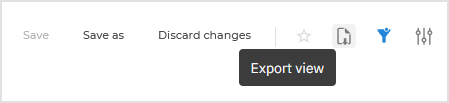
A notification appears indicating that the export is in progress.
When the file is ready for download, a notification appears indicating that the export was successful.
Depending on your browser settings, the file is either downloaded automatically to the default download location or a download dialog box opens, allowing you to select a destination folder.
The exported file reflects the data currently displayed in the Network table, based on the selected filters and options. For example, to include data recursively in the exported file, you must enable the corresponding option on the Network page before exporting.
Note
The notifications appear even if you navigate to a different page in GravityZone Control Center.
Export actions are recorded in the User activity page with the following details:
Action: Created
Area: Network
Target: CSV report