Service API keys
Service API keys allow external applications and scripts to securely interact with your GravityZone instance through the public API. Unlike personal API keys, which are tied to individual user accounts, service API keys operate through dedicated service accounts that remain active regardless of team member changes.
Use service API keys when:
You need API access for automated workflows, monitoring tools, or third-party integrations that must not depend on a specific employee's account.
You want to ensure continuity of integrations when team members leave or change roles.
You need to assign specific, limited permissions and targets to an integration without granting full user-level access.
You can manage the service API keys on the Accounts > Service API keys page in the GravityZone main menu. To view this menu entry, your GravityZone account requires the Manage Service API Keys permission.
Note
Personal API keys are managed on the My account page. For details, refer to Your account.
Overview
The following table summarizes the characteristics of service API keys:
Aspect | Value |
|---|---|
Authentication | X-API-Key HTTP header |
Protocol | JSON-RPC 2.0 over HTTP POST |
Maximum active keys per company | 50 |
Maximum expiration | 1 year from creation |
Event Push Service | Not supported |
Required permission | Manage Service API Keys (configurable in account settings) |
API key visibility | Shown only once, at creation time |
To create, edit, clone, suspend, activate, or delete service API keys, your account must have the Manage Service API Keys permission.
As a Partner company user, you need full rights for:
Manage Networks
Manage Endpoint Settings
Manage Users
Manage Company
Manage Companies
You can manage only the keys whose assigned targets fall within your own target visibility. Keys with broader targets appear as read-only.
Authentication
Service API keys authenticate using the X-API-Key HTTP header. For details, refer to Public API.
Differences from personal API keys
Service API keys differ from personal API keys in several ways. The following table provides a quick overview:
Aspect | Personal API Keys | Service API Keys |
|---|---|---|
Authentication header | Authorization: Basic | X-API-Key: |
Tied to | Individual user account | Independent service account |
Lifecycle dependency | Stops working if the user is removed | Remains active regardless of creator's status |
Expiration | No mandatory expiration | Mandatory, maximum 1 year |
Management permission | Each user manages own keys | Requires Manage Service API Keys |
Event Push Service | Supported | Not supported |
Associated identity | User account (can log in to the GravityZone console) | Service account (API-only, no GravityZone console login) |
Location in GravityZone UI | API keys section within the My account page | Service API Keys page under Accounts main menu entry |
Third-party usage
If you choose to share your API key with a third party, the recipient may use it only after submitting the Bitdefender Technology Access Program (TAP) application form.
Submission of the application form constitutes acknowledgment and acceptance of the Bitdefender Technology Access Program (TAP) Terms and Conditions.
Viewing service API keys
The Service API keys page displays all service API keys created within the company. Use this page to view key details, filter results, and perform actions on one or more keys.
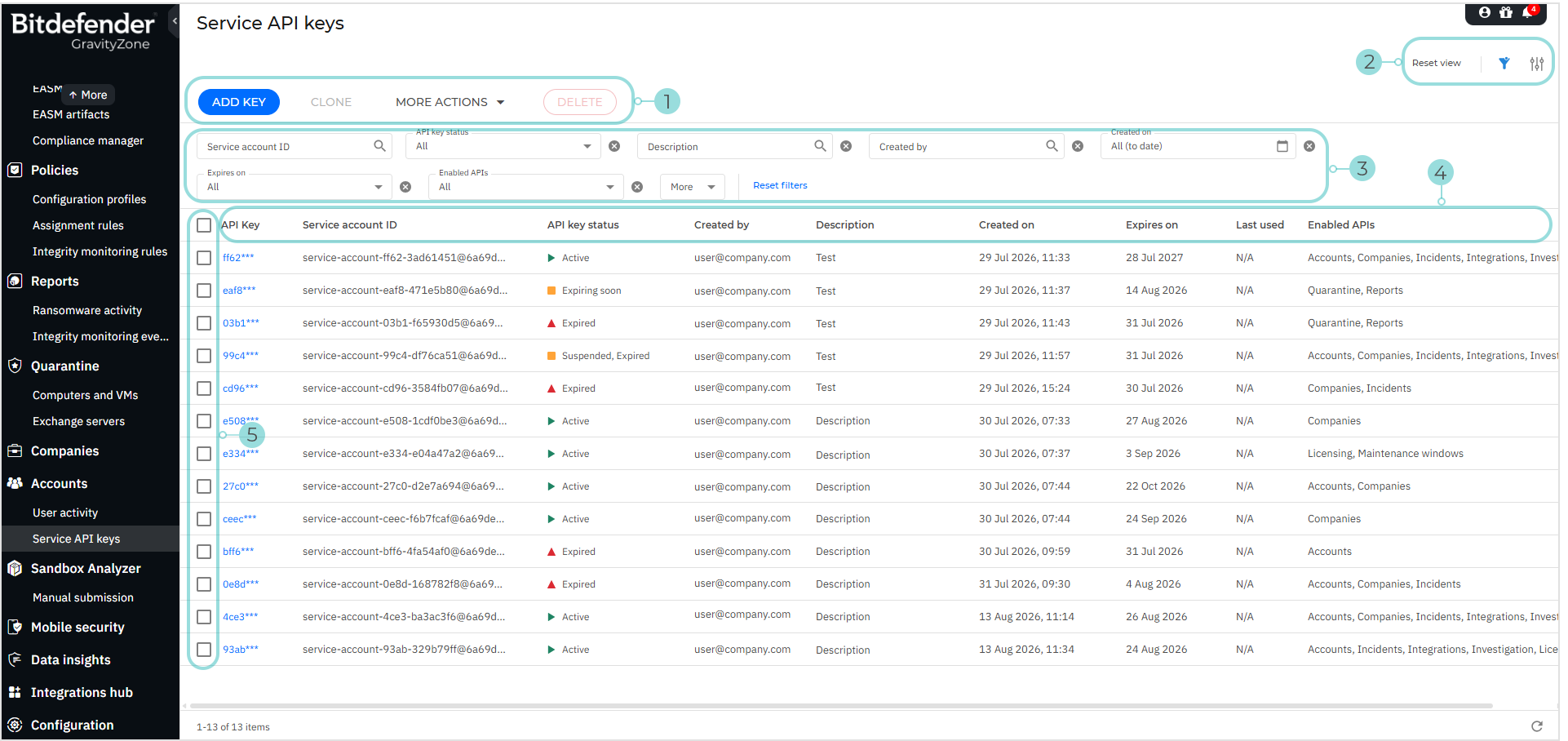
The page contains the following elements:
Actions – Operations you can perform on one or more selected keys:
Add key – Create a new service API key.
Clone – Copy settings from an existing key and generate a new key value.
Delete – Permanently remove selected keys and their associated service accounts.
More actions - Suspend (temporarily disable) or Activate (restore access).
In addition, you can edit a key by clicking its name.
UI controls:
Reset view – Undo all changes to filters and columns (reorder, resize).
Show or hide filters – Toggle the filter section visibility.
Open settings – Choose which columns to display. Enable Compact view to show more keys per page.
Filters – Narrow the displayed list by key characteristics. Click Reset filters to undo all filtering changes.
For details, refer to Filters.
Column headers – Displays key details per column.
For details, refer to Columns.
Key selector – Select one or more keys to perform bulk actions.
Filters
You can narrow the displayed keys using the following filters:
Filter | Type | Details |
|---|---|---|
Service account | Text | Matches characters from the masked key value or service account identifier. |
API key status | Selection | Active, Suspended, Expiring soon (less than 7 days until expiration), Expired. For details, refer to API key statuses. |
Description | Text | Searches within key descriptions. |
Created by | User | Shows who created the key. |
Created on | Date range | Define a period by selecting start and end dates from the calendar. |
Expires on | Predefined intervals | In less than 180, 90, 30, 7, or 1 day. |
Enabled APIs | Selection | Filters by assigned API permissions. |
Columns
The following columns are available:
API key - Masked key value (for example:
h8s7s*****). Identifies the key without revealing it.Service account - Internal service account identifier. For example:
service-account-c6e1-73985981@6a55f42c7552ea8dd10e3992.service.internalAPI key status - Current status of the key. Hover for tooltip details.
Created by - Email of the user who created the key.
Description - Description provided at creation time.
Created on - Date the key was created.
Expires on - Expiration date of the key (UTC).
Last used - Date the key was last used to make an API call.
Enabled APIs - Permissions assigned to the key.
API key statuses
Service API keys display the following statuses:
Status | Meaning | Tooltip |
|---|---|---|
Active | The key is functional and accepting API calls. | This API key is active. |
Expiring soon | The key expires in less than 7 days. | This API key is expiring soon. Create a new one to avoid interruption. |
Suspended | The key has been manually disabled. | This API key is suspended and cannot be used until reactivated. |
Expired | The key has passed its expiration date. | This API key has expired and can no longer be used. Create a new key to regain access. |
Managing service API keys
This article describes how to create, edit, clone, suspend, activate, and delete service API keys in GravityZone.
Note
Your account must have the Manage Service API Keys permission. For details, refer to Service API keys.
Add a key
Create a service API key to allow an external application or script to authenticate with the GravityZone API independently of any user account.
To create a service API key:
Go to Service API keys in the main menu.
Click Add key.
On the Generate API key page, fill in the following settings:
Description - Enter a description for the key. Required. Cannot exceed {maxLength} characters.
Expires on - Select the expiration date. Maximum: one year from today. A warning appears if the selected date is less than 7 days away: The selected expiration date is less than 7 days from today.
Permissions - Move one or more items from Available permissions to Selected permissions. Use Search to filter the list. At least one is required.
Available permissions: Accounts, Companies, General, Incidents, Investigation, Integrations, Licensing, Maintenance Windows, Network, Packages, PHASR, Policies, Quarantine, Reports.
Targets - Select the network objects the key can access. Only targets visible to your account are available.
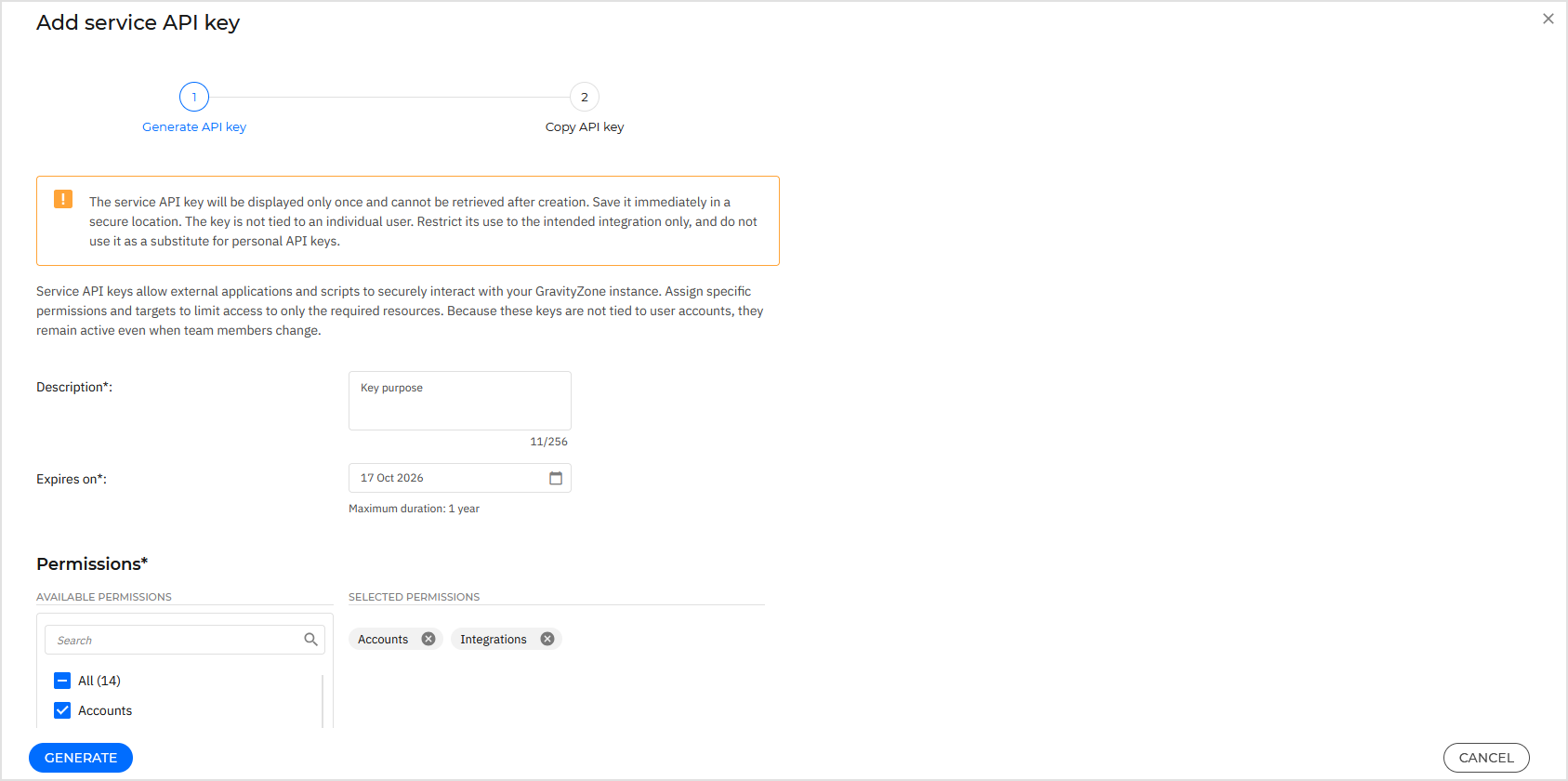
Click Generate. GravityZone creates the key and its associated service account.
After the key is generated, you cannot return to this page.
On the Copy API key page, review the key status, service account name, and the key value.
Next to the Service API key value, click Copy to clipboard and store the key in a secure location.
Important
This key is displayed only once. After you close this window, it cannot be retrieved. Save it immediately in a secure location. This key is not tied to an individual user. Restrict its use to the intended integration only.
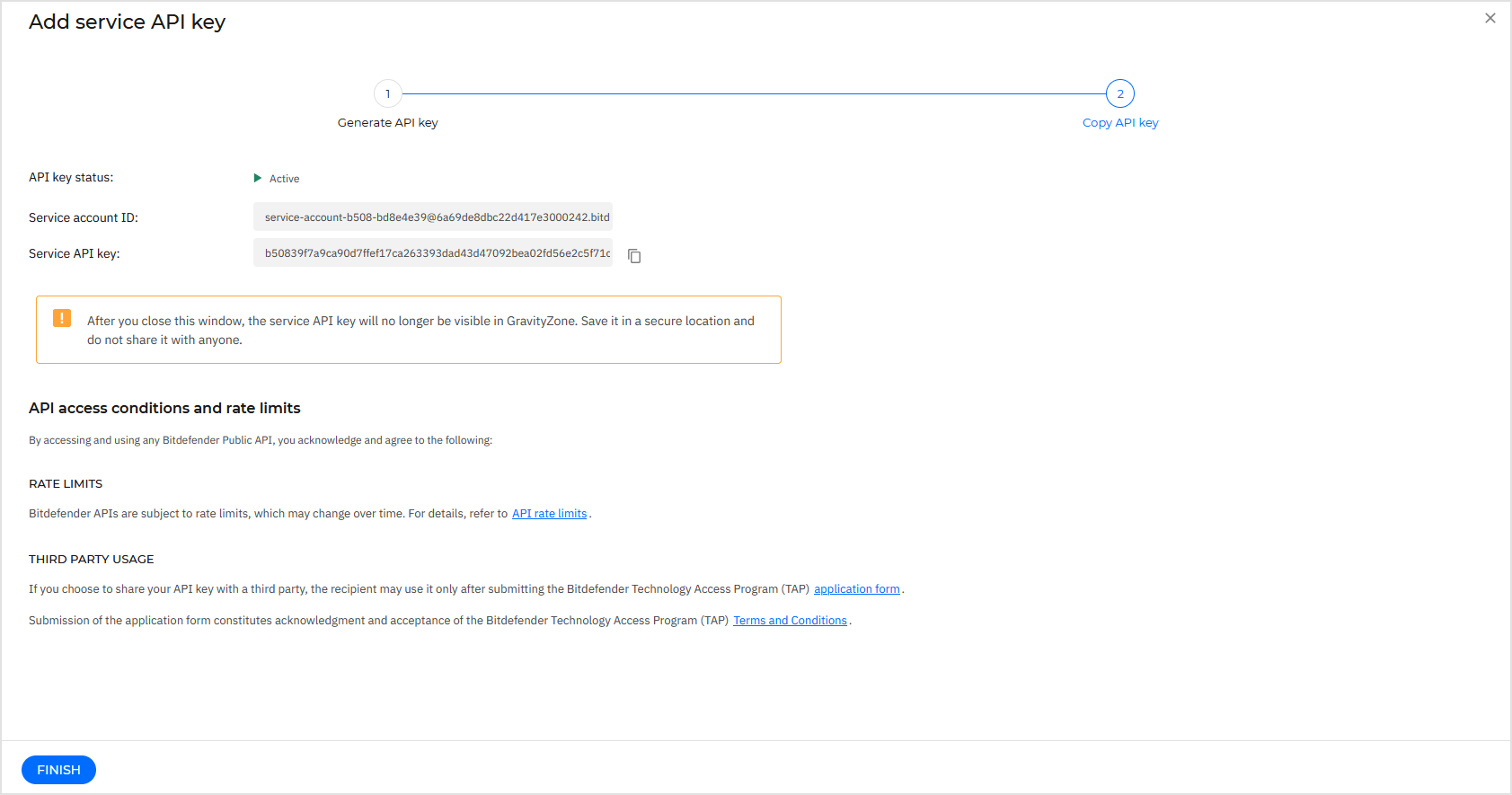
Review the API access conditions and rate limits section.
Click Finish.
Edit a key
Edit a service API key to update its description, permissions, or targets, and to suspend or activate it. All changes take effect immediately.
Important
Changes affect all associated integrations. Integrations that rely on removed permissions will stop working until reconfigured. Review changes carefully before saving.
To edit a service API key:
In the GravityZone Control Center main menu, go to Service API keys.
Click the key you want to modify.
On the Edit service API key page, modify the following areas:
API key status - Select Active or Suspended.
Description - Update the key description.
Permissions - Add or remove from Available permissions or Selected permissions.
Targets - Modify the network objects the key can access.
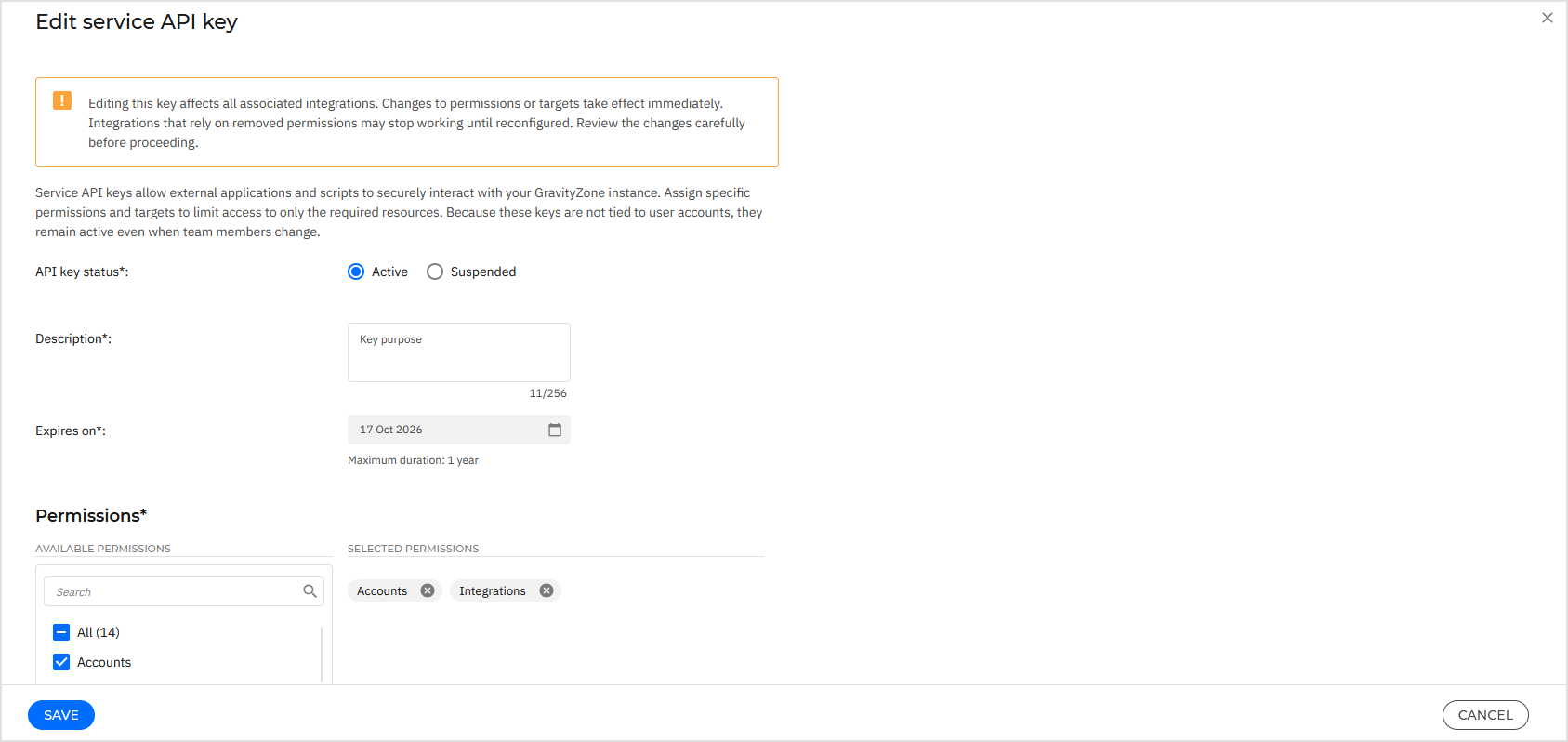
Click Save.
Changes take effect immediately.
Clone a key
Clone a service API key to create a new key that inherits the permissions and targets from an existing one. A new, unique key value is generated. The original key remains unchanged.
Clone a key when you need:
A replacement key for rotation without rebuilding the configuration from scratch.
A new integration with similar access requirements, with minor adjustments.
Multiple keys with the same baseline permissions for different integrations.
To clone a service API key:
In the GravityZone Control Center main menu, go to Service API keys.
Select the source key.
Click Clone.
On the Clone service API key page, review and adjust the inherited settings:
Description - Update to reflect the new key's purpose.
Expires on - Select a new expiration date (maximum one year from the creation date).
Permissions - Inherited from the source. Add or remove as needed.
Targets - Inherited from the source. Adjust as needed.
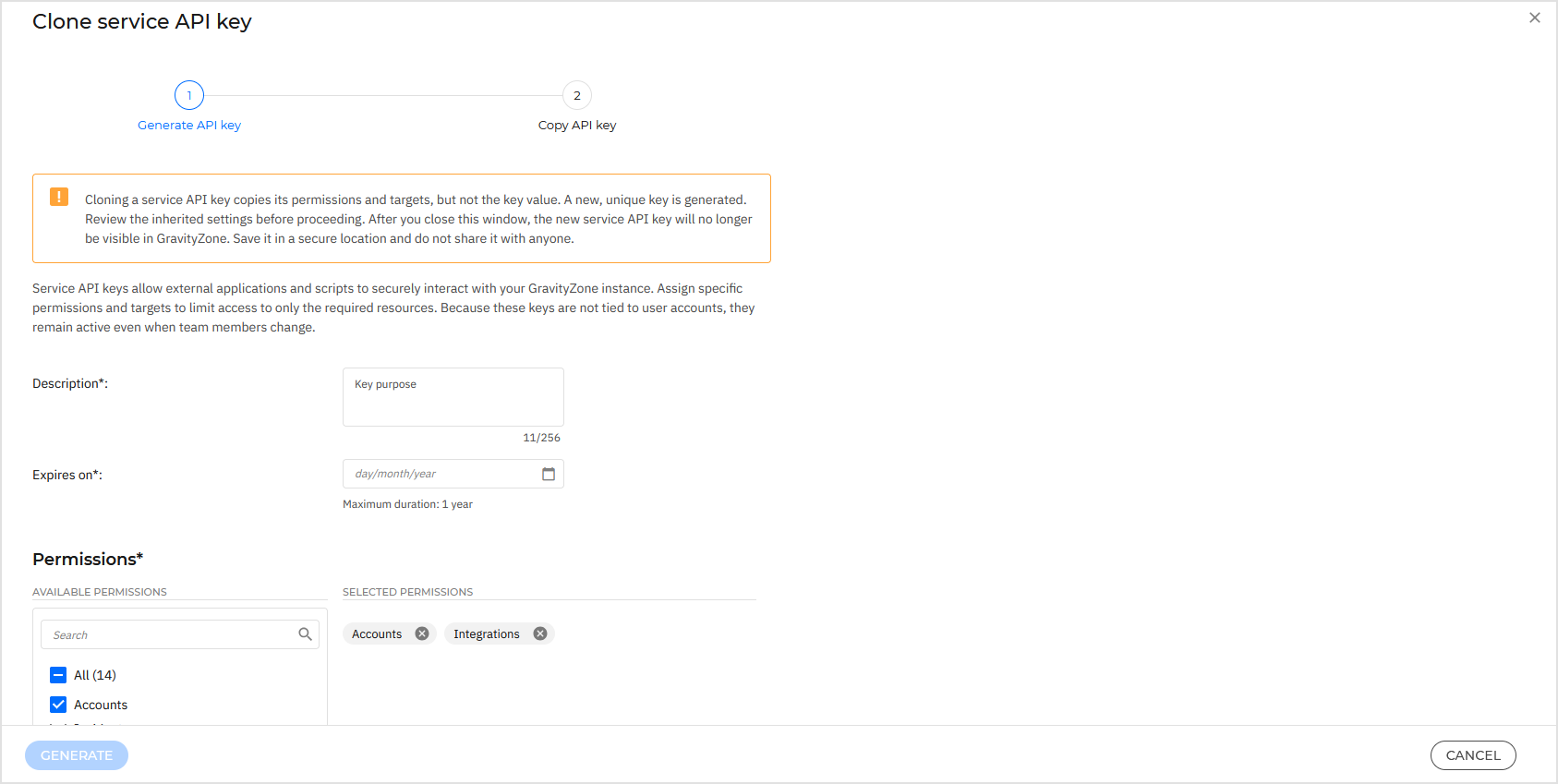
Click Generate. GravityZone creates a new key with a new unique value.
After the key is generated, you cannot return to this page.
On the Copy API key page, next to the Service API key value, click Copy to clipboard and store the key in a secure location.
Important
After you close this window, the new key is no longer visible in GravityZone. Save it in a secure location and do not share it with anyone.
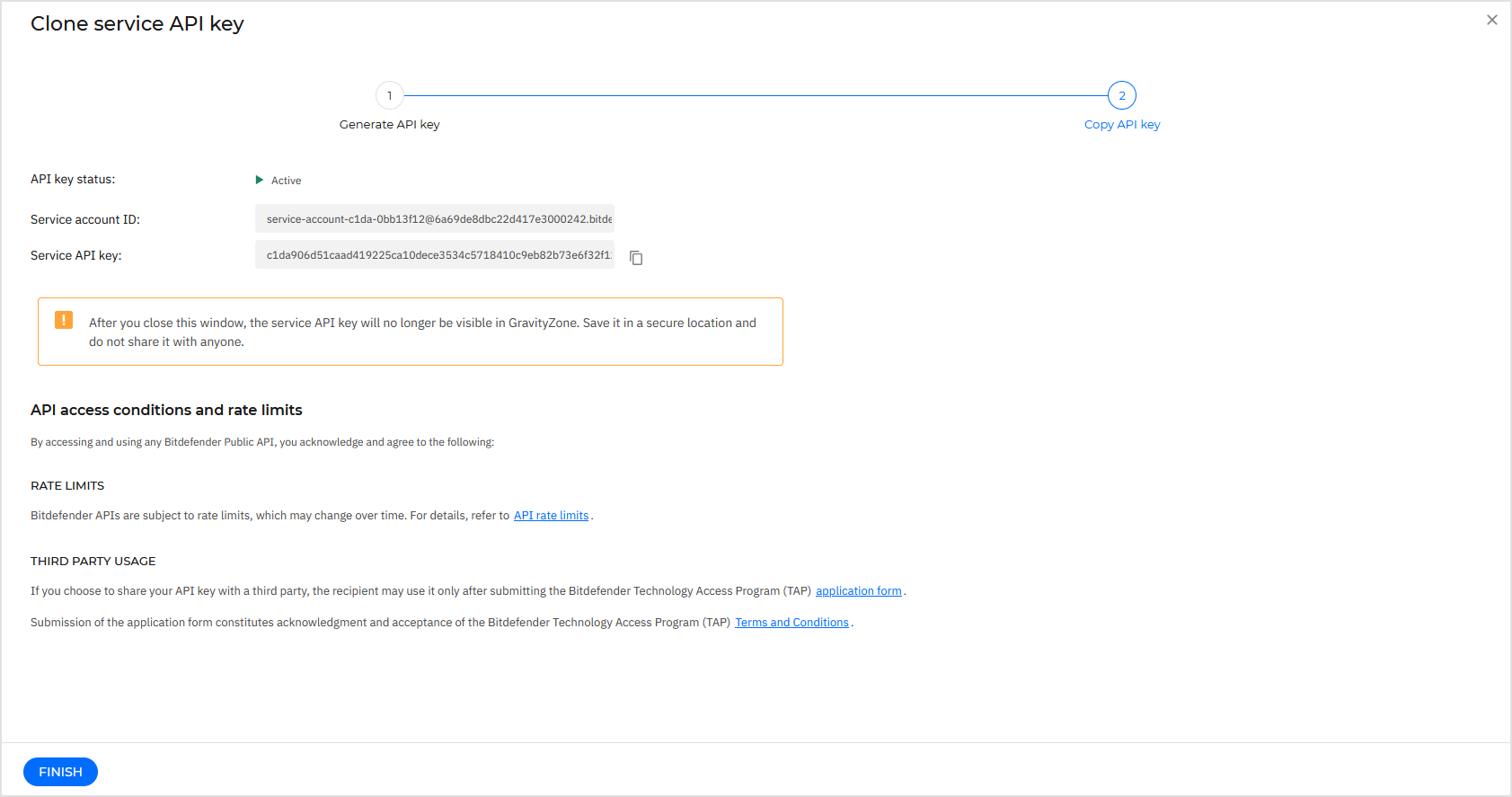
Click Finish.
A new service API key is created with its own service account. The source key remains active and unmodified.
Suspend a key
Suspend a service API key to temporarily revoke its access to GravityZone without permanently deleting it.
Suspend a key when:
You suspect it has been compromised and need to investigate.
You need to pause an integration for maintenance or testing.
A third-party vendor's access should be temporarily revoked.
To suspend one or more service API keys:
In the GravityZone Control Center main menu, go to Service API keys.
Select one or more keys.
Open More actions and select Suspend.
Review the confirmation message.
Click Suspend.
The keys' status changes to Suspended. Any API calls using the suspended keys receive a
-32000(Server error) response.To restore access, activate the key.
Activate a key
Activate a suspended service API key to restore its access to GravityZone.
Activate a key when:
An investigation has concluded and the key is confirmed safe.
Maintenance is complete and the integration needs to resume.
A previously paused vendor engagement has restarted.
To activate one or more suspended service API keys:
In the GravityZone Control Center main menu, go to Service API keys.
Select one or more suspended keys.
Open More actions and select Activate.
Review the confirmation message.
Click Activate.
The keys' status returns to Active. Integrations become functional again immediately with the same permissions and targets as before suspension.
Delete a key
Delete a service API key to permanently remove it and its associated service account from GravityZone. Deleted keys cannot be restored.
Delete a key when:
An integration has been permanently decommissioned.
Key rotation is complete and the old key must be retired.
A key was created in error or is no longer authorized for use.
A key is no longer needed and should be cleaned up to free space within the 50-key limit.
Note
If you are unsure, suspend the key first. You can always delete later, but you cannot undo a deletion.
To delete one or more service API keys:
In the GravityZone Control Center main menu, go to Service API keys.
Select one or more keys.
Click Delete.
Review the confirmation message.
Click Delete.
GravityZone permanently removes the selected keys and their associated service accounts. To restore API access, create a new key or clone an existing one and reconfigure your integrations.
User activity
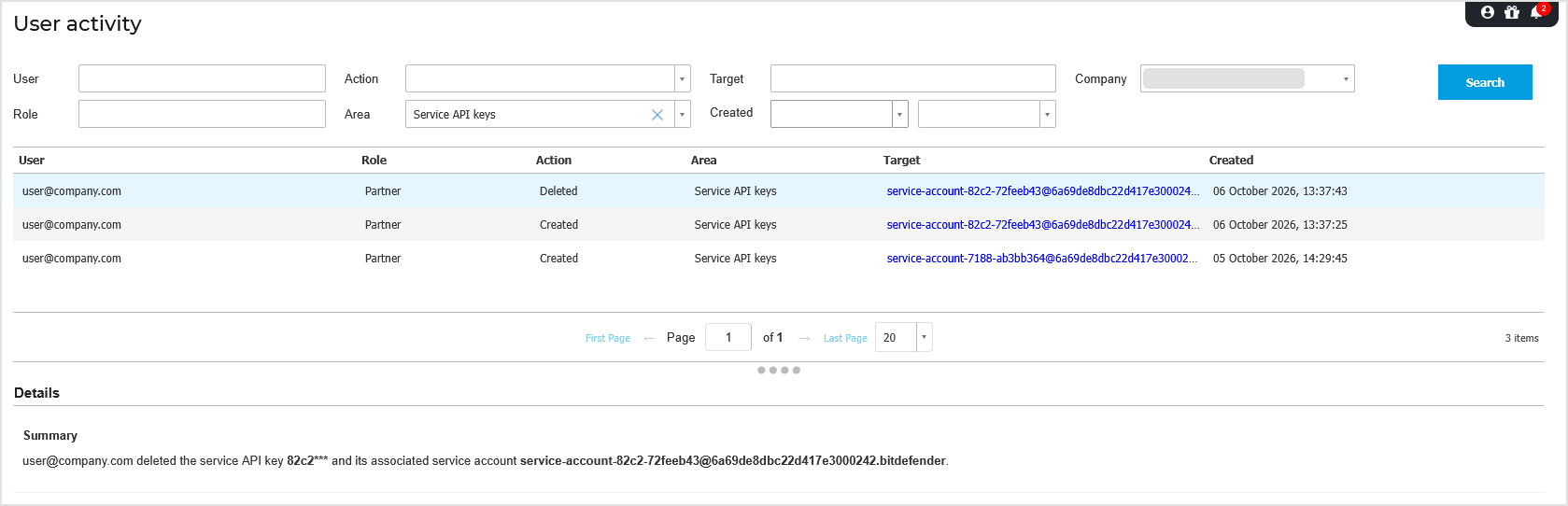
All actions performed on service API keys are logged in GravityZone for auditing purposes. Use the User activity page to review who created, edited, suspended, activated, or deleted service API keys and when.
To view actions taken on service API keys:
In the GravityZone Control Center main menu, go to User activity.
Select the company.
For Area, select Service API keys.
For Action, select one of these options: Created, Activated, Suspended, or Deleted.
Click Search.
In the results list, click each entry to view details.
Service API key lifecycle
This article covers how service API keys behave over time, including expiration rules, notification schedules, and recommended key rotation procedures.
Expiration
Every service API key must have an expiration date set at creation time. The maximum allowed validity is one year from the creation date.
Once a key expires:
It can no longer authenticate API calls.
GravityZone rejects it during the hash-lookup step.
Its status changes to Expired in the Service API keys page.
Any integration using it receives a
-32000(Server error) response.
To restore access after expiration, create a new key (or clone the expired one) and update your integrations.
Expiration notifications
GravityZone sends notifications and emails to all users with the Manage Service API Keys permission at the following intervals:
90 days before expiration
30 days before expiration
7 days before expiration
1 day before expiration
Immediately after expiration
You can configure the visibility for these notifications (GravityZone Control Center, email) in the Notifications Settings page.
Recommended rotation schedule
Integration criticality | Start rotation at | Reason |
|---|---|---|
High (production monitoring, security tools) | 90 days before expiration | Allows time for thorough testing and rollback. |
Medium (reporting, periodic sync) | 30 days before expiration | Sufficient for standard update-and-verify cycles. |
Low (internal tools, development/testing) | 7 days before expiration | Minimal impact if issues occur. |