Extended Email Security
Extended Email Security (Mesh) is an advanced email protection solution that combines perimeter-level and mailbox-level detection to guard your organization against phishing, business email compromise (BEC), malicious attachments, and other email-borne threats. Built for MSPs, the solution delivers:
Full-spectrum protection against sophisticated email threats.
Flexible deployment options with Secure Email Gateway (SEG), API-based integration, or a combination of both.
Purpose-built design for MSP efficiency and scale.
You can start an Extended Email Security trial for managed Customer companies with a monthly subscription.
Prerequisites
To start the trial, the Customer company must have at least one licensed endpoint.
Start the trial
To start the trial, follow the steps below:
Log in to GravityZone Control Center.
Go to the Companies page from the left side menu.
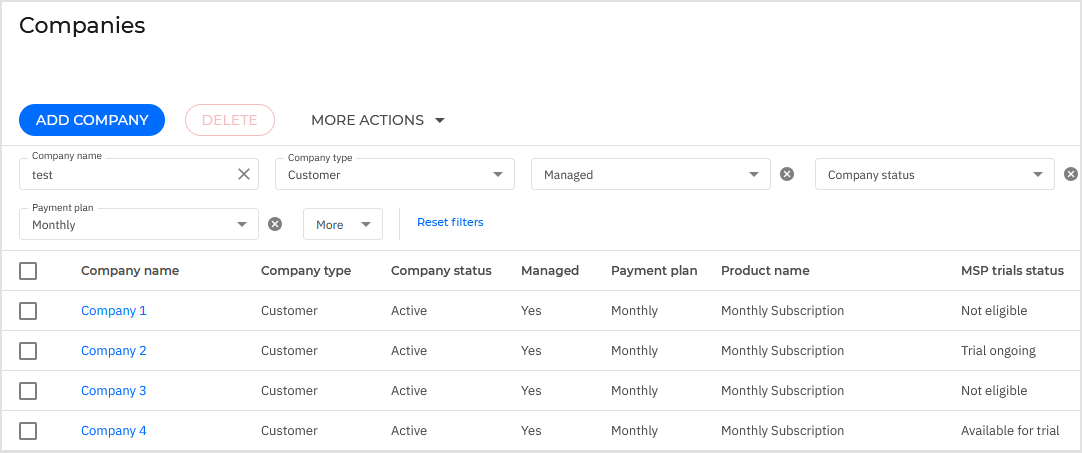
Click on the name of the company you want to enroll in the trial.
The Edit company window is displayed.
Note
Only eligible companies can be enrolled in a product trial. Activate the MSP trials status column from the Settings panel on the Companies page to see the companies that are eligible for a trial.
Go to the Free Product Trials tab.
Select Try now under the Extended Email Security section.
The individual product trial page is displayed.
Select Start free trial.
A confirmation window is displayed.
In the confirmation prompt, provide the email address of your billing contact or department, and click Start trial.
The trial has started.
The company's trial status is updated, and the Extended Email Security feature is enabled in the company's Licensing page.
Note
The Extended Email Security trial is available for eligible managed companies regardless of the protection model currently used by the customer company (A la carte, Secure, Secure Plus, or Secure Extra). No feature included in the trial will result in additional charges or changes in your monthly license usage reports. No minimum or maximum seat or mailbox limitation applies to the trial.
Important
The trial is automatically canceled if any of the following occur:
The Customer company changes its partner.
The company is suspended.
The license type changes to yearly license.
The product type changes.
The company type changes.
Important
When the trial period expires, PHASR automatically converts to a paid add-on and will appear as a billable line item in your next monthly usage report. No additional action is required to activate the paid subscription.
If you do not want automatic conversion, you must manually stop the trial before it expires. For details, refer to Manually stop the trial.
Configure and use the feature
After the trial starts, the Extended Email Security add-on is enabled for the customer company. The partner can configure and manage Extended Email Security directly from their own account, without requiring action from the Customer company administrator.
For a full overview of Extended Email Security capabilities and configuration options, refer to the Extended Email Security documentation.
Provision the email security account
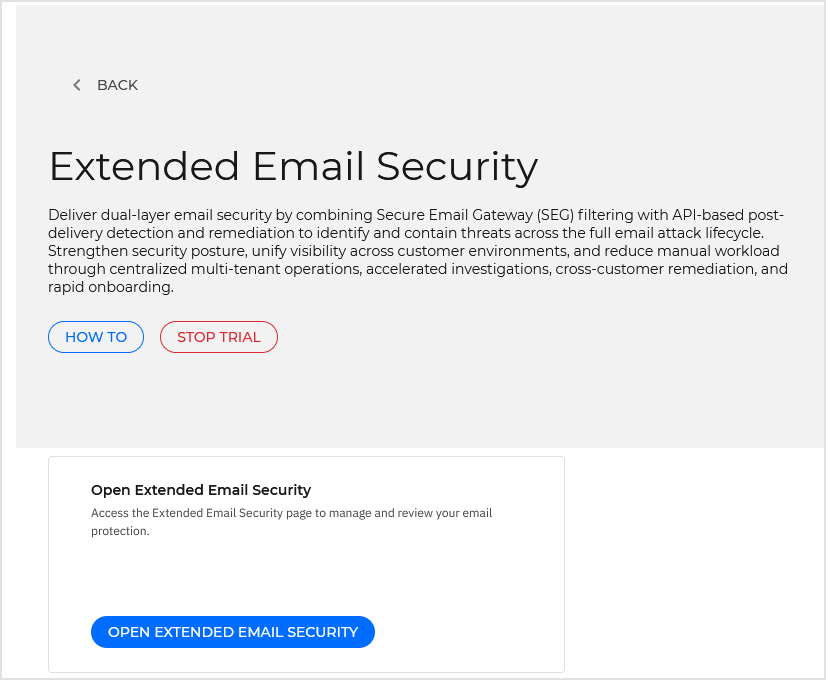
On the Extended Email Security page from Products hub, click Open Extended Email Security, or go to the Email Security page from the GravityZone left side menu.
Important
To create email security accounts and access the Extended Email Security console, you must use GravityZone Identity Provider as the authentication method for GravityZone Control Center.
Locate the Customer company you want to configure.
Click the Create account button for that company.
This provisions the Extended Email Security (Mesh) account for the customer company. The account is automatically linked to the GravityZone Identity Provider, so no separate credentials are needed.
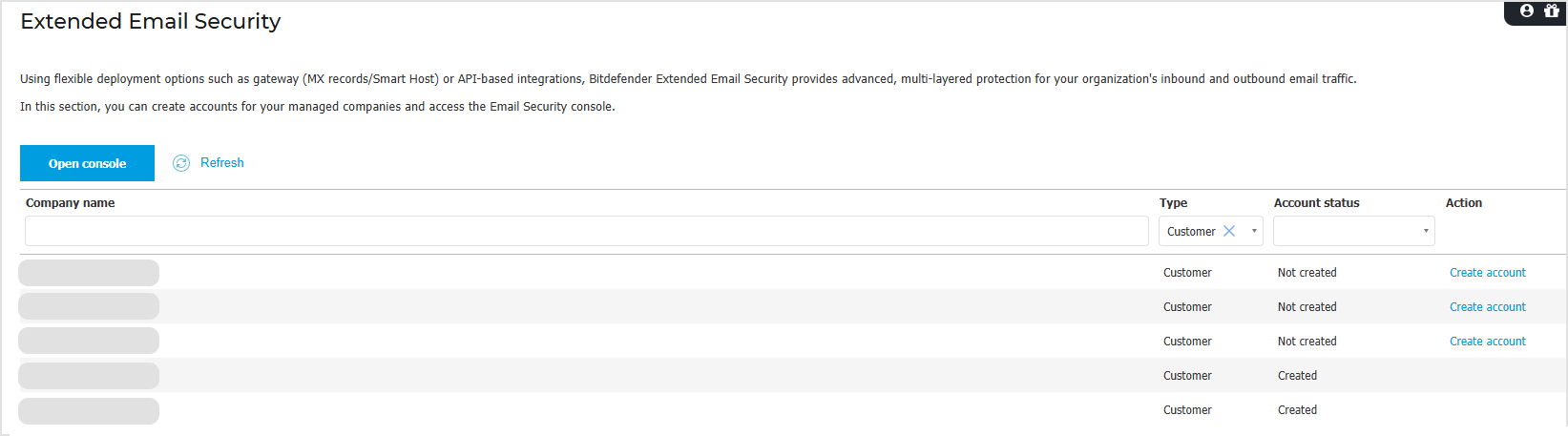
Once provisioned, the Open console button becomes active for that company.
Note
Once the Mesh account is provisioned and the Extended Email Security feature is enabled through the trial, the Extended Email Security sensor is automatically activated in Configuration > Sensors Management. No manual setup is required. You can use the Sensors Management page to verify the sensor status and enable or disable the sensor if needed.
Configure email integration
On the Email Security page, click Open console for the customer company.
You are redirected to the Extended Email Security console.
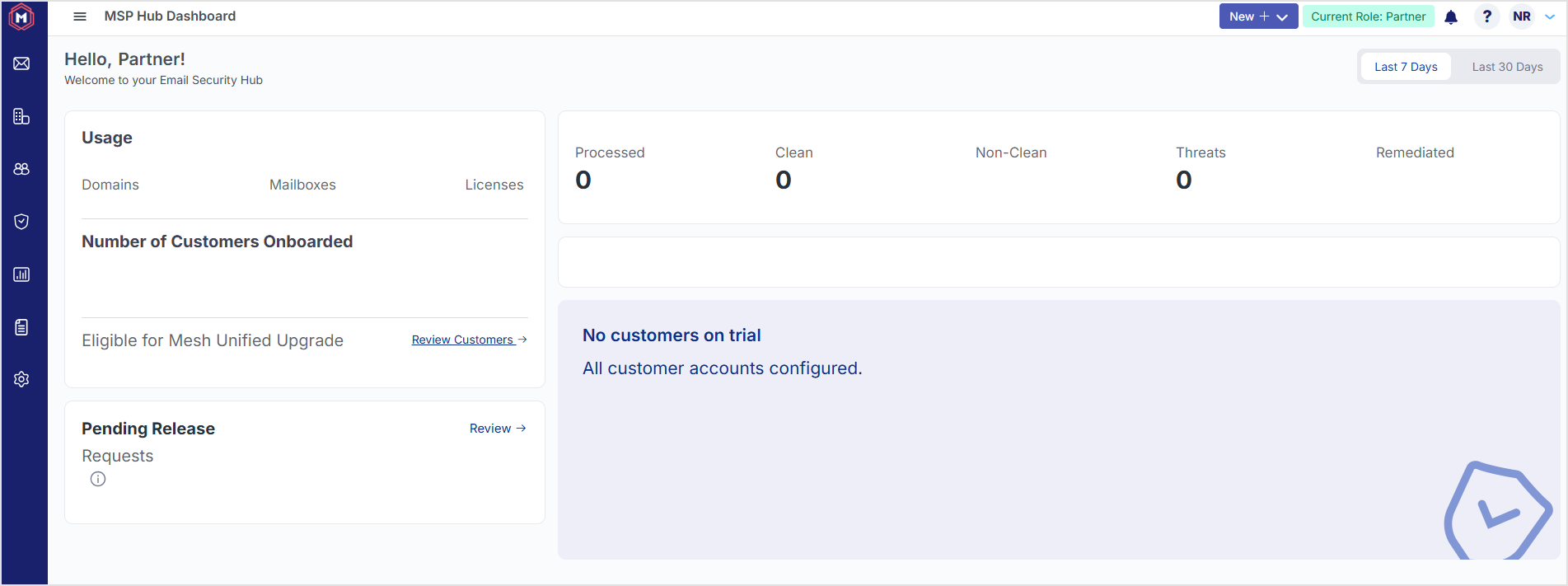
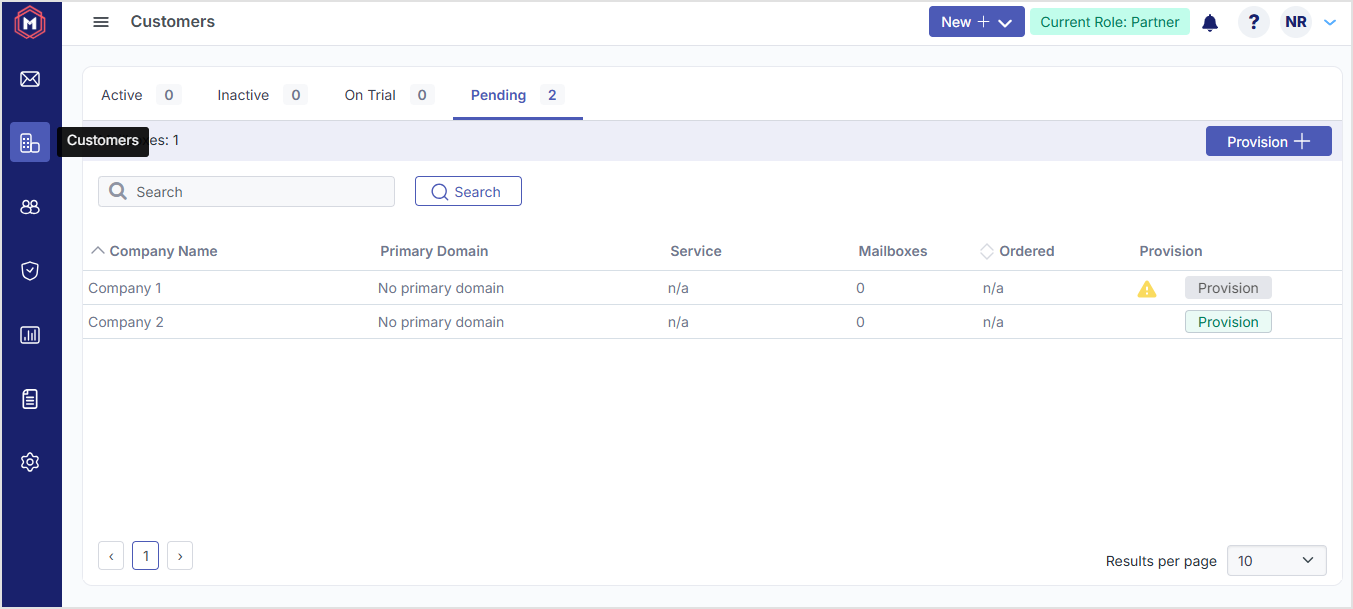
Navigate to the Customers section in the console.
Find the newly create Customer company in the Pending tab until the email integration is configured.
Add and verify the customer's email domains.
Set up email routing based on the deployment type you want to use:
Mesh Unified (MX and API based) — for Microsoft 365 customers. Requires both MX record changes and OAuth authorization for the customer's Microsoft 365 tenant.
Mesh Gateway (MX based) — for customers on any email platform. Requires updating the customer's MX records to point to Mesh.
Mesh 365 (API based) — for Microsoft 365 customers. Requires OAuth authorization (O365 Authorize) to connect to the customer's Microsoft 365 tenant. No MX record changes needed.
For step-by-step setup instructions for each deployment type, refer to the Installation Guides.
Once the domain is verified and email routing is configured, the customer tenant status changes from Pending to Active, and email protection begins.
Monitor and manage email security
Once the integration is configured, use the Open console button on the Email Security page to access the Extended Email Security console at any time. From there you can:
Monitor email traffic: Use the Live Email Tracker to get visibility over all inbound, outbound, and internal email traffic. The tracker allows you to view email statuses, check quarantined messages, and release or remediate emails as needed. The Live Email Tracker is available at three levels:
MSP Level (Global): Provides central visibility of email traffic across all customers where partner access is enabled.
Customer Level: Allows admins to view email traffic specific to their customer account.
End-User Level: Enables users to view email traffic to their own mailbox only.
Manage email policies: Configure message rules, connection rules, and custom rule data for your organization's email domains. MSPs can centrally create policies and rules for all or selected customers. For details, refer to Policy.
Manage customers: Use the Customers page to view all your customers on Mesh, including their domains, Mesh services, and the option to upgrade to Mesh Unified where available.
Populate users: To enable end users to receive quarantine digests and create personal allow/block rules, populate users in the users table. For details, refer to User Population.
For common questions about email statuses, quarantine behavior, and rules, refer to the Frequently Asked Questions (FAQs).
View Extended Email Security activity
During the trial, email threats detected and blocked by Extended Email Security are visible in the Live Email Tracker.
Additionally, email security telemetry integrates with GravityZone XDR, contributing to cross-platform incident correlation alongside endpoint, identity, and cloud telemetry. You can review email-related incidents from the Incidents page in GravityZone.
Manually stop the trial
Log in to GravityZone Control Center with a partner account.
Go to the Companies page from the left side menu.
Click on the name of the company you want to remove from the trial.
Note
You can use the MSP trials status column to see the companies that have an ongoing trial.
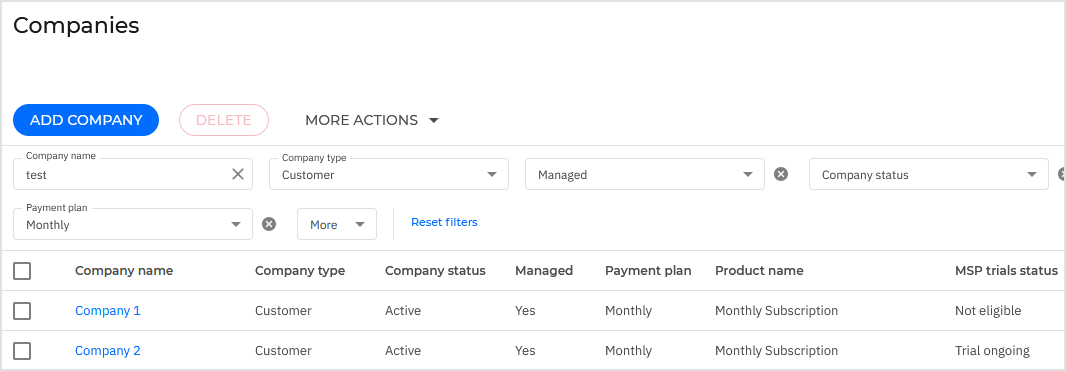
The Edit company window is displayed.
Go to the Products hub tab.
Select Learn more under the Extended Email Security section.
The Extended Email Security trial page is displayed.
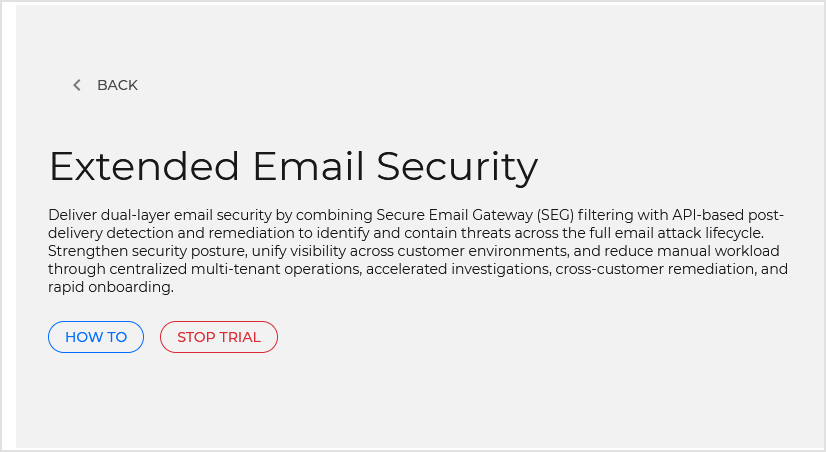
Select Stop trial.
A confirmation window is displayed.
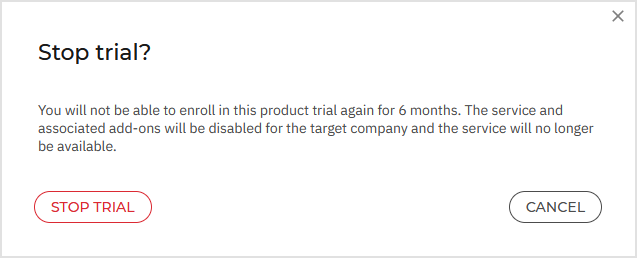
Click Stop trial to confirm the request.
The trial has ended.
Note
When the trial ends, the Extended Email Security feature is removed from the company and the email security integration is deactivated. The Mesh account provisioned during the trial will no longer be licensed. A 6-month cooldown period begins, during which the trial cannot be restarted for the same company.
Note
Extended Email Security is not included in any protection model. Therefore, if the customer company's protection model changes during the trial (for example, upgrading from A la carte to Secure or Secure Plus), the Extended Email Security trial continues until its expiration date and is not affected by the protection model change.