Entity types
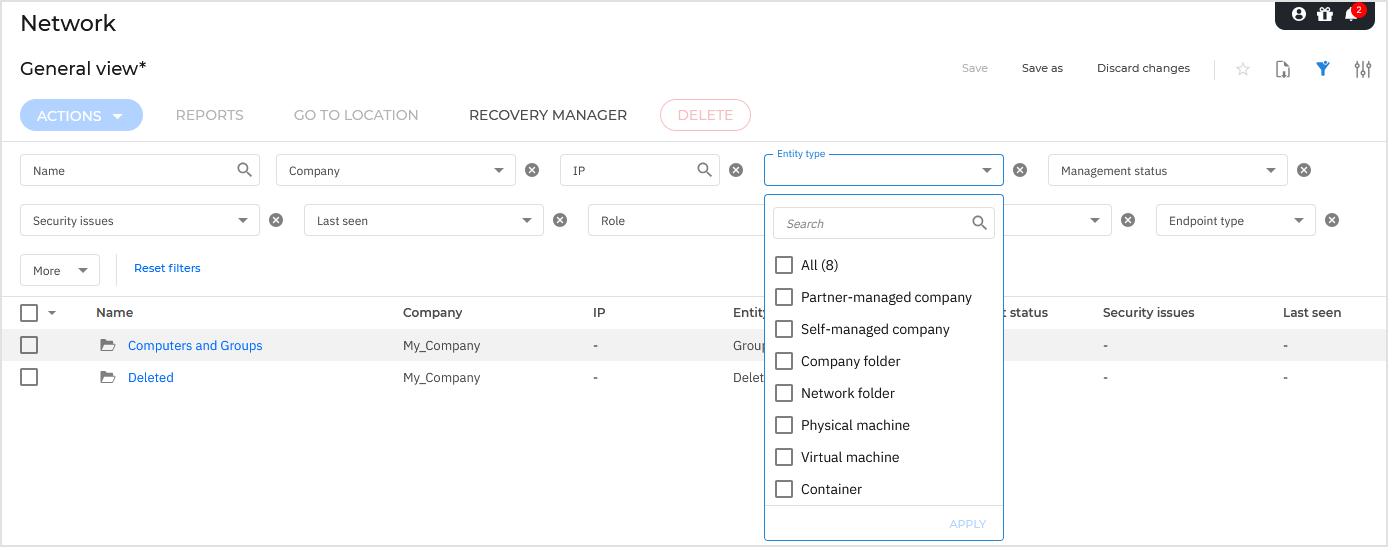
Entities displayed on the Network page are grouped by type, each having distinct characteristics and management options. They include companies, folders, endpoints, and cloud workloads.
You can view the available network structure in the left-side pane. To customize the columns displayed in the table, click the Open settings button at the right side of the action toolbar.
Partner-managed companies
Partner-managed companies are companies that provide you, as a Partner, with the permission to manage their security. This status indicates that the option The company's Partner can assist with the security management is selected in the company’s configuration settings.
Partner-managed companies allow Partners to view their complete network inventories, assign policies, run tasks, manage quarantine, and perform administrative actions on their behalf.
For details about company settings, refer to Creating companies.
Self-managed companies
Self-managed companies are companies where the option The company's Partner can assist with the security management is not selected.
For self-managed companies, the Partner cannot view internal inventories or perform management tasks on individual endpoints. The Partner retains administrative visibility only to assign Security Servers, manage licensing, or move the company to a different location within the Partner's hierarchy.
Company folders
Company folders are custom organizational containers that can be created under the Companies location in a Partner hierarchy. Company folders can be nested multiple levels deep, allowing Partners to structure customer accounts by region, industry, account tier, or sales territory.
To create a company folder:
In the GravityZone Control Center left-side menu, go to Network.
In the tree view panel on the left, navigate to the Companies collection under a Partner company.
Click the
 ellipsis icon next to the target folder or company to open the contextual menu.
Select Create company folder.
Enter a name for the folder.
Click the
 OK icon.
The new company folder is created in the selected location.
Network folders
Network folders (also displayed as custom groups) are organizational containers created under Network > Computers and Groups location. You can create multiple folders within this hierarchy to reflect your physical offices, departments, or management tiers. Within the company hierarchy, folders can exist on the same level as endpoints.
To create a network folder:
In the GravityZone Control Center left-side menu, go to Network.
In the tree view panel on the left, locate Network > Computers and Groups.
Click the
ellipsis icon next to Network or an existing group to open the action menu.Select Create new group.
Enter a name for the folder.
Click the
OK icon.
The new folder is created in the desired location.
Physical and virtual machines
Physical and virtual machines represent workstations, laptops, and servers running on physical hardware or virtual platforms (such as VMware ESXi, Microsoft Hyper-V, Nutanix Prism, Citrix, or cloud instances like Amazon EC2).
To view endpoints under your account, go to Network in the left-side menu and select the desired group from the left pane.
Unmanaged endpoints: When first detected in your network or imported via integrations, computers and virtual machines are displayed as unmanaged so you can remotely install protection on them.
Managed endpoints: Once the Bitdefender Endpoint Security Tools (BEST) agent is installed, endpoints report their real-time status and security posture, allowing you to run tasks, configure policies, and investigate security events.
For details about installing the security agent on endpoints, refer to Security agents.
For endpoint classification as a server and workstation, refer to Endpoint types.
From the Network page, you can manage endpoints as follows:
Containers
Containers represents an isolated, lightweight software execution environment running on a container engine (such as Docker) hosted on a managed Linux system (container host).
In the GravityZone inventory, containers appear under their respective container host.
To view the containers infrastructure under your account, go to the Network page from the left side menu and choose Containers in the Entity type filter at the top of the network grid.

To customize the container details displayed in the table:
Click the
 Settings button at the upper-right side of the right pane.
Select the columns you want to view.
Click the Reset button to return to the default columns view.
The left-side pane displays a tree-like view of the virtual infrastructure. The root of the tree is called Containers and the containers are grouped beneath the root, under the following categories based on the virtualization technology provider.
For details about installing the security agent on containers, refer to Security Containers.
From the Network section, you can manage containers as follows:
Container clusters
To view the container clusters under your account, click Network in the left-side menu, then locate the Entity type filter above the table and select Kubernetes cluster from the dropdown list.
To customize the details displayed in the table, click Open Settings in the top-right corner of the Network page, then select the desired columns and click Apply.
From the Network page, you can manage container clusters as follows:
AD integration
Active Directory and directory integrations represent synchronized tree views that reflect the organizational structure of your Microsoft Active Directory domains, organizational units (OUs), and computer containers.
Endpoints discovered via Active Directory appear within their native directory hierarchy. This allows administrators to easily identify unmanaged systems, deploy protection packages to machines within selected organizational units, and automatically keep the inventory in sync with domain membership changes.