Proactive Hardening and Attack Surface Reduction (PHASR)
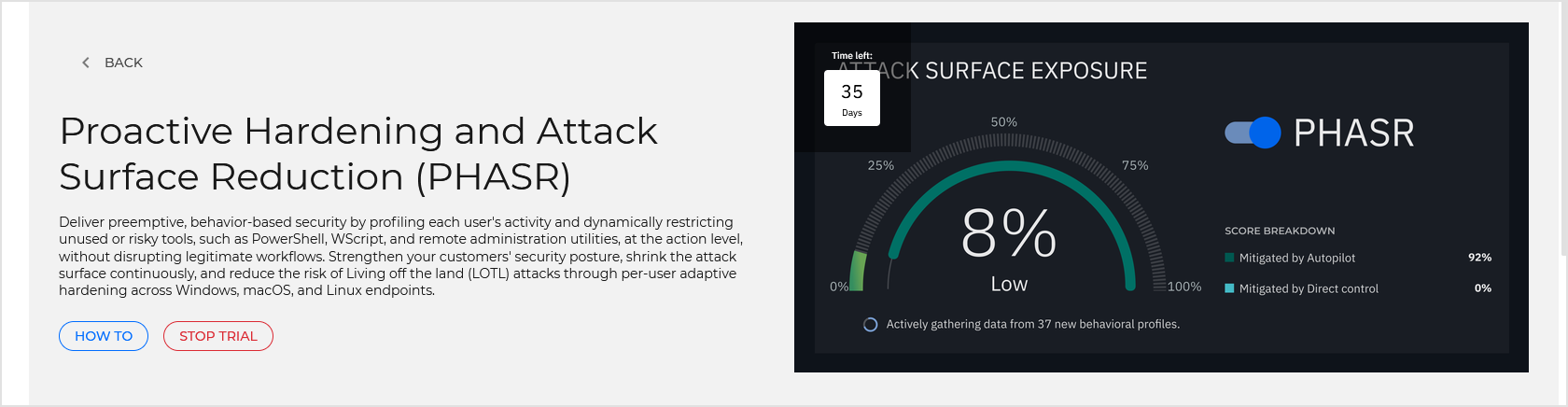
Proactive Hardening and Attack Surface Reduction (PHASR) is an advanced threat detection and attack surface management solution designed to preemptively eliminate unnecessary administrative access across endpoints and user accounts. Operating via behavioral analysis and adaptive machine learning models, PHASR prevents malicious actors from exploiting legitimate administrative and system tools, such as Living Off the Land Binaries (LolBins), remote management applications, and tampering utilities, while maintaining full compatibility with your existing security stack.
PHASR enables partners to continuously monitor user activities, establish behavioral baselines, and enforce targeted attack surface reduction policies.
PHASR delivers:
Preemptive attack surface reduction: Identifies and restricts unnecessary administrative tools and permissions on a per-user and per-endpoint basis.
Behavioral baselining & machine learning: Monitors system interactions and user habits during an initial learning phase to detect deviations without impacting daily operations.
Proactive risk remediation: Generates tailored recommendations and incident alerts when anomalous tool execution occurs, mitigating threats before exploitation can take place.
You can start a Proactive Hardening and Attack Surface Reduction (PHASR) trial for managed Customer companies operating under a monthly subscription.
Prerequisites
To start the trial, the Customer company must meet the following conditions:
The company uses the Endpoint Security product type with the Secure, Secure Plus, or Secure Extra protection model.
The company has at least one licensed endpoint.
Start the trial
To start the trial:
Log in to GravityZone Control Center.
In the left-side menu, go to the Companies page.
Click on the name of the managed customer company you want to enroll in the trial.
The Edit company window will display.
Go to the Free product trials tab.

Locate the Proactive Hardening and Attack Surface Reduction (PHASR) section and select Try now.
The individual product trial page will display.
Click Start free trial.
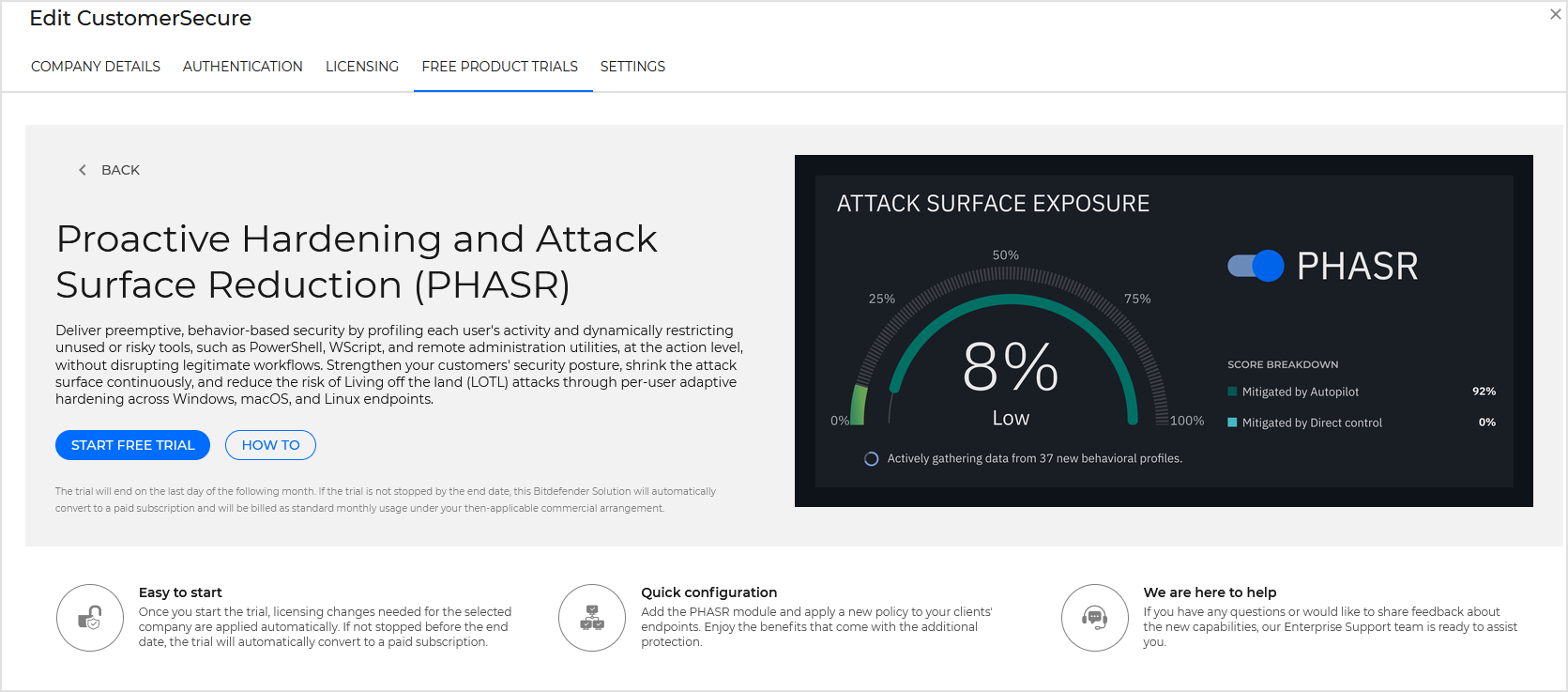
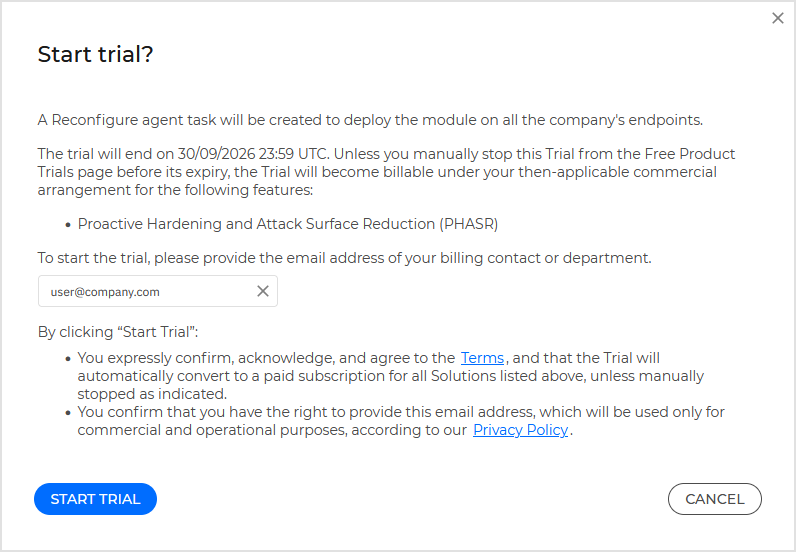
In the confirmation prompt, provide the email address of your billing contact or department, and click Start trial.
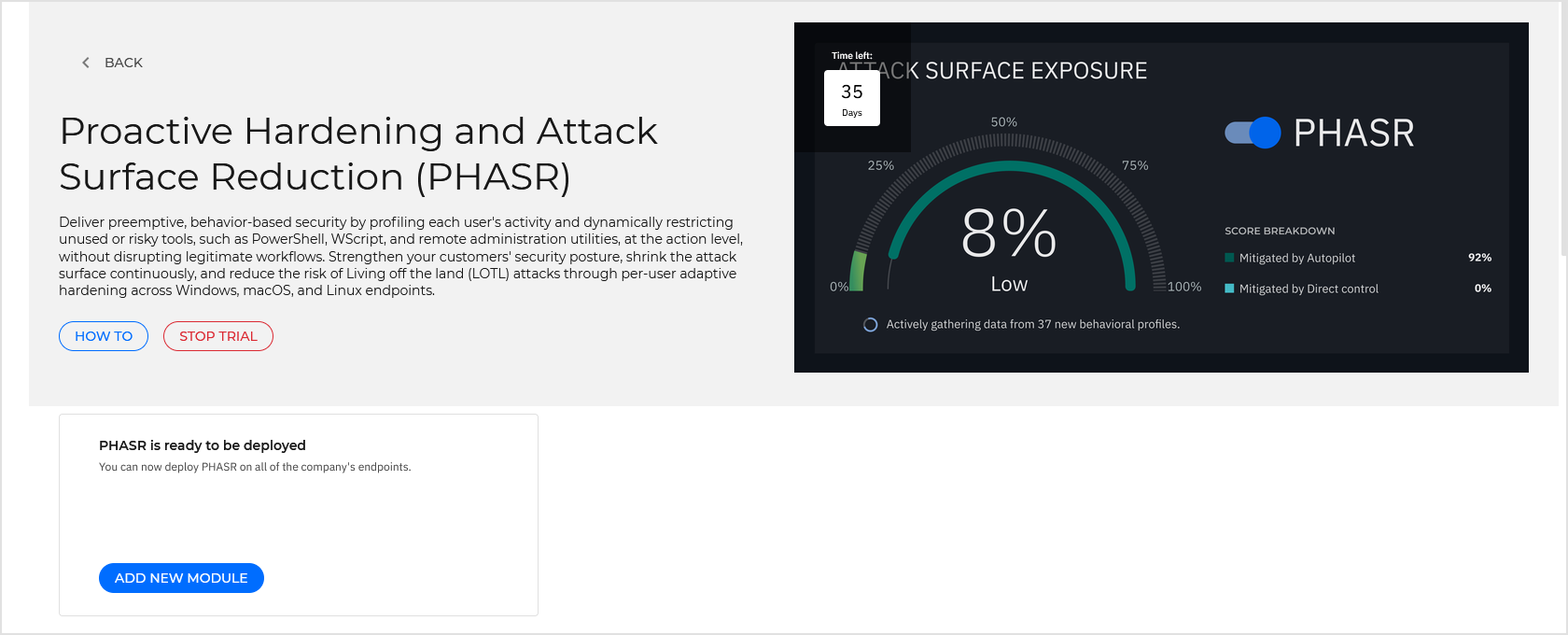
The trial has started. The PHASR trial page is displayed, containing updated trial information and buttons.
On the Companies page, the company's trial status is updated to Trial ongoing.
Note
Only eligible customer companies can be enrolled in a product trial. To qualify for a PHASR trial, the target company must meet the following criteria:
Uses monthly subscription licensing.
Runs on the Endpoint Security product type.
Has an active protection bundle of Secure, Secure Plus, or Secure Extra.
Participation in the trial will not result in additional charges or alterations to your monthly license usage reports. Usage generated by PHASR during the trial period is automatically excluded from standard monthly billing.
Important
When the trial period expires, PHASR automatically converts to a paid add-on and will appear as a billable line item in your next monthly usage report. No additional action is required to activate the paid subscription.
If you do not want automatic conversion, you must manually stop the trial before it expires. For details, refer to Manually stop the trial.
Configure and use the feature
Upon initiating the trial, the PHASR functionality is enabled for the selected customer company in GravityZone. To start collecting telemetry and receiving recommendations, you must deploy the PHASR module to target endpoints.
Deploy the module on managed endpoints
If endpoints in the managed company already have the Bitdefender Endpoint Security Tools (BEST) agent installed:
Deploy the PHASR module directly from the PHASR trial page:
Go to the PHASR is ready to be deployed section and click Add new module.
In the confirmation window, click Continue.
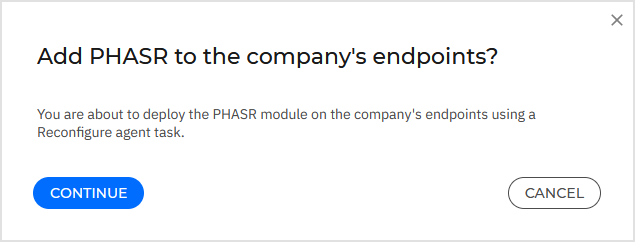
Create a Reconfigure agent task that will deploy the PHASR module on every eligible endpoint in the company.
Deploy the PHASR module from the Network page:
In the GravityZone left-side menu, go to the Network page.
Select the managed customer company from the network tree.
Select the checkboxes next to the endpoints you want to enable PHASR on.
Click Actions at the top of the table and select Reconfigure agent.
Set up the Reconfigure agent task that will deploy the PHASR module on every eligible endpoint in the company.
Deploy the module on new endpoints
To deploy BEST with PHASR enabled on new endpoints:
Go to Network > Installation packages.
Click Add to create a new installation package.
Enter a name and description for the package.
Under Modules, ensure that Antimalware, EDR Sensor, and PHASR are checked.
Click Save.
Download the package installer or send installation links to target users.
After BEST is installed locally, configure and apply a GravityZone policy with PHASR enabled:
In the GravityZone left-side menu, go to the Policies page.
Click to add a new policy or edit an existing one.
In the policy, go to Risk Management > PHASR and click to enable the module.
Configure the settings according to your needs.
For details, refer to PHASR.
Click Save.
Apply the policy on the target endpoints.
Learning phase and baselines
Once deployed, PHASR enters an automated learning phase:
During this period (typically lasting up to 30 days, or shorter if historical EDR telemetry is present), PHASR monitors user behaviors and system interactions to build behavioral baselines.
Upon establishing baselines, PHASR evaluates system usage against risk categories such as Living Off the Land Binaries (LolBins), remote management tools, system tampering utilities, and unapproved software.
Monitor and manage PHASR activity
Throughout the trial, threat telemetry and recommendations generated by PHASR are accessible directly from the GravityZone Control Center. For details, refer to PHASR.
Manually stop the trial
To manually stop the trial before it expires:
Log in to GravityZone Control Center.
In the left-side menu, go to the Network page.
Select the customer company currently enrolled in the trial.
Go to the Free product trials tab.
Under Proactive Hardening and Attack Surface Reduction (PHASR), select Learn more.
Click Stop trial.
In the confirmation dialog, select the Remove module from endpoints checkbox if you wish to automatically create a Reconfigure agent task that removes the PHASR sensor module from target endpoints.
Click Stop trial to finalize the cancellation.
Note
When the trial is manually stopped:
The PHASR feature is removed from the customer company account.
Modules included in the company's underlying protection bundle (such as EDR, Advanced Threat Security, and Sandbox Analyzer) remain active and licensed.
A 6-month cooldown period takes effect immediately. The PHASR trial cannot be restarted for the same company until this cooldown period has elapsed.
Note
If the trial is not stopped before it expires, PHASR automatically converts to a paid add-on. In this case, the add-on will be reflected as a billable item starting with the next monthly usage report.