Viewing attack path details
To view detailed information about an attack path, locate its entry in the grid on the main Attack Path page, then click its name in the Attack path name column. This opens the attack path details screen, which consists of two tabs: Graph and Assets.
Graph
The Graph tab has two sections:
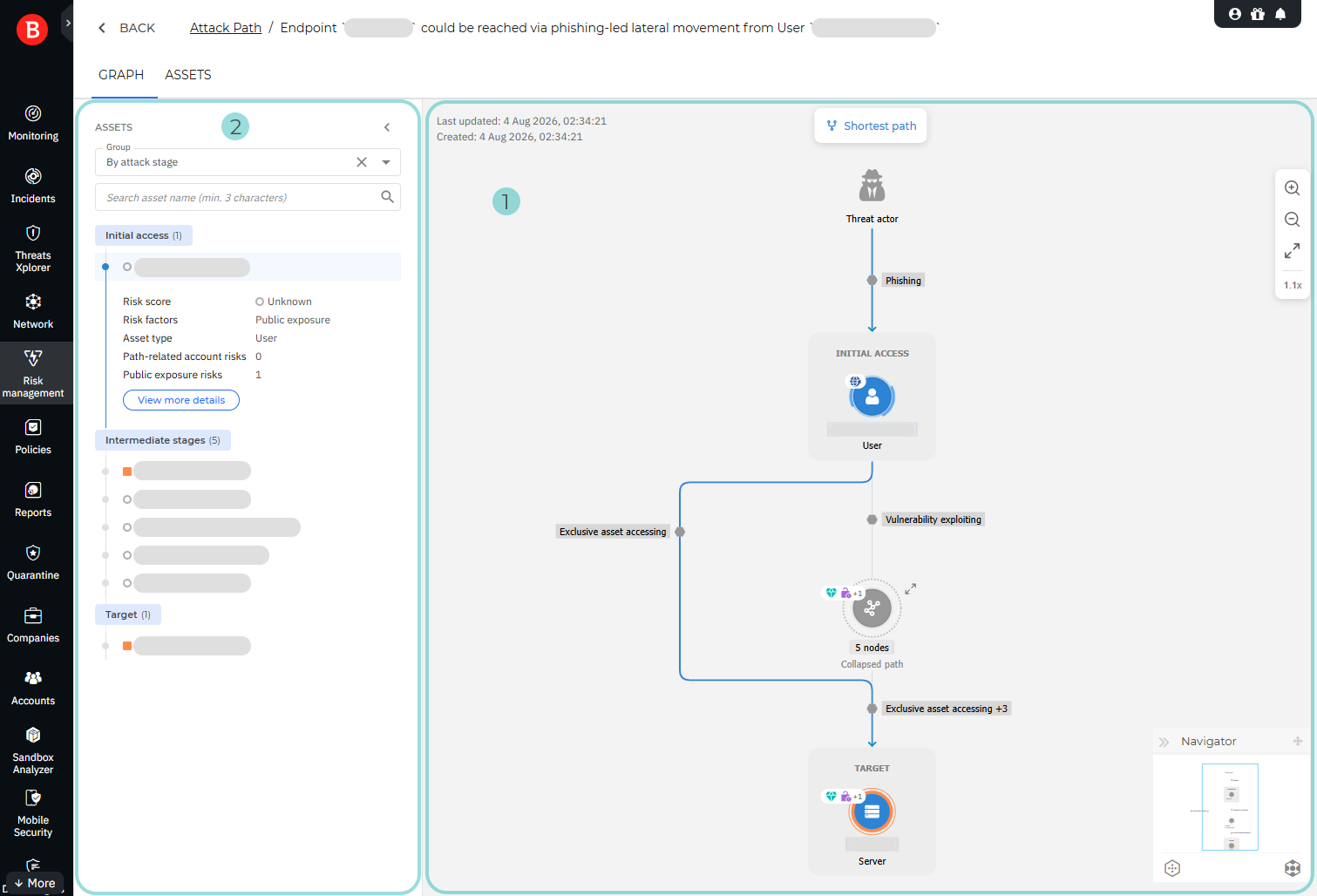
Attack path graph
The attack path graph provides a graphical representation of the sequence of steps that an attacker could take in order to reach and compromise the target asset. Each node in the graph represents an asset involved in the path, whose configurations or vulnerabilities attackers can exploit to move toward the target asset.
The following graph navigation controls are available:
To move the graph, click and drag anywhere in the graph window.
To zoom in or out of the graph, use the scroll wheel on your mouse or the zoom controls on the upper-right edge of the graph window.
To determine your position in the graph, use the Navigator mini-map in the bottom-right corner of the window. The magnifier tool (blue-outline rectangle) shows your current position, which you can change by clicking and dragging the magnifier to another area of the graph.
You can collapse or move the Navigator by using the controls along its title bar.
To provide an uncluttered overview of the attack path, the default graph view groups nodes into collapsed paths. Each collapsed path has a label indicating the number of grouped nodes that it contains. You can expand a collapsed path by clicking either its icon in the graph or the arrows button ( ) next to the icon.
Note
To collapse or expand all the grouped nodes in the graph at once, use the Collapse all ( ) or Expand all (
 ) buttons on the bottom edge of the Navigator.
For individual nodes, the color of the outline around each node icon provides a quick indication of the risk level for that asset:
yellow - low risk
orange - medium risk
red - high risk
Nodes may feature badges that indicate the risk factors associated with them:
 Public exposure
 Exploitable CVE
 High-severity CVE
 Critical asset
Each transition between nodes has a label indicating the mechanism by which an attacker can move from one node to the next. Clicking this label displays a right-side panel that provides basic information on the source and target nodes, a description of the transition, and optional Path-related findings and Path-related CVEs sections displaying a subset of findings and CVEs that are relevant to the current attack path.
To highlight the shortest possible path between the initial node and the final node of the attack path, click Shortest path at the top of the graph window.
Node details panel
You can click any node in the graph to open a right-side panel that displays further information on the selected asset, as described below.
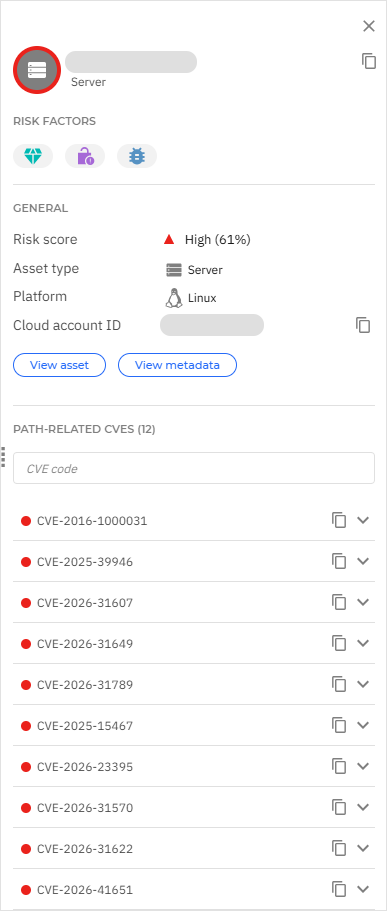
Note
Not all the sections and fields on the node details panel are displayed for all assets.
Risk factors
- Public exposure
- Exploitable CVE
- High-severity CVE
- Critical asset
General
Identity - (visible only for account-type assets) - The identity of the asset.
Risk score - The risk score of the asset.
Asset type - (visible only for resource-type assets) The type of the asset.
Account type - (visible only for account-type assets) The type of the account.
Platform - The platform or operating system of the asset.
Cloud account ID - (visible only for cloud assets) The identifier of the cloud account that the asset is associated with.
Email - (visible only for account-type assets) The email address associated with the account.
Department - (visible only for account-type assets) The department to which the account belongs.
Depends on - (visible only for derived resources) The actual resource that the derived resource is associated with.
Region - (visible only for cloud assets) The region where the asset is located.
The General section also includes the following buttons:
View asset - (only visible if the asset is present on the Risk management > Resources page) This button opens the Resources page for the asset.
View account - (only visible if the asset is present on the Risk management > Accounts page) This button opens the Accounts page for the asset.
View metadata - This button displays the asset metadata in JSON format. You can then use the Copy to clipboard
 button in the upper-right corner of the metadata window to copy the contents of the JSON file to the clipboard.
Path-related CVEs
This section displays a searchable list of CVEs found for the selected asset. The list only includes CVEs that are relevant to the current attack path, not all the CVEs associated with the asset. Clicking any of the entries on the list displays detailed information on the CVE, including the risk score, affected application, description, etc.
Path-related findings
This section is visible only for non-cloud assets. It displays a subset of findings for the asset that are relevant to the current attack path.
Path-related account risks
This section is visible only for account-type assets. It displays a subset of risks for the account that are relevant to the current attack path.
Public exposure risks
This section displays public exposure risks identified by EASM for the asset. For each risk, you can click the actions button ( ) and select View EASM assets to open the corresponding asset in EASM.
Assets panel
The Assets panel is located to the left of the graph and displays a list of assets involved in the current attack path. You can use the Group dropdown menu to group the assets by attack stage, by risk factor, by asset type, or by asset name.
Clicking an asset in the list displays additional information about it, including the risk score, risk factors, asset type, path-related findings and path-related CVEs (for resource-type nodes) or path-related account risks (for account-type nodes), public exposure risks, and a View more details button that displays the node details panel for the asset. If the asset you clicked is part of a collapsed path in the graph, the collapsed path automatically expands and the corresponding node is highlighted.
You can collapse the Assets panel by clicking the left-arrow button ( ) on the upper-right corner of the panel.
Assets
The Assets tab contains a grid consisting of two sections: Target asset and Other path-related assets.
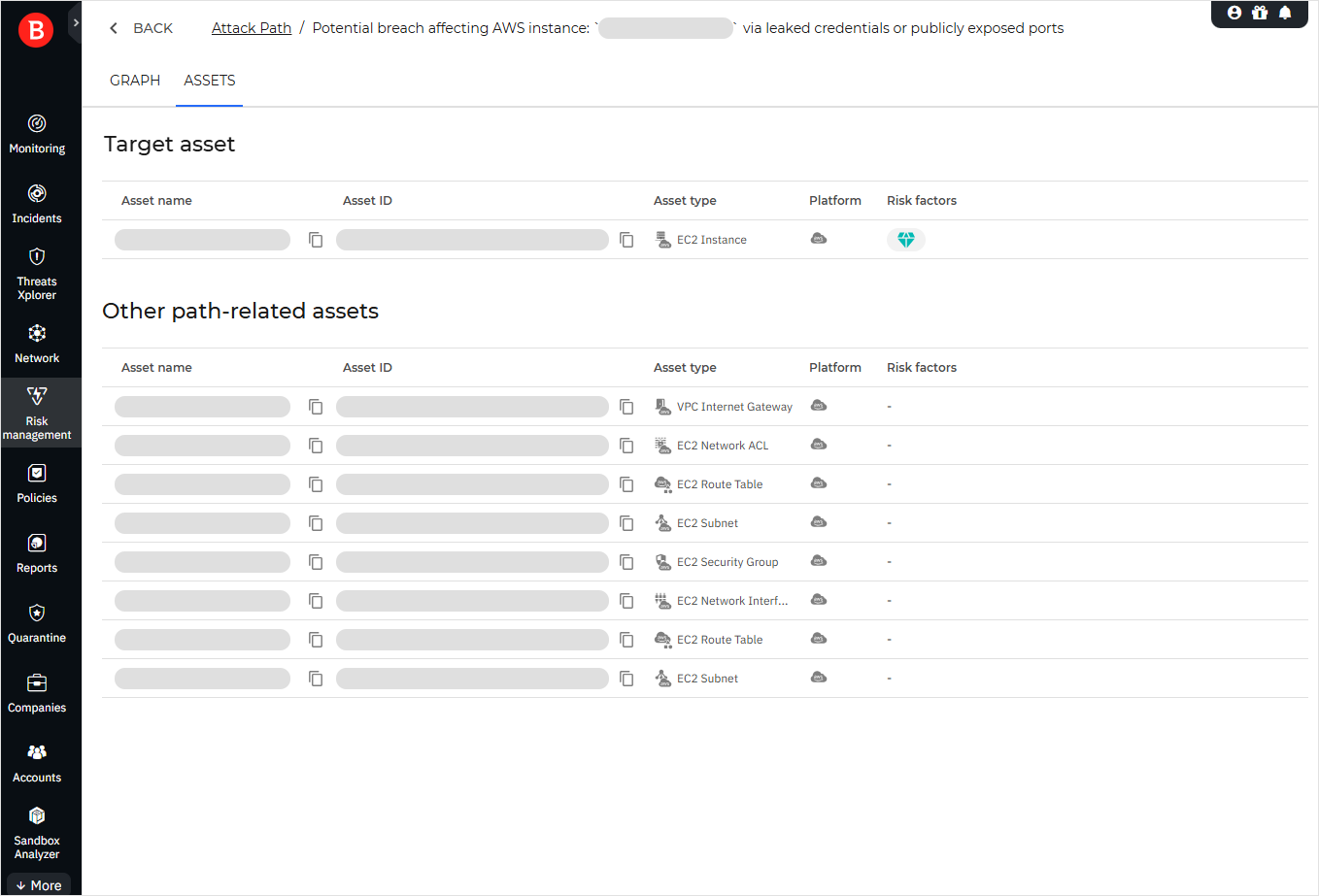
The grid includes the following columns:
Asset name
Asset ID (only displayed for cloud assets)
Asset type
Platform
Risk factors
Clicking an entry in the grid displays the right-side information panel described in Node details panel.