Integrate GravityZone with Microsoft Sentinel
This article explains how to integrate Bitdefender GravityZone with Microsoft Sentinel (formerly Azure Sentinel). The integration enables GravityZone to forward security events to Sentinel, where they can be collected, analyzed, and correlated with data from other security sources. Using this integration, you can extend endpoint security visibility into Sentinel and support centralized monitoring and investigation.
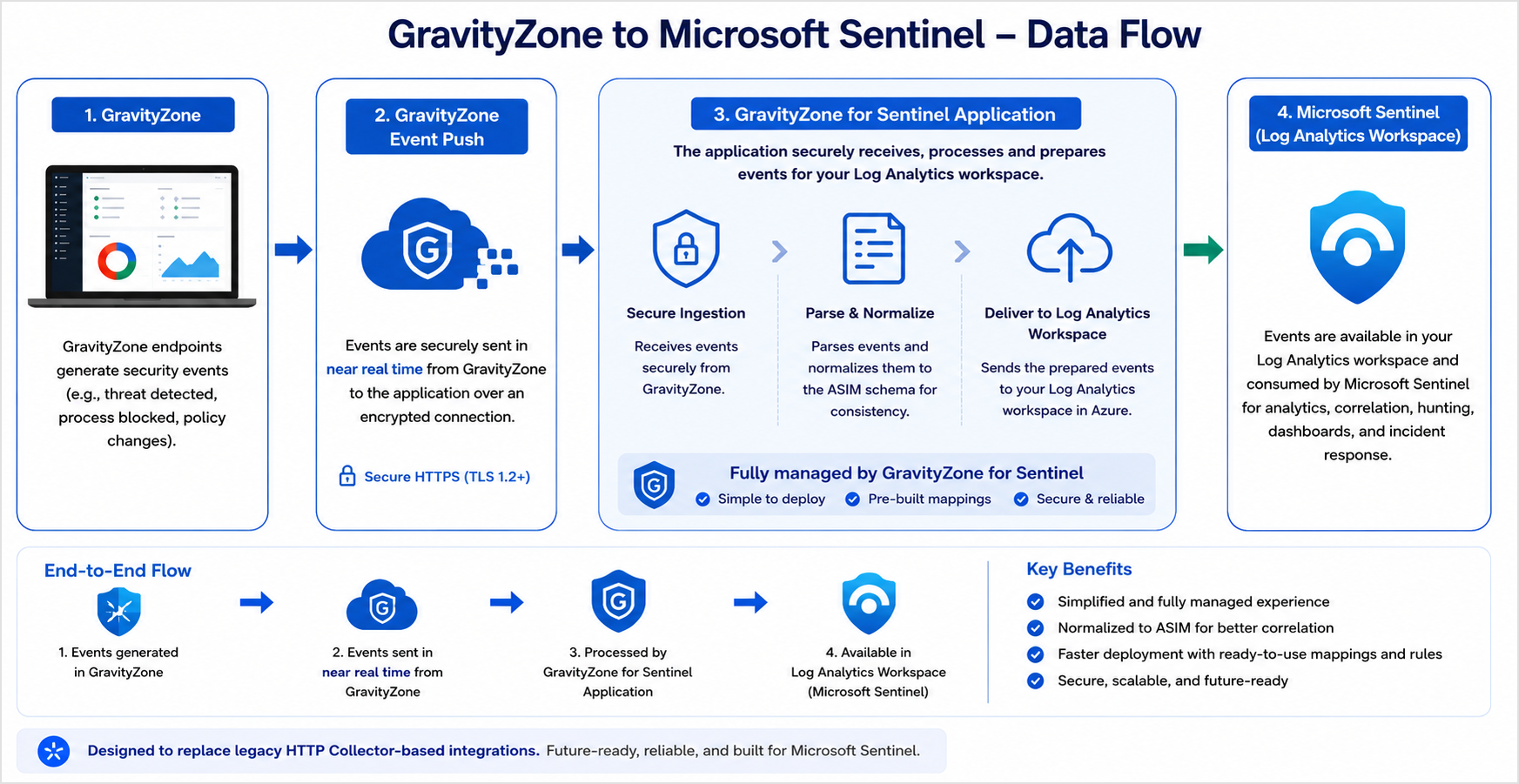
Prerequisites
App Registration
App Registration Secret
Log Analytics Workspace (LAW) that is already onboarded in Microsoft Sentinel
To create a new App Registration, follow the steps below:
Log in to the Microsoft Azure portal.
Go to App registrations and click New registration.
On the App registrations page, enter your application's registration information and click Register.
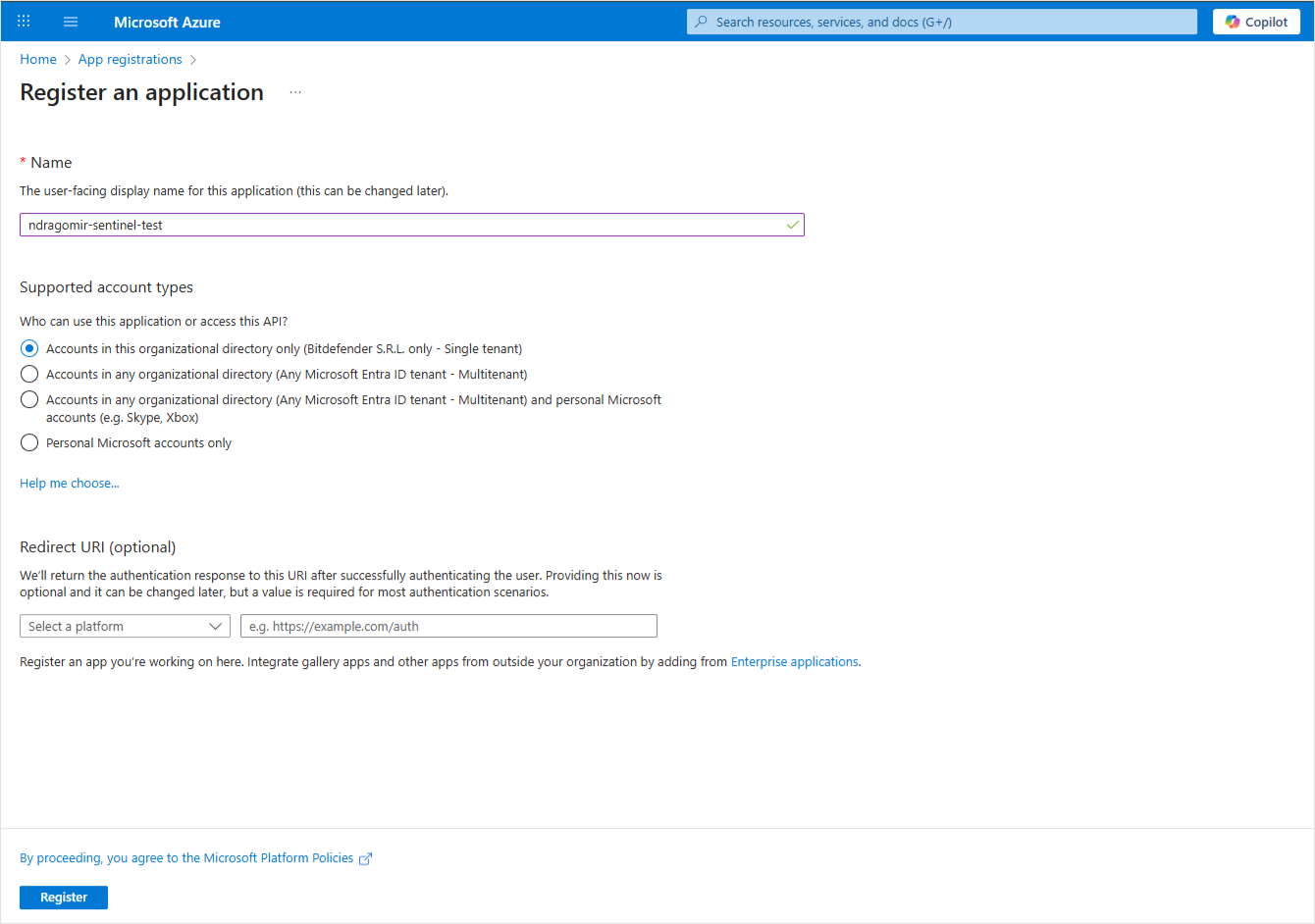
After the app is created, retain the values for Directory (tenant) ID and Application (client) ID from the Overview panel.
Click Managed application in local directory and from the Overview panel of the new app, retain the value for Object ID.
To create a new App Registration Secret, follow the steps below:
In the Microsoft Azure portal, go to App Registrations > Manage > Certificates & Secrets > Client secrets.
Click the New client secret button and configure accordingly.
In the Client secrets tab, retain the value from the Value field, and save it for later use.
If you don't have a workspace to collect data, you can create and onboard a new one using the Log Analytics Workspace (LAW), by following the steps below:
In the Microsoft Sentinel portal, navigate to Log Analytics workspaces and click Create.
Fill out the required information as needed.
After the workspace is created, go to the Overview panel and retain the value for the Workspace ID.
If you already have a configured LAW, go to the Overview panel and retain the value for the Workspace ID.
Install GravityZone Solution for Sentinel
To install the solution, follow the steps below:
Access the Microsoft marketplace and search for GravityZone Solution for Sentinel.
Click Get it now to install the solution into your Azure Sentinel workspace. This step will not deploy any resources. It will only make the solution available in the Azure Sentinel Content Hub.
After the marketplace installation is complete, navigate to your Azure Sentinel workspace and click Content Hub from the left menu.
Search for GravityZone Solution for Sentinel.
Select the application, then click Manage to view and configure the solution components, including data connectors, analytic rules, workbooks, and more.
Select the Data connector component and then click Open connector page.
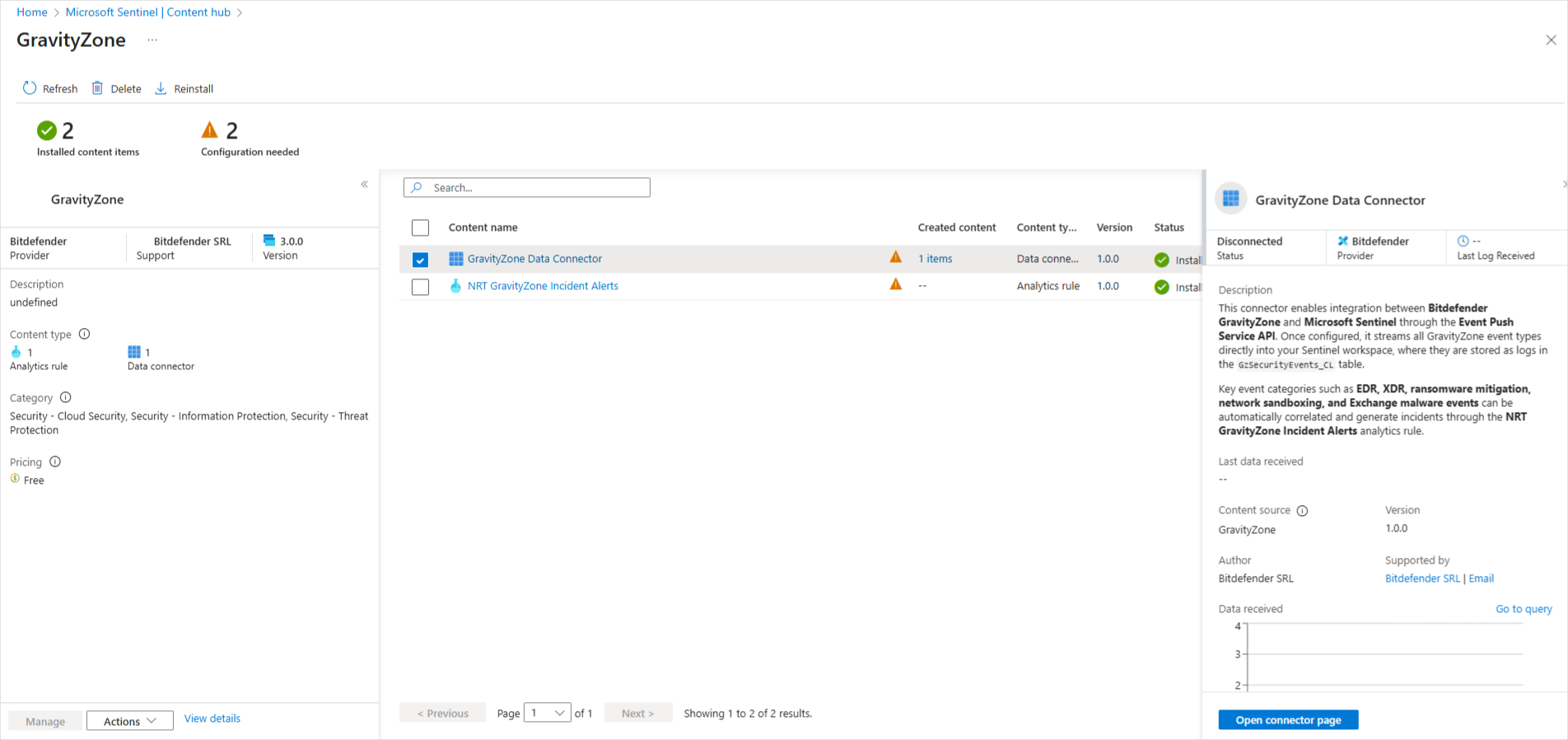
Click the Deploy to Azure button and follow the prompts to deploy the data connector resources.
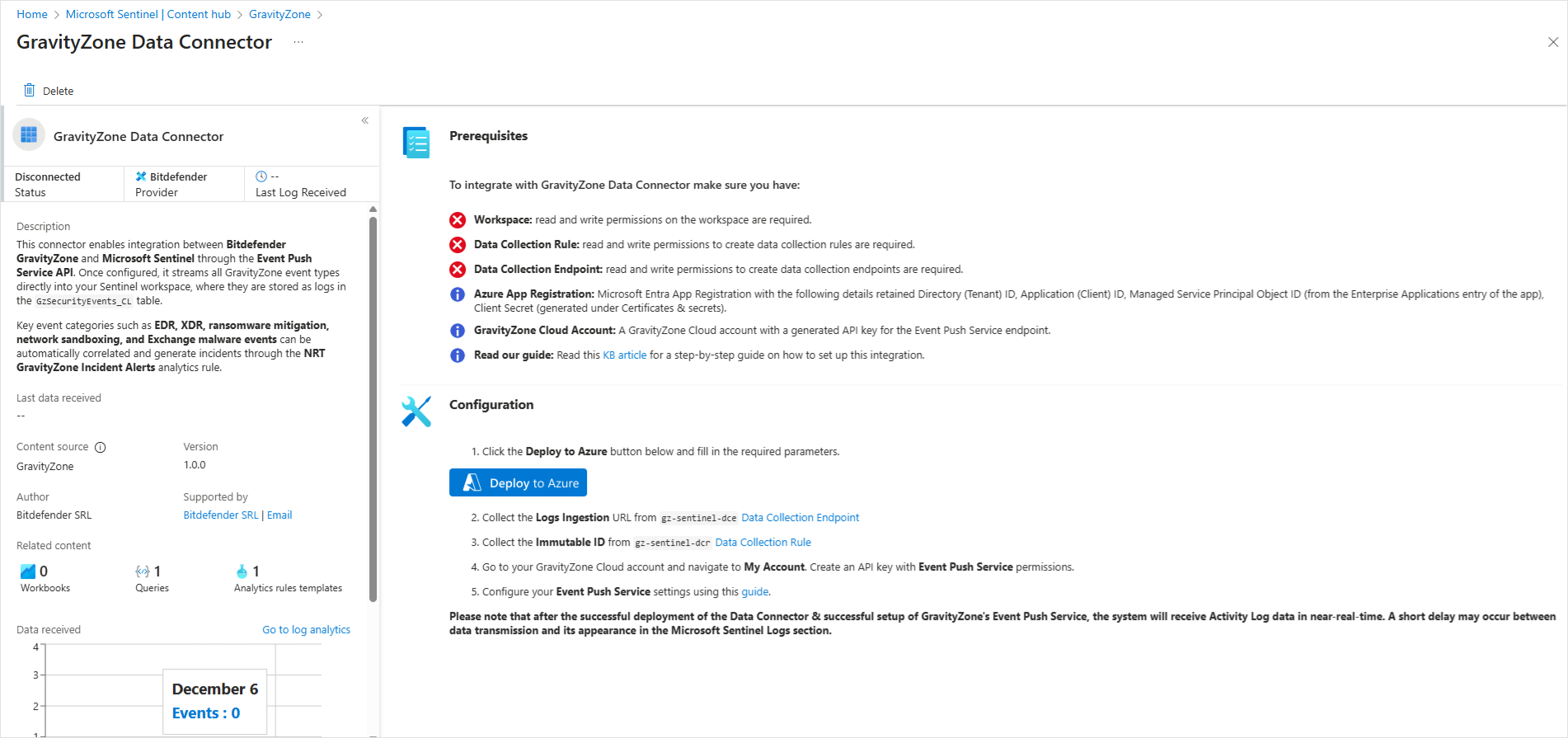
Configure the data connector accordingly:
In the Resource group field, you must select the resource group where the Log Analytics Workspace that you have created here.
In the Log Analytics Workspace Name field, you must add the workspace ID you have created here.
In the Entra App Object Id field, you must add the ID you have created here.
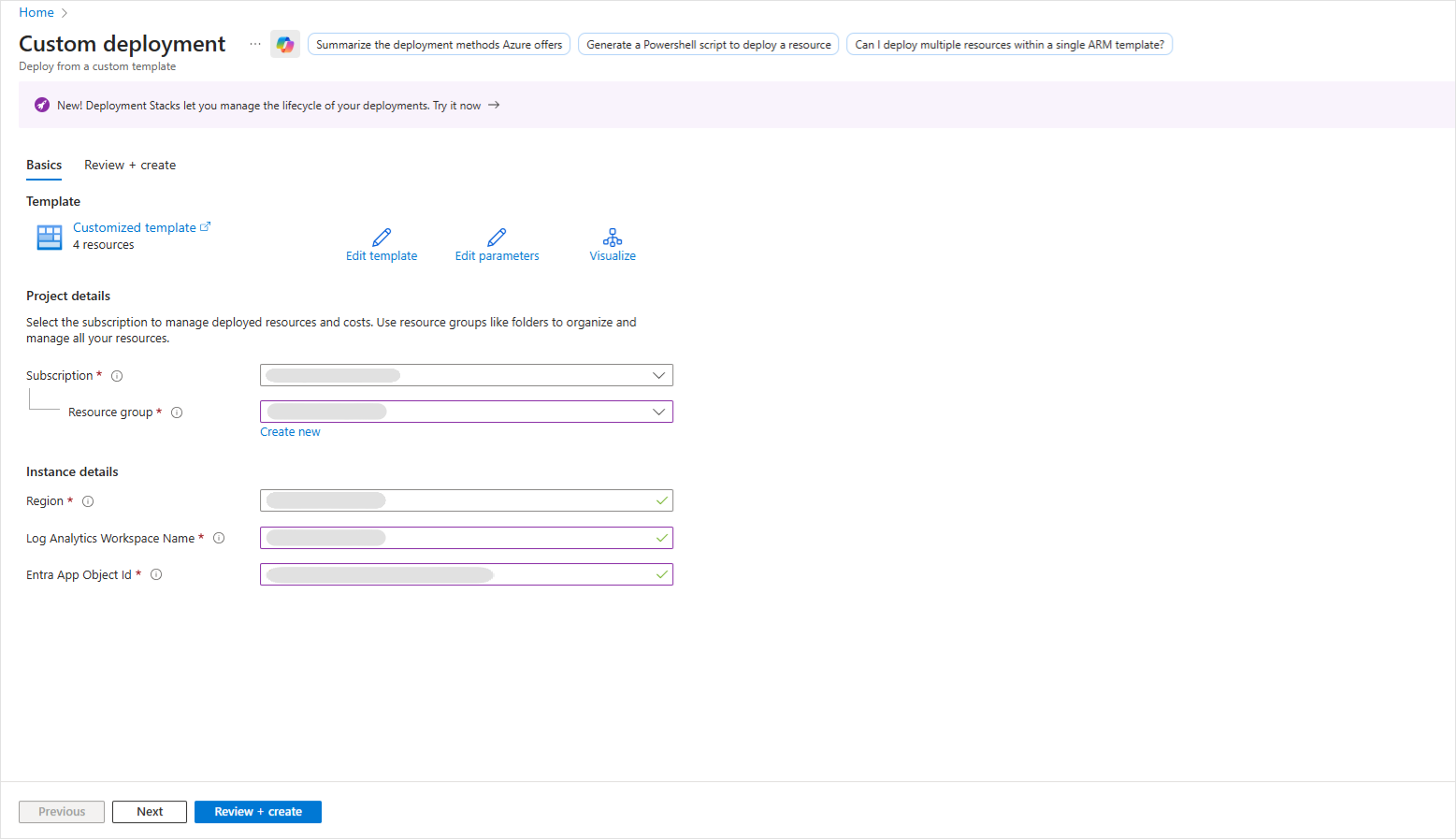
Click Review and Create.
Review all details and click Create.
Wait for the deployment to be successfully completed.
After the data connector is deployed, retain the following values:
Data collector rule immutable ID - located in Data Collection Rules > select gz-sentinel-dcr > Overview > Immutable ID
Data collection endpoint Ingestion URL - located in Data Collection Endpoints > select gz-sentinel-dce > Overview > Log Ingestion
Configure Event Push Service
To configure the GravityZone Event Push Service, follow the steps below:
Log in to GravityZone Control Center.
Go to My Account.
Under the API keys section, click Add.
Select the Event Push Service check box and click Generate. A new window displays the API key. Make sure to store the key in a secure location.
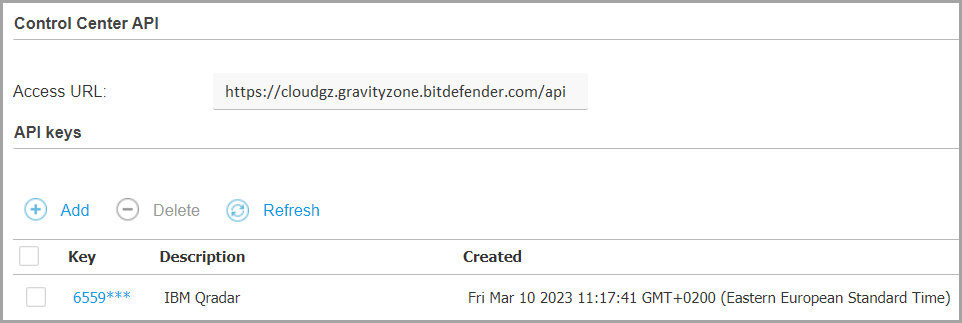
Remember the API key and the Access URL.
Click Save to preserve the changes.
You can configure events for the GravityZone Event Push Service by using Postman or another API testing tool of your choice. For more information about the general API functionality, refer to our Public API documentation.
In the API testing tool, you can configure your request using the setPushEventSettings method and the following guidelines:
The required URL has the format
CONTROL_CENTER_APIs_ACCESS_URL/v1.0/jsonrpc/push, where you must replace theCONTROL_CENTER_APIs_ACCESS_URLwith your GravityZone Access URL.The authorization type should be basic.
The username is the API key you have previously retrieved.
For the API request, you can configure the example in the
setPushEventSettingspage using the values specified for theazureSentinelV2service type. By default, multiple event types are included in the request, but you can choose which to add or exclude by setting that event type value totrueorfalse.
Example:
{
       "params": {
          "status": 1,
          "serviceType": "azureSentinelV2",
          "serviceSettings": {
               "url": "https://<datacollection-logingestion-url>.ingest.monitor.azure.com",
               "dcrId": "<data-collector-immutable-ID>",
               "tenantId": "<directory-tenant-id>",
               "clientId": "<application-client-id>",
               "clientSecret": "<client-secret-value>",
               "requireValidSslCertificate": true
          },
          "subscribeToEventTypes": {<events-you-want-to-receive>},
           "subscribeToCompanies": [
              "54a295d8b1a43d7c4a7b23c6",
              "54a295d8b1a43d7c4a7be321"
           ]
       },
       "jsonrpc": "2.0",
       "method": "setPushEventSettings",
       "id": "ad12cb61-52b3-4209-a87a-93a8530d91cb"
  }
A successful response to your request should have the value true.
For more information, refer to setPushEventSettings.
Verify data ingestion
After configuring the Events Push Service, wait for a few minutes to allow events to be ingested, then navigate to the Azure Sentinel workspace.
In the Logs section, verify that GravityZone events are being ingested correctly in the GzSecurityEvents_CL table.
You can also use a sendTestPushEvent API call to send a dummy event.
For more information, refer to sendTestPushEvent.