Managing user roles
In GravityZone, user-defined roles allow administrators to tailor console permissions to specific organizational roles and least-privilege policies.
The Accounts > User roles page lists only user-defined roles. Built-in roles have fixed, platform-wide permissions and are documented separately under User roles.
This article covers how to create, clone, edit, and delete user-defined roles.
Prerequisites and access control
Managing roles requires an administrator account with role management privileges (such as Company Administrator). Users without these privileges cannot view or access the User roles page.
You cannot create, clone, or edit roles to include rights that exceed your own account's permissions.
When configuring accounts under Accounts, you can assign only roles whose effective permissions are equal to or a subset of their own.
The User roles page
The User roles page lists all custom roles configured by GravityZone administrators for your company. Predefined built-in roles have fixed permissions and are not listed here.
Roles that contain permissions exceeding your own account privileges and were created by other administrators appear in read-only mode.
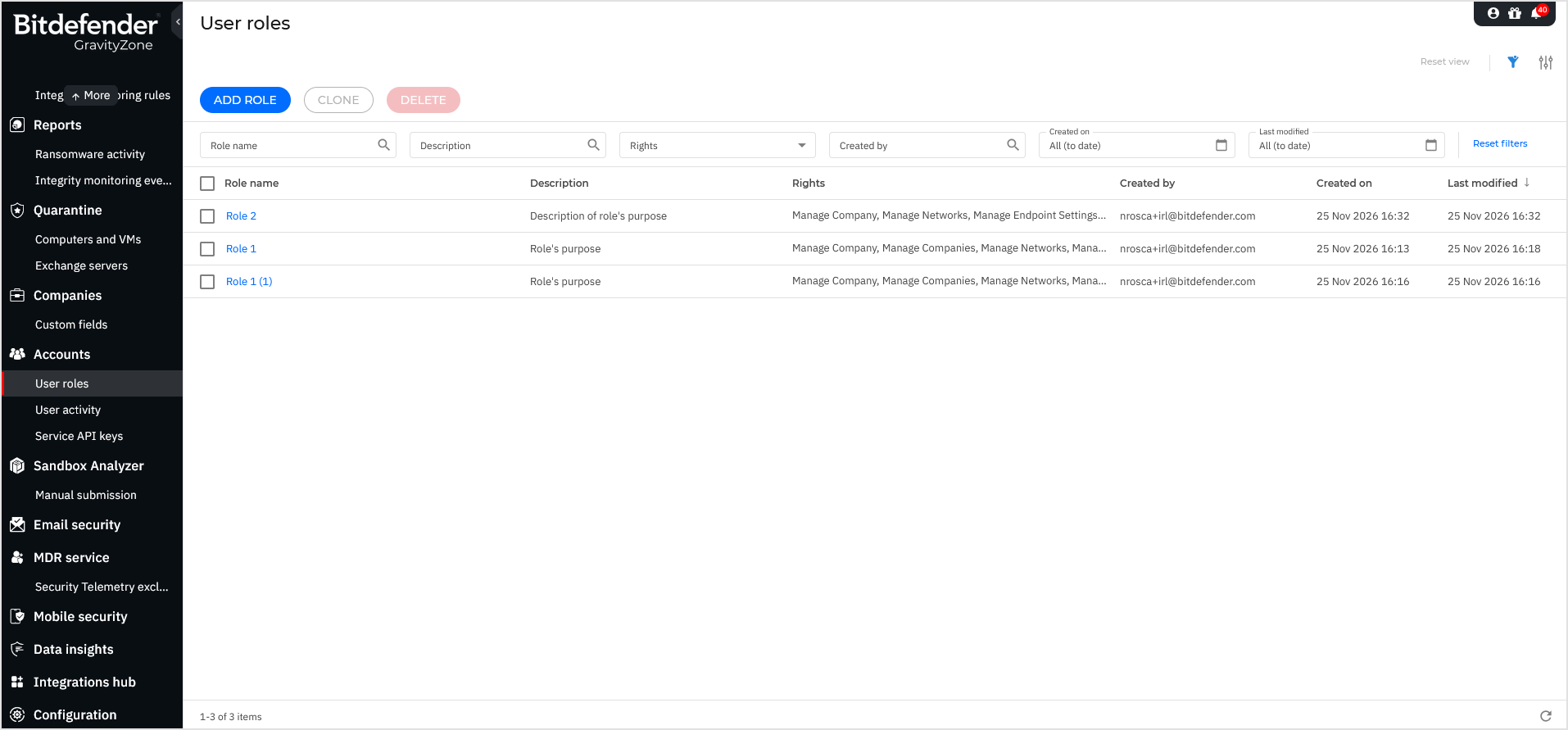
For each role, the table displays:
Role name - The user-defined name of the role.
Rights - Permissions summary for the role.
Description - Explanation of the role's purpose.
Created by - Name of the administrator who created the role.
Created on - Date when the role was created.
Last modified - Date of the last change made to the role.
You can sort and filter the table by any of these columns.
Adding a user-defined role
Roles bundle rights into a single profile. When configuring user accounts, administrators assign a role instead of selecting individual rights.
To create a role:
Go to Accounts > User roles.
Click Add role.
Under Details:
Role name - Enter a unique name for the role.
Naming rules:
Built-in role names (Company Administrator, Network Administrator, Security Analyst, etc.) are reserved.
The following characters are not supported:
^ £ $ % & * } { @ # ~ ? > < , | = + ¬
Description (optional) - Enter a brief description or keywords outlining the purpose of the role.
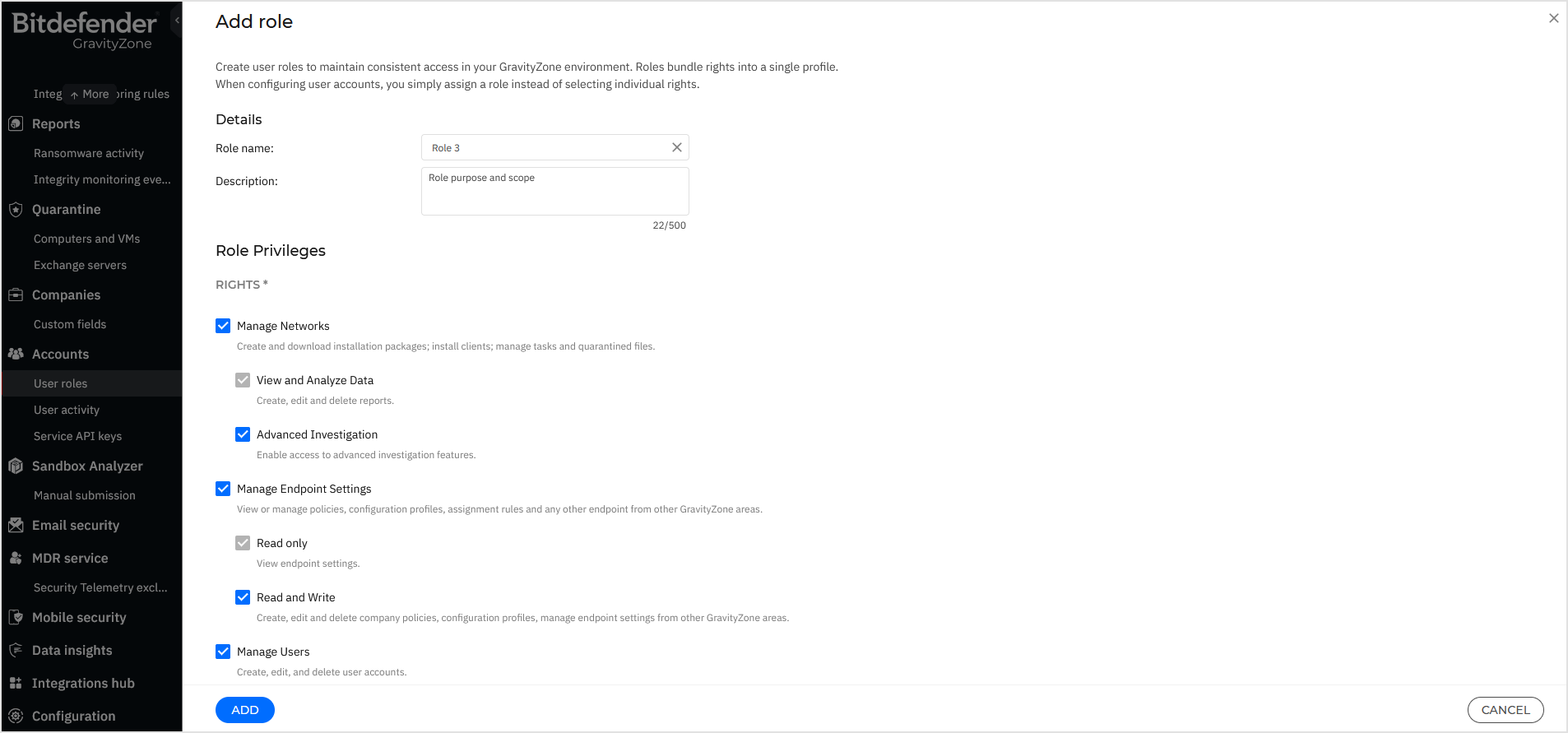
Under Rights:
Select the checkboxes corresponding to the privileges you want to grant.
Rights not granted to your own account appear disabled.
Selecting a dependent permission automatically activates its required prerequisites.
Click Add.
A toast notification confirms the role creation. The role is immediately available in the User roles table and in the role selection menu under Accounts.
Cloning a role
Cloning creates a new user role in GravityZone using an existing one as a baseline.
To clone a role:
Go to Accounts > User roles.
Select the checkbox next to the role you want to duplicate.
Click Clone in the action bar above the table.
Under Details, adjust the Role name (prefilled with a unique identifier) and Description. The same naming and character validation rules apply.
Under Rights, adjust the selected permissions as needed.
Note
If a cloned role contains rights exceeding your account privileges, those higher rights are automatically disabled to prevent privilege escalation.
Click Add.
Editing a user-defined role
To edit a role:
Go to Accounts > User roles.
Click the name of the role you want to modify.
Update the Role name, Description, or Rights.
Click Save.
The changes apply immediately across your GravityZone environment.
Important
If an assigned user is actively logged into GravityZone Control Center when their role or permissions are modified, their active session is terminated and they are logged out of the console without prior notification. The user must log in again for the updated permissions to take effect.
Deleting user-defined roles
You can delete a single role or select multiple roles for bulk deletion.
To delete roles:
Go to Accounts > User roles.
Select the checkbox next to one or more roles you want to remove.
Click Delete in the action bar.
Review the details in the confirmation dialog (Selected roles, Affected accounts):
If no accounts are assigned, the dialog confirms that the action cannot be undone.
If accounts are assigned, existing rights are preserved, and affected user accounts are automatically reassigned to the Custom (this account only) permission set.
If a selected role contains rights that your own administrator account does not possess, the dialog warns you that the role cannot be recreated.
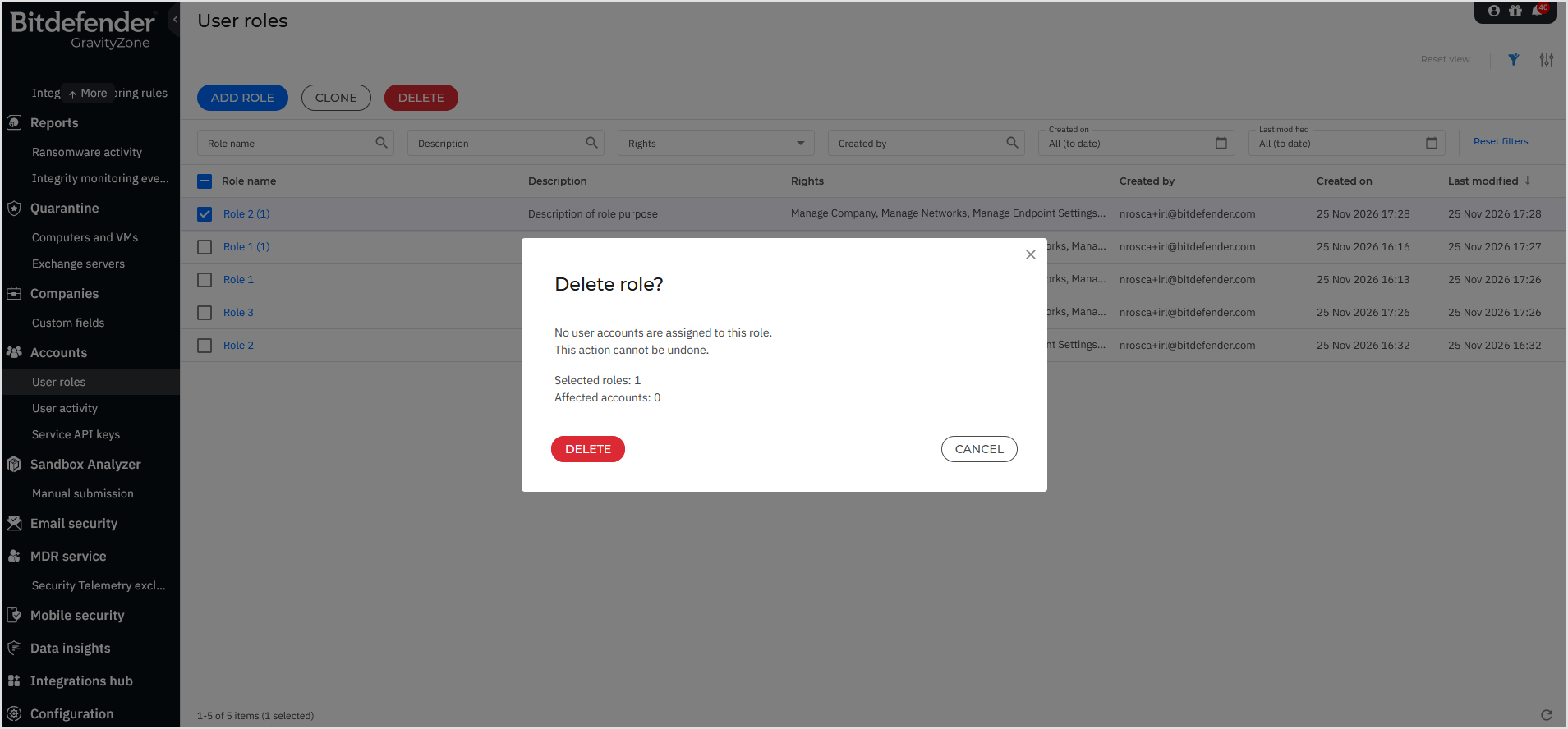
Click Delete.
Assigning roles to accounts
When creating or editing a user account under Accounts, go to the Role Privileges section and select a role from the User-defined role drop-down. For details, refer to Managing user accounts.
Important
You can assign user-defined roles only to accounts belonging to the same company.
As a partner, you can assign a role from a managed company (created by a local administrator) to a user from the same company. You cannot create a role in a different company
You can only assign roles with permissions equal to or fewer than your own account's privileges.
Reassigning a role or modifying permissions on an existing account while that user is actively logged in also terminates their session immediately, requiring them to re-authenticate.
User activity
GravityZone automatically tracks all role management and assignment events on the User activity page.
Affected areas in User activity:
Roles - Records administrative actions performed directly on the User roles page. Each entry captures:
The administrator who performed the action.
The operation type: creating (including cloning), editing, or deleting a role.
The exact rights configured at the role creation.
Accounts - Records actions that affect individual user access under Accounts. This includes:
Assigning a built-in or user-defined role to an account.
Updates to user permissions resulting from modifications made to an existing user-defined role.
Automatic reassignments, such as converting an account's permissions to Custom (this account only) when its assigned role is deleted.
To review these events:
Go to the Accounts > User activity page.
Select a company.
Select an area: Roles or Accounts.
Optionally, select an action.
Click Search.
In the list of results, click each entry to view details.