Script repository
The Script repository page under Incidents enables you to centrally manage scripts used for investigation and remediation activities. Store frequently used scripts together with their execution parameters and descriptions, then access them directly from Remote shell sessions when needed.
By maintaining scripts in a dedicated repository, you can simplify script management, reduce repetitive uploads, and improve the consistency of investigation workflows.
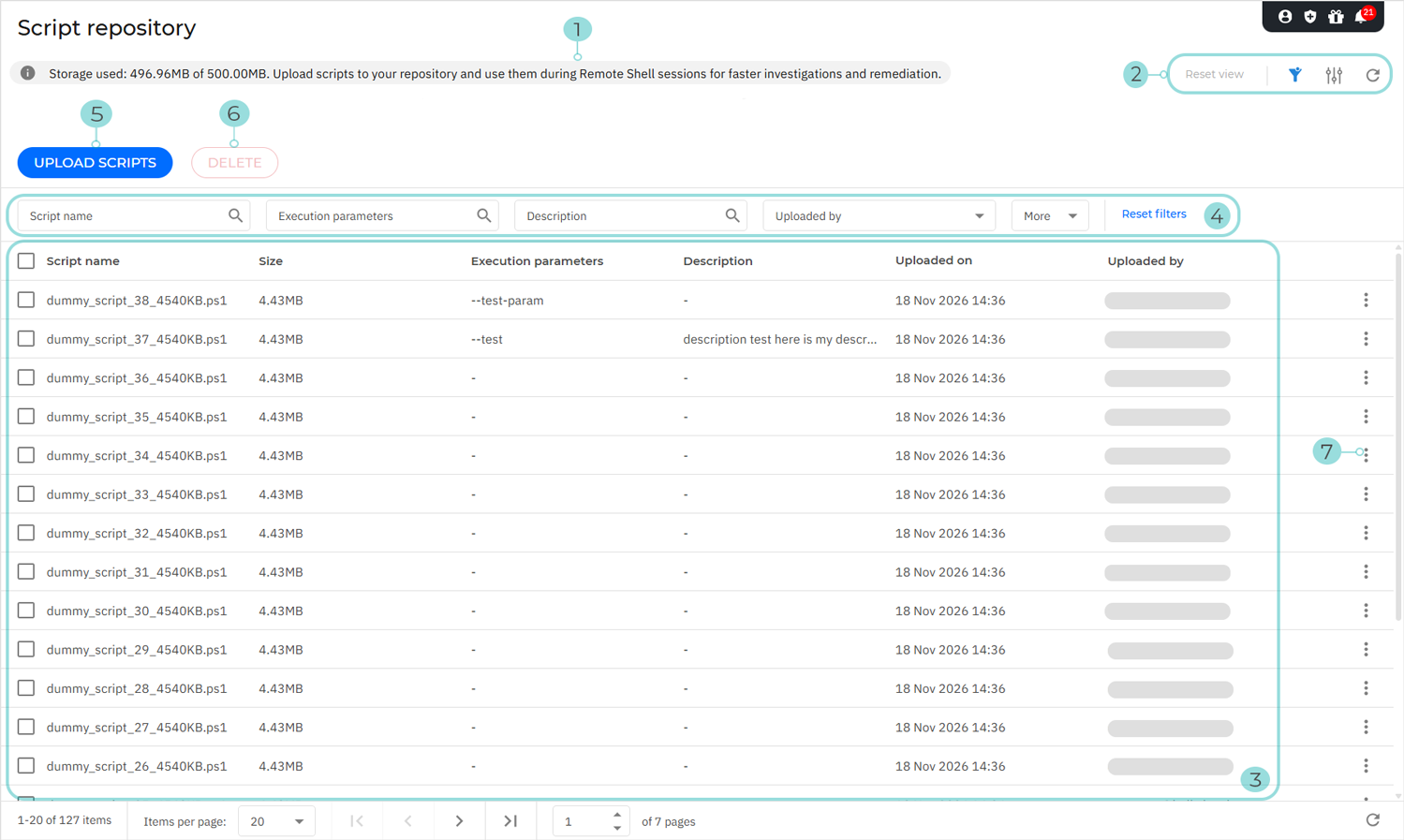
The page includes the following main components:
Storage usage banner: Displays the amount of storage currently used and the total repository capacity available for your company.
Important
Each company repository supports up to 500 MB of script storage.
View controls: Use them to customize the repository display:
Refresh: Reloads the repository data and displays the latest script information.
Open Settings: Opens the Settings panel, where you can select which columns are displayed in the scripts table, switch between the standard and compact views, and restore the default column settings using Reset columns.
Show or hide filters: Displays or collapses the filter bar used to search and filter scripts in the repository.
Reset view: Restores the default column layout after reordering columns in the scripts table.
The scripts table: Displays information about all scripts currently stored in the repository. For details, refer to Viewing script details.
Filter bar: Use it to quickly locate scripts in the repository. For details, refer to Filtering and searching scripts.
Upload scripts button: Opens the upload workflow, where you can add new scripts to the repository and configure their execution parameters and descriptions. For details, refer to Uploading scripts to the repository.
Delete button: Allows you to delete multiple scripts from the repository at once. For details, refer to Deleting scripts from the repository.
Actions menu: Provides access to the Edit and Delete actions for the selected script. For details, refer to Editing scripts and Deleting scripts from the repository.
Viewing script details
Each script entry in the scripts table includes the following information:
Script name: The name of the uploaded script file.
Size: The script file size.
Execution parameters: The arguments commonly used with the script. When the script is uploaded to a remote endpoint during a Remote shell session, the command is automatically prefilled with the configured parameters, reducing manual input and helping prevent execution errors.
Description: An optional script description. May include the script's purpose, helping other investigators understand when and how the script should be used.
Uploaded on: The date and time when the script was uploaded.
Uploaded by: The user who uploaded the script.
Filtering and searching scripts
You can narrow the list of scripts by selecting a user from the Uploaded by filter.
To search for a specific script, enter part or all of the script name, description, or execution parameters in the corresponding search fields.
Additionally, you can filter scripts by a specific time range using the calendar option in the Uploaded on field.
Uploading scripts to the repository
To upload one or more scripts to the repository, follow these steps:
On the Script repository page, click Upload scripts.
The Upload scripts page opens.
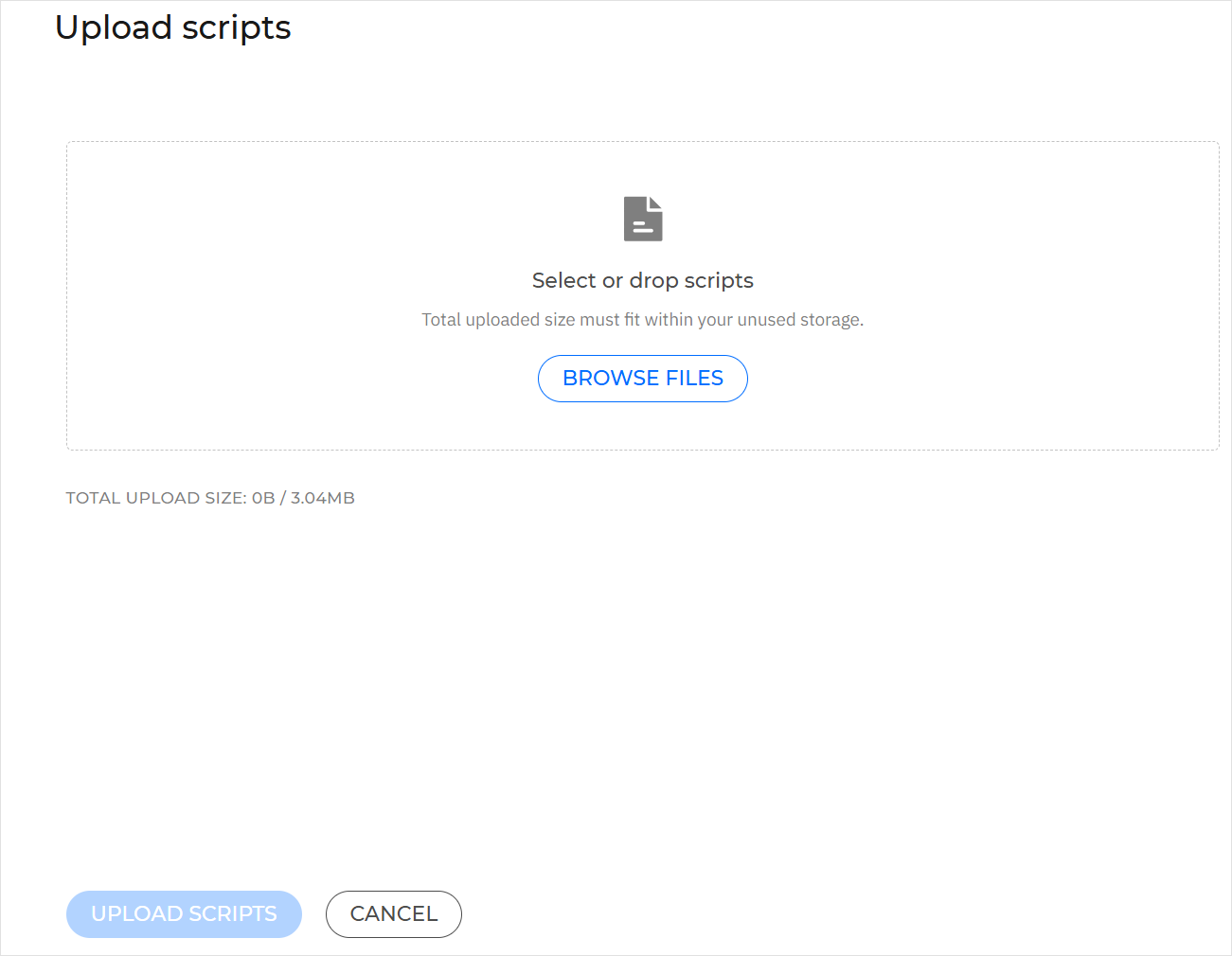
Click Browse files.
Select the scripts you want to upload from your local device.
Important
Only scripts up to 5 MB in size can be uploaded to the Script repository.
Either drag and drop the selected files into the Select or drop scripts area, or click Open.
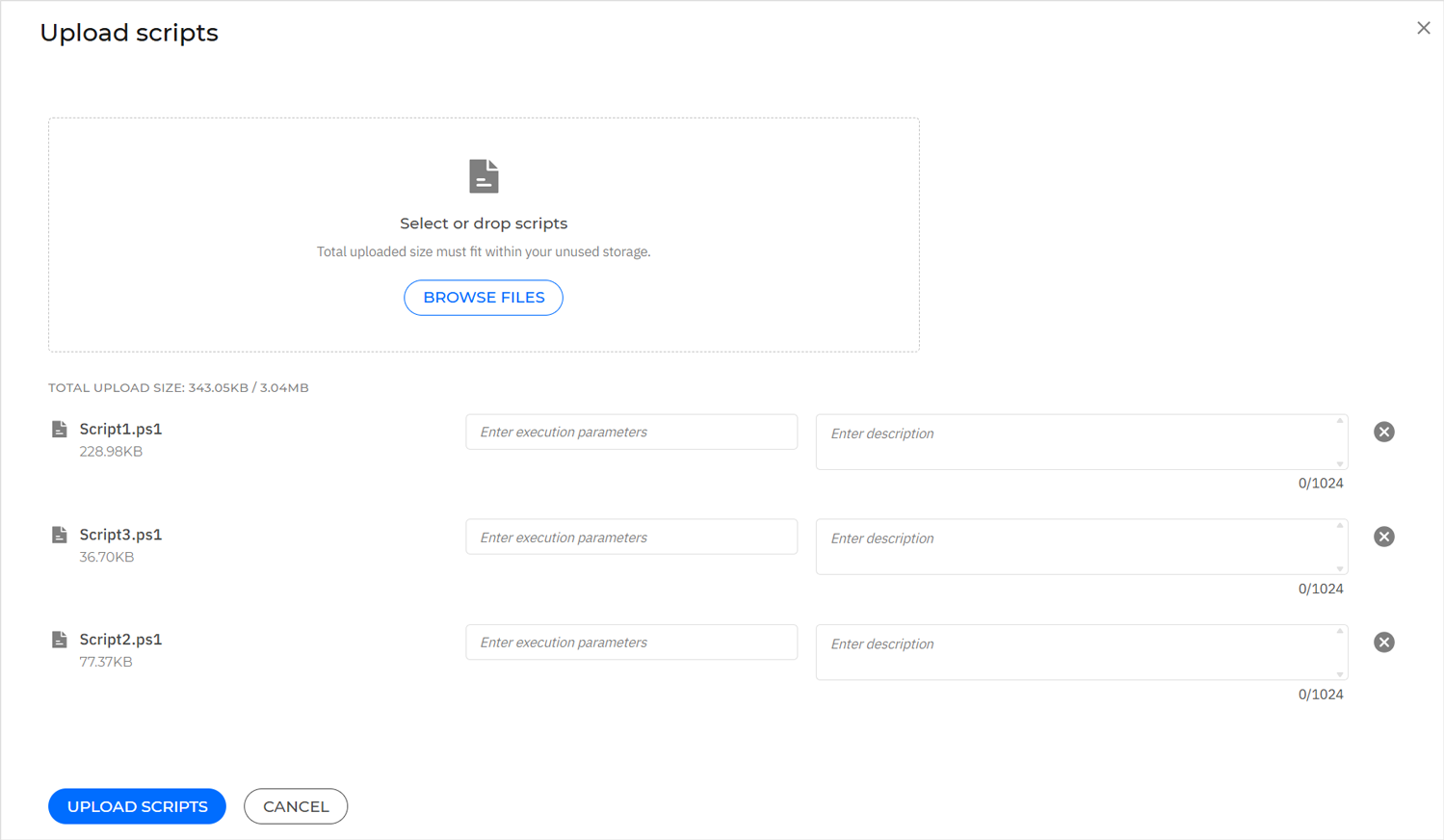
The scripts are added to the upload list.
Important
You can repeat the file selection process as many times as needed to build the upload list gradually. After each addition, review the Total upload size field to monitor how much repository storage will be consumed by the selected scripts and how much storage remains available.
If adding a script causes the total upload size to exceed the available repository storage, an error is displayed, and the affected script cannot be uploaded. To continue, remove the script from the upload list by clicking the
 Close icon next to it.
Optional: For each script, provide the execution parameters and a description.
Click Upload scripts.
You are returned to the Script repository page, where a green confirmation banner indicates that the selected scripts were uploaded successfully. The newly uploaded scripts are now listed in the scripts table.
Tip
Once uploaded to the repository, scripts can be transferred to remote endpoints during Remote shell sessions and executed as required. For more information about uploading repository scripts to remote endpoints, see Uploading scripts from repository.
Editing scripts
To edit a script from the Script repository, follow these steps:
In the scripts table, click the
 actions menu corresponding to the script you want to modify.
Select Edit.
Update the execution parameters, the description, or both, as needed.

Click the green check mark
 to save the changes.
A green success banner confirms that the script details were updated successfully. You can verify the changes in the scripts table.
Deleting scripts from the repository
To delete an individual script from the repository:
In the scripts table, click the
actions menu corresponding to the script that you want to delete.Select Delete.
The following dialog box is displayed:
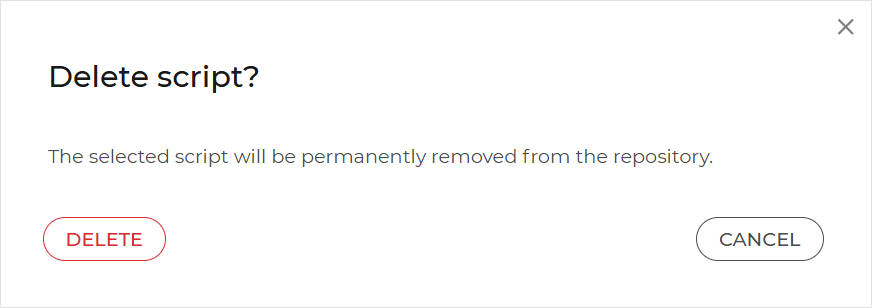
Click Delete.
To delete multiple scripts at once:
In the scripts table, select the scripts that you want to delete.
Click Delete in the upper-left corner of the page.
In the confirmation dialog displayed, click Delete.
In both cases, a green success banner confirms that the script deletion was completed successfully. The deleted scripts are removed from the scripts table, and the corresponding repository storage is released.