Checking unlicensed endpoints in GravityZone
This article explains how to identify unlicensed endpoints in GravityZone Control Center .
When you navigate to My Company > Licensing in the GravityZone Control Center, you may view a notification stating:
You have X unlicensed endpoints!
This message indicates that some of your managed endpoints are not covered by a valid license. These endpoints may have expired licenses, trial licenses, or licenses in a pending state.
To identify which endpoints are unlicensed, you need to generate a Network Protection Status report and filter it subsequently by the relevant license status columns.
Generate a Network Protection Status report
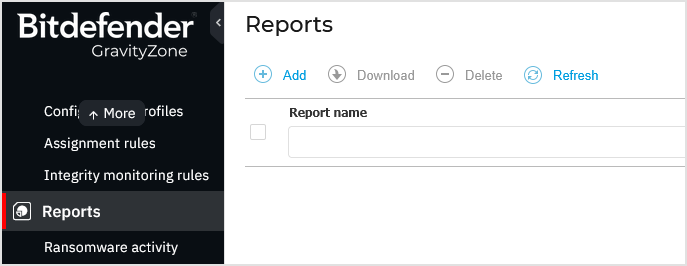
In GravityZone Control Center, go to Reports from the left-side menu.
Click Add to create a new report.
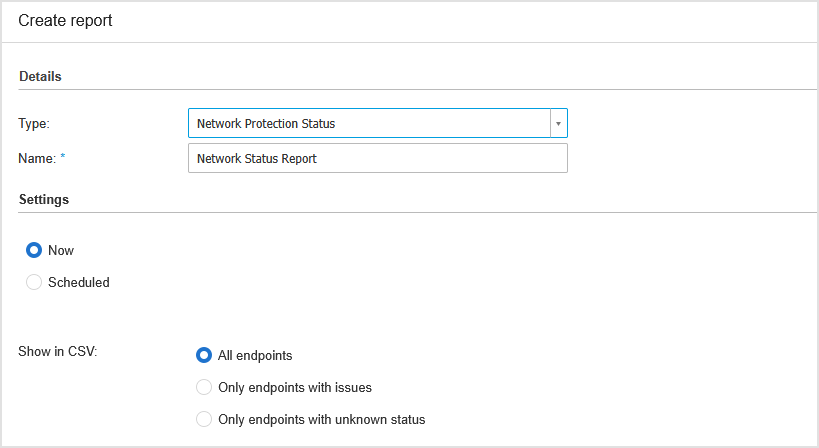
Under Report type, select Network Protection Status.
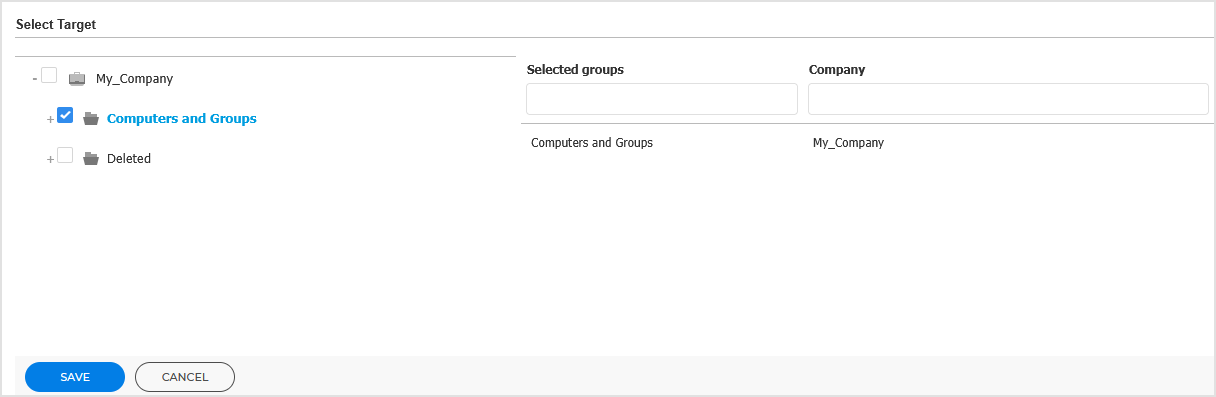
Under Target, select your entire network.
Click Save.
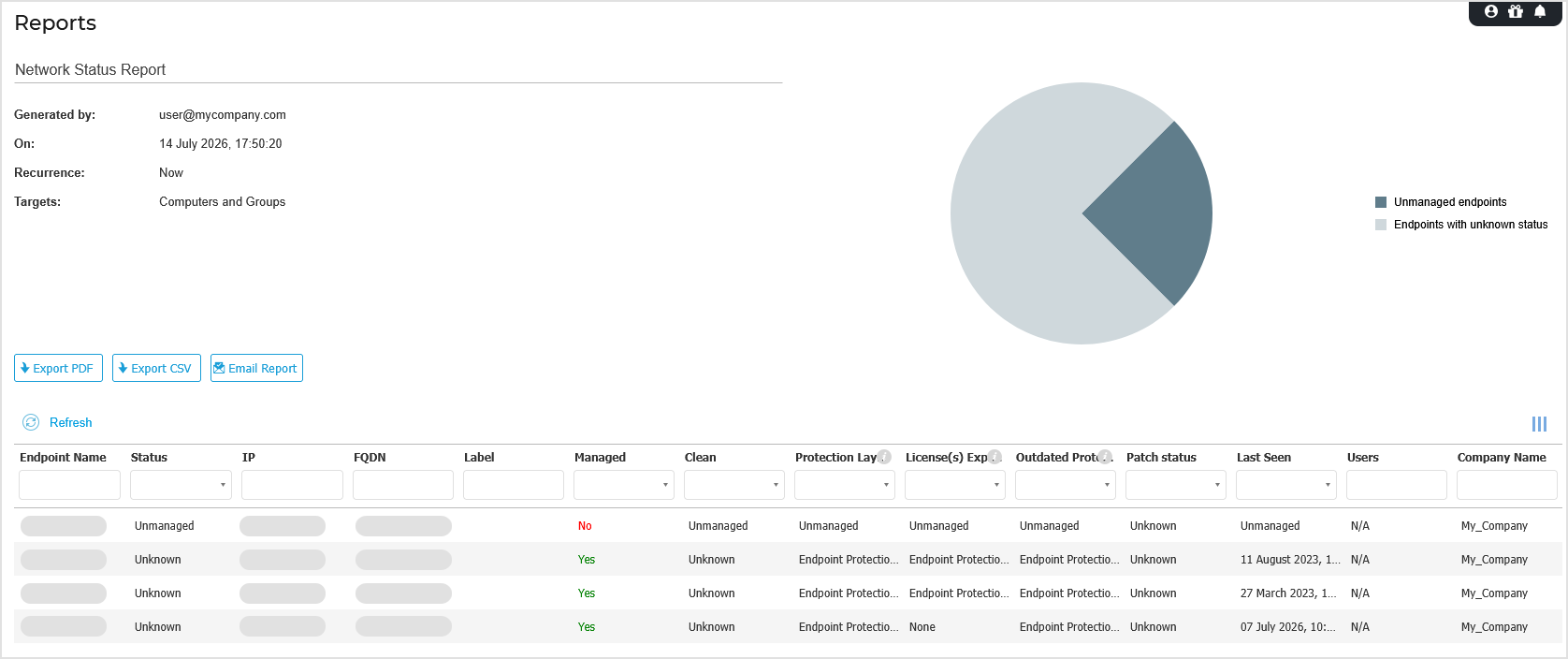
The report is generated and displayed in the Reports section.
Filter the report by license status
To identify which endpoints are causing the license notification, you need to apply Endpoint Protection filter on the following columns, one at a time:
Licenses expired
In the generated report, locate the Licenses Expired column.
Important
If the column is not visible, click the
 Settings button to customize the visible columns, and enable Licenses expired.
Apply the Endpoint Protection filter on this column to display only endpoints with an expired license.
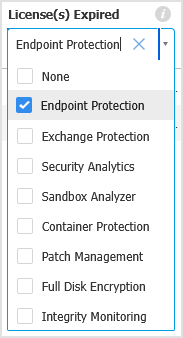
Review the list of endpoints shown.
Trial licenses
Reset the previous filter.
Locate the Trial Licenses column in the report.
Important
If the column is not visible, click the
Settings button to customize the visible columns, and enable Licenses expired.Apply the Endpoint Protection filter on this column to display endpoints running on a trial license.
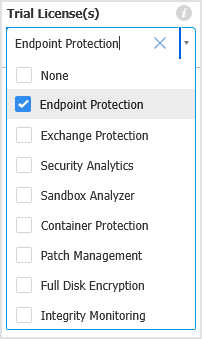
Review the list. These endpoints are using a trial license and are counted as unlicensed.
Pending licenses
Reset the previous filter.
Locate the Pending Licenses column in the report.
Important
If the column is not visible, click the
Settings button to customize the visible columns, and enable Licenses expired.Apply the Endpoint Protection filter on this column to display endpoints with a pending license status.
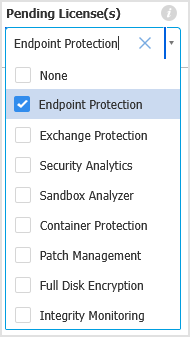
Review the list. These endpoints have not been assigned a valid license yet.
Address the licensing issues
After identifying the unlicensed endpoints, you can take the following actions:
Expired licenses - Renew or add a new license key in My Company > Licensing.
Trial licenses - Purchase a full license to cover these endpoints.
Pending licenses - Ensure these endpoints are covered by the existing license seats or add more if you have exceeded your current capacity.