Rules
Overview
Rules can be created to allow or block emails based on different criteria.
Rules can be created:
Globally - for all or selected customers under an MSP partner
Organizationally - for a specific customer
Domain - for a specific domain
Users - for specific users or mailboxes
Rule Types:
Allow Rules - based on sender addresses or domains
Block Rules - based on sender addresses or domains
Custom Rules - based on sender addresses, domains, IP addresses, subject lines, URLs, Headers, attachment types.
Tip: It is important to understand the difference between an allow rule and a custom rule as they pertain to the email verdict you’re trying to bypass, as outlined in the table below.
Email Verdict | Bypassed by Allow Rule | Bypassed by Custom Rule |
|---|---|---|
Spam | Yes | Yes |
Infomail | Yes | Yes |
Impersonation | Yes | Yes |
Policy - Banned Attachment | No | Yes |
Policy - Geo | No | Yes |
Malware | No | Yes |
Phishing | No | Yes |
Rules can be created from:
From the portals (MSP level, customer level, end-user level)
Creating an allow rule
Overview
Allow rules permit specific sender addresses or domains to bypass selected filters in Mesh.
For security reasons, allow rules do not bypass phishing, malware, banned attachment, or geo filter verdicts. To bypass these verdicts, create a custom rule.
Email verdict | Bypassed by Allow Rule | Bypassed by Custom Rule |
|---|---|---|
Spam | Yes | Yes |
Infomail | Yes | Yes |
Impersonation | Yes | Yes |
Policy - Banned Attachment | No | Yes |
Policy - Geo | No | Yes |
Malware | No | Yes |
Phishing | No | Yes |
Allow rules can be applied
Globally - To all or selected customers under an MSP.
Organizationally - To a specific customer.
Domain - To a specific domain.
Users - To specific users or mailboxes.
Create a new rule
Select New +. A window opens.
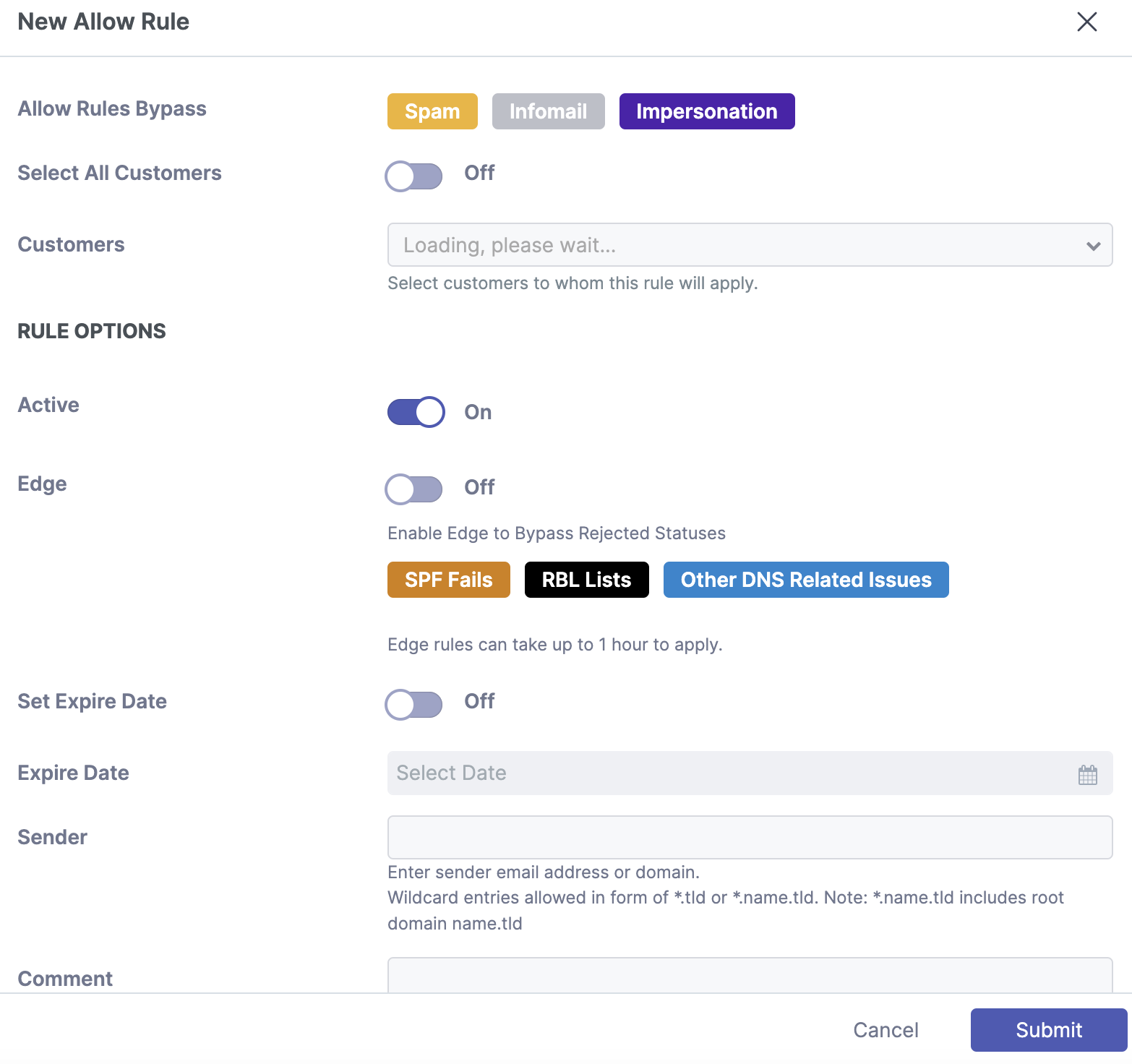
Select the customers (partner view)
Select Select All Customers, or choose the customers to which the rule applies.
Select the scope (customer view)
Select whether the rule applies to the Organization, a Domain, or a specific User.
Configure the rule options
Note
Rules trigger when either the header-from or envelope-from value matches the entry.
To allow a sender, enter the email address as shown below:
sender@example.comTo allow a domain and all its subdomains, enter the domain without the
@symbol:example.comTo allow a subdomain, enter it without the
@symbol:subdomain.example.comTo create a wildcard entry, enter the rule as shown below. This example allows email from domains ending in
.io:*.ioEnable Edge (optional)
Enable Edge only when you need to bypass SPF checks or DNS issues. For example, if an email is quarantined as spam, you do not need to enable this option. Enabling it unnecessarily can create a security risk.
Submit the rule
Select Submit to create the rule.
Creating a custom rule
Criteria, actions, and applying custom rules
Unlike allow and block rules, custom rules can use multiple conditions based on the following criteria:
Sender address or domain
IP address or range
Subject
URLs
Headers
Attachment types
The following actions are available for custom rules:
Deliver
Deliver + Banner (available only for Mesh Unified and Mesh 365)
Delete
Quarantine
Reject
Junk (available only for Mesh Unified and Mesh 365)
Junk + Banner (available only for Mesh Unified and Mesh 365)
Custom rules can be applied:
Globally - To all or selected customers from the partner level.
Organizationally - To a specific customer.
Domain - To a specific domain.
Users - To specific users or mailboxes.
What custom rules bypass when set to Deliver
When set to Deliver, custom rules bypass all filtering categories.
Verdict | Bypassed by custom rule? |
|---|---|
Spam | Yes |
Infomail | Yes |
Impersonation | Yes |
Malware | Yes |
Phishing | Yes |
Policy - Banned Attachment | Yes |
Policy - Geo Filter | Yes |
Create a custom rule
Create a new rule
Go to the Policy page, select Custom Rule, and then select New +.
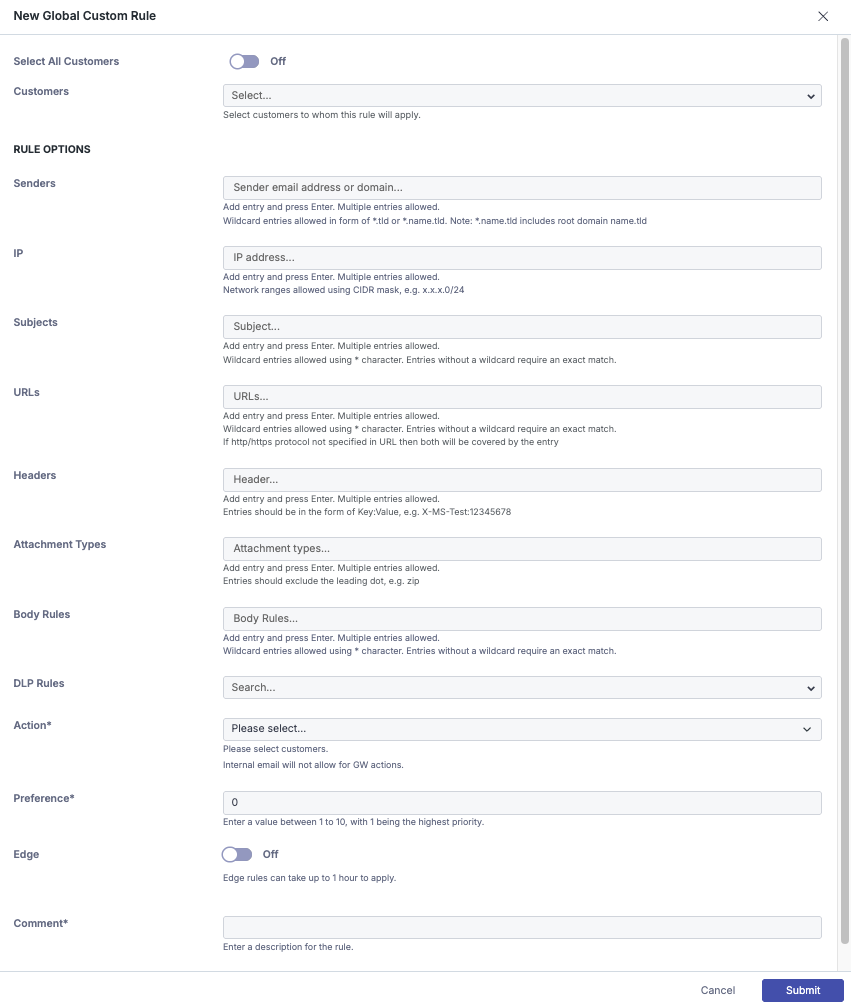
Select customers (partner view)
Enable Select All Customers to apply the rule to all existing customers, or select the specific customers to which the rule applies.
Note
Available actions may differ depending on the products used by each customer.
Select the scope (customer view)
Select whether the rule applies to the Organization, a Domain, or a specific User.
Configure the rule options
Each section can contain one or more entries. For the rule to trigger, the message must match at least one entry from every configured section.
Note
Important: Sections in a custom rule use AND logic, while entries within the same section use OR logic.
For example, if a rule contains one sender, one IP address, two subject entries, and three attachment entries, the message must match at least one entry from each configured section.
Sender
Note
Rules trigger when either the header-from or envelope-from value matches the entry.
To match a sender, enter the email address in the following format:
sender@example.com.To match a domain and all its subdomains, enter the domain without the
@symbol:example.com.To match a subdomain, enter it without the
@symbol:subdomain.example.com.To create a wildcard entry, use the following format. This example matches email from domains ending in
.io:*.io.IP
Enter the sender IP address or IP range in one of the following formats:
1.1.1.11.1.1.0/24Subject
An exact match is required unless you use the
*wildcard.
For example, the rule shown above triggers for subject lines starting with
This is an exampleorTicket#.Body rules
Define keywords or strings that trigger the rule when found in the message body. You can add one or more entries. An exact match is required unless you use the
*wildcard on the left, right, or both sides of an entry. Each entry acts as a separate condition within the section.
For example, the rule shown above triggers for email containing the word Voicemail or lines starting with Microsoft.
DLP (Data Loss Prevention) rules
When enabled, DLP rules identify and flag messages that contain patterns associated with sensitive data. The supported categories are credit card numbers, IBANs, and Social Security numbers (SSNs).
Credit Card Numbers - Matches standard formats, such as 5555-5555-5555-4444 and 4111111111111111.
IBANs - Matches valid IBAN formats, including country-specific variations.
Social Security Numbers (SSNs) - Matches the standard US SSN format, such as 111-22-3333, and variations without separators, such as 111223333.
When a match is detected, the configured rule action, such as quarantine, reject, or banner, is applied.

URL
Wildcard entries are supported in formats such as
*.tldor*.name.tld. You can also add a wildcard at the end of a full address. If the HTTP or HTTPS protocol is omitted, both protocols are matched.example.com *.example.com https://example.com/contact-us https://example.com/*
Headers
Use this section to match specific email headers. This can be useful when allowing security awareness tools or mass-mailing services that add unique custom headers.

Attachment type
Use this section to match specific attachment types. This can override banned attachment settings in the customer policy or restrict the rule to messages containing specific attachment types. Enter extensions without the leading dot, for example
zip.
Exclude verdicts
Use this option to exclude specific verdicts from a custom allow rule.

If this field is empty, the custom rule triggers for all verdicts. If you select a verdict, such as Malware or Impersonation, messages with that verdict do not trigger the rule.
Select an action
Select the action applied to matching email:
Deliver
Deliver + Banner (available only for Mesh Unified and Mesh 365)
Delete
Quarantine
Reject
Junk (available only for Mesh Unified and Mesh 365)
Junk + Banner (available only for Mesh Unified and Mesh 365)
Note
Messages processed with the Delete or Reject action cannot be recovered.
Set the preference
The preference determines the processing order among custom rules. In most cases, use 1. Rule hierarchy is still evaluated first. For more information, see Rule hierarchy and preference.
Enable Edge (optional)
Enable Edge only when you need to bypass SPF checks or DNS issues. This applies the action at the connection level. In most cases, you do not need to enable this option.
Add a comment
Enter a description that helps identify and search for the rule later.
Submit the rule
Select Submit to save the settings. The rule appears in the table.
Creating a block rule
Overview
Block rules delete email from a specific sender address or domain.
Block rules can be applied:
Globally - To all or selected customers under an MSP.
Organizationally - To a specific customer.
Domain - To a specific domain.
Users - To specific users or mailboxes.
Select New +. A window opens.
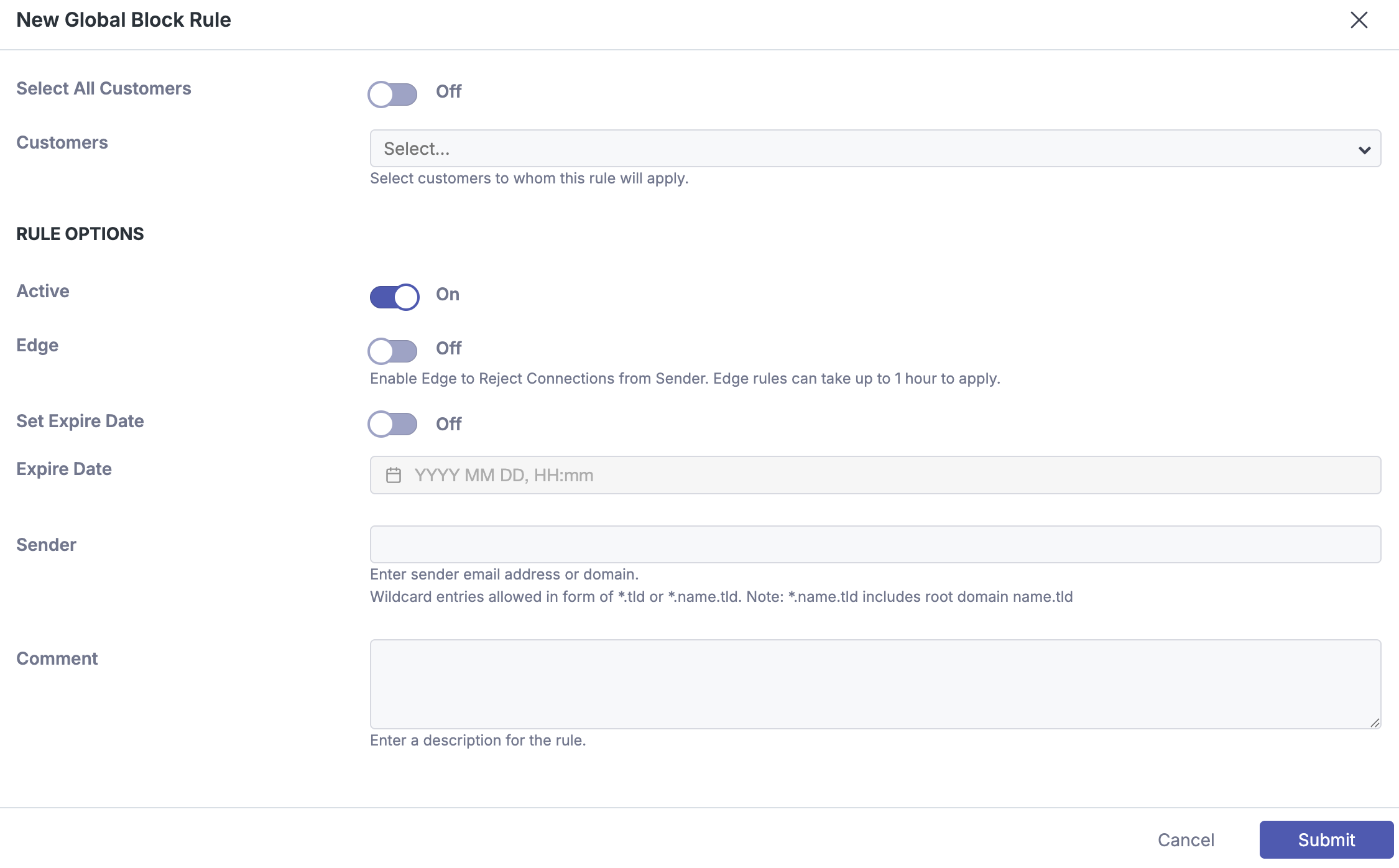
Select the customers to which the rule applies. To select all eligible customers, select Select All Customers.
Select whether the rule applies to an Organization, a Domain, or a specific User.
Configure the rule options.
Note
Rules trigger when either the header-from or envelope-from value matches the entry.
To block a Sender, enter the email address in the following format:
sender@example.comTo block a Domain and all its subdomains, enter the domain without the
@symbol:example.comTo block a Subdomain, enter it without the
@symbol:subdomain.example.comTo create a Wildcard entry, use the following format. This example blocks email from domains ending in
.cool. Wildcards can be used to block entire top-level domains (TLDs):*.coolSelect Submit to create the rule.
Import rules using a CSV file
Use a CSV file to import large numbers of allow and block rules. The CSV must follow the formats shown below.
To upload a CSV file containing allow or block rules, complete the following procedure.
Open the Policy page
At the customer level, open the Policy page.
Select the rule type
Select the Allow Rules or Block Rules tab.
Upload the CSV
Select Upload CSV. A window opens. Download the example CSV from the provided link.
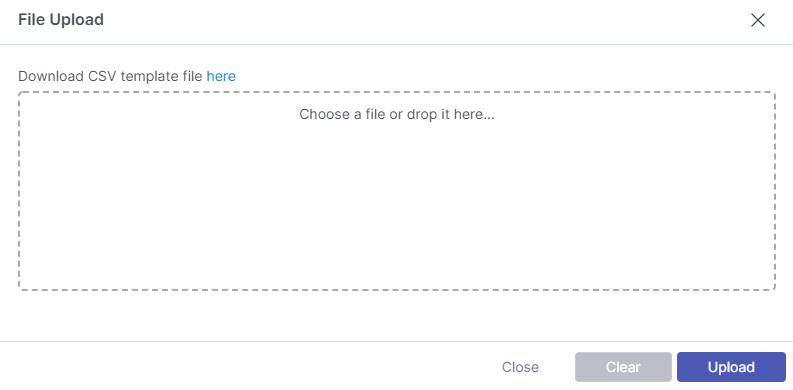
Select the file
Select Choose a file, or drag the CSV file onto the upload area, and then select Upload.
Allow rules format
sender | recipient | rule | |
|---|---|---|---|
1 | importantclient@example.com | ceo@meshsecurity.io | allow |
2 | example.com | meshsecurity.io | allow |
3 | *.com | Organization | allow |
Note
Explanation:
Demonstrates a user to user allow rule.
Demonstrates a domain to domain allow rule
Demonstrates a wildcard allow rule for all domains ending in
.com. It is applied to the entire customer organization.
Note
Rules will trigger if the header-from OR envelope-from matches the entry.
Block rules format
sender | recipient | rule | |
|---|---|---|---|
1 | malicioussender@example.com | ceo@meshsecurity.io | block |
2 | example.com | meshsecurity.io | block |
3 | *.ru | Organization | block |
Note
Explanation:
Demonstrates a user to user block rule.
Demonstrates a domain to domain block rule
Demonstrates a block rule for all domains ending in
.ru. This would block any emails for all TLDs registered in Russia. It is applied to the entire customer organization.
Note
Rules will trigger if the header-from OR envelope-from matches the entry.
Troubleshooting Tips
When creating domain level rules, do not include the
@symbol.Keep the file size under 2000 rows. If you need to upload 2000+ rules, creating multiple CSV files is recommended.
If your upload is failing, check your CSV to ensure that it is following the template format and that the file type is correct. Ensure there are no invalid symbols, whitespaces, or invalid domains/addresses.
If you need to create an allow or block rule for an IP address, please create a Custom Rule. More information on creating custom rules can be found here.
Note
Tip: You can combine allow and block rules into one list for importing as long as it remains under the maximum limit of 2,000 rules. This can be performed using the Upload CSV button in either the Allow rules page OR the Block rules page. Allow rules will appear in the allow page and vice versa.
Export Rules
Allow, block, and custom rules can be exported to a CSV or JSON file. Here are the steps to complete an export.
Note
The export saves your search results, allowing you to specify what you want to appear in the file.
1. Navigate to the Policy page
Navigate to the Policy page in the sidebar.
2. Select Allow/Block rule
Select the Allow or the Block tab and perform the search.
3. Export
Select Export. The format selection window is opened.
4. Select format
Select a format and choose whether you would like to include any allow or block rules.
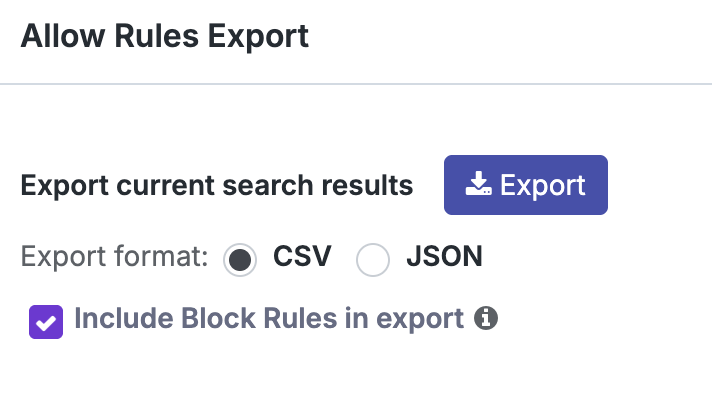
5. Download
Once you have completed you configuration, click the icon to begin the download.
Reasons for creating allow rules during onboarding
There are certain scenarios that may result in Mesh correctly blocking wanted emails.
Frequent or High-priority senders
We regularly see senders with misconfigured settings such as SPF or DKIM, that can result in their emails being quarantined by Mesh. It can be beneficial to create allow rules for your customer’s most frequent or high-priority senders.
Third party tools like CRMs or PSAs that send email on your behalf
Third party tools like CRM's or PSA’s often use the customer’s domain in the header/envelope from. Because these emails are coming from an external source, they will hit impersonation filters in Mesh.
Note
Avoid creating a same domain allow rule. A same domain allow rule is when the sender domain matches the recipient domain.
You can overcome this with by creating a custom rule using the sender address AND IP address to prevent emails from being quarantined.
Know The Difference Between Allow Rules and Custom Rules.
It is important to familiarize yourself with the difference between allow and custom rules and where they are best used ⟶ Rules
Email Verdict | Bypassed by Allow Rule | Bypassed by Custom Rule |
|---|---|---|
Spam | Yes | Yes |
Infomail | Yes | Yes |
Impersonation | Yes | Yes |
Policy - Banned Attachment | No | Yes |
Policy - Geo | No | Yes |
Malware | No | Yes |
Phishing | No | Yes |
O365 safe senders and blocked senders
When using Mesh 365 or Mesh Unified, O365 safe sender and blocked sender rules can be used to allow or block email. Safe senders behave similarly to standard allow rules and bypass only specific verdicts. For more information, see Rules.
Note
Safe sender and blocked sender rules created in O365 are not replicated on the Mesh policy page.
Note
If the customer uses Mesh Unified and the policy action for a verdict is Quarantine in Mesh, the safe sender rule does not trigger because it is processed at the API level.
Create a safe sender
You can create a safe sender rule in O365 by using either of the following methods.
Mark the message as not junk
In Outlook, select It’s not junk.
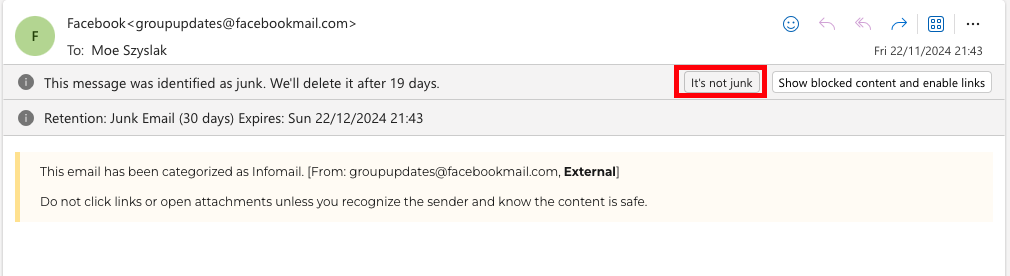
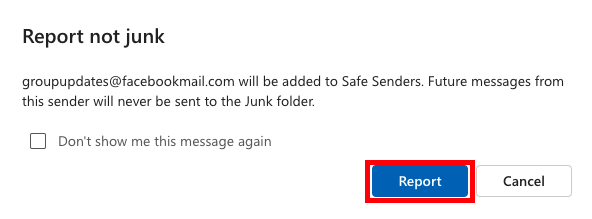
Confirm the report
Select Report to confirm the rule creation.
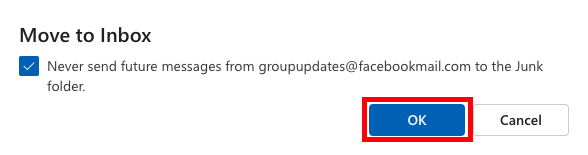
Move the message to the inbox
Drag the message from the message list to the inbox.
Confirm the rule
Select OK to confirm the rule creation.
Create a blocked sender
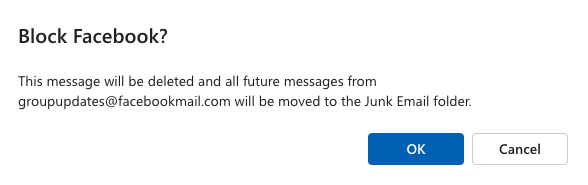
The Microsoft block action moves future messages from the sender to the Junk folder. To delete email instead, create a block rule. For more information, see Creating a block rule.
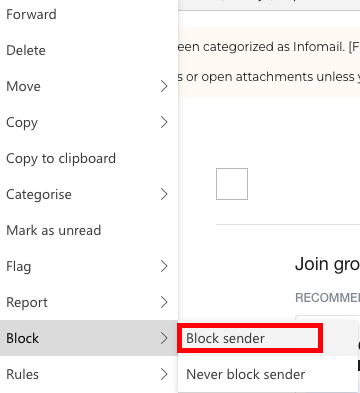
Open the message menu
Right-click a message in the message list.
Block the sender
Select Block Sender.
Confirm the rule
Select OK to confirm the rule creation.
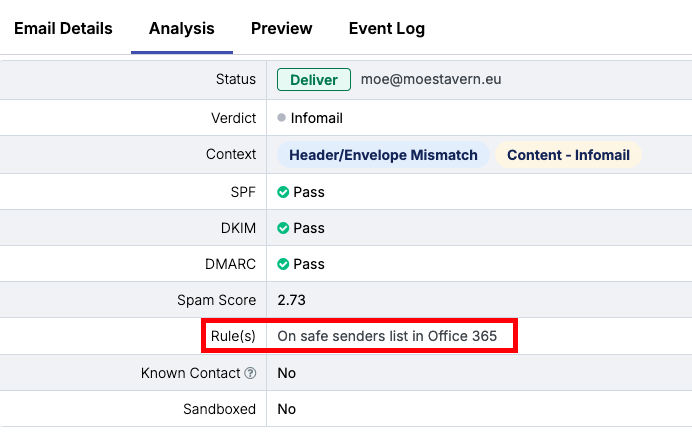
Check whether an email is on the safe sender or blocked sender list
In Live Email Tracker, safe sender and blocked sender information appears in the email status and email analysis details.
 |
 |