Moving entities
In the Network section, you can safely and efficiently move entities between locations with the help of context-aware messages tailored to your selected destination.
To move entities:
Use the Move action:
From the Actions menu in the table area, move one or multiple entities.
From the contextual menu in the tree view, move a single entity.
A configuration page displays details about the destination and helps prevent accidental or unwanted relocation.
Use drag and drop:
Move one or multiple entities from the Network table to a location in the tree.
Move a single entity between locations within the tree.
A confirmation window helps prevent accidental or unwanted relocation.
Note
You cannot drag and drop entities within the Network table. The destination must be in the tree view panel.
Use the Move action
To move entities using the Move action in the Network table, follow these steps:
Locate the entities you want to move in the Network table.
Select the corresponding checkboxes.
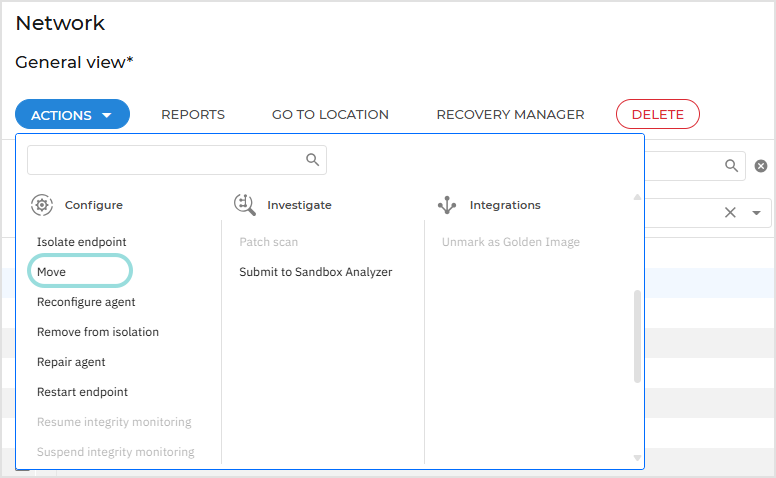
Open the Actions menu at the top of the table and select Move.
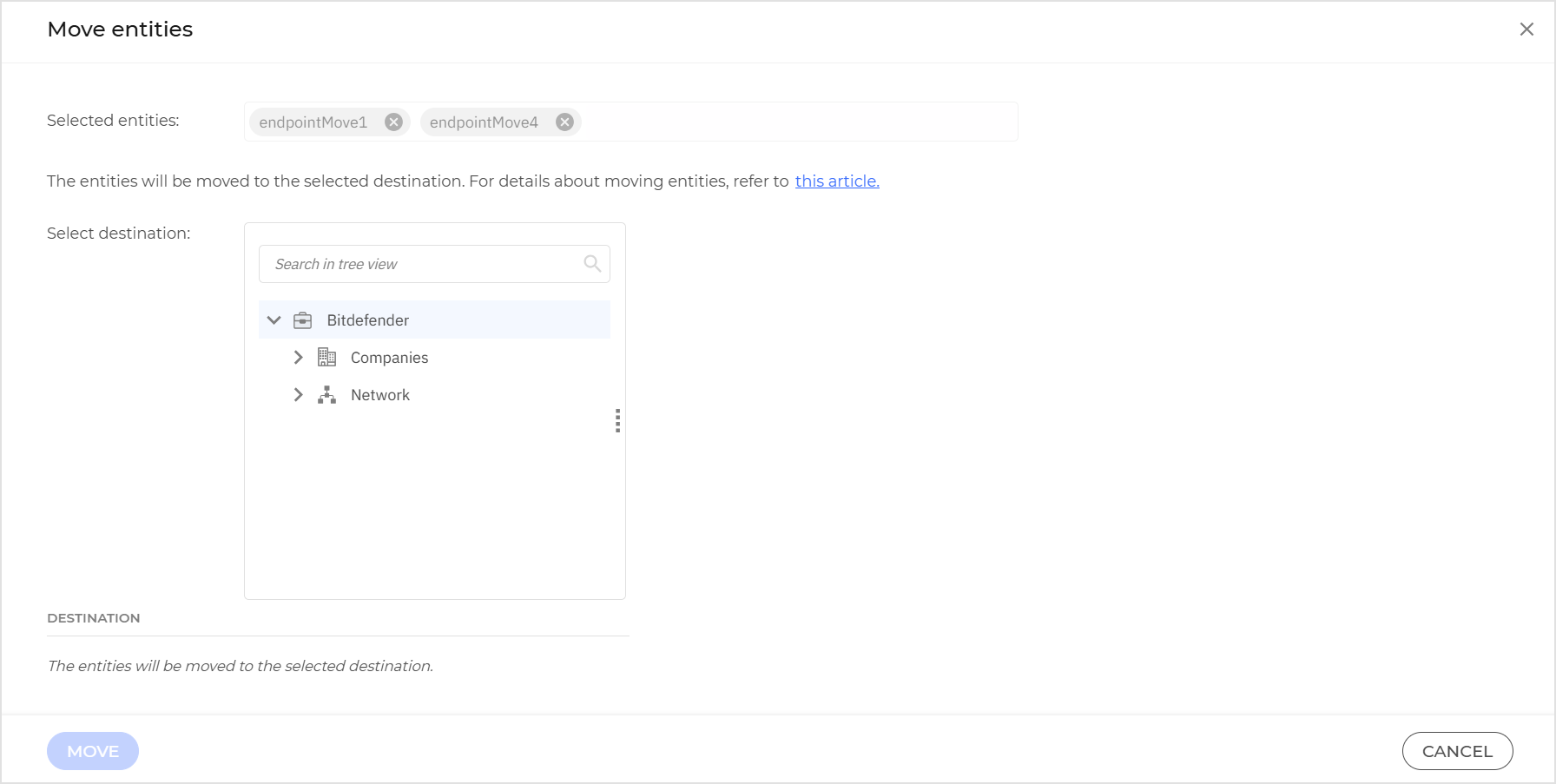
On the configuration page, select the destination for the entities.
The path to the new location will be displayed under Destination.
If the destination is invalid, an error message will inform you about the issue.
Click Move to initiate the process.
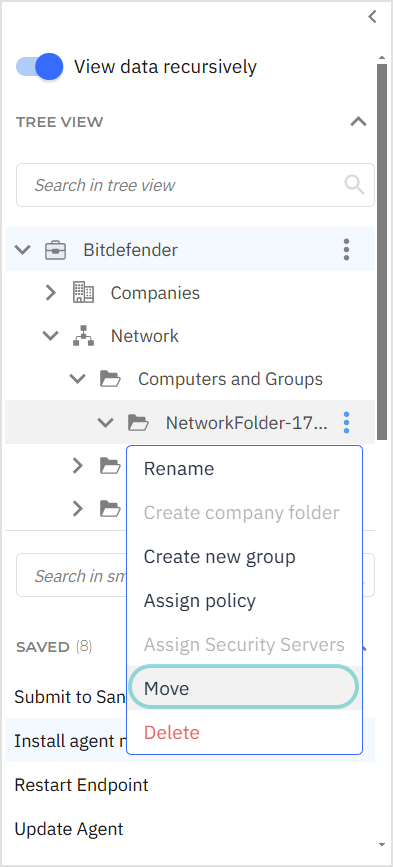
To move one entity at a time within the tree view, follow these steps:
Click the
 More icon to open the contextual menu for the entity you want to move.
Select Move.
On the configuration page, select the destination for the entity.
The path to the new location will be displayed under Destination.
If the destination is invalid, an error message will inform you about the issue.
Click Move to initiate the process.
In some cases, moving entities may take some time. A toast message in the lower right-corner of the page will be displayed when the process is complete.
Note
You cannot change the selected entities on the configuration page. To do this, close the page and make a different selection in the table.
Use drag and drop
You can use drag and drop to move entities from the Network table to the tree view, or to move entities between locations within the tree. You can move entities to any valid location, including the Deleted folder.
Drag-and-drop availability depends on the selected entities:
Eligible entities display a drag handle (
 ) when you hover over them or select them.
The drag handle is grayed out for invalid selections.
The drag handle is not displayed for ineligible entities.
To move one entity from the Network table to a different location, follow these steps:
Locate the entity in the Network table.
Hover over the drag handle (
) of the entity.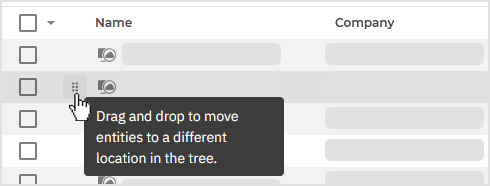
Drag the entity to the desired location in the tree panel.
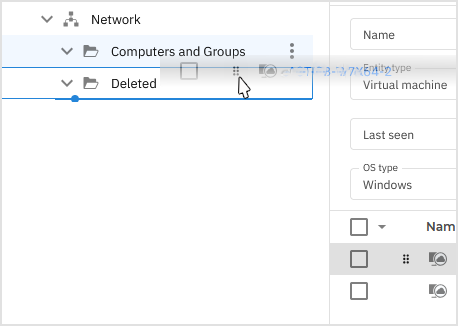
Drop the entity.
Confirm the action.
Note
You cannot drag an entity when another entity is selected.
To move multiple entities at the same time, follow these steps:
Select the entities in the Network table.
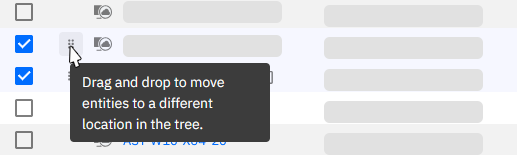
Drag one of the selected entities to the desired location in the tree panel.
All selected entities are moved together.
During the action, an indicator shows how many entities are being moved.
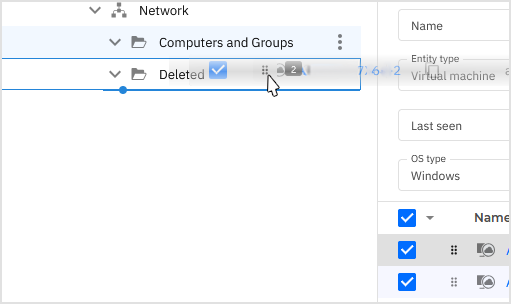
Drop the entity.
Confirm the action.
To move an entity to a different location within the tree view, follow these steps:
Drag the entity from its current location in the tree.
Drop it in the desired destination.
Confirm the action.
Note
You can move only one entity at a time within the tree view.
Note
When using drag and drop, the same rules and apply as for the Move action from the Network main menu or contextual menu. For details, refer to:
Eligible entities for the Move action
The Move action can be performed when selecting one or more entities of the same type from the table:
Network folders
Endpoints
Custom container folder (within the Custom Container Groups collection)
Container hosts within Custom Container Groups or a container folder.
Non-eligible entities for the Move action
The Move action cannot be performed in the following scenarios:
Default collections:
Network
Computers and Groups
Deleted folder
Unmanaged endpoints (without a security agent installed)
Endpoints already in the process of being moved