Requesting access to a blocked application
If PHASR is installed and configured, users can view blocked processes, and request access to restricted applications directly from the Events page, in the BEST interface.
Note
This functionality is available only in the new BEST GUI. Request access is supported exclusively on endpoints running Windows 10 version 1809 or later or Windows Server 2019 version 1809 or later.
To request access for a blocked application, follow these steps:
Go to the Events page.
In the Modules dropdown, select PHASR.
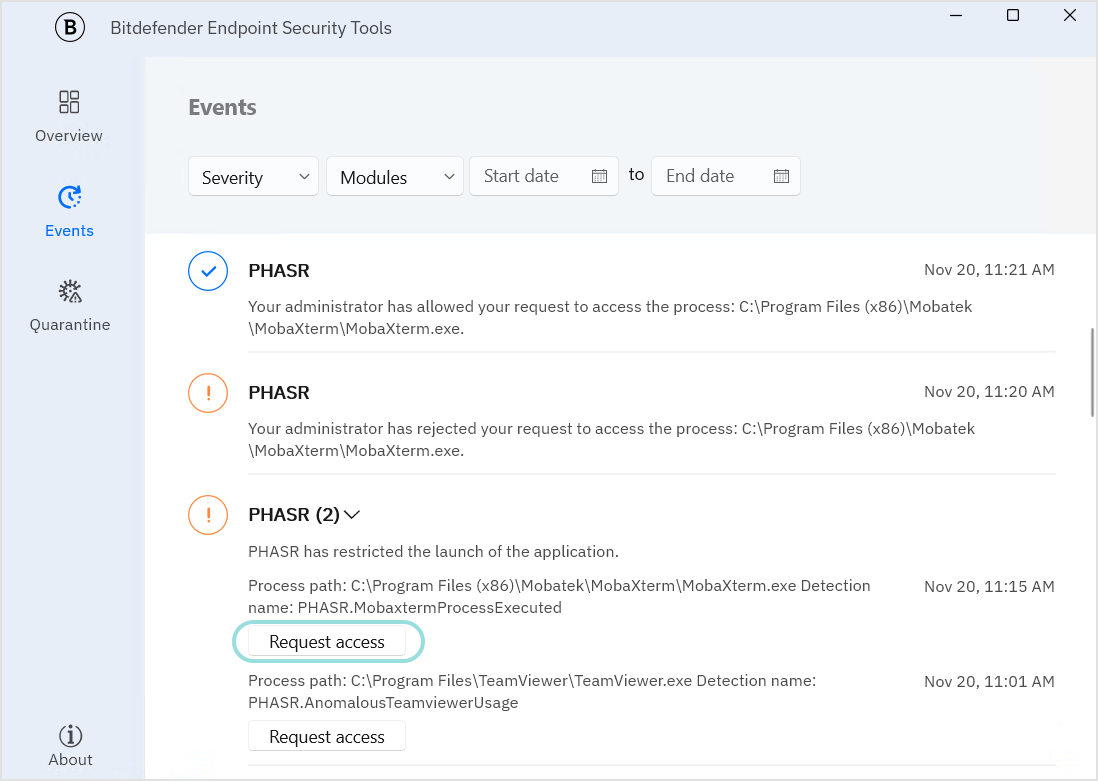
Clicks on the Request access button in the generated event.
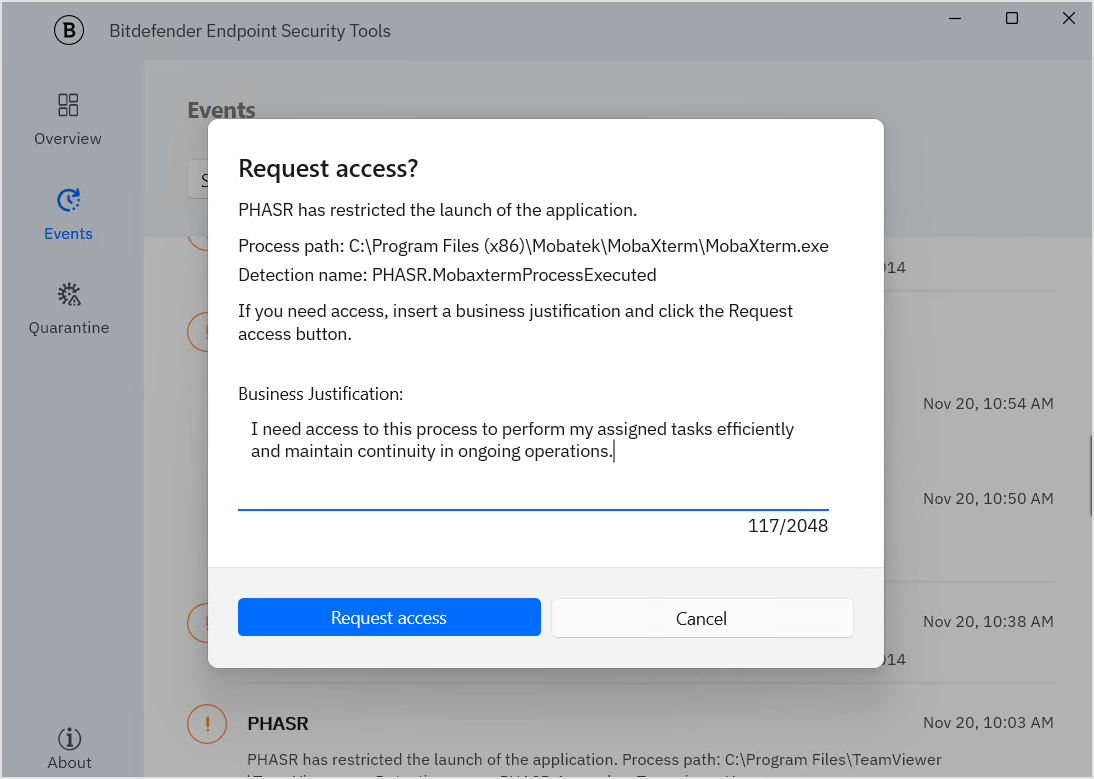
In the dialog window that opens, the behavioral profile enters a short business justification and clicks the Request access button.
Note
If the endpoint is offline, the request is queued locally and sent automatically once the connection to GravityZone is restored.
If the behavioral profile submits multiple access requests for the same application, duplicate recommendations are not created, and the existing recommendation is automatically updated with the latest request.
Once submitted, the request is sent to GravityZone, where administrators can review and take action.
For more information, refer to Managing recommendations.