Managing PHASR detections on Linux
On Linux endpoints, PHASR detections are not available through a built-in BEST GUI. Instead, they are logged in system log files and displayed as desktop notifications on endpoints with a GUI.
If PHASR is installed and configured, you can use the Bitdefender User Interface Tool (bduitool) to manage detections.
Important
All
bduitoolcommands must be executed using the full path to the binary:/opt/bitdefender-security-tools/bin/bduitool.All the commands below must be run as
rootor withsudoprivileges.To allow a non-sudo user to use them, you must add the user to the
bduitoolgroup. Run the following command as eitherrootor withsudo:usermod -a -G bduitool <userName>
The
bduitoolgroup is automatically created by BEST during installation.
View detections
To view a list of PHASR detections, including details such as the detection ID, status, path, and associated user, run the following command:
get PHASR_detections [-u <username>] [-s <integer value>]
Parameters:
-s <integer value>: The number of the latest detections to be displayed. If omitted, displays all detections.-u <username>: Displays detections only for the specified user. Available only when logged in asroot. If omitted, the command returns detections for all users when run asroot. Non-root users receive only their own detections.
Inspect a detection
To display detailed information about a specific detection, run the following command:
get PHASR_detection <detection ID>
The output includes the detection ID, timestamp, status, affected user, process execution details, and access request information.
Important
Running the command logged in as root allows you to retrieve details for any detection from any user. Non-root users must provide the ID of a detection that belongs to their user account.
Request access
When a behavioral profile attempts to access a process blocked by PHASR based on a recommendation, Linux endpoints with a GUI display a pop-up security alert containing detailed information about the blocked process:
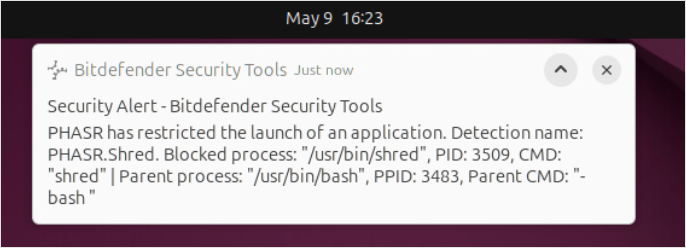
For endpoints without a GUI, the same information is available in the system logs. It can also be found when viewing and inspecting detections with bduitool.
If you require access to the blocked tool, follow these steps:
Run the command described in the View detections section to identify the detection ID.
Request access using the previously obtained ID and provide a business justification for the request:
request_access <detection ID> <business reason>
Important
When executed as a non-root user, this command accepts only detection IDs associated with the current user.
You can successfully request access only if this functionality is enabled from GravityZone Control Center in the applied security policy.
Once submitted, the request is sent to GravityZone, where your administrator can approve or deny it.
To verify the status of your access request, run the command described in the Inspect a detection section. After your administrator approves the access request, its status changes from REQUESTED to APPROVED.