EASM Assets
The EASM assets page provides a highly customizable table that displays a list of all discovered domains, IPs, and emails that are accessible or compromised from the internet.
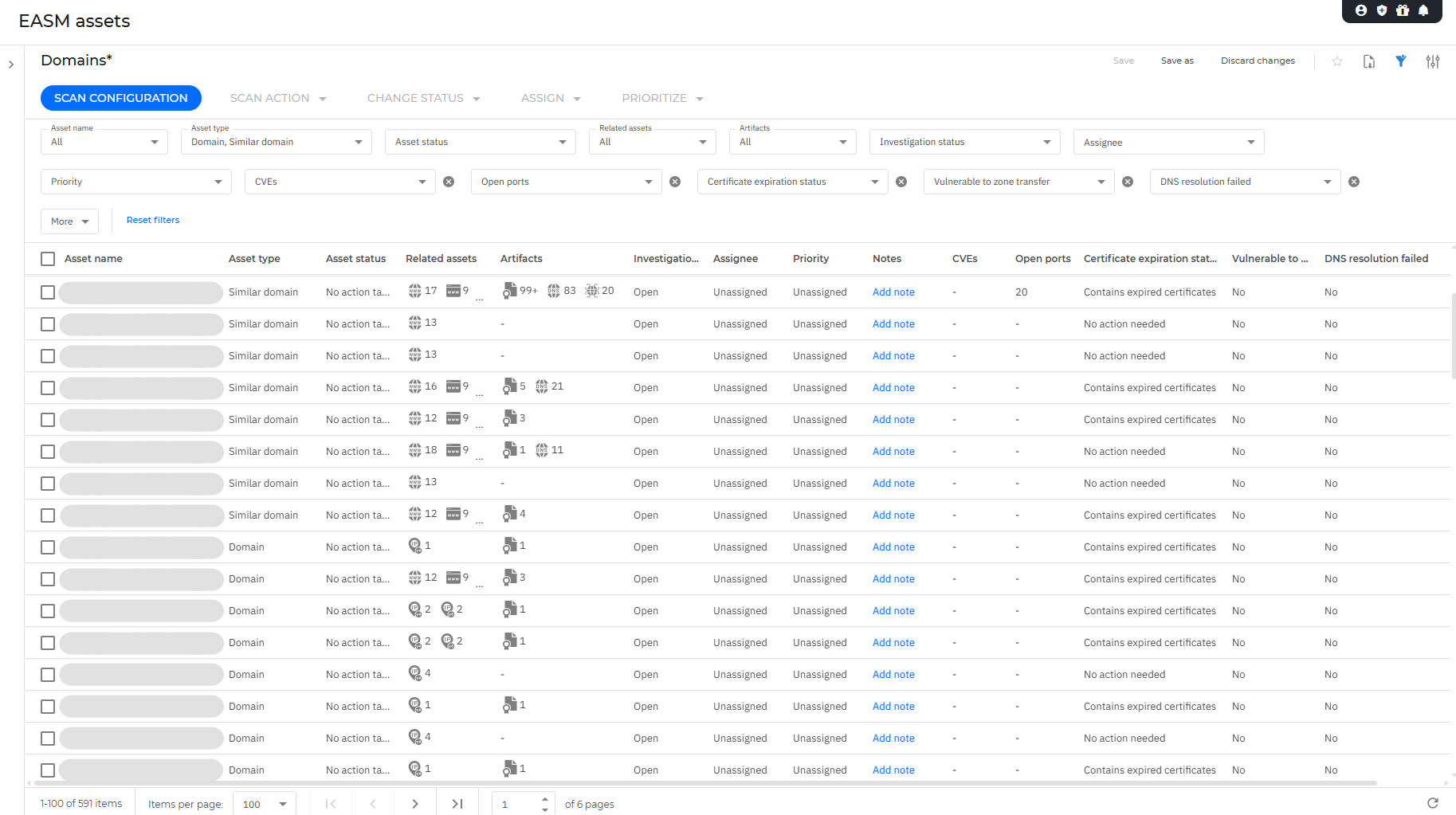
The Scan configuration button allows you to perform, configure, and schedule scans that detect new assets, artifacts, or changes to previously detected ones. For more information, refer to Configure, run, or schedule scans.
The EASM assets page can be exported into a CSV file by clicking  Export view.
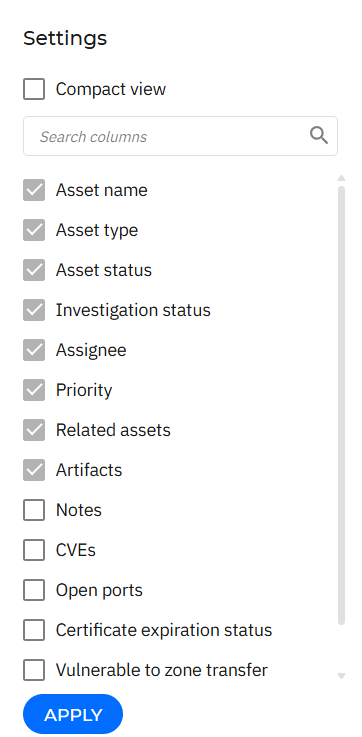
You can add more columns in the EASM assets page by clicking the  Open Settings button. Once you've selected the columns you want to add, click Apply.
Note
Check the Compact view box to change the lines in the table closer together.
This page has a Smart views panel button. This feature allows you to customize, save, favorite, and switch between different loadouts, as well as filter all entries from the of the EASM assets page based on Assets assigned to you, Domains, IP information, Exit IP nodes, Emails, and New assets.
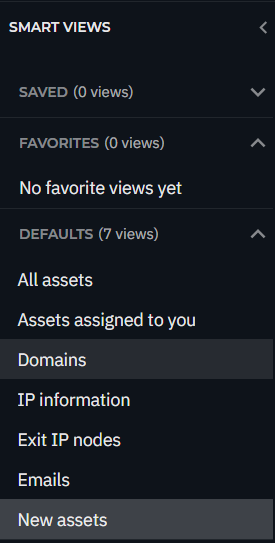
The Exit IP nodes view lists the public IP addresses that server-type endpoints managed by Bitdefender Endpoint Security Tools (BEST) use to communicate with the internet. For more information, refer to Exit IP nodes.
The Domains view includes the Typosquatting assessment column and filter, which show whether a discovered domain may impersonate one of your legitimate domains. For more information, refer to Typosquatting detection.
Once you have selected items from the EASM assets page, you can choose one of the following actions for them:
Scan action - with this action you can include or exclude assets from the next scan, by selecting Include in scan or Exclude from scan.
Change status - with this action you can change Investigation status of each asset. The status can be Open, Investigated, or Closed.
Assign - with this action to assign or unassign the selected assets to users or analysts for investigation.
Prioritize - with this action you can change the priority of certain assets. The priority can be: Unassigned, Low, Medium, High, and Critical.
Note
These actions are also logged in the Accounts > User activity page.
If you click on an asset from the EASM assets page, you can view more details related to it in the side panel:
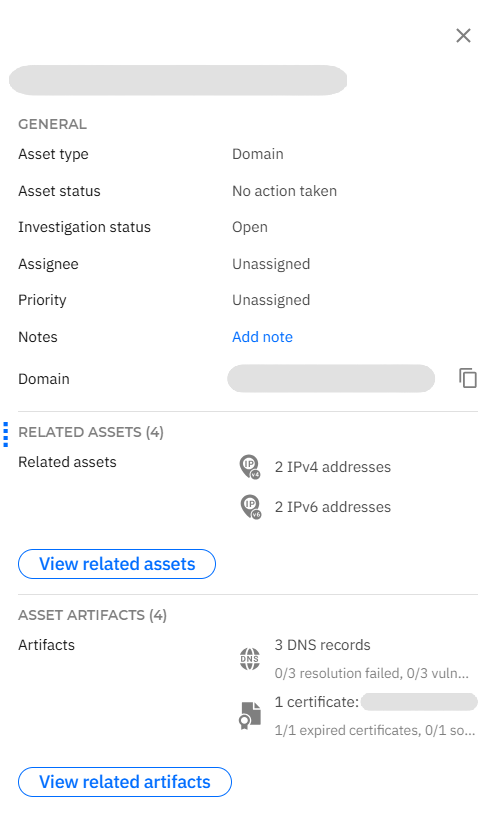
Depending on the asset type, the General section of the side panel also displays the following information:
For IPv4 and IPv6 assets: IPs used by BEST and, when the value is Yes, an Endpoints section listing the BEST-managed endpoints that use the IP address. For more information, refer to Exit IP nodes.
For Domain and Similar domain assets: Typosquatting and Techniques detected. For more information, refer to Typosquatting detection.
Clicking on View related assets or View related artifacts will filter all related assets or artifacts in either the EASM assets or EASM artifacts page.
To view information about related assets or artifacts, select any asset or artifact.
