Login with GravityZone Identity Provider
GravityZone Identity Provider (IdP) is a centralized authentication service that enables you to securely sign in to multiple Bitdefender service providers, including GravityZone Control Center, using a single unified identity.
This approach simplifies your access experience and improves security by enabling single sign-on (SSO) across Bitdefender service providers.
The GravityZone IdP system uses the System for Cross-domain Identity Management (SCIM) protocol for managing identity data.
Important
This article applies to GravityZone accounts configured to use Login using GravityZone Identity Provider as the authentication method.
If your account is not configured to use this authentication method, contact your GravityZone administrator to request the change. You cannot switch between authentication methods in your own account, even if you are an administrator. To change the authentication method for your account, ask another administrator for help. For details, refer to Managing user accounts.
About GravityZone Identity Provider
GravityZone Identity Provider (IdP) enables centralized and secure authentication for all Bitdefender consoles.
It supports the following capabilities:
Single sign-on (SSO) - Log in once to access multiple Bitdefender applications.
SCIM integration - Supports the exchange of identity data between Bitdefender service providers and GravityZone IdP.
Multi-factor authentication (2FA) - Adds an additional layer of protection to regular authentication using credentials.
Passkey (FIDO2/WebAuthn) - Enables passwordless, phishing-resistant authentication.
Unified session management - Maintains active sessions across Bitdefender services.
The following GravityZone IdP instances are available:
Europe: https://nexus-eu.gravityzone.bitdefender.com/Identity/Account/Login
Asia-Pacific: https://nexus-ap.gravityzone.bitdefender.com/Identity/Account/Login
United States and other regions: https://nexus-us.gravityzone.bitdefender.com/Identity/Account/Login
OVH: https://nexus-rbx.ovh.gravityzone.bitdefender.com/Identity/Account/Login
How GravityZone IdP authentication works
When you sign in to a Bitdefender console using GravityZone Identity Provider, authentication occurs through a secure redirection flow between the service provider and the identity provider.
This is how GravityZone IdP works:
On the login page of your Bitdefender service provider (for example, GravityZone Control Center), enter your email address, and click Next.
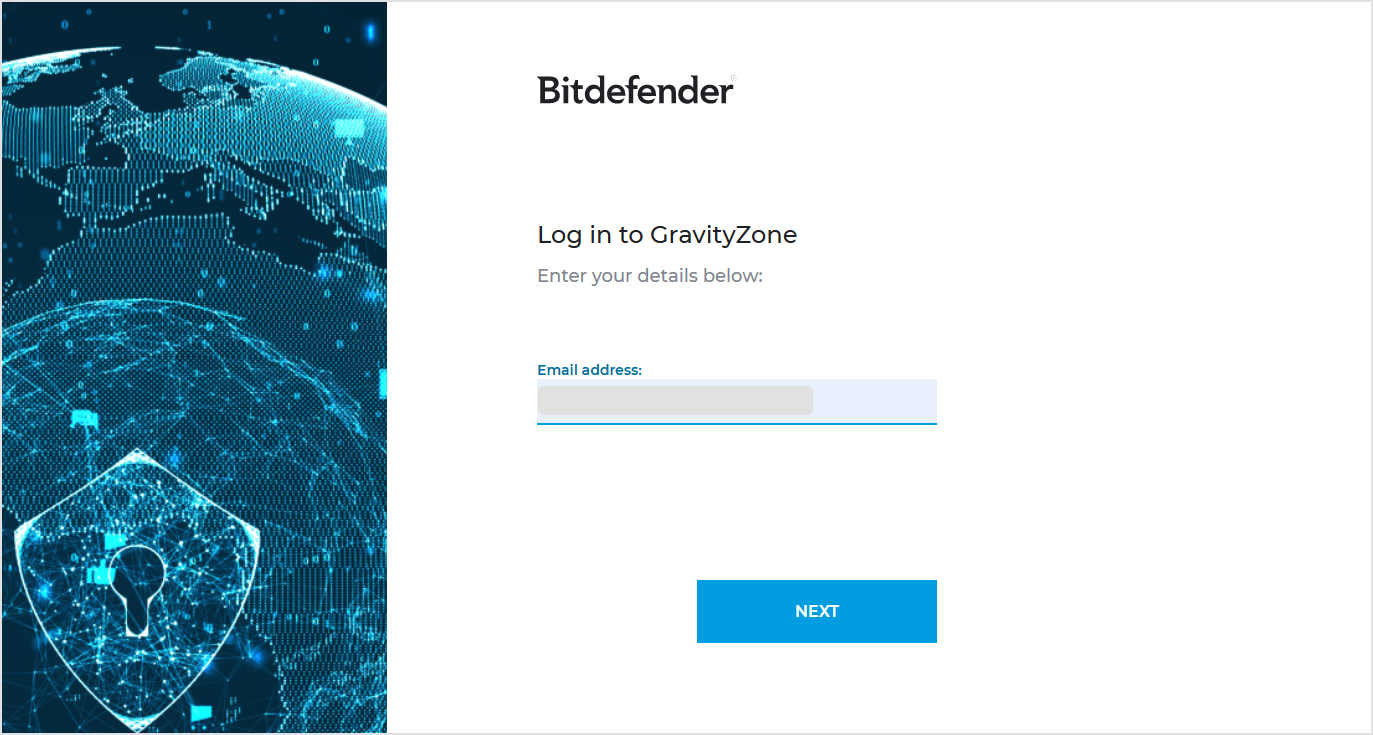
You are redirected to the GravityZone Identity Provider page.
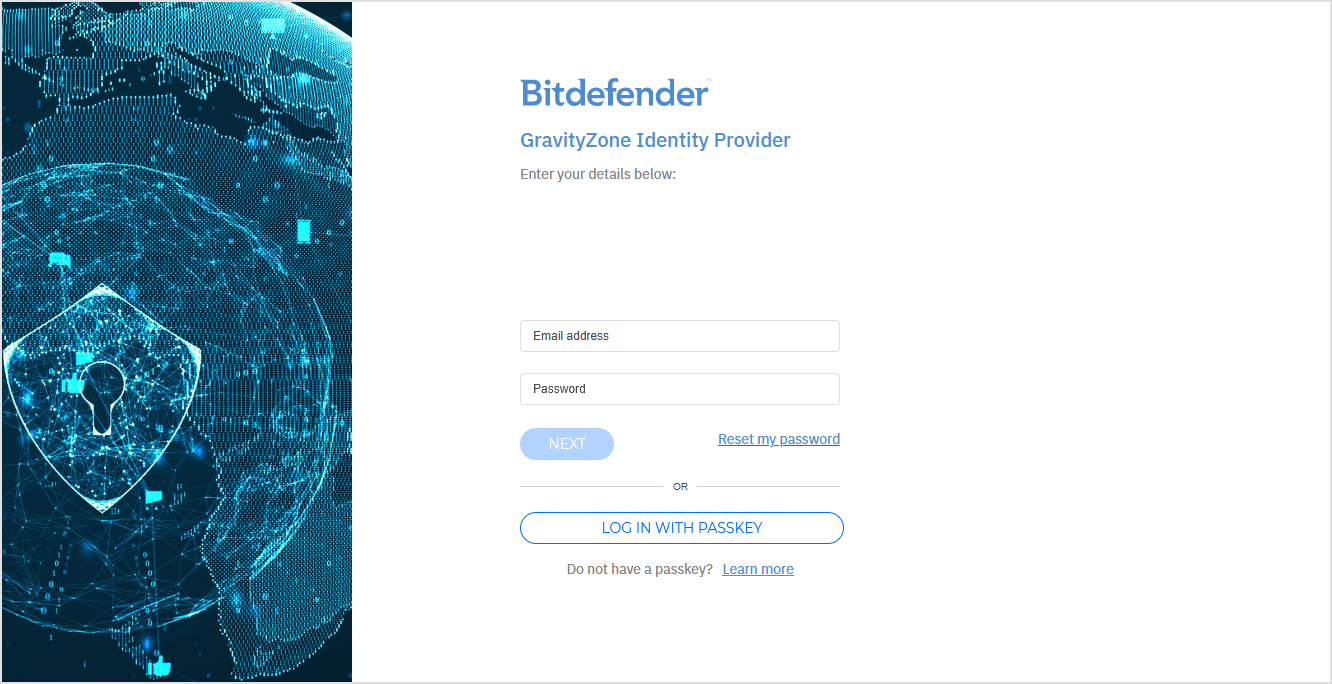
Authenticate using your preferred method.
You can log in using:
Credentials (password and two-factor authentication)
Passkey (passwordless login)
After successful authentication, you are redirected back to your Bitdefender service provider and granted access.
Your GravityZone IdP session remains active across all Bitdefender service providers.
Signing out from any Bitdefender service provider when using GZ IdP as the login method ends your current session for all Bitdefender service providers you are logged in to.
Use your GravityZone credentials (email address, password, and two-factor code) to access Bitdefender service providers.
To log in to a Bitdefender service provider (for example, GravityZone Control Center) using credentials, follow these steps:
On the service provider login page, enter your email address, and click Next.
On the GravityZone IdP login page, enter your password, and click Next.
Enter your two-factor authentication (2FA) code from your authenticator app.
Click Log in.
You are now authenticated and redirected to your Bitdefender service provider.
Note
Two-factor authentication (2FA) applies only when you log in with GravityZone credentials. If you log in using a passkey, 2FA is not required.
You can manage your credentials in GravityZone Control Center and in the GravityZone IdP console.
Enabling two-factor authentication (2FA)
Two-factor authentication (2FA) enhances security by requiring a one-time code from an authenticator app in addition to your password.
You can enable 2FA after a GravityZone IdP administrator creates your user account.
When you first log in, you are prompted to configure 2FA.
You can postpone 2FA setup a limited number of times by selecting Skip.
The button dynamically updates to show how many skips remain (for example: Skip 5, Skip 4, Skip 3, and so on). After using all available skips, enabling 2FA becomes mandatory.
Important
The two-factor authentication flow in GravityZone IdP is separated from the one in GravityZone Control Center, which is available when you do not use GravityZone IdP to log in.
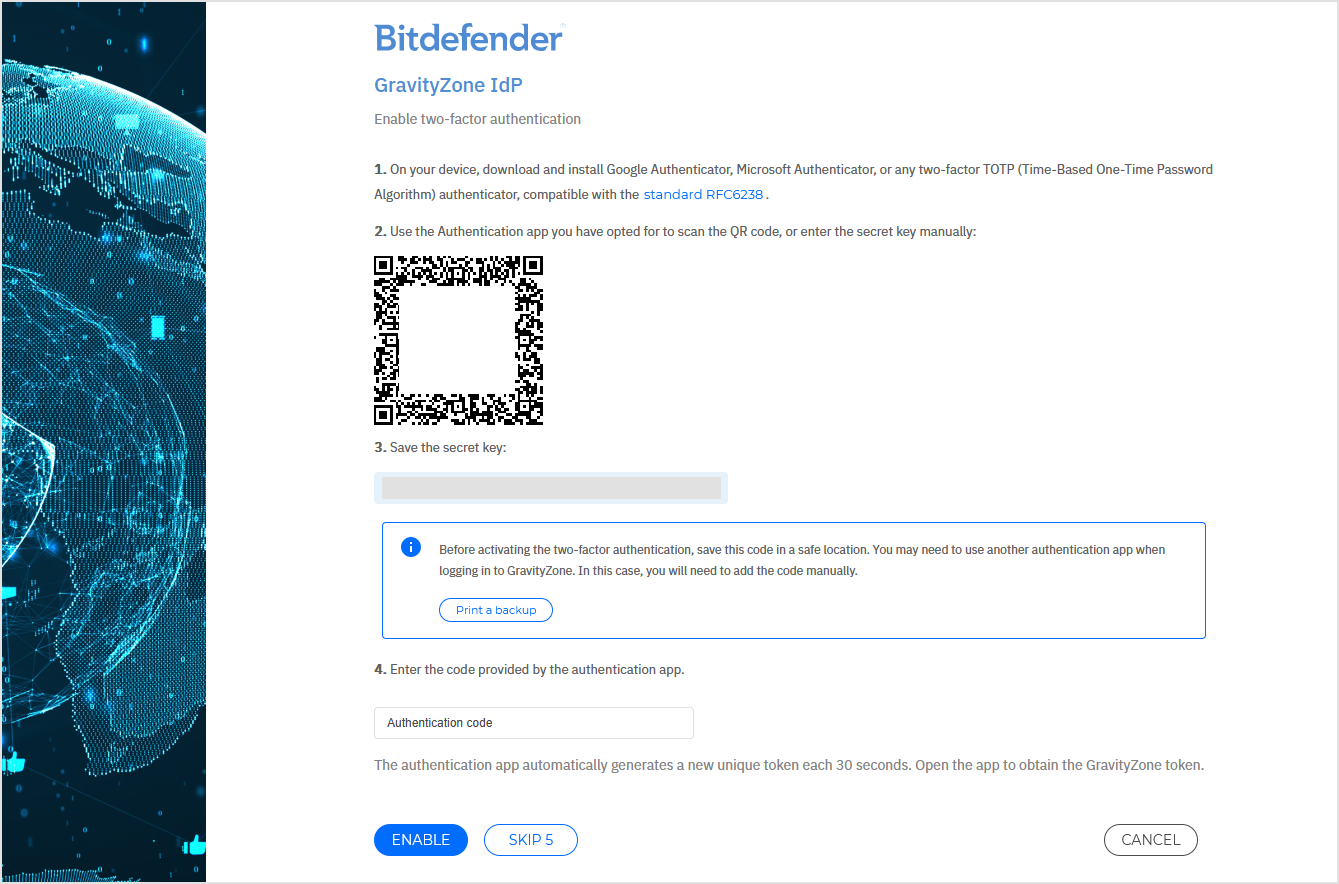
To enable 2FA, follow these steps:
On your device, download and install an authenticator app compatible with the Time-Based One-Time Password (TOTP) standard (for example, Google Authenticator, Microsoft Authenticator, or any RFC 6238–compliant app).
On the GravityZone IdP setup page, scan the QR code using your authenticator app.
If scanning is unavailable, enter the secret key manually.
Save the secret key in a safe location. You may need it if you set up 2FA on another device later.
You can print or save a backup of your secret key by selecting Print a backup. Keep this backup in a secure place as it allows you to restore your authentication setup if you lose access to your device.
Open the authenticator app to generate a 6-digit verification code.
Enter the code in the Authentication code field.
Click Enable to activate 2FA.
The authenticator app automatically generates a new verification code every 30 seconds. Each code can be used only once.
Once 2FA is enabled, you must enter the verification code every time you sign in using credentials.
A passkey is a modern, passwordless authentication method based on the FIDO2/WebAuthn standard. It provides stronger protection against phishing and simplifies your login experience.
Note
You must complete at least one login using credentials (password + 2FA) before you can create your first passkey.
Supported environments
Passkeys work on browsers and platforms that support the WebAuthn standard, including:
Google Chrome, Microsoft Edge, Safari, and Mozilla Firefox
Windows, macOS, Linux, iOS, Android
Hardware keys such as YubiKey, biometric authenticators like Touch ID, or password managers like Bitwarden or 1Password.
Note
For details about passkeys on Linux, refer to Passkey support on Linux browsers.
Configuring a passkey
You can configure a passkey after your first successful login to GravityZone IdP using credentials.
To configure your passkey, follow these steps:
Open the GravityZone IdP login page that corresponds to your region or hosting environment:
Europe: https://nexus-eu.gravityzone.bitdefender.com/Identity/Account/Login
Asia-Pacific: https://nexus-ap.gravityzone.bitdefender.com/Identity/Account/Login
United States and other regions: https://nexus-us.gravityzone.bitdefender.com/Identity/Account/Login
OVH: https://nexus-rbx.ovh.gravityzone.bitdefender.com/Identity/Account/Login
Note
If you are already logged in to GravityZone Control Center, go to the My account page and click the Manage passkeys button.
Log in to GravityZone IdP console using your credentials.
After logging in, go to the Authentication page of the GravityZone IdP console.
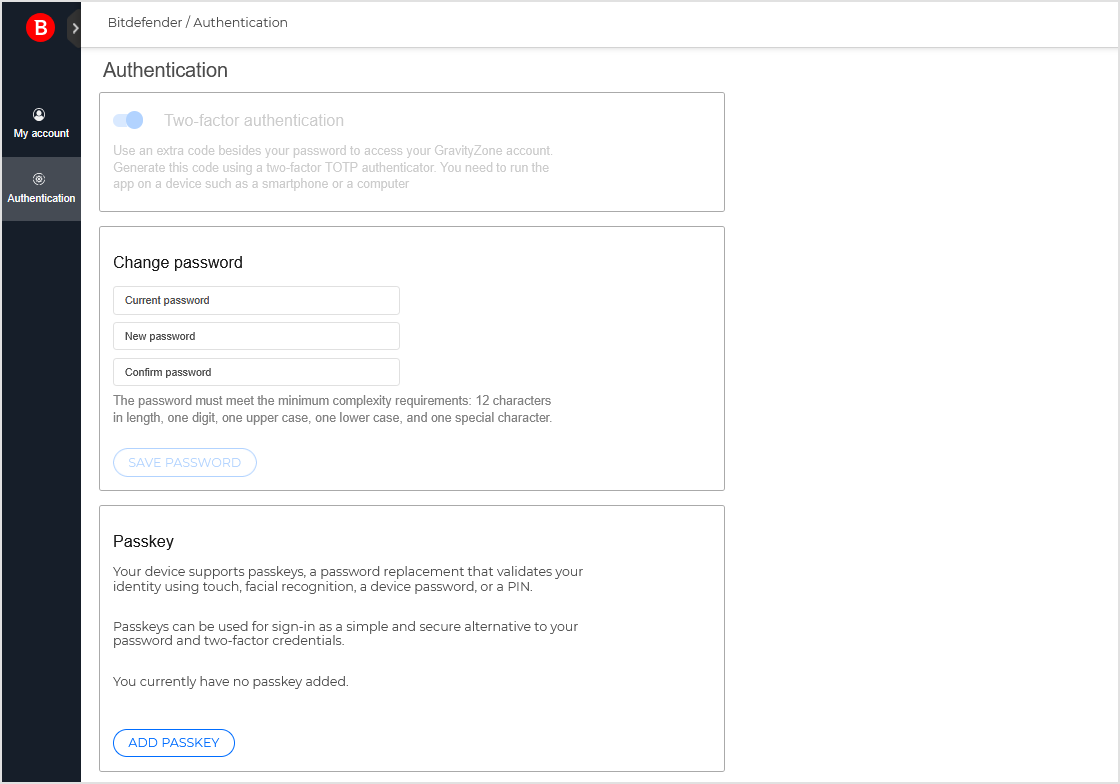
Go to the Passkey section and click Add a passkey.
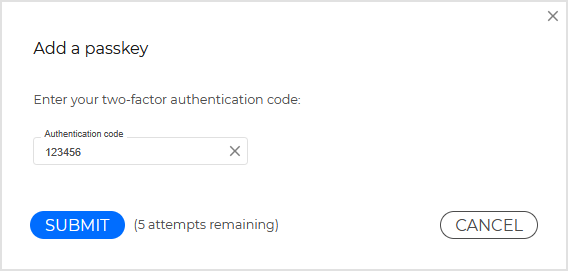
In the confirmation window, enter your authentication code and click Submit.
Follow the prompts on your device to register the passkey (for example, confirm a biometric prompt, PIN, or hardware key action).
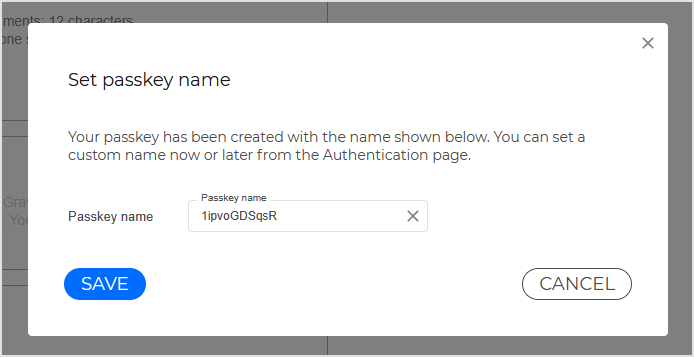
Optionally assign a friendly name to the new passkey and click Save.
Clicking Cancel will leave the passkey with the default name.
Once created, your passkey becomes available as a login option for all supported Bitdefender service providers.
Note
You can create multiple passkeys, depending on the authentication applications or devices you use (for example, Windows Hello, Bitwarden, Touch ID, or YubiKey). This allows you to log in from different environments and ensures you always have a backup method available.
To learn more about managing passkeys, refer to Managing GravityZone IdP settings.
Using a passkey to log in
To log in to a Bitdefender service providers (for example, GravityZone Control Center) with a passkey, follow these steps:
On the service providers login page, enter your email address, and click Next.
On the GravityZone Identity Provider page, click Log in with passkey.
Confirm your passkey using your chosen method (for example, biometric scan, Windows Hello prompt, Bitwarden passkey, or YubiKey tap).
You are automatically authenticated and redirected to your Bitdefender service provider.
You can configure and manage your account and authentication options in the GravityZone IdP console.
Accessing the GravityZone IdP console
To access the GravityZone IdP console, follow these steps:
Open the GravityZone IdP login page that corresponds to your region or hosting environment:
Europe: https://nexus-eu.gravityzone.bitdefender.com/Identity/Account/Login
Asia-Pacific: https://nexus-ap.gravityzone.bitdefender.com/Identity/Account/Login
United States and other regions: https://nexus-us.gravityzone.bitdefender.com/Identity/Account/Login
OVH: https://nexus-rbx.ovh.gravityzone.bitdefender.com/Identity/Account/Login
Log in using your credentials or passkey.
Account settings
On the My account page, you can view or edit your personal information.
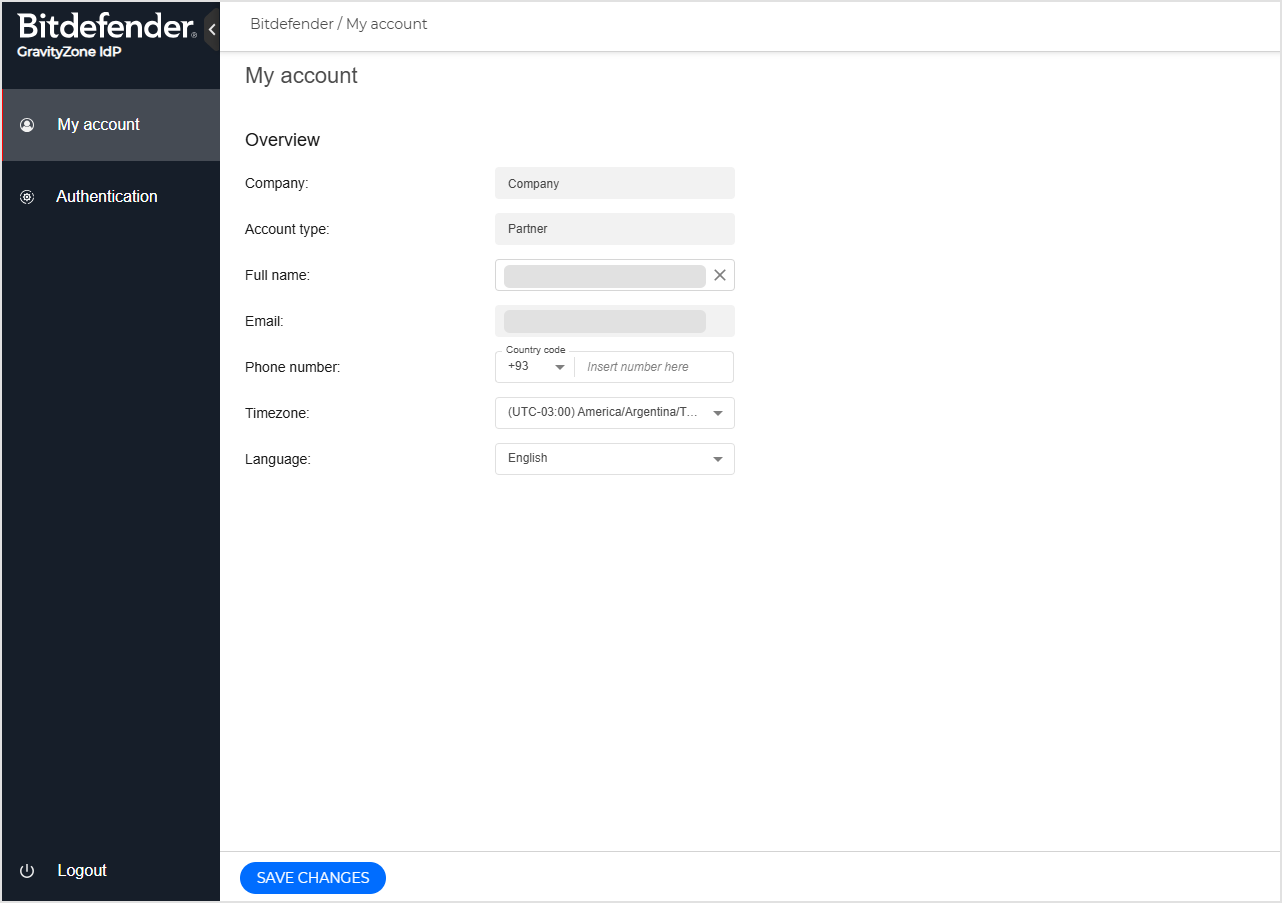
You can view:
Company name
Account type
Email address
You can edit:
Full name
Phone number
Time zone
Language
After editing, click Save changes to confirm.
Authentication settings
The Authentication section allows you to manage your password and passkeys.
Note
Two-factor authentication (2FA) cannot be disabled if it is required by your company policy.
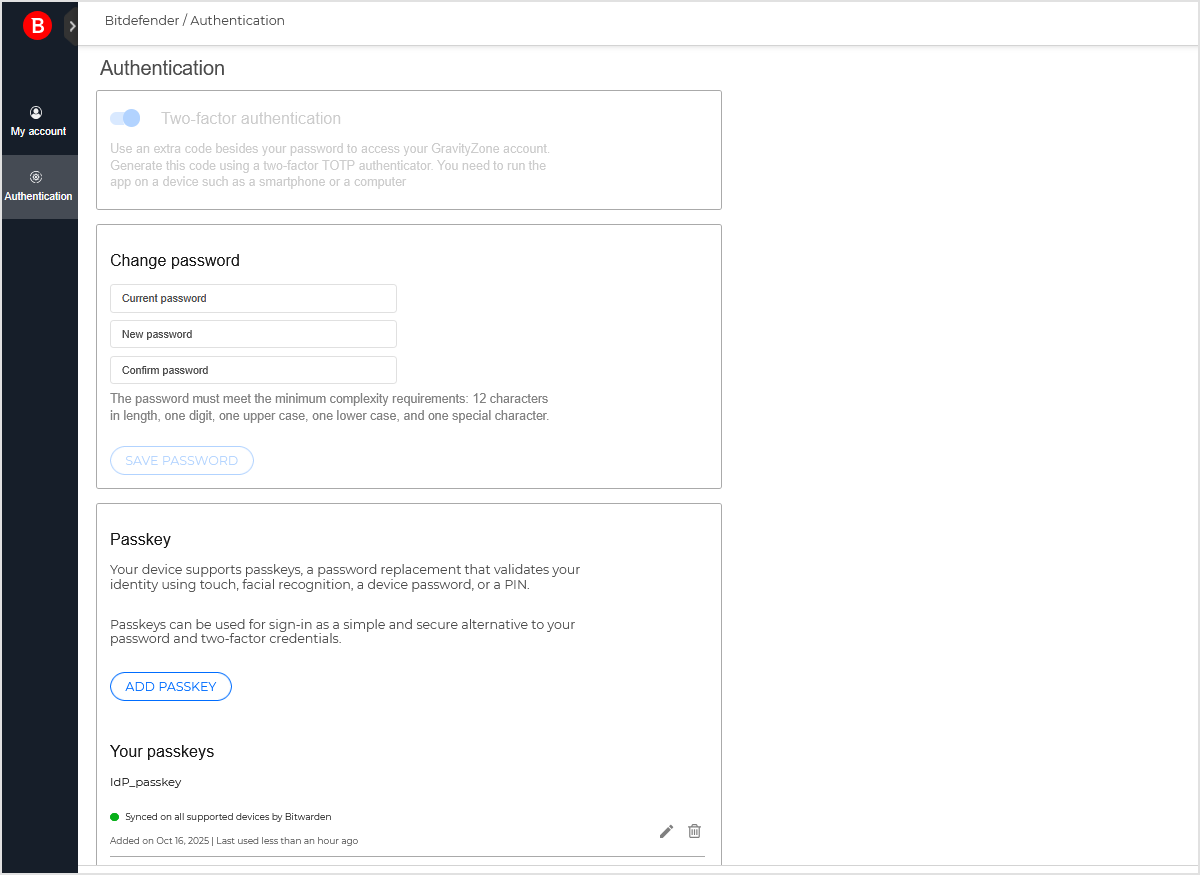
Two-factor authentication (2FA)
Two-factor authentication adds an additional layer of security when signing in with GravityZone IdP credentials.
You will use a verification code generated by a TOTP (Time-Based One-Time Password) application such as Google Authenticator or Microsoft Authenticator.
Note
Two-factor authentication works only with GravityZone credentials. When signing in using a passkey, 2FA is not required. For details, refer to Log in with GravityZone credentials.
Change password
You can update your password directly from this page.
To change your password:
Enter your current password.
Enter your new password.
Re-enter the new password to confirm it.
Click Save password.
Your new password must contain at least 12 characters, including one digit, one uppercase letter, one lowercase letter, and one special character.
Note
You must enable two-factor authentication to use this option.
Passkey management
You can add, rename, or delete passkeys from this page. Passkeys allow passwordless access to your Bitdefender service providers. Every time you add or delete a passkey, you receive notifications via email.
To manage passkeys:
Click Add a passkey and follow the prompts to create a new passkey.
For the detailed procedure on how to add a passkey, refer to Log in with GravityZone IdP passkey.
Note
You must enable two-factor authentication to use this option.
Click the edit
 icon to rename a passkey.
Click the trash can
 icon to delete a passkey.
You must enter the authentication code before deleting the passkey.
You can register multiple passkeys on different devices or authentication applications for easier access and redundancy.
If passkeys are not available on your current device or browser, you may see the message: "Passkeys are not supported on this device."
This message may also appear when you are not logged in to your password manager. If you are logged in, try clearing your browser cache.
If you lose access to your authenticator app or passkey, you must contact your GravityZone administrator.
Bitdefender cannot restore or reset passkeys for security reasons.
Your administrator can reset your 2FA configuration or issue a new temporary password. You can also use the Reset my password button on the GravityZone IdP login page.
Note
Always store secret keys securely to avoid lockout situations.
Here is a list of possible login issues with GravityZone Identity Provider (IdP):
Incorrect password
Possible cause: Typo, outdated credentials, or locked account
Recommended action: Reset your password or verify that your account is not locked. If the issue persists, contact your administrator.
2FA code rejected
Possible cause: Device time out of sync
Recommended action: Ensure your device’s clock uses automatic network time, or resynchronize your authenticator app.
"Passkeys not supported on this device"
Possible cause: Browser or device lacks WebAuthn support
Recommended action: Use a supported browser, or log in using credentials and 2FA. Also, allow pop-ups and ensure Windows Hello, Touch ID, or your password manager is active.
Cannot register the passkey
Possible cause: Device or environment does not support FIDO2
Recommended action: Try another browser or device. Avoid remote sessions or incognito mode.
Redirect loop during login
Possible cause: Cached or expired session
Recommended action: Clear browser cookies and cache, then try again in a private window.
Invalid or expired authentication session
Possible cause: Session timeout or expired token
Recommended action: Sign out from GravityZone IdP and all Bitdefender service providers, then sign in again.