Deploying and activating the GravityZone MTD app on iOS and Android
GravityZone MTD is the mobile application used by Mobile Security on Android and iOS devices. The app enables mobile threat protection and connects the devices to your Mobile Security console.
This article describes the available deployment and activation methods of the app.
Deploy the app on devices
Choose one of the following methods to deploy the GravityZone MTD app:
Deploy via an MDM solution
MDM solutions can distribute the GravityZone MTD app to enterprise devices, eliminating the need for manual installation.
Deploy via app stores
Non-MDM implementations require users to download and install the GravityZone MTD app from the specific app store and accept the End User License Agreement.
If SAML authentication is enabled, the app reaches out to the configured SAML server for authentication. After activation, the device is associated with the Mobile Security environment specified by the activation link.
Activate the app on devices
Once the GravityZone MTD app is installed, you need to activate the app to connect the devices to your Mobile Security console and apply the assigned security policies.
Choose the method that best suits your deployment workflow:
Activate the app for individual users: This method generates unique activation links or QR codes for each user.
Activate the app for groups of users: This method generates a single activation link or QR code for a group of users.
Activate the app for individual users
Open the GravityZone Control Center console.
Select the Mobile Security page from the left side menu.
Click the Send activation emails link for the account you want to send emails to:

Add the email addresses of the mobile device users.
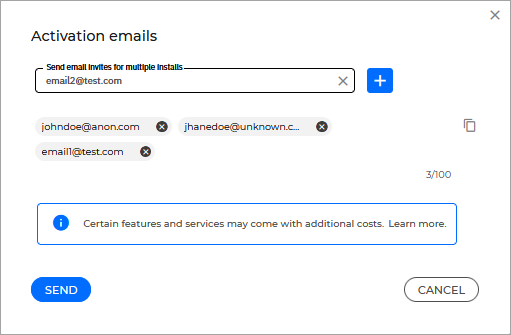
Click Send.
All users will receive an email containing an installation link or QR code.
Ask each user to perform the following actions to complete activation:
Click the activation link (URL) or scan a QR code using the device camera.
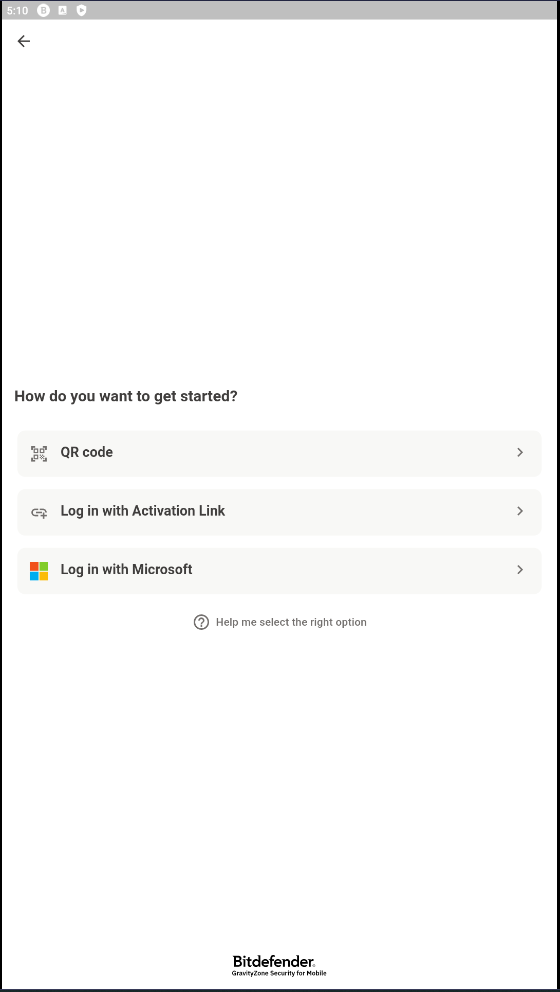
Open the application.
Note
The activation links or QR codes sent in the activation email from GravityZone can be used up to 10 times per user. If you send another invitation to the same email address, a new QR code will be generated only if the previous one has expired. Otherwise, the same link or QR code is resent. Links or QR codes sent through "Send activation link" expire after 10 days.
To distribute a link or QR code to multiple recipients, use Local Device Groups. For more information on local device groups, refer to this page. These links or QR codes allow customizable reuse and have a much higher usage capacity.
For reliable scanning, we recommend holding the QR code against a white background.
Activate the app for groups of users
Open the Mobile Security console.
Select the Devices page.
Select the Local Device Group tab.
Click Add Group.
Type in a name and a description and click Create Group.
Note
The group is created in the Local Device Groups tab.
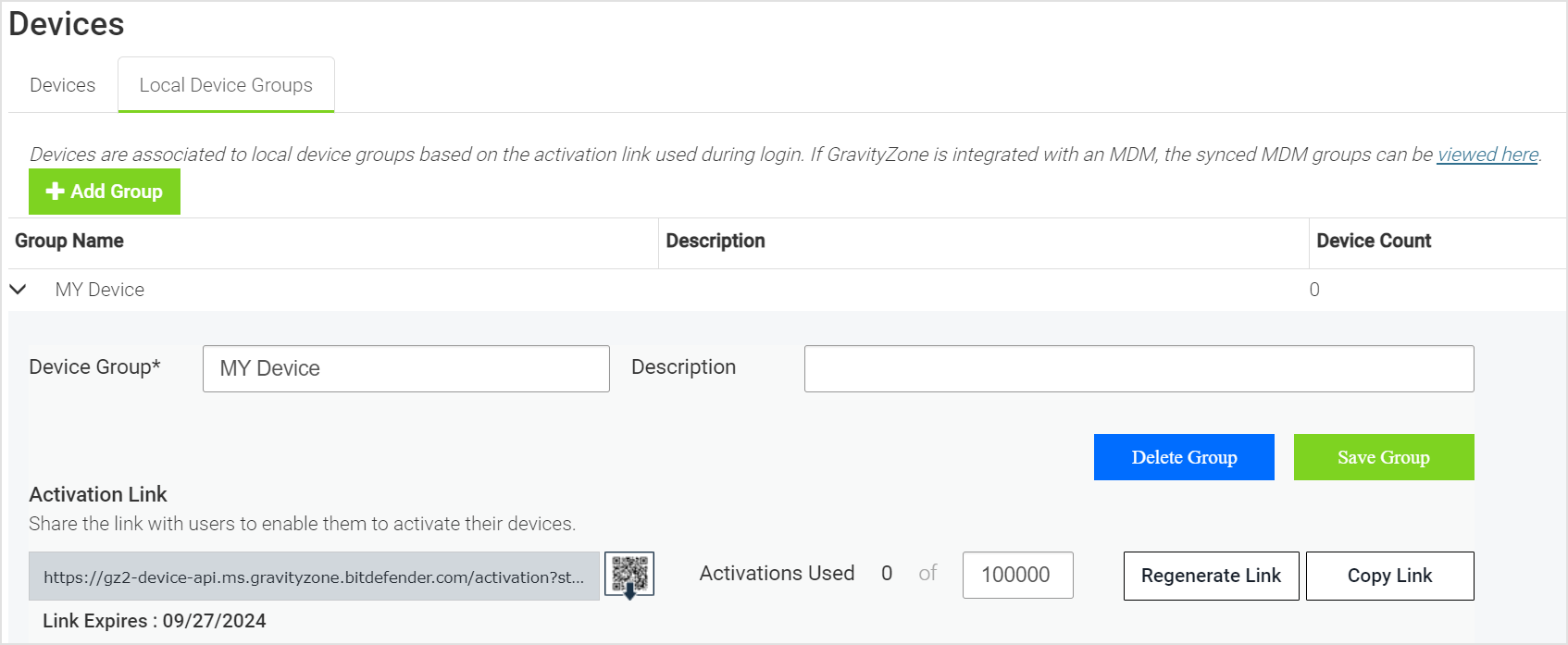
Click the arrow in the upper right side of the group name to expand the item.
An installation link for the GravityZone MTD app is displayed.
Copy the link or download the QR code, and then send it via email to all users who you want to include in the group.
Ask each user to perform the following actions to complete activation:
Click the activation link (URL) or scan a QR code using the device camera.
Open the application.
Note
For MDM-managed deployments, most MDM solutions can automatically provide the required activation information to users. Refer to the MDM-specific guides for zero-touch activation.