Managing PHASR detections on macOS
On macOS endpoints, PHASR detections are available through the Bitdefender Endpoint Security Tools (BEST) user interface.
If PHASR is installed and configured, users can view blocked processes, request access to restricted applications, and track the status of submitted requests directly from the BEST interface.
View detections
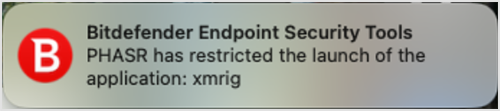
When PHASR blocks an application, Bitdefender Endpoint Security Tools displays a desktop notification informing the user that the application launch has been restricted.
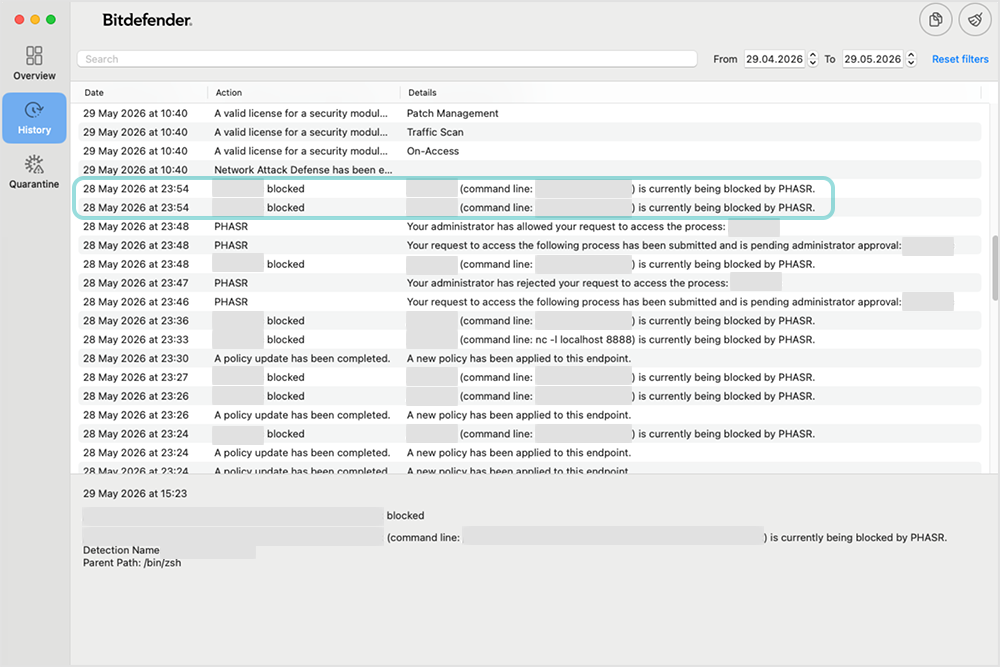
The detection is also recorded in the BEST interface and can be viewed from the History section.
To view PHASR detections:
Open BEST main window.
Click History.
Locate entries with applications blocked and corresponding details.
Request access
When a behavioral profile attempts to access a process blocked by PHASR based on a recommendation, Bitdefender Endpoint Security Tools displays a desktop notification informing the user that the application launch has been restricted.

The same detection is available on the Overview page in the BEST main window, with the following details:
Parent process path
Process path
Command line
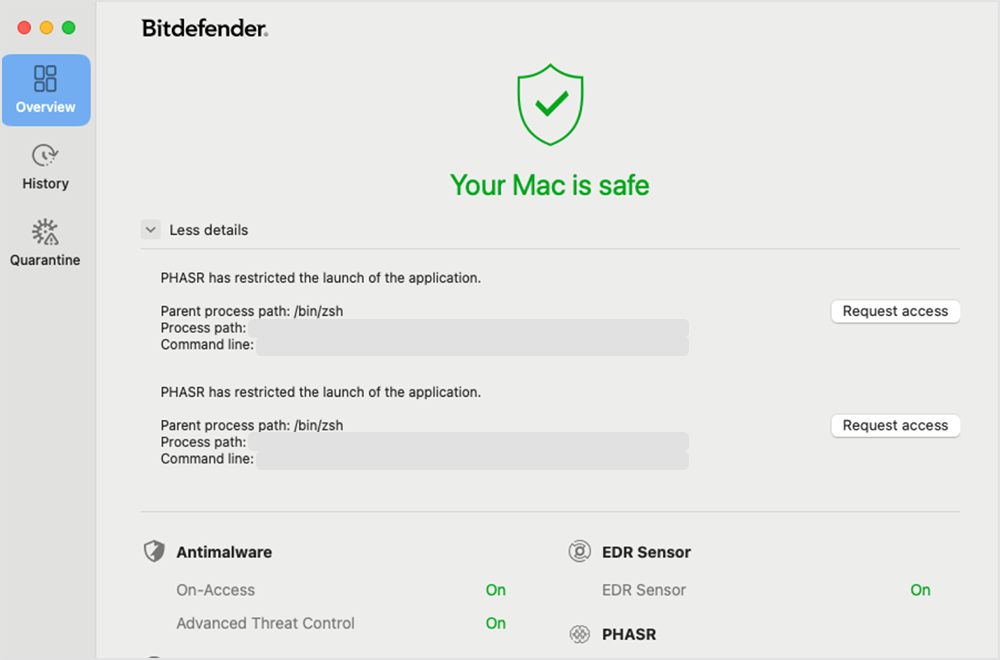
Multiple detections are displayed as a list.
If you require access to the blocked application, follow these steps:
Click Request access in notification.
Alternatively:
Open BEST main window.
On the Overview page, locate the PHASR detection.
Click Request access.
In the Request access? window, enter a business justification explaining why access to the application is required.
The justification must contain at least 10 characters.
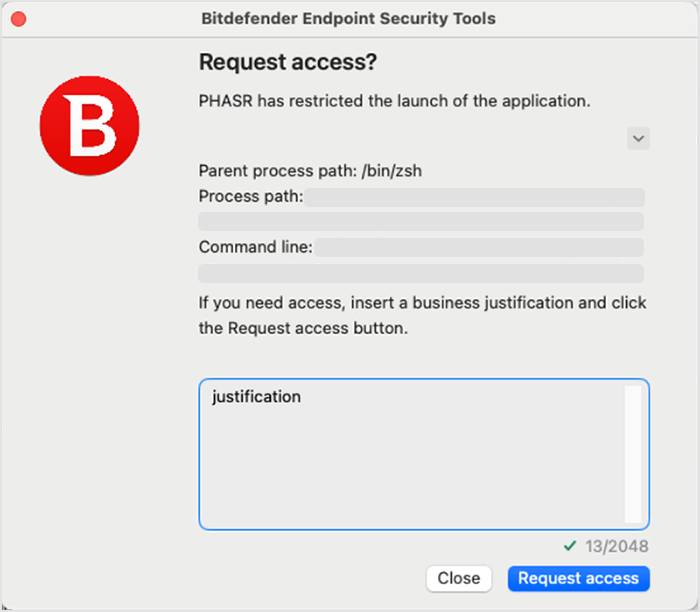
Click Request access.
The request is submitted to GravityZone, where an administrator can approve or deny it.
Important
You can successfully request access only if this functionality is enabled from GravityZone Control Center in the applied security policy.
Check request status
After submitting an access request, you can monitor its status from the BEST interface.
To view the status of a request:
Open BEST main window.
Click History.
Locate the corresponding PHASR entry.
The details section displays the current status of the request.
Possible statuses include:
Requested – The request has been submitted and is awaiting administrator review.
Approved – The administrator has approved the request and access has been granted.
Denied – The administrator has denied the request.
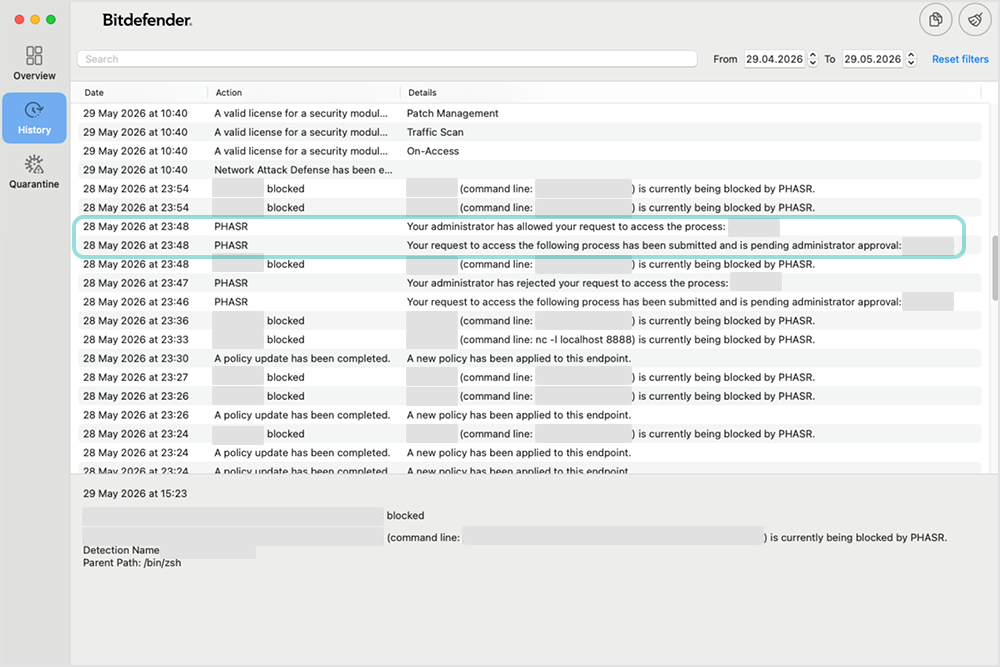
When an administrator approves the request, a new PHASR event is recorded in the History section indicating that access has been allowed for the requested process.