Integrations hub
The Integrations hub page provides tools to manage both active (configured) and available integrations. Active integrations are those already set up, while additional available options can be found in the Integrations Catalog. This gives you full control to enhance and monitor your cybersecurity setup.
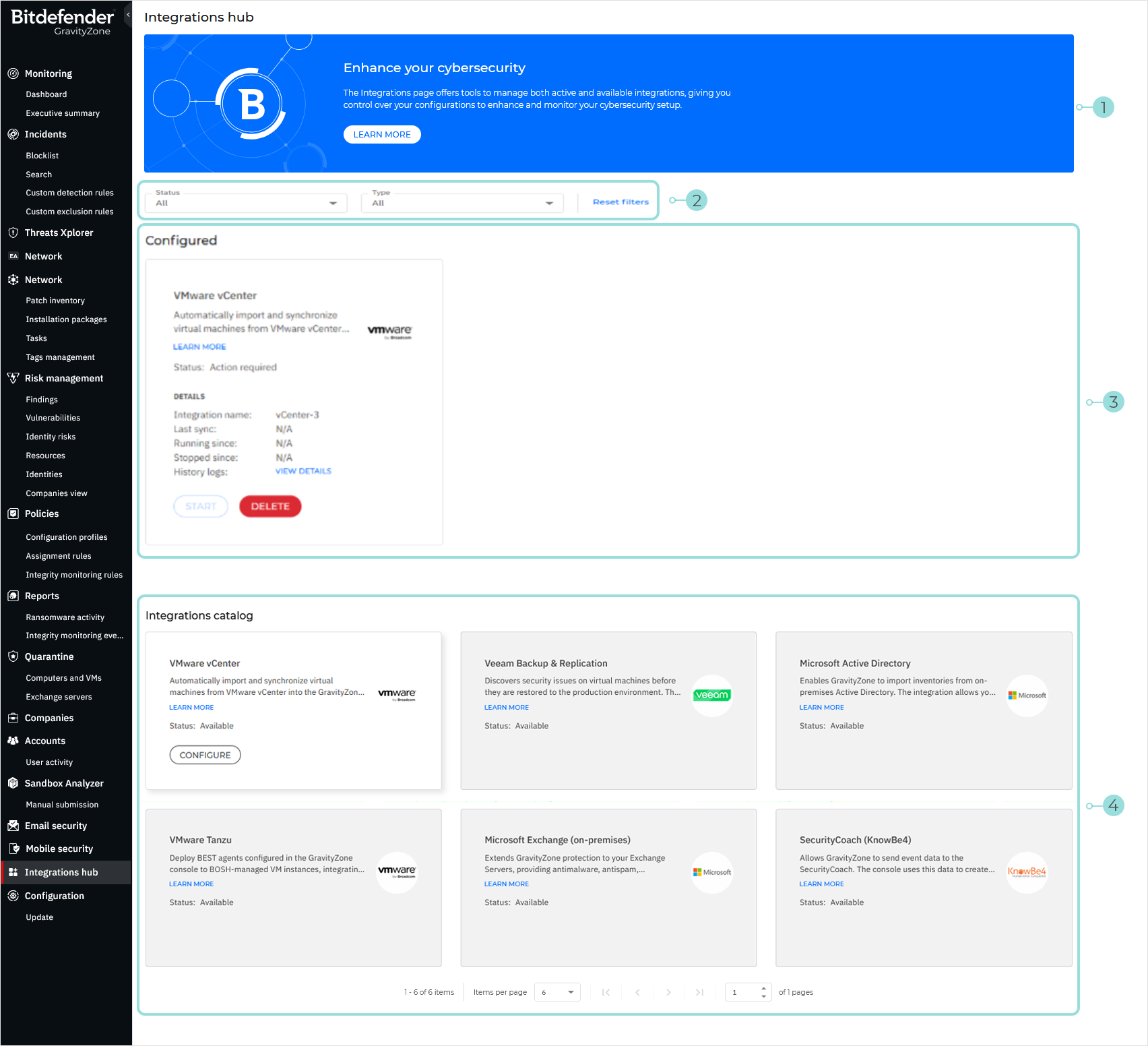
Overview - Provides a general presentation of the page and a link to the available documentation.
Integration filters - allows you to filter the integration displayed on the page, based on the following criteria:
Status - Only displays configured integrations that have the selected statuses.
Possible values:
Available - The integration is available for configuration.
License required - There is no active license that provides access to the feature.
Stopped - The integration has been stopped.
Action required - Returned in one of these situations:
The integration has just been created and an integration endpoint needs to be configured.
The agent on the configured integrator endpoint has either been uninstalled, or the endpoint has been unassigned as an integrator.
Pending - Indicates that the integration syncronization is in progress. The integrator is currently working to bring inventory data into the console. If successful, the status will change to Active. if unsuccessful, it will change to Error.
Active - The integration is active and functioning properly.
Usage limit reached - The maximum number of this type of integrations have been configured. No additional integrations are available.
Error – This status indicates that the integration endpoint has encountered an unrecoverable issue, such as a configuration conflict or validation failure
Type - Only displays integrations of the selected types.
Configured - Displays a list of all the existing integrations configured through Integrations hub. This applies to both your company and the managed companies you have security management access to.
Each configured integration is displayed on an individual card, presenting key details for quick reference. Each card includes a brief description of the integration’s function, followed by the following information:
Status
Integration name
Company
Last sync
Running since
Stopped since
History logs
Important
Users require the Manage Networks right to be able to interact with the cards.
For more information on user rights, refer to User rights.
Clicking anywhere on the card displays the Edit integration window, where you can change the configuration of the integration. Additionally, for certain integration types, the cards include Start or Stop and Delete buttons, allowing you to manage integrations directly from the hub page.
Note
Any issues encountered for integrations configured through Integrations hub will trigger a notification. This feature is enabled by selecting the integrations hub issue checkbox from the Notifications page. For more information, refer to Notification types.
You can find a list of common errors and troubleshooting steps in this KB article.
The following integrations are currently available for configuration through the Integrations hub:
VMware vCenter - Synchronizes the VMware vCenter inventory with the GravityZone console, automatically importing and synchronizing both virtual machines and computer inventories. Learn more
Bitdefender Container Image Scanner - Enables scanning of container images from registries or CI/CD pipelines. Learn more
You can use the filter at the bottom of the section to configure how many cards are displayed per page, and to move between pages.
Note
Any actions taken on integrations configured through Integrations hub will show up in the user activity logs.
Integrations catalog - Provides a list of integration types compatible with GravityZone. This includes both integrations that can be configured through the Integrations Hub and those that cannot.
Note
The catalog does not yet include all integration types available for GravityZone.
VMware vCenter - Automatically import and synchronize virtual machines from VMware vCenter into the GravityZone console, and have them displayed in the Network section.
Veeam Backup & Replication - Discovers security issues on virtual machines before they are restored to the production environment. This integration enhances data recovery, ensuring that restored machines are safe and secure.
Microsoft Active Directory - Enables GravityZone to import inventories from on-premises Active Directory. The integration allows you to easily deploy and manage protection on AD endpoints.
VMware Tanzu - Deploy BEST agents configured in the GravityZone console to BOSH-managed VM instances, integrating award-winning endpoint security during their creation within your VMware Tanzu environment.
Microsoft Exchange (on-premises) - Extends GravityZone protection to your Exchange Servers, providing antimalware, antispam, antiphishing, and attachment and content filtering to all active mailboxes, including user, room, equipment, and shared mailboxes.
SecurityCoach (KnowBe4) - Allows GravityZone to send event data to the SecurityCoach. The console uses this data to create reports and create real-time coaching campaigns.
Bitdefender Container Image Scanner - Enables scanning of container images from registries or CI/CD pipelines (via tarball files), using the
bcst-clicommand-line tool.Splunk (Security Telemetry) – Forwards raw endpoint event data directly to Splunk for centralized collection, correlation, and analysis within your existing security analytics workflows.
Syslog (Security Telemetry) – Exports events in standard syslog format, allowing integration with any SIEM or log management solution compatible with syslog protocols.
3rd Party Identity Provider – Allows GravityZone to connect with any external identity provider (IDP) that supports industry-standard authentication protocols such as SAML 2.0. This integration provides unified access management and enables single sign-on (SSO) across Bitdefender consoles.
Microsoft Active Directory Federation Services (ADFS) – Integrates GravityZone with on-premises ADFS to enable federated authentication. Users can sign in with their existing Active Directory credentials, simplifying access control and enhancing enterprise security compliance.
Azure Active Directory Federation Services – Connects GravityZone with Azure AD to provide secure cloud-based single sign-on (SSO). This integration centralizes user management, enforces organizational policies, and streamlines authentication for hybrid or cloud environments.
Okta – Integrates GravityZone with Okta as an external identity provider. Enables single sign-on (SSO) and centralized identity management across Bitdefender consoles, improving user experience while maintaining strong access security.
HaloPSA - Integrates Bitdefender GravityZone with HaloPSA to simplify security management and service delivery. Manage client provisioning, streamline, billing, and unify service desk operation.
IBM MaaS360 for Mobile Security - Integrates Mobile Security with IBM MaaS360 to sync devices, manage access, and define policy groups. This integration strengthens protection beyond the built-in capabilities of GravityZone MTD.
Citrix for Mobile Security - Integrates Mobile Security with Citrix to protect managed devices using real-time threat intelligence and advanced malware defense, ensuring secure app access without compromising user productivity.
BlackBerry for Mobile Security - Integrates Mobile Security with BlackBerry to sync users and devices, manage access, and apply policy groups, delivering granular protection that complements GravityZone MTD safeguards.
JAMF for Mobile Security - Integrates Mobile Security with Jamf to manage and secure Apple devices, applying GravityZone threat protection and compliance checks while preserving full compatibility with Apple’s ecosystem.
Business Concierge for Mobile Security - Integrates Mobile Security with Business Concierge to streamline device management and apply GravityZone protection, delivering tailored alerts and automated responses that maintain device compliance.
Ivanti for Mobile Security - Integrates Mobile Security with MobileIron to unify device policies and apply GravityZone protection, delivering real-time threat defense, streamlined compliance, and strengthened security across managed mobile endpoints.
SOTI for Mobile Security - Integrates Mobile Security with SOTI MobiControl to enforce security policies, detect vulnerabilities, and apply GravityZone protection, ensuring compliant, well-secured mobile devices across the organization.
VMware Workspace ONE for Mobile Security - Integrates Mobile Security with VMware Workspace ONE UEM to deliver continuous threat prevention and streamlined policy enforcement, ensuring strong protection for devices managed within the unified platform.
AT&T Cybersecurity USM for Mobile Security - Integrates Mobile Security with AT&T AlienVault to unify threat intelligence and analytics, strengthening mobile threat detection and response while enhancing overall visibility across the environment.
Microsoft Azure Sentinel for Mobile Security - Integrates Mobile Security with Microsoft Azure Sentinel to enrich cloud-native SIEM visibility, enabling advanced analytics, proactive threat hunting, and automated responses for mobile threats and compliance events.
Microsoft Defender ATP for Mobile Security - Integrates Mobile Security with Microsoft Defender ATP to extend advanced EDR capabilities to mobile endpoints, delivering real-time monitoring, threat intelligence, and automated responses for stronger, unified endpoint protection.
Splunk for Mobile Security - Integrates Mobile Security with Splunk to deliver real-time visibility into mobile threats and compliance, enabling advanced analytics, faster investigations, and stronger protection across the mobile environment.
Office 365 sensor - The Microsoft Office 365 platform includes the Mail and Audit sensors. These sensors allow GravityZone XDR to collect and preprocess data about email traffic and content, as well as user and admin operations retrieved from the Microsoft 365 Unified Audit Log.
AWS sensor - Allows GravityZone XDR to collect and process information about configuration changes and actions taken by users, roles, or AWS services.
Azure Cloud sensor - Allows GravityZone XDR to collect and preprocess cloud activity data.
Azure AD sensor - Allows GravityZone XDR to collect and preprocess data on users and groups from Microsoft Entra ID.
Active Directory sensor - Allows GravityZone XDR to collect and process user login information from the on-premises Active Directory that your company uses.
Microsoft Intune sensor - Allows GravityZone XDR to collect and preprocess device-related data.
Google Workspace sensor - Allows GravityZone XDR to collect and preprocess activity and usage data related to Google Workspace accounts and services.
Google Cloud Platform sensor - Allows GravityZone XDR to collect and process audit information related to Google Cloud resources.
Network sensor - Allows GravityZone XDR to collect and preprocess network-related events to enrich the context of your incidents.
CSPM+ sensor - Collects telemetry from GravityZone CSPM+ to provide context about the security posture of your cloud platforms. This context enriches XDR incidents' content and risk information.
Security for Mobile sensor - Allows GravityZone XDR to process mobile device events collected from GravityZone Security for Mobile.
Atlassian Cloud sensor - Integrates with the Atlassian Cloud suite and protects collaboration, project management, and software development applications such as Confluence and Jira.
Tip
By clicking Go to configuration, you can pivot directly from any XDR sensor card to the Configuration > Sensors management tab to add new sensors.
ConnectWise PSA - Integrates Bitdefender GravityZone with ConnectWise PSA to transform security alerts into actionable PSA tickets, synchronize monthly usage data, and centralize customer provisioning and security operations, resulting in faster response times and greater operational efficiency.
Each integration type is displayed on an individual card, presenting a brief description of the integration’s function, a link to existing documentation, and, if compatible with the Integrations hub, a Configure button.