Create a new customer
This guide explains how to create a customer account in Mesh.
Tip
If this is your first time setting up a customer in Mesh (or even if it’s not), it is worthwhile familiarising yourself with our Before You Start Checklist
Note
Completion Time: 2 minutes
Note
Extended Email Security is now integrated with GravityZone, allowing you to provision it directly from the GravityZone console. This applies both to your own environment and, for partners, to customer environments. For more details, see GravityZone integration.
Creating a customer
In your MSP portal, navigate to Customers > New.
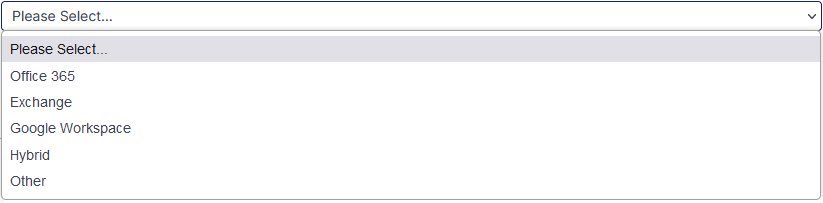
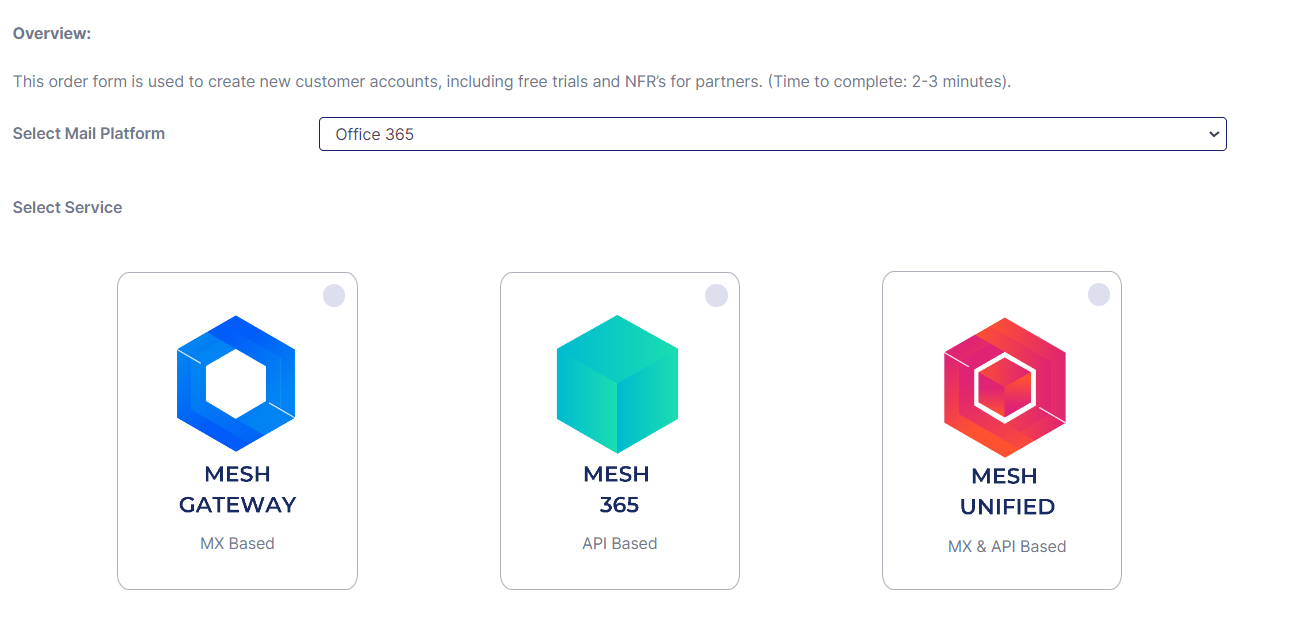
Select Mail Platform from the drop-down menu.
Select the Mesh Service you wish to order:
Mesh Gateway (MX-based)
Mesh 365 (API based)
Mesh Unified (MX based and API based)
Enter your customer's information in the required fields. Ensure there are no typos in the Delivery Destination for Clean Email field.
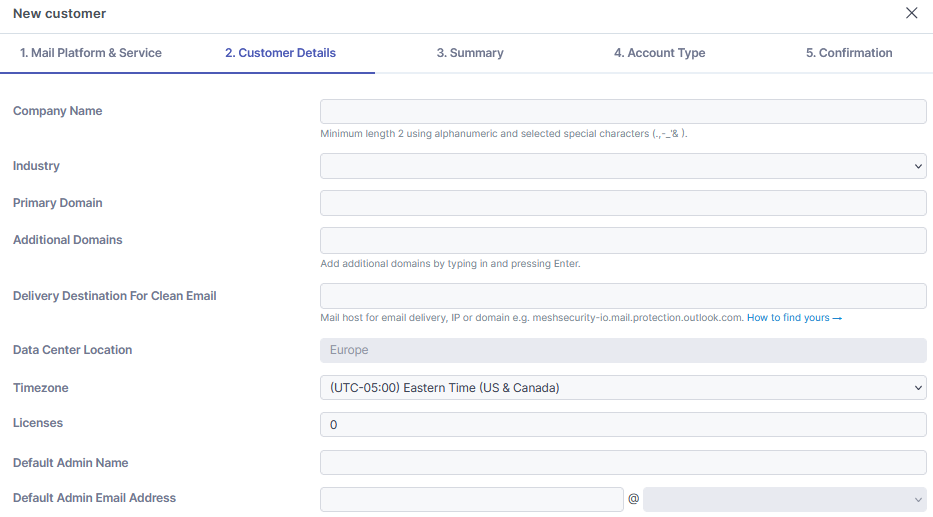
Licenses - If you are syncing from Microsoft 365, this will be automatically updated. You can read more on how licensing works by reading the article Licensing Explained
Default Admin - The default admin is a system requirement. It is not a billable license. It does not need to be a real mailbox.
Configure additional customer settings.
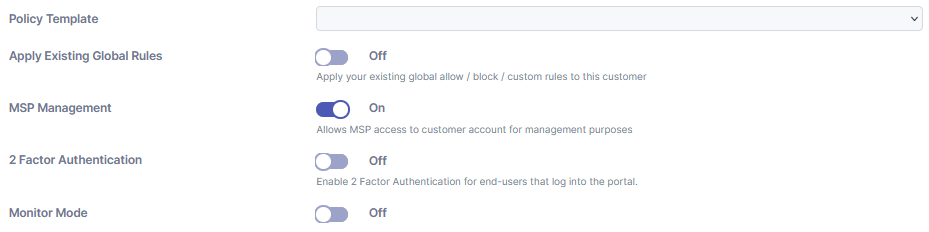
Policy Template - Select the policy template you’ve created.
Note
Review our best practice for each service:
Apply Existing Global Rules - Apply existing global rules to this new customer account.
MSP Management - Allows the MSP to login to the customer account for management purposes. If this is disabled, the customer account can be managed by anyone with an administrator role at customer level.
Two-Factor Authentication - This will force administrators/users that log into the customer-level portal to configure two-factor authentication. It does not affect the login as function from MSP level.
Monitor Mode (Mesh 365 Only) - Mesh scans all emails and provide verdicts, but no actions are taken.
It can be beneficial to start in monitor mode for a few days. See benefits of Monitor Mode
Select the account type:
Buy Now will start the billing period immediately.
Free 14-days trial automatically converts to billable after 14 days unless terminated.
NFR (Not for resale) is only for use on your MSP domain (maximum of 50 licenses).
Tip
Once the form is submitted, the account will be created instantly, and you will receive a confirmation email. The next step is to complete the installation.