Retrieving files from endpoints
The Retrieve file action allows you to remotely retrieve files from managed endpoints directly from the Network page. The retrieved files are stored as a password-protected archive in the task artifacts for 7 days, with controlled access.
You can retrieve files from multiple managed endpoints from multiple companies at the same time.
Create the task
To retrieve a file from one or more managed endpoints, follow these steps:
Log in to GravityZone Control Center.
Go to the Network page.
Browse your network and select one or more managed endpoints.
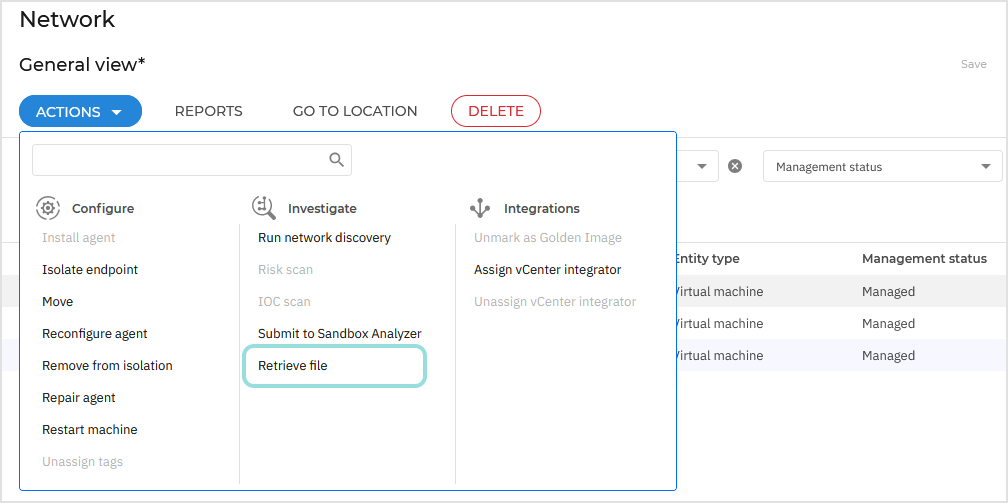
Click the Actions menu, then select Retrieve file.
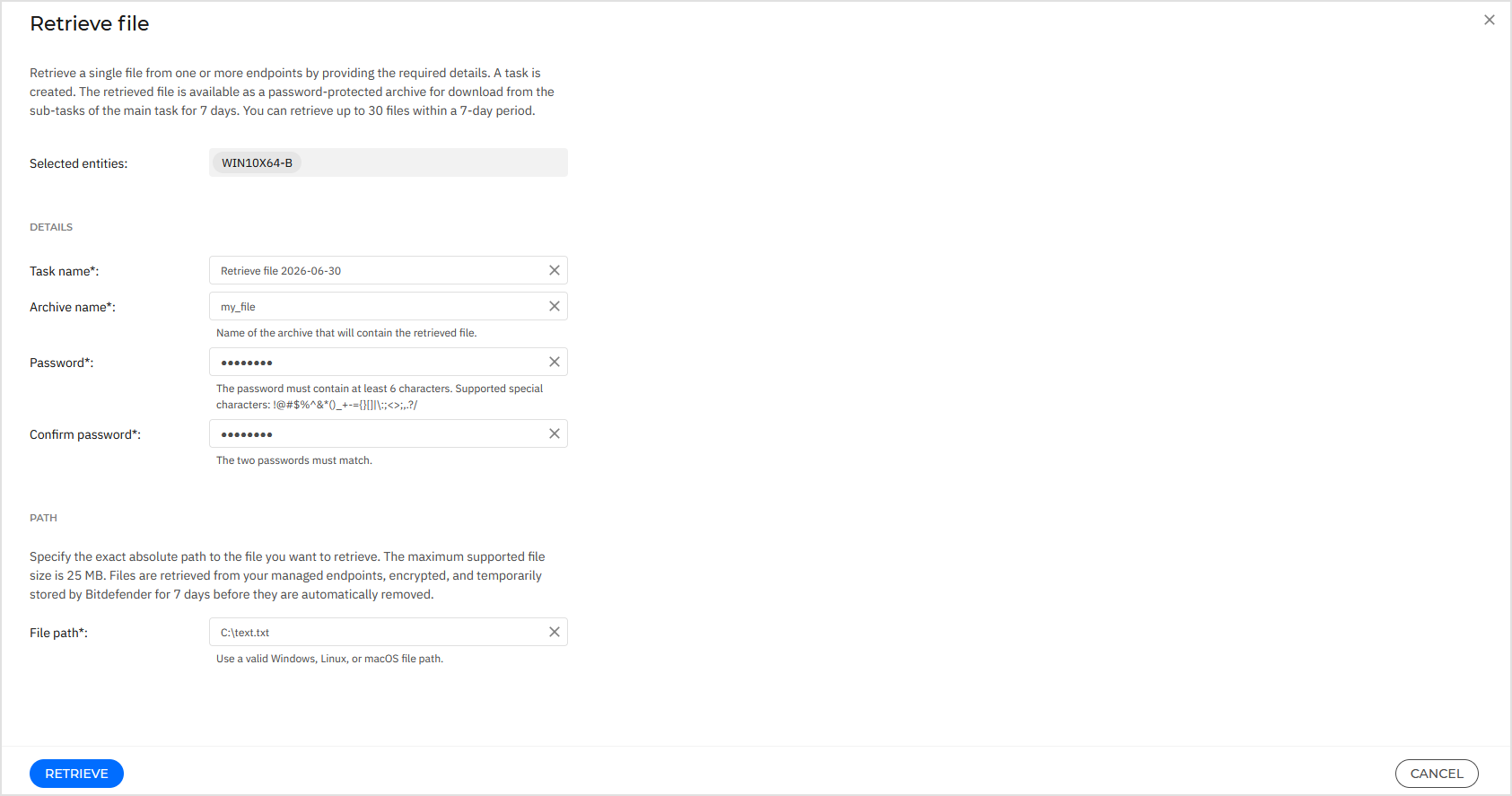
In the Retrieve file configuration window, configure the following settings:
Task name - By default, the task name is Retrieve file followed by date.
You can change it to make the task easier to identify on the Network > Tasks page.
The task name supports up to 512 characters.
Archive name - Specify the name of the password-protected archive that will contain the retrieved file.
Password – Enter the password used to protect the archive.
The password must contain at least 6 characters.
The password supports the following special characters:
!@#$%^&*()_+-={}[]|\:;<>;,.?/Confirm password – Re-enter the password to confirm it.
File path – Specify the full path to the file you want to retrieve. If the same path is common to the selected endpoints, then the file will be retrieved from all of them.
Examples:
Windows
D:\Temp\document.pdf
Linux
/home/username/documents/report.txt
macOS
/Users/username/Documents/file.txt
The file path supports Windows, Linux, and macOS formats and can contain up to 1024 characters.
Note
The path does not support wildcards.
Click Retrieve.
The task is created.
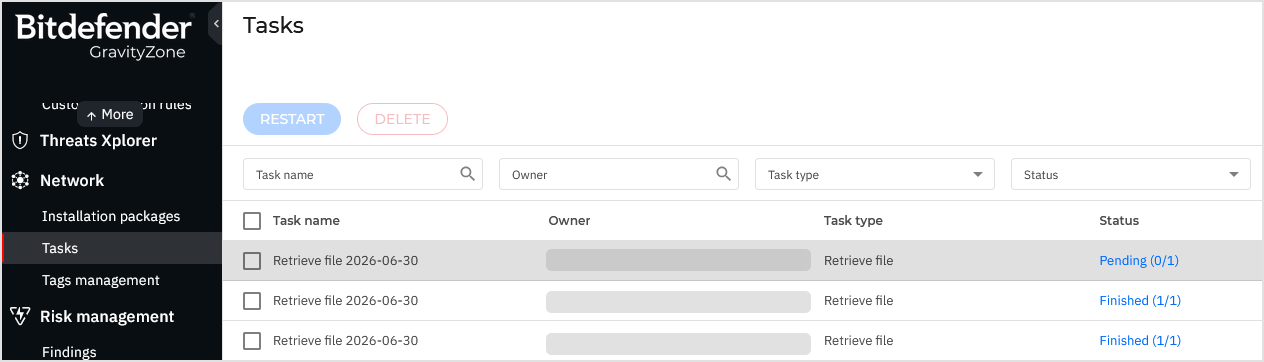
You can monitor the task progress on the Network > Tasks page, under Retrieve file type.
Download retrieved files
Within the task, GravityZone creates a subtask for each selected endpoint. When a subtask is finished, you can download the retrieved file.
To download a retrieved file, follow these steps:
Go to the Network > Tasks page.
Click the status indicator in the Status column to access the subtasks of the Retrieve file task.
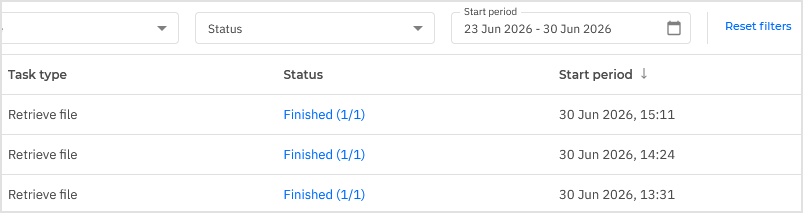
Go to a subtask and click Download.
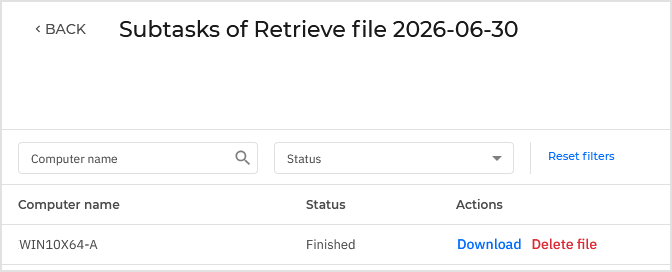
The file is downloaded locally as a password-protected archive. Use the password you specified when creating the task to extract it.
Note
Only the user who created the task can download the retrieved file.
Retrieved files are retained for 7 days. After 7 days or after manual deletion, the file is no longer available for download.
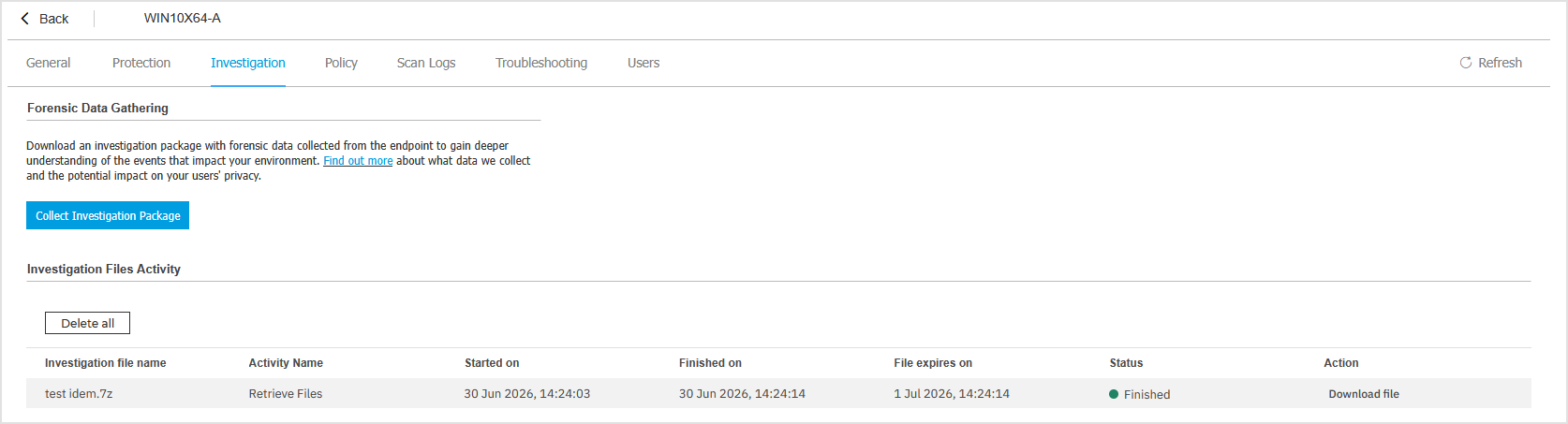
You can also download the file from the Investigation tab in the details page of each endpoint.
Delete retrieved files
To delete a retrieved file, follow these steps:
Go to the Network > Tasks page.
Click the status indicator in the Status column to access the subtasks of the Retrieve file task.
Go to a subtask and click Delete file.
The file is permanently deleted. To obtain it again, you must run the Retrieve file action.
Note
Only the user who created the task can delete the retrieved file.
Note
If the main task is deleted, the retrieved files are not automatically deleted. In this case, you can use the Delete all button from the Investigation tab in the details page of each endpoint.
Rules and limitations
Retrieving files from managed endpoint has the following rules and limitations:
Maximum file size: 25 MB per archive.
Maximum retrieved files per company: 30 files simultaneously. All action statuses except Failed count toward this limit.
If a Retrieve file action is initiated while 30 files are already retrieved, the task will fail with a corresponding error message.
For pending action statuses, you can delete the task from the Tasks page to free up capacity and initiate a new one.
Monitor user activity
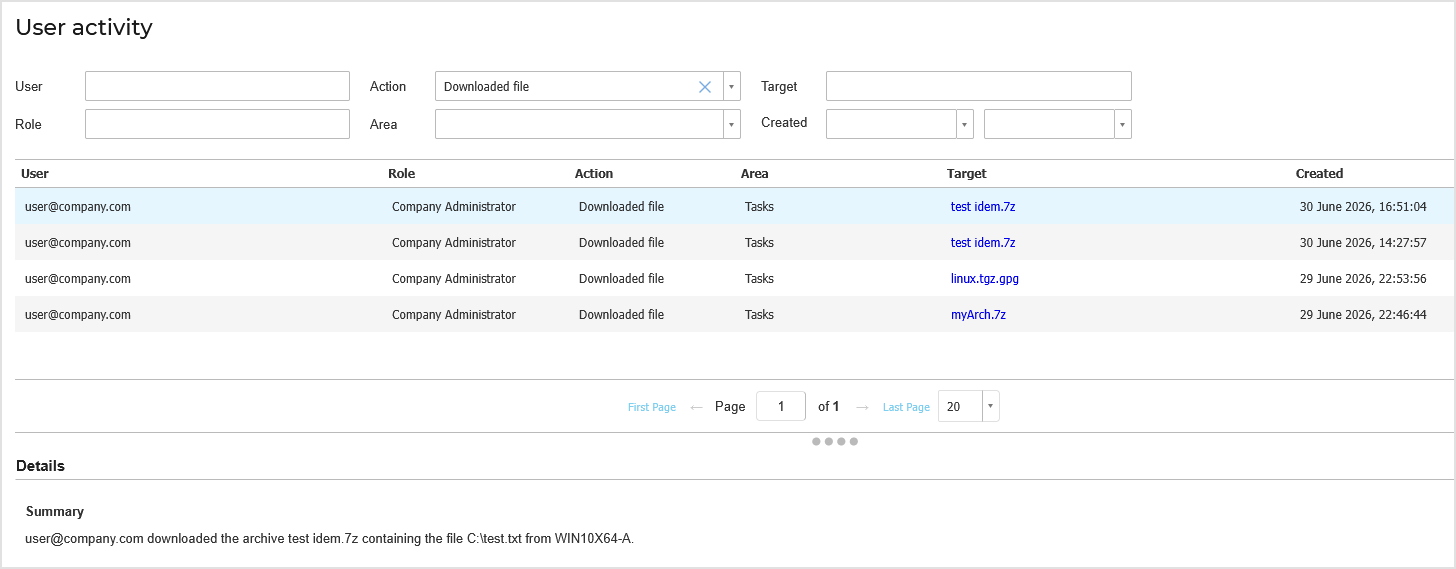
You can review the tasks on the Accounts > User activity page.
Select the company where the actions took place.
Select the Area and the Action.
Click Search.
The following actions are logged:
Action | Area | Description |
|---|---|---|
Retrieved file | Network | Logged when the Retrieve file action is initiated from the Network page. The target shows the endpoint name, or the number of endpoints if multiple were selected. |
Downloaded file | Tasks | Logged when a user downloads the retrieved file from a subtask. The target shows the archive name. |
Deleted file | Tasks | Logged when a user deletes the retrieved file from a subtask. The target shows the archive name. |