Advanced custom rules
Overview
Advanced custom rules are query-based EDR detection rules you can use to scan endpoints for patterns of malicious behavior. Advanced detection rules will generate custom alerts and, optionally, security incidents based on the results of these scans.
Find this new feature by going to the Incidents > Custom detection rules page. When adding a new rule, click the Advanced button to switch to the Advanced rule definition.
Prerequisites
To use this feature, you must meet the following requirements:
You have an active EDR license.
Your endpoints run one of the following supported operating systems:
Windows
Linux
macOS
Creating Advanced detection rules
To create an Advanced rule, follow these steps:
Log in to GravityZone Control Center.
Go to the Incidents > Custom detection rules page from the left-side menu.
Click Add rule.
You will be redirected to the Add rule page.
At the Detection rule definition step, click the Advanced button to switch to Advanced rule definition.
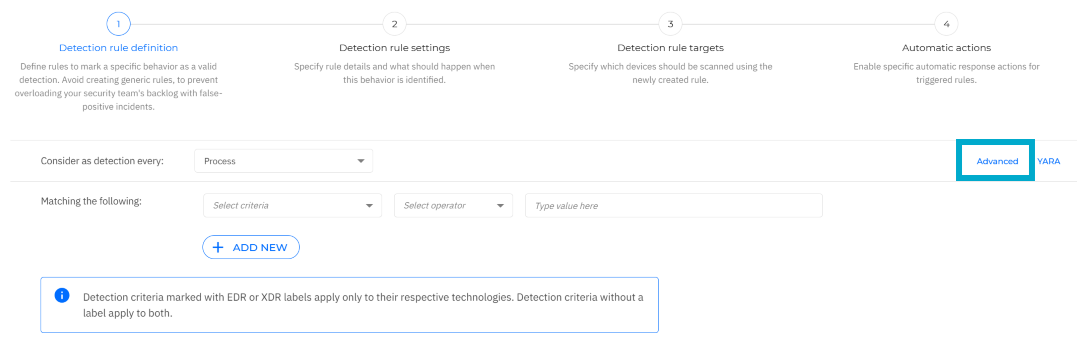
Configure the settings for step 1, Detection rule definition:
Type your rule query.
Important
Advanced custom detection rules use a query syntax similar to Lucene to define detection logic. For information on the Advanced rule syntax, refer to this section.
Only ASCII characters are supported.
You can enter up to 30,000 characters per Advanced rule.
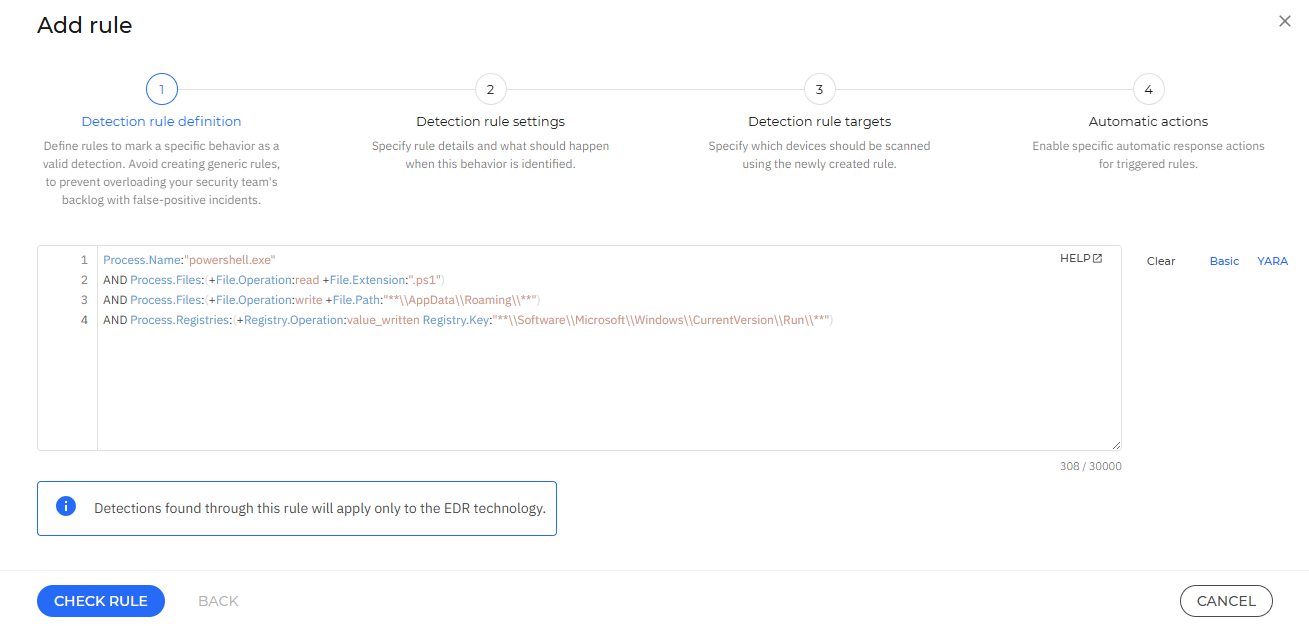
Note
Example:
The query in the picture above matches
powershell.exeinstances that:Open a PowerShell script (
.ps1file).Write a file under the user's
AppData\Roamingdirectory.Modify a registry value under
HKCU\Software\Microsoft\Windows\CurrentVersion\Run, a common persistence mechanism used by malware.
Click Check rule.
If there are any errors in the rule syntax, you will receive error messages or warnings. Hover over the highlighted lines to get more detailed information on what needs to be fixed.
Correct any highlighted syntax errors, then click Check rule again.
Once the rule is successfully validated, click Next.
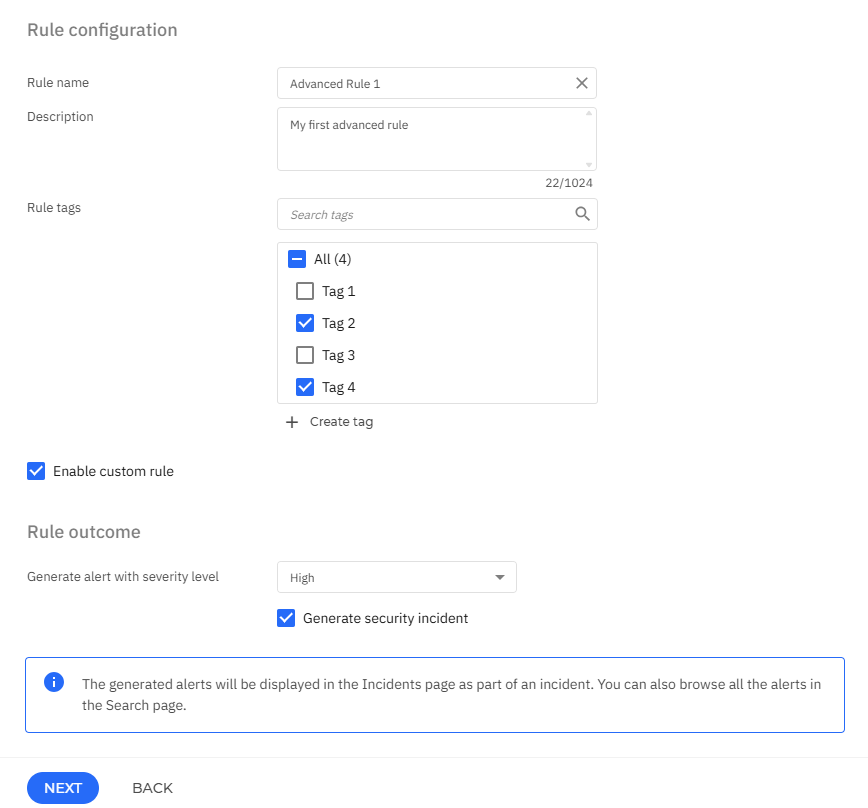
Configure the settings under Step 2: Detection rule settings:
Configure the settings under the Rule configuration section:
Type in a descriptive name for the rule under Rule name.
Optional: Under Description type in a short description of what the rule does.
Select the Rule tags you want to apply to the rule.
Rule tags can help you identify, group, and sort rules as needed. If you do not have a tag that suits your rule, you can click the Create tag button and add one.
Select the Enable custom rule checkbox to activate the rule immediately after creation.
Enabling this option generates alerts whenever the conditions listed in the rule are met for any specific endpoint.
Configure the settings under the Rule outcome section:
Under Generate alert with severity level select the severity level you want to assign to all the alerts created as a result of triggering this rule.
Select the Generate security incident box to automatically generate an incident when this rule is triggered.
Note
This setting is required for enabling automatic actions.
Click Next.
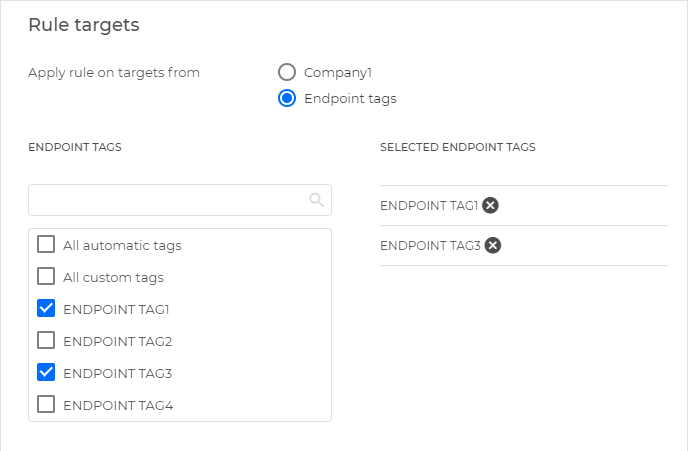
Configure the settings under Step 3, Detection rule targets:
Under the Rule targets section, select one of the options available for the Apply rule on targets from setting:
Select your company - The rule applies to all the endpoints managed by your company.
Endpoint tags - Select from the list of endpoint tags available for your company. The rule will apply only to the endpoints that have the selected tags applied. These tags are created and managed in Network > Tags Management.
When you select the Endpoint tags option, you can choose the tags from the list in the left-side menu, and your current selection of tags will appear in the right-side menu.
Click Next.
Optional: At the Automatic actions step, configure which response actions are automatically triggered when the Advanced custom rule is matched, and set their execution priority:
Select the Enable automatic actions box to activate automatic actions. These will apply to the targeted entity every time the rule is triggered.
Drag and drop the response actions to reorder them according to your desired priority.
Note
To restore the default order, click Reset priority.
Select the actions you want to enable for this rule by selecting them from the list below:
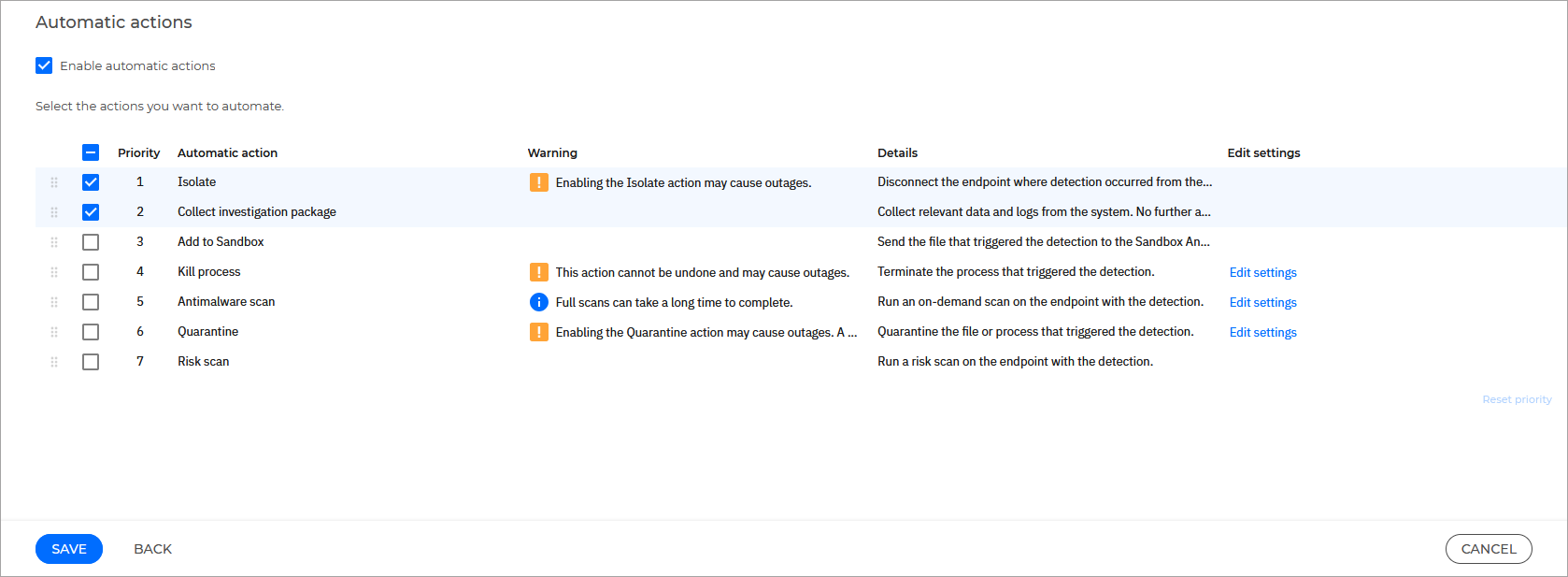
The following automatic actions are available:
Isolate
Collect investigation package
Add to Sandbox
Antimalware scan
Quarantine
Risk scan
Kill process
Important
Depending on your platform, your company's license, and what modules are installed on your endpoints, specific actions might not be available.
You can further customize certain actions by clicking the Edit settings button.
Click Save.
The new rule is now available in the Custom detection rules grid.
If you selected Quarantine in the previous step, you can click Edit settings next to the quarantine action.
The Edit quarantine configuration side panel will then open.
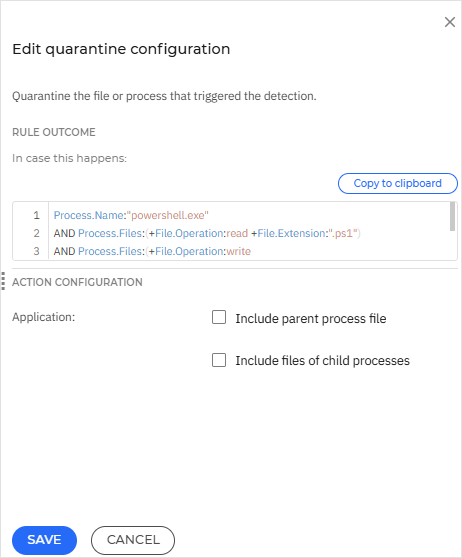
If you need the Advanced rule text, select Copy to clipboard.
Select Include parent process file to automatically quarantine the executable file of the parent process that launched the detected event.
Select Include files of child processes to automatically quarantine the executable files of any child processes spawned by the detected process.
Click Save.
If you selected Antimalware scan in the previous step, you can click Edit settings next to the Antimalware scan action.
The Edit scan configuration side panel will then open.
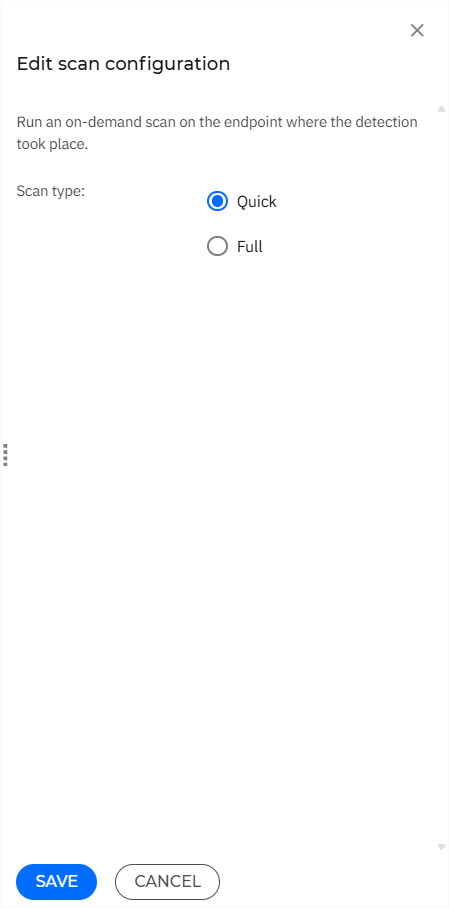
If you want to initiate an on-demand scan on the affected endpoint, select either a Quick or Full scan.
Click Save.
If you selected Kill process in the previous step, you can click Edit settings next to the kill process action.
The Edit kill process configuration side panel will then open.
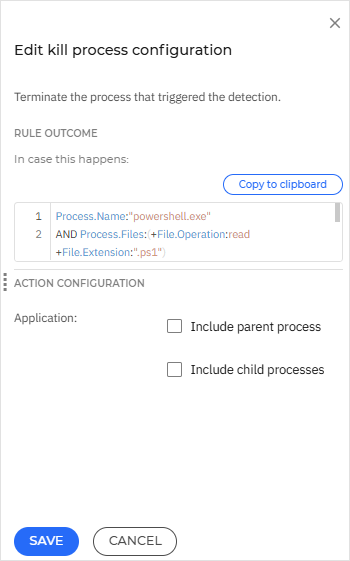
If you need the Advanced rule text, select Copy to clipboard.
Select Include parent process to terminate the active parent process that launched the detected process.
Select Include child processes to terminate all active child processes spawned by the detected process.
Click Save.
Click Save.
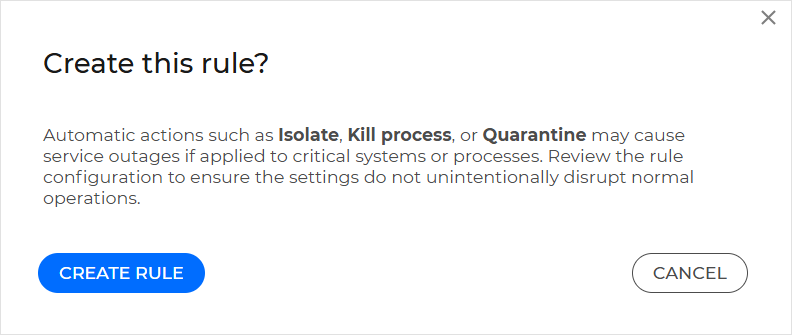
If any of the Isolate, Kill process, or Quarantine actions are selected, the dialog box below is displayed. After reviewing the rule configuration, click Create rule.
The Advanced rule you created will be displayed in the Custom detection rules table.
Change the status of rules
To enable or disable a rule, follow these steps:
Select the checkbox next to the rule you want to modify.
Note
You can select multiple rules.
Click the Change status button on top of the grid.
Click on the action you want to take.
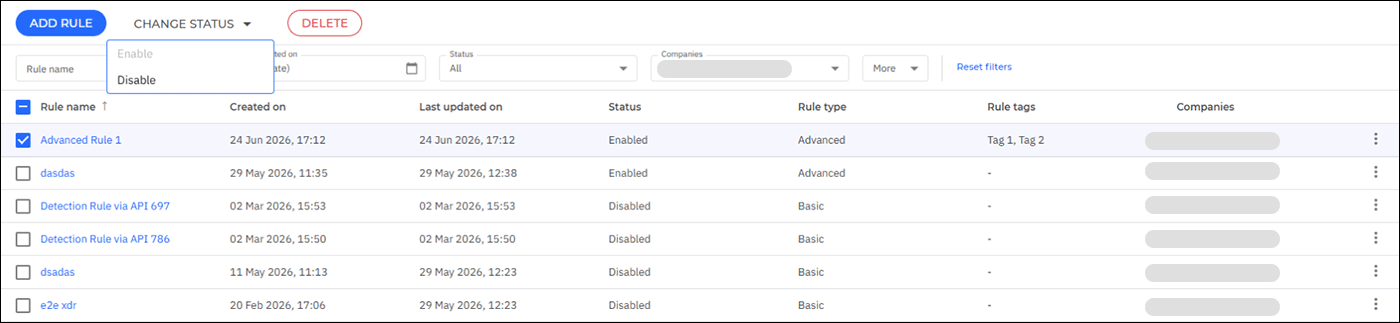
Alternatively, you can click the corresponding menu item on the right side of the grid and select the action you want to take.
Delete a rule
To delete a rule, follow these steps:
Select the checkbox next to the rule you want to delete.
Note
You can select multiple rules.
Click the Delete button on top of the grid.
Click Delete again to confirm the request.
Edit a rule
To edit a rule, click on the rule name under the Rule name column. Alternatively, you can click the Edit rule button from the Rule details side panel.
Viewing advanced rules details
To view the details of a specific rule, locate the rule in the grid, and click anywhere on its row to display the Rule details side panel.
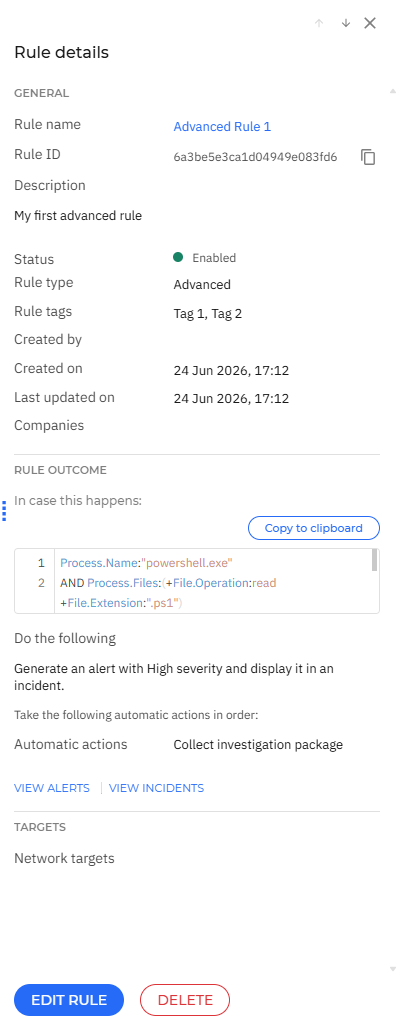
The panel contains information regarding the creation of the rule, the settings applied to it, along with these options:
The View alerts option redirects you to the Search page, where a prefilled query runs automatically to retrieve all the alerts triggered by the rule.
The View incidents option redirects you to the Search page, where a prefilled query runs automatically to retrieve all the incidents triggered by the rule.
The Edit rule button brings up the rule definition window, where you can change the rule settings.
The Delete button permanently removes the rule.
Advanced rule syntax
Advanced detection rules use a query syntax to define detection logic. A query consists of one or more conditions, each built from a category (the entity to monitor), a criterion (the specific field to evaluate), and a value (the expected match). These conditions are linked via operators.
Categories - Advanced custom rules enable you to define complex detection logic across the following categories:
Process
File
Registry
Connection
Service
Email
UserLogin
Important
A rule can only use one root category. However, when querying related entities inside an array field (for example,
Process.Files), you can use child category attributes within parentheses:Example:
Process.Files:(+File.Operation:create File.Extension:".exe")
Criteria - Specify the attribute of the selected category to evaluate in the query (e.g.,
Name,Path,CommandLine,MD5).Note
The available options vary depending on the specified category.
For a list of available criteria, refer to Detection criteria for Advanced rules.
Operators - The following types of operators are available:
Logical operators - They combine multiple conditions within a query. The following options are available:
AND- Both conditions must be trueOR- At least one condition must be trueNOT- Excludes results matching the condition
Important
Rules that contain only negations cannot be built. For example:
((NOT File.Name: "Ana") AND (NOT Process.Name: "Proces")) OR (NOT UserLogin.Name: "Adrian")
Avoid mixing
AND,OR, andNOTat the same evaluation level. Use parentheses()to group them, as indicated in the following example:Process.Name: "powershell.exe" AND (NOT Process.User: "john")
Comparison operators - They define the relationship between a field and a value. These work only on numeric fields (
Connection.SourcePortandConnection.DestinationPort):>- Greater than<- Less than<=- Less than or equal>=- Greater than or equal
+(required) operator - Use the+operator when querying array fields to mark a condition as required for matching array elements.By default, when you specify multiple conditions in an array query without the
+operator, they are evaluated withORlogic. As a result, an array element matches if it satisfies any specified condition. Prefixing a condition with+makes it mandatory, while the remaining conditions continue to be treated as alternatives.Example:
Process.Files:(+File.Operation: create File.Extension: ".exe" File.Extension: ".dll")
This query matches processes that created files with the
.exeor.dllextension.
Parentheses
()- Can be used for two different purposes, depending on the query context:When querying array fields, parentheses define a group of conditions that are evaluated against the same array element. The expression enclosed in parentheses specifies the criteria an individual array element must satisfy to be considered a match.
All conditions intended to match the array field must be included within the same set of parentheses.
Example:
Process.Files: (File.Operation: create File.Extension: ".exe")
In this example, a
Process. Filesentry matches if its operation iscreateor its extension is.exe.You can also use parentheses to group logical expressions and control how a rule is evaluated. This allows you to define the relationship between multiple conditions and explicitly determine the order in which logical operators such as
AND,OR, andNOTare applied.Example:
((NOT File.Name: "Ana") AND (NOT Process.Name: "Proces")) OR (NOT UserLogin.Name: "Adrian")
In this example, the conditions inside each pair of parentheses are evaluated together before the overall logical expression is processed.
Wildcards - Can be used in string fields to perform flexible pattern matching without specifying an exact value.
Important
As an exception, wildcard matching is not supported for the following criteria:
Process.MD5Process.SHA2File.MD5File.SHA2
The following wildcard characters are supported:
**- Matches any sequence of characters, including path separators. Use it when the matching pattern can span multiple directory levels.Examples:
C:\Users\**\file.exematches anyfile.exeunderC:\Users, with one or more directories betweenUsersand the file, such asC:\Users\John\file.exeorC:\Users\John\Downloads\file.exe.**\AppData\Roaming\**matches any file whose path contains\AppData\Roaming\.
*- Matches any sequence of characters up to the path separator of the current operating system (\on Windows and/on Linux or macOS). It does not span across multiple directory levels.Examples:
C:\Users\*\Downloads\file.exematches anyfile.exewhere*represents exactly one directory name betweenUsersandDownloads, such asC:\Users\John\Downloads\file.exeorC:\Users\Admin\Downloads\file.exe.report*.pdfmatches any PDF file whose name starts withreport.
?- Matches exactly one character. The matched character can be any valid character.Example:
file?.exematches filenames where?represents exactly one character, such asfile1.exeorfileA.exe, but notfile10.exe.
Tip
Wildcards can be combined within the same pattern to create more flexible matching conditions.
Example:
report*_v?.pdfmatches filenames that start withreportand continue with any sequence of characters that is followed by_vand exactly one character, such asreport_final_v1.pdforreport_test_vA.pdf.The
*?wildcard expression is not supported and will generate a syntax error.