License management
Overview
The GravityZone security services are licensed and sold separately. Each GravityZone security service requires a valid basic license key. At least one valid license key must be provided for using GravityZone.
Besides the basic security services, GravityZone also provides important protection features as add-ons. Each add-on is licensed with a separate key and you can use it only together with a basic valid license. If the main license is invalid, you will view the features settings, but you will be unable to use them.
Note
Control Center is provided for free with any GravityZone security service.
GravityZone license keys can be managed from the Configuration > License page in Control Center. When your current license key is about to expire, a message will appear in the console informing you that it needs to be renewed. To enter a new license key or view the current license details, go to the Configuration > License page from the left side menu.
Trials
You can choose to test GravityZone and decide if it is the right solution for your organization. To activate your evaluation period, you must enter the evaluation license keys from the registration email in Control Center.
The trial grants access to various on-premises solutions, such as Antimalware, Local Scan, and Advanced Threat Control, ensuring comprehensive protection for Windows, Linux, and macOS environments.
To continue using GravityZone after the trial period expires, you must purchase a license key and use it to register the product.
Entering your license keys
GravityZone license registration can be done online or offline (when internet connection is not available). In both cases, you need to provide a valid license key for each security service you want to use.
For offline registration, you will also need the offline registration code associated to the license key.
You can enter several license keys for the same service, but only the last key that you enter will be active.
To license your GravityZone security services, to change an existing license key, or to enter a separate key for an add-on:
To change the current license key or to register an add-on:
Log in to Control Center using a company administrator account.
Go to the Configuration > License page from the left side menu.
Click the
 Add button at the upper side of the table.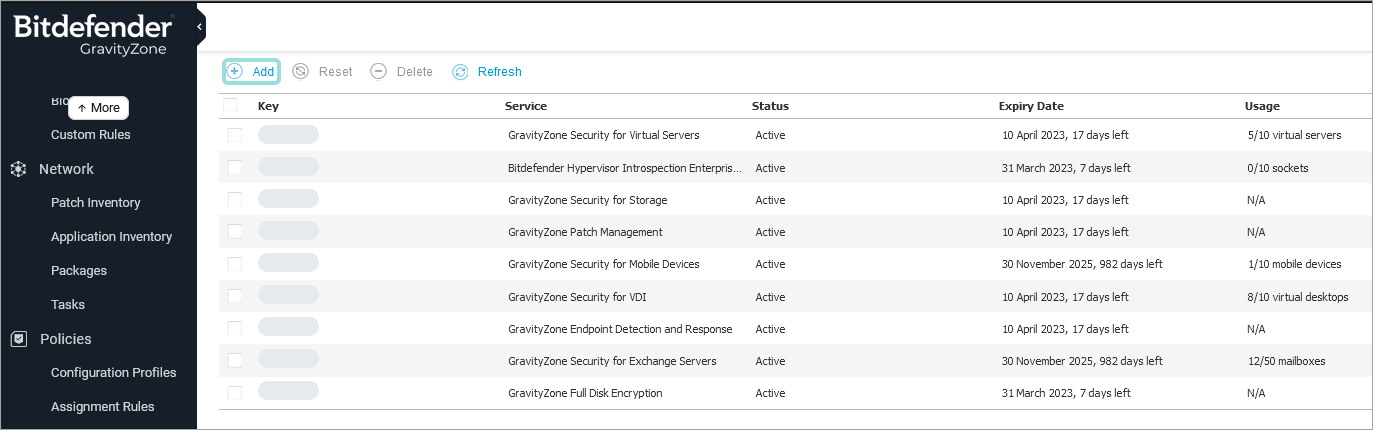
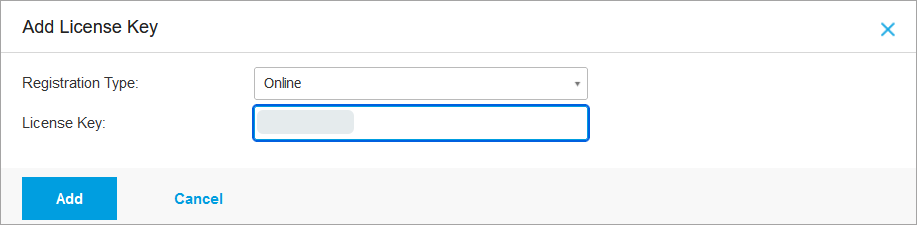
Select the registration type and type in the license key:
Online. In this case, enter a valid license key in the License key field. The license key will be checked and validated online.
Offline, when an internet connection is not available. In this case, you need to provide the license key and also its registration code.
Note
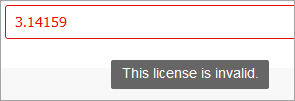
If the license key is not valid, a validation error is displayed as tool-tip over the License key field.
Click Add. The license key will be added to the License page, where you can check its details.
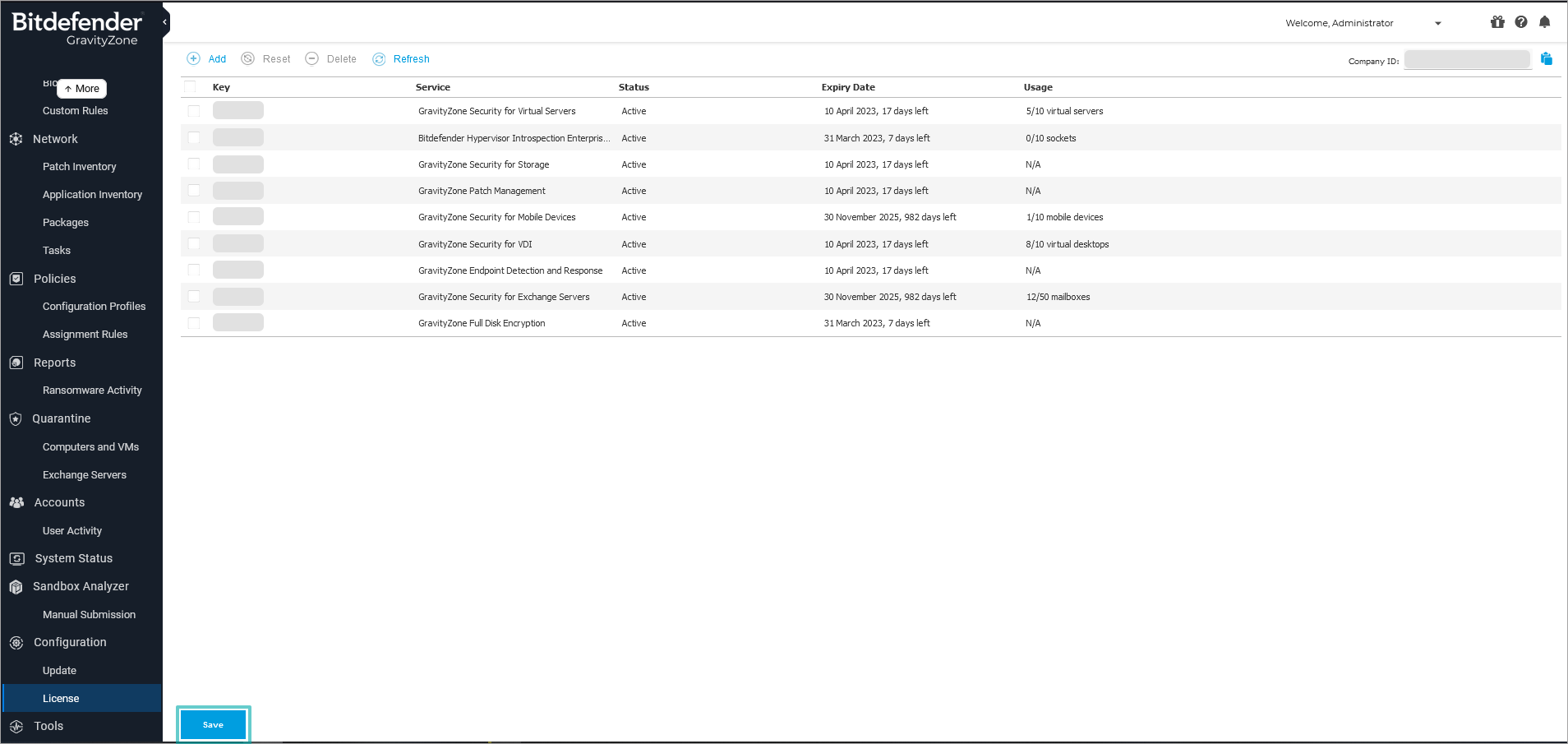
Click Save to apply the changes. Control Center restarts and you need to log in again to view the changes.
Note
You can use the add-ons as long as a compatible basic license is valid. Otherwise you will view the features, but you will be unable to use them.
Checking current license details
To view your license details:
Log in to Control Center using a company administrator account.
Go to the Configuration > License page from the left side menu.
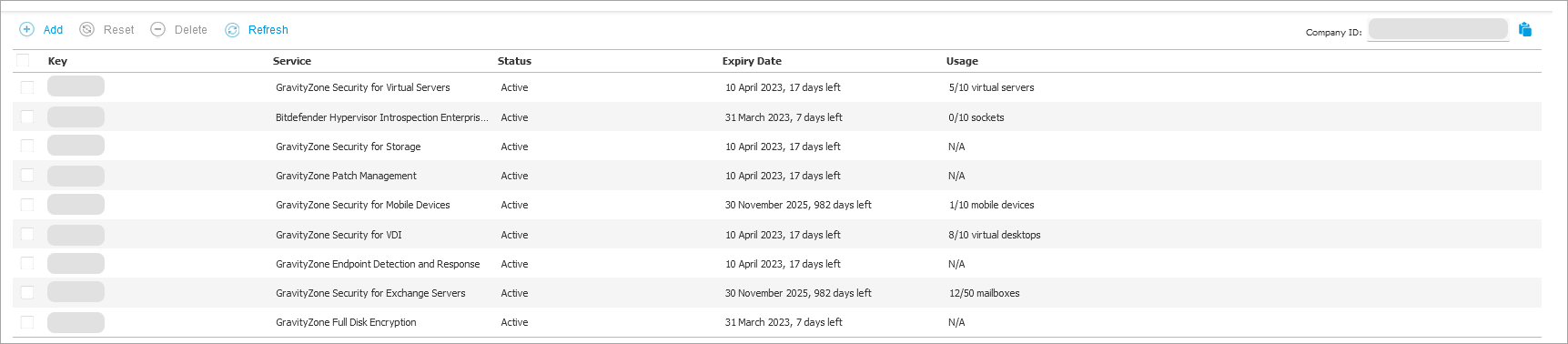
In the table, you can view details about the existing license keys.
License key
Security service the license key applies to
License key status
Important
Only one license key can be active at a time for a specific service.
Expiry date and remaining license period
Important
When license expires, the protection modules of the installed agents are disabled. As a result, endpoints are no longer protected and you cannot perform any scan task. Any new installed agent will enter in trial period.
License usage count
Resetting the license usage count
You can find out information about your license key's usage count in the License page, under the Usage column.
If you need to update the usage information, select the license key that you want and click the  Reset button at the upper side of the table.
If you need to update the usage information, select the license key and click the Reset button at the upper side of the table.
Deleting license keys
You can choose to delete invalid or expired license keys from the License page.
Warning
Deleting a license key will remove the corresponding security service from Control Center. You will not be able to install and manage protection offered by that service, on the endpoints in your network. Nevertheless, the endpoints remain protected as long as the license key is valid.
If you enter a new valid license key that includes the previously deleted service, it will re-enable all features of that service in Control Center.
To delete a license key:
Log in to Control Center using a company administrator account.
Go to the Configuration > License page from the left side menu.
Select the license key you want to remove and click the
 Delete button at the upper side of the table.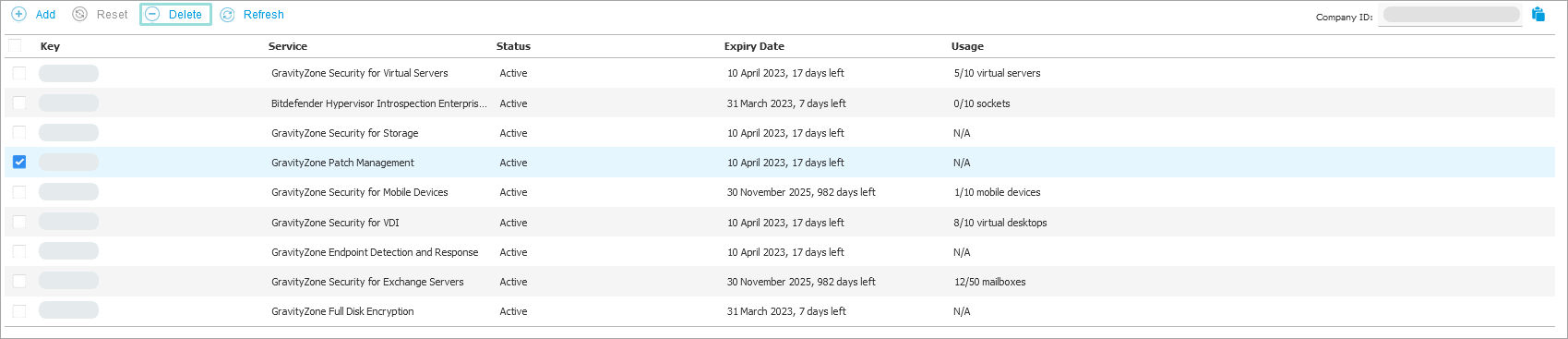
Click Save to apply the changes. Control Center restarts and you need to log in again to view the changes.