When you upload a video file into Bitdefender RealCheck, the app checks whether the file meets the size requirements before starting the analysis. If the selected video is too big, you may see this message:
This file is too large. Choose a video under 100 MB.
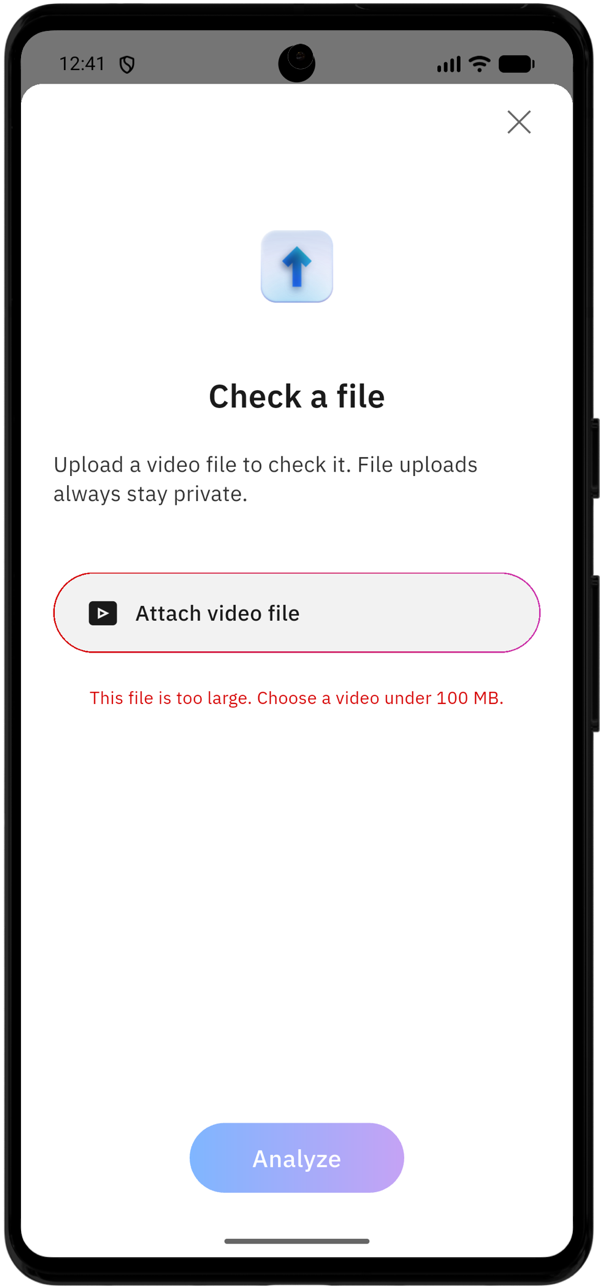 This means the video you selected is larger than the maximum supported file size. RealCheck cannot upload or analyze the file until you choose a smaller video.
Why the error “This file is too large” appears
Bitdefender RealCheck supports uploaded video files under 100 MB. You may see this error if:
- The video was recorded in high resolution, such as 4K.
- The video was exported without compression.
- The wrong file was selected by mistake.
- The clip contains unnecessary footage before or after the part you want to check.
For example, a short video recorded in very high quality may still exceed 100 MB, while a longer video saved at a lower resolution may be smaller.
How to fix the issue
To reduce the file size to under 100 MB, you can follow these steps:
- Trim the video to keep only the suspicious statement or scene.
- Export the video at a lower resolution.
- Save the smaller version.
- Upload the smaller file to RealCheck again.
If the file is still too large, reduce the video resolution or compress the file using your device’s video editor or another trusted editing app.
If the video came from a shared link or another app
If the video was saved from a message, social media app, or cloud storage link, check that the saved file is complete and under 100 MB.
If you originally intended to check a public video link, use the Paste link option instead of Upload file, then submit the public URL from a supported platform.
If the error continues
If your video is under 100 MB and the error still appears, close and reopen RealCheck, then try uploading the file again.