When you paste a video link into Bitdefender RealCheck, the app needs to access the original source before it can analyze the content. If RealCheck cannot find or open the video, you may see this message:
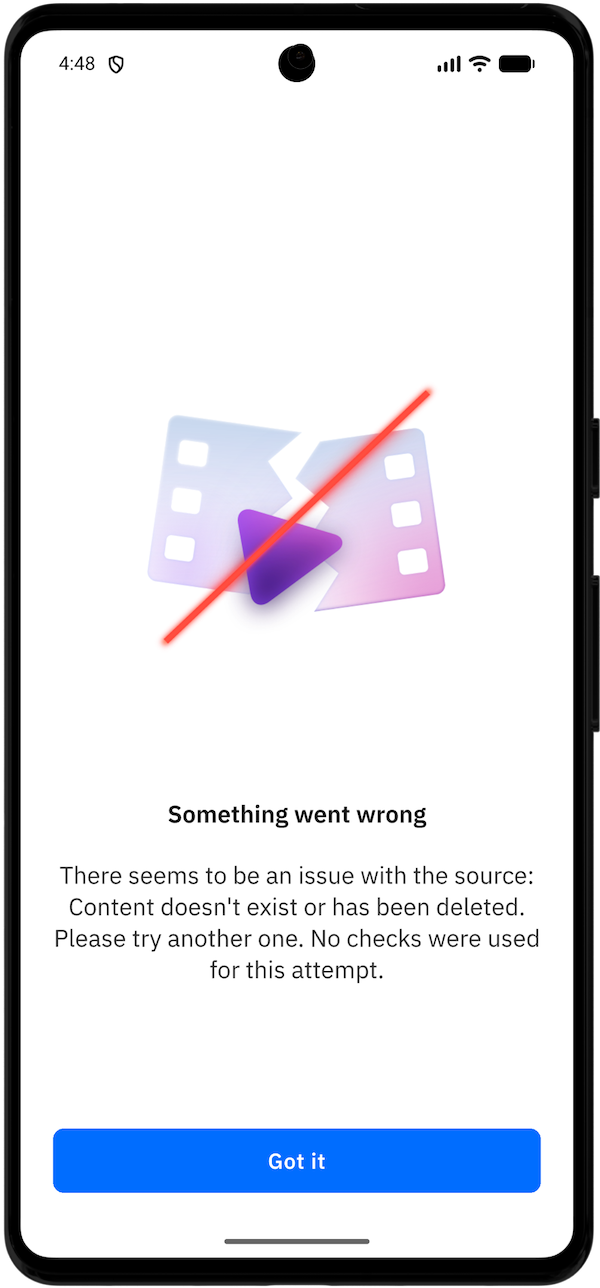
Something went wrong
There seems to be an issue with the source: Content doesn’t exist or has been deleted.
Please try another one. No checks were used for this attempt.
This means RealCheck could not access the video from the link you submitted. No checks are used for this attempt.
Why the “There seems to be an issue with the source” error appears
This error usually appears when the video source is no longer available or cannot be reached. It can also appear if the link is incorrect.
Common causes include:
- The video was deleted by the person who posted it.
- The post was removed by the platform.
- The video link was copied incorrectly.
- Part of the link is missing.
- The link points to the wrong page instead of the actual video.
- The post is no longer public.
- The video is restricted, expired, or unavailable in your region.
- The source platform is temporarily unable to load the content.
For example, a video may still appear in a message or comment, but if the original post was deleted, RealCheck cannot retrieve it for analysis. Similarly, if one character is missing from the copied URL, the link may no longer point to the correct video.
Step 1: Check whether the link opens
Open the video link in your browser or in the original social media app.
If the page shows that the post is unavailable, deleted, private, or cannot be found, RealCheck will not be able to analyze it either.
If the link does not open correctly, ask the sender for a new link or look for another public version of the same video.
Step 2: Copy the link again
If the video still exists and opens normally, copy the link again from the original platform. After copying the link:
- Open Bitdefender RealCheck.
- Tap Paste link.
- Paste the newly copied link.
- Tap Analyze.
Or use the social platform’s Share option when possible to copy the link. This helps avoid incomplete or broken URLs.
Step 3: Make sure the video is public
RealCheck can analyze only videos it can access from the source. If the video is private, restricted to followers, shared in a closed group, or available only after signing in, the check may fail.
If you own the post, change the visibility to Public, if appropriate, then copy and submit the link again.
If you do not own the post, ask the owner to share a public version of the video.
Step 4: Try another source
If the original link no longer works, look for the same video from another public source.
For example, the same video may have been reposted on a supported social media platform. Copy the link from the available public post and submit that version in RealCheck.
Step 5: Upload the video file instead
If you have the video saved on your device, you can upload it directly to RealCheck instead of pasting a link. To do this:
- Open Bitdefender RealCheck.
- Tap Upload file.
- Select the video from your device.
- Tap Analyze.
Make sure the file is a supported video file and meets the app’s requirements.
If the video source issue continues
If the link opens correctly, the video is public, and you still see the same error “There seems to be an issue with the source”, try again later. The source platform may be temporarily unavailable or preventing access to the content.
You can also try restarting the app or submitting a different public video link.