You can uninstall Bitdefender RealCheck from iOS (iPhone and iPad) at any time. Removing the app deletes it from your device and frees up storage space.
ⓘ The steps below apply to recent iOS versions. Some menu names may vary slightly depending on your iOS version, but the process is generally the same.
Method 1: Uninstall RealCheck from the Home Screen
This is the most common way to remove an app from an iPhone.
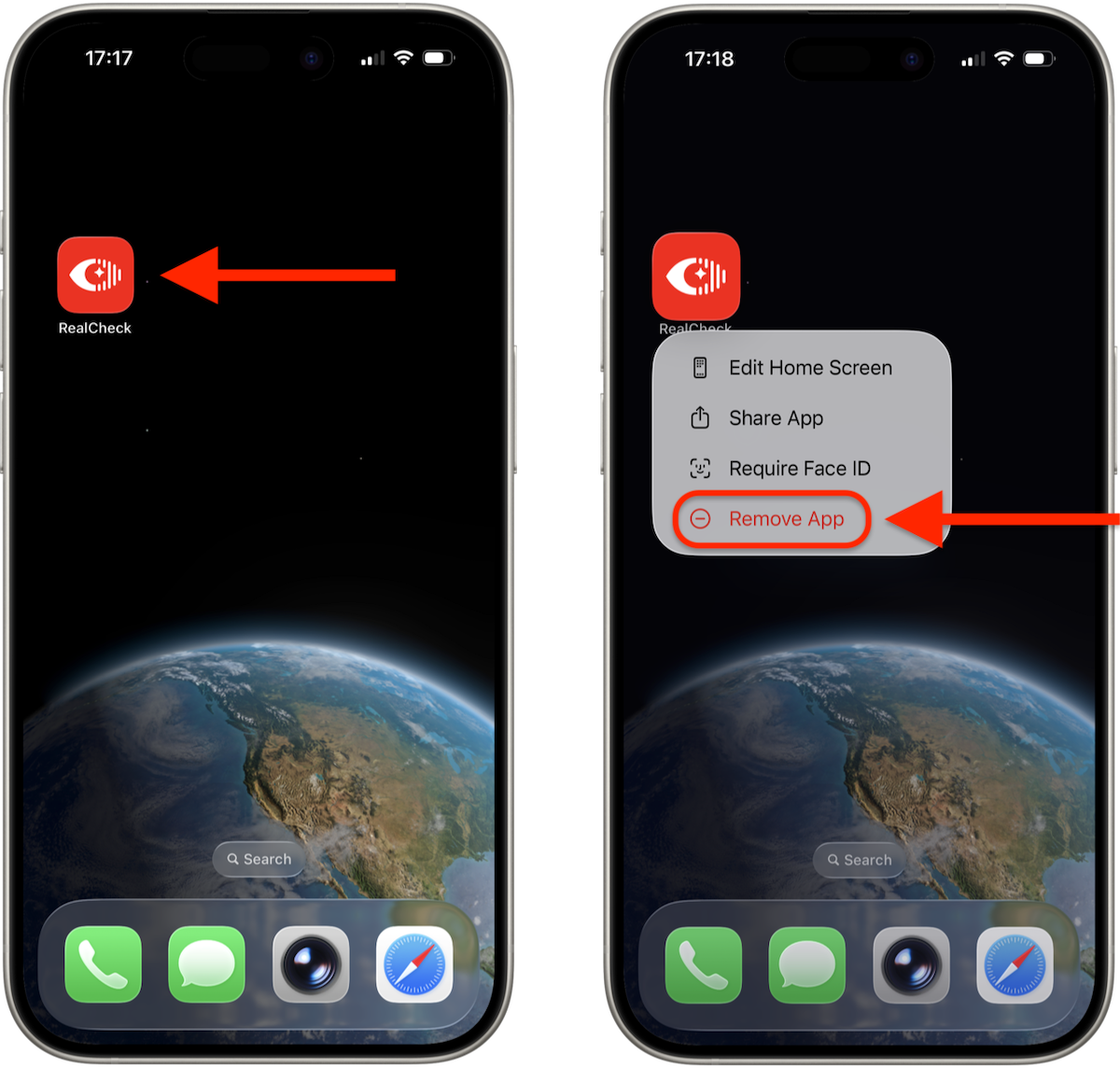
- Go to the iPhone or iPad Home screen.
- Touch and hold the RealCheck
 app icon until a menu appears.
 - Tap Remove App.
- Tap Delete App.
- Confirm by tapping Delete.

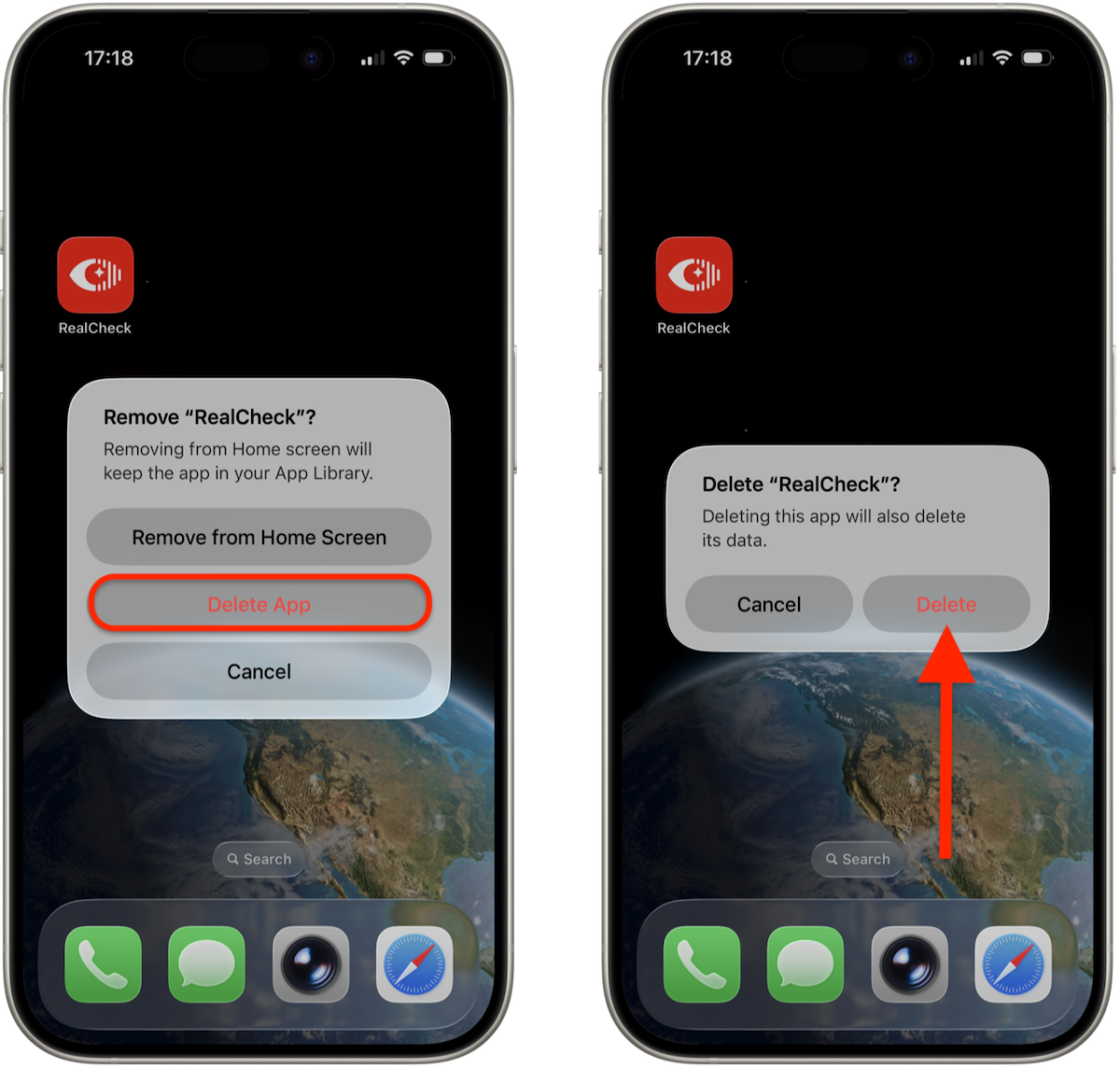
Bitdefender RealCheck is removed from your iPhone.
Method 2: Uninstall RealCheck from iPhone Settings
You can also remove the app from iPhone storage settings.
- Open the Settings app
 on your iPhone or iPad.
 - Tap General.
- Tap iPhone Storage.

- Scroll down through the app list and tap RealCheck.
- Tap Delete App.
- Confirm by tapping Delete.
 on your iPhone or iPad.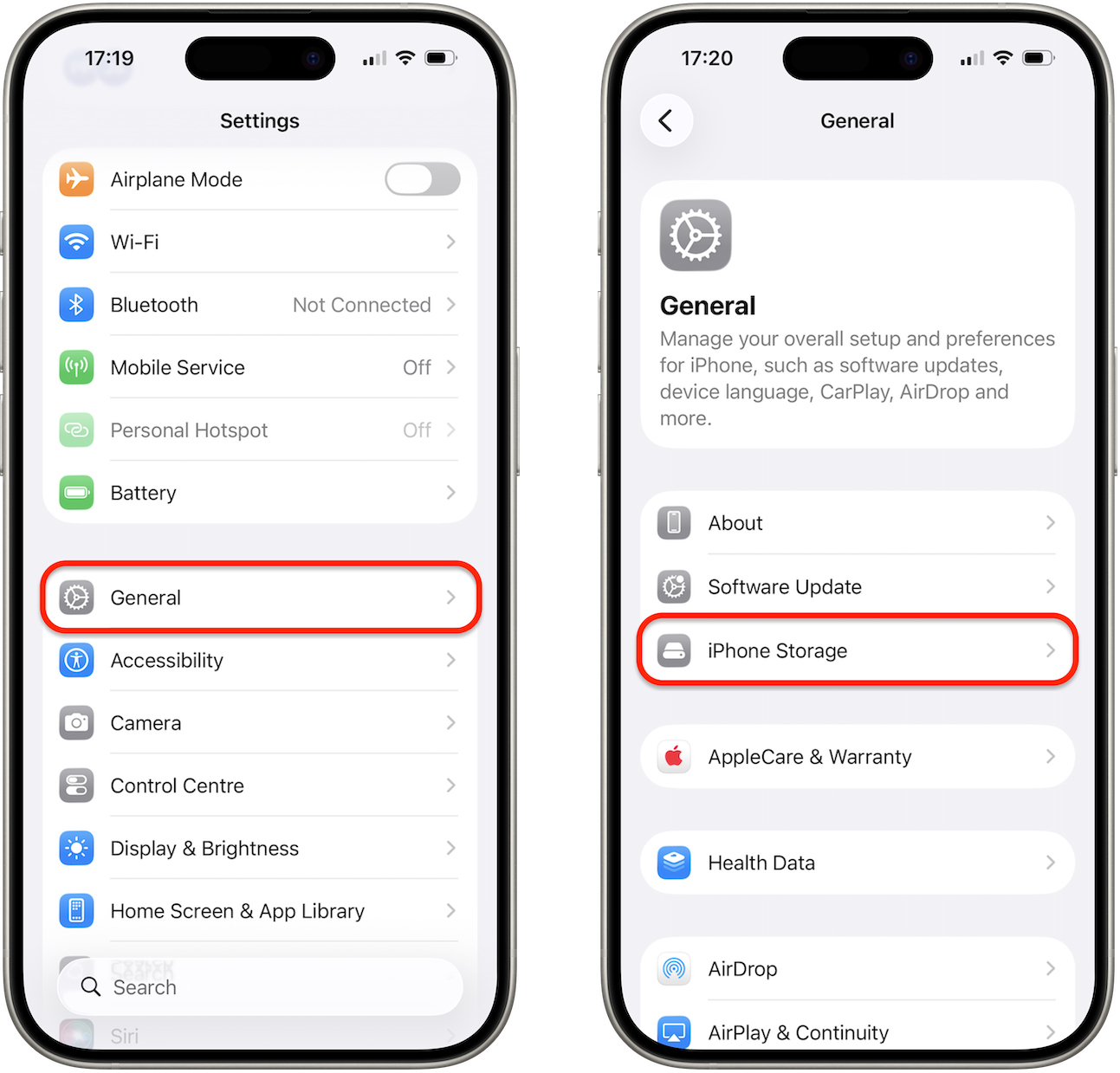
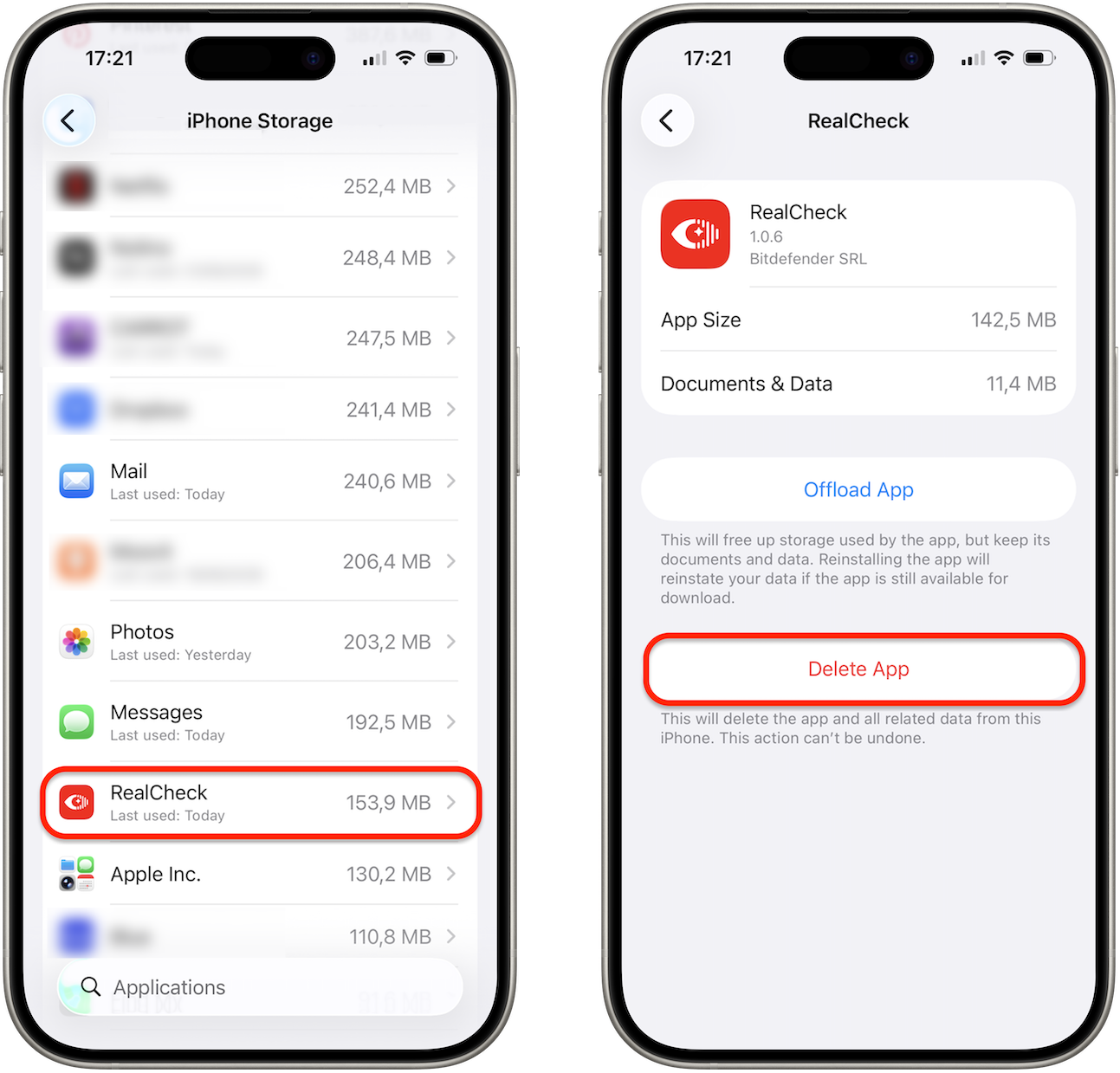
This method is useful if you want to check how much storage the app is using before removing it.
How to check that RealCheck was removed
After uninstalling the app, search for RealCheck on your iPhone.
You can swipe down on the Home screen and type RealCheck in the search field. If the app no longer appears, it has been removed.
You can also open the App Store, search for Bitdefender RealCheck, and check the app page. If the app was removed, the App Store should show a download icon instead of Open.
Need more help?
If you cannot uninstall RealCheck for iOS, restart your iPhone and try again. You can also check whether Screen Time restrictions are preventing app deletion by going to Settings > Screen Time > Content & Privacy Restrictions.