This guide explains how to activate the 7-day free trial, subscribe to Bitdefender RealCheck, or upgrade your plan from the mobile app.
Bitdefender RealCheck is a subscription-based mobile app that helps you analyze videos for signs of AI generation, manipulation, and deceptive intent. To use the app’s video-checking features, you need an active RealCheck subscription or free trial.
Step 1: Open Bitdefender RealCheck
On your phone, tap the RealCheck app icon  to open the app.
If you are not already signed in, sign in with your Bitdefender account before continuing.
Step 2: Start from the Home screen or Settings
If you do not have an active subscription, RealCheck automatically prompts you to subscribe in any of the following situations:
- When you open the app
- When you try to use the video check feature, or
- When you tap the No active subscription warning displayed in the top-right corner of the Home dashboard.
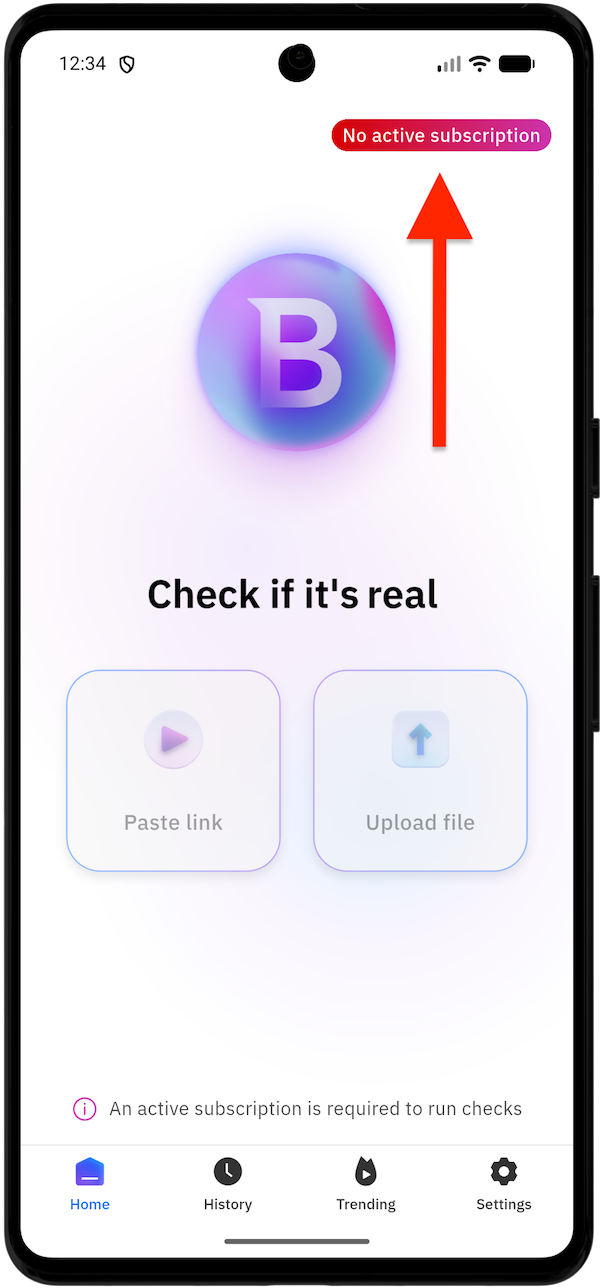
You can also access subscribe to RealCheck manually:
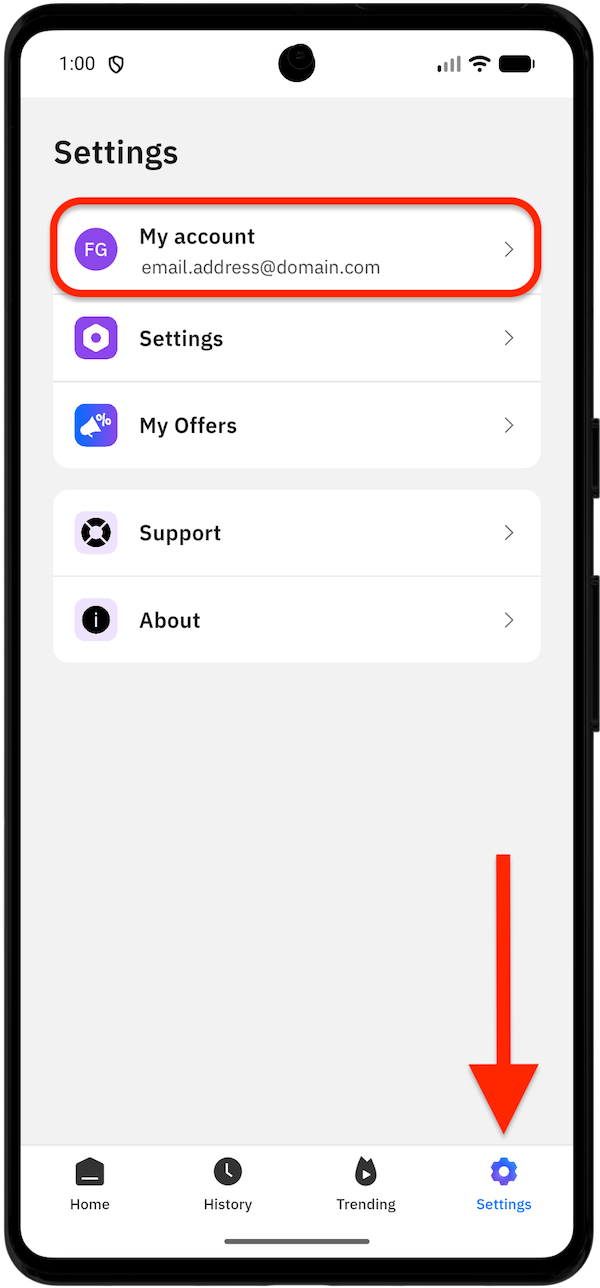
- Tap ⚙︎ Settings in the bottom-right corner of the Bitdefender RealCheck app.
- Tap My account > My Subscriptions.
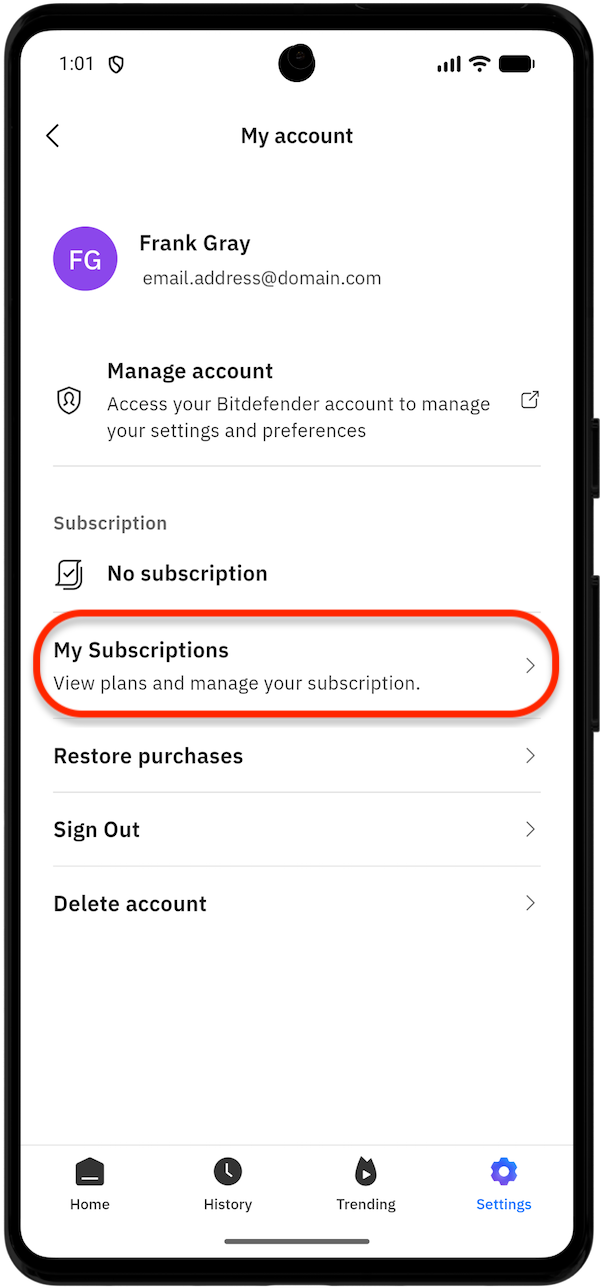
From here, you can view available RealCheck plans and choose the option that fits your needs.
Step 3: Review the free trial or subscription offer
The subscription screen shows what is included with RealCheck access.
Depending on your eligibility and current plan, you may see options such as:
- Starting a 7-day free trial
- Subscribing to RealCheck Core
- Subscribing to or upgrading to RealCheck Plus
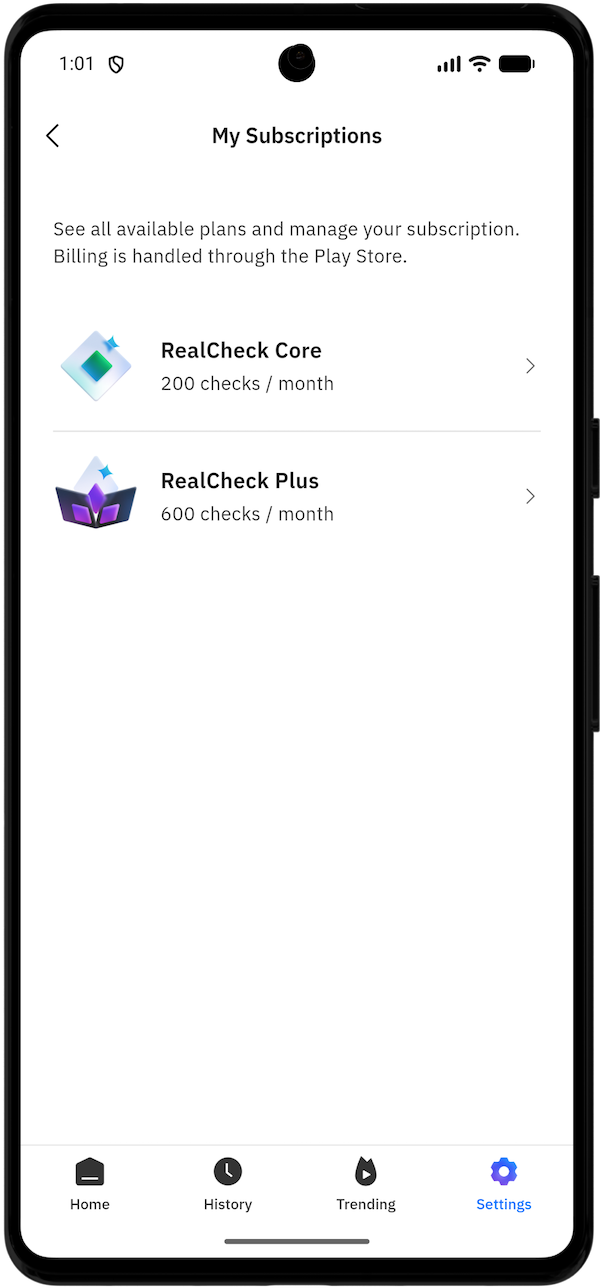
Review the details carefully, including the number of checks included, the monthly price, and the renewal terms.
Step 4: Choose your plan
Select the available plan you want to activate.
For example:
- RealCheck Core is suitable if you need a standard monthly number of video checks.
- RealCheck Plus is suitable if you need a higher monthly check quota.
If you already have RealCheck Core, the app shows an option to upgrade to RealCheck Plus.
Step 5: Subscribe to RealCheck
Depending on what you are doing, tap one of the following buttons:
- Start 7-day free trial
- Upgrade
- The subscription button shown for your selected plan
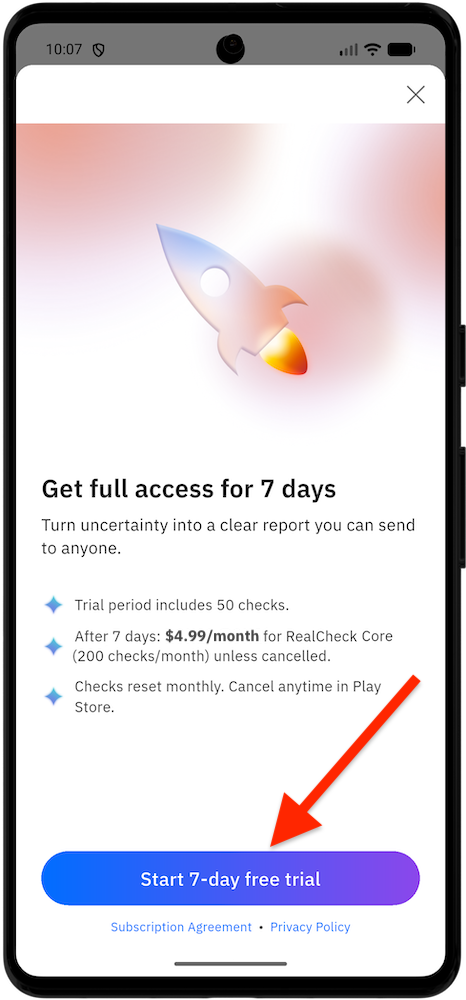
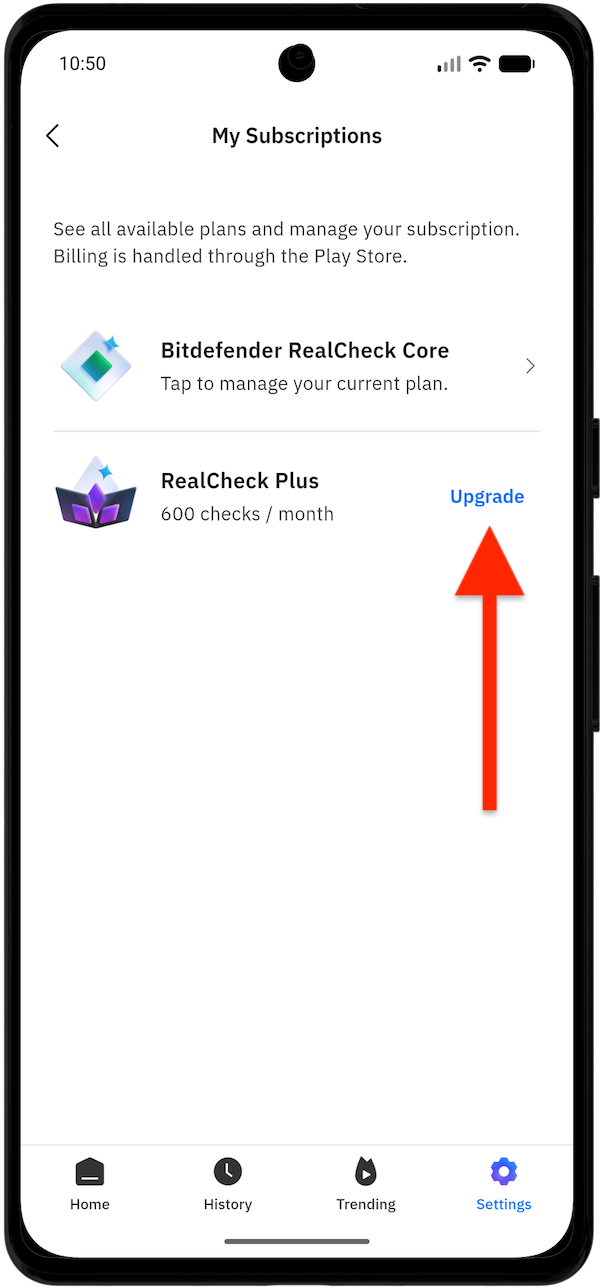
This opens the Google Play or Apple App Store payment confirmation screen.
Step 6: Confirm the subscription via Google Play or App Store
Your device will now ask you to confirm the subscription.
- On Android, confirm the subscription through Google Play.
- On iOS, confirm the subscription through the App Store.
You may be asked to:
- Choose or add a payment method
- Review the subscription price
- Confirm the free trial or paid plan
- Use your device authentication method, such as biometrics, passcode, or account password
If no payment method is available, follow the on-screen instructions to add one.
Step 7: Wait for activation to complete
- After confirming the subscription, return to Bitdefender RealCheck.
- The app may take a few moments to update your subscription status. Once activation is complete, your selected plan becomes available in the app. You can confirm this by going to: Settings > My account > Subscription
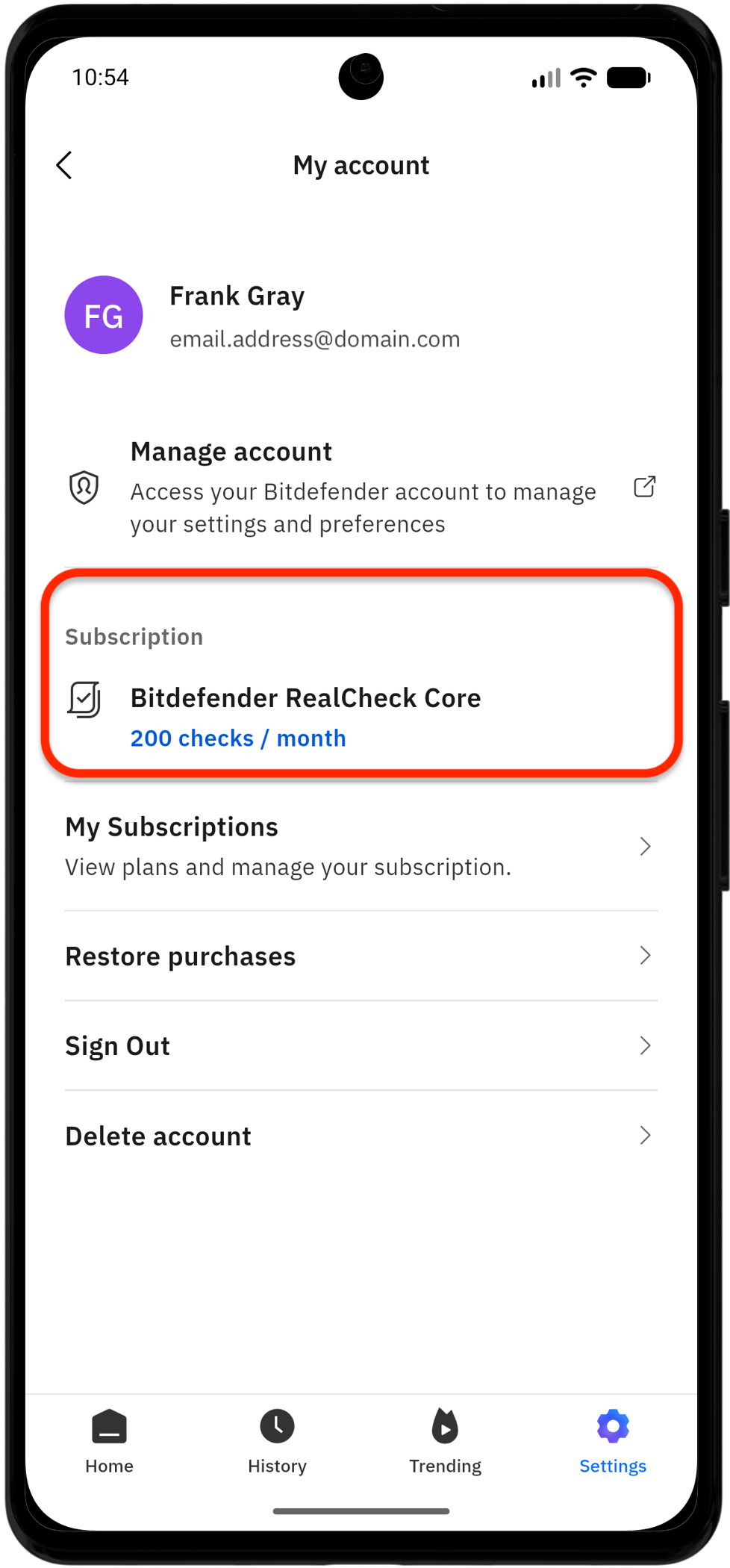
Your active RealCheck subscription should appear there.
Step 8: Start using RealCheck
Once your subscription or free trial is active, return to the Home screen.
You can now analyze videos by choosing one of the available options:
- Paste link to check a public video link
- Upload file to check a supported video from your device
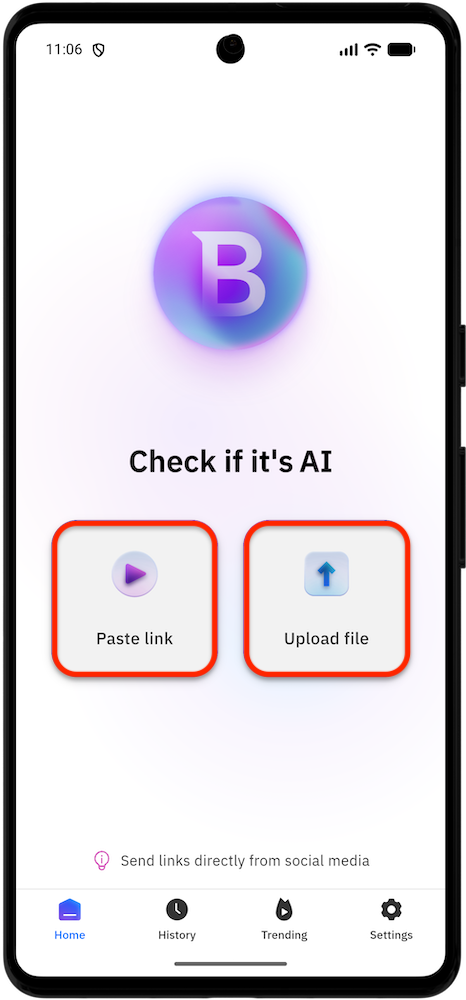
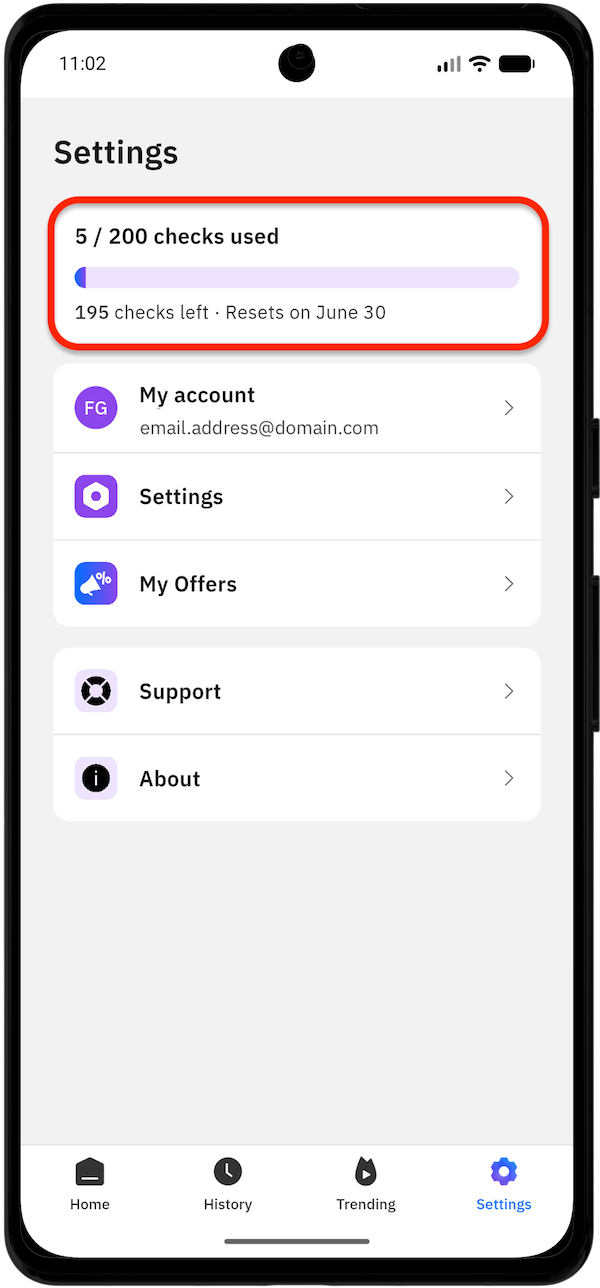
RealCheck will use your available monthly or trial checks when an analysis is successfully completed.
At the top of the RealCheck settings, you can see how many video checks you’ve used, how many you have left, and the reset day.
Need more help?
If your subscription does not appear immediately after purchase, wait a few minutes and check your subscription status again.
You can also try closing and reopening the app.
If the issue continues, open RealCheck and go to:
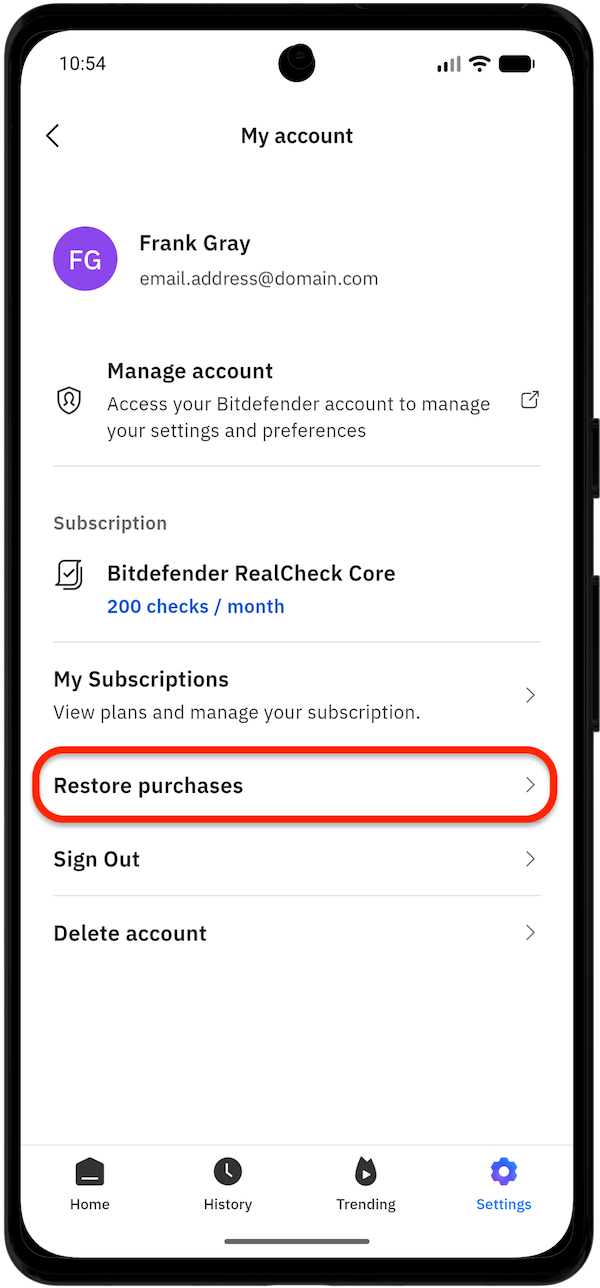
⚙︎ Settings > My account > Restore purchases