This guide explains how to install Bitdefender RealCheck on Android, create an account, start the free trial, and begin using the app. Bitdefender RealCheck is a mobile app that helps you check whether a video may be AI-generated or manipulated. It can analyze video content, audio, and the likely purpose of the content, helping you better understand whether a video may have been created to mislead viewers.
System Requirements: Android 12 or later
Step 1: Open Google Play Store
- Start by opening Play Store
 on your Android smartphone or tablet.
 - In the search bar, type Bitdefender RealCheck.
 on your Android smartphone or tablet.
Step 2: Install Bitdefender RealCheck for Android
- Once you find Bitdefender RealCheck in Play Store, tap Install.
- The app will download and install automatically.
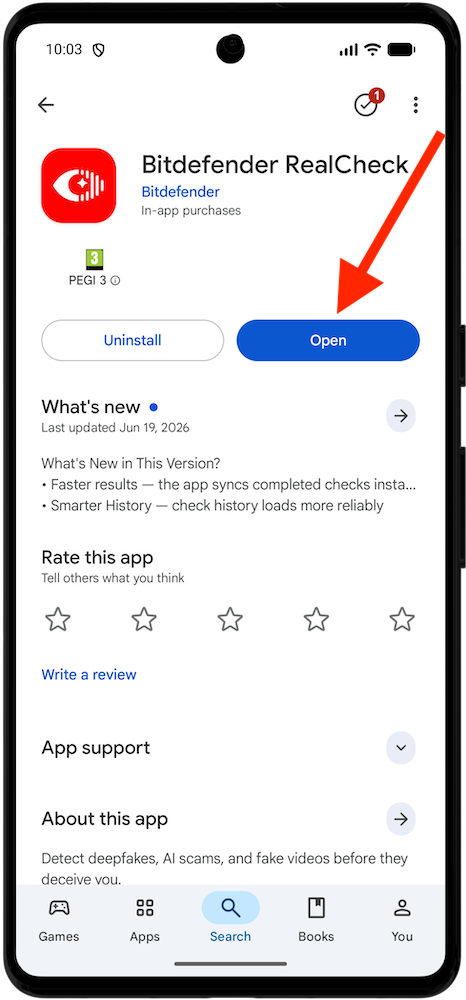
- After installation is complete, tap Open to launch Bitdefender RealCheck.
 in Play Store, tap Install.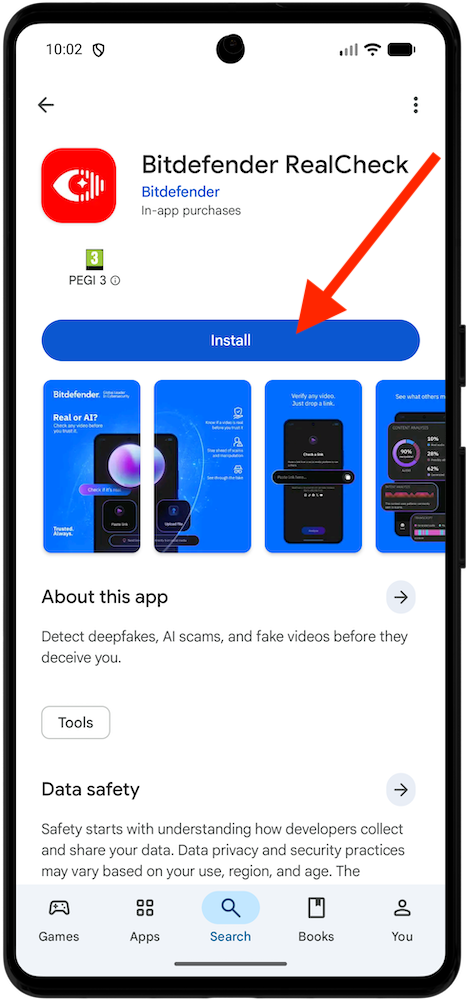
Step 3: Review the introduction screens
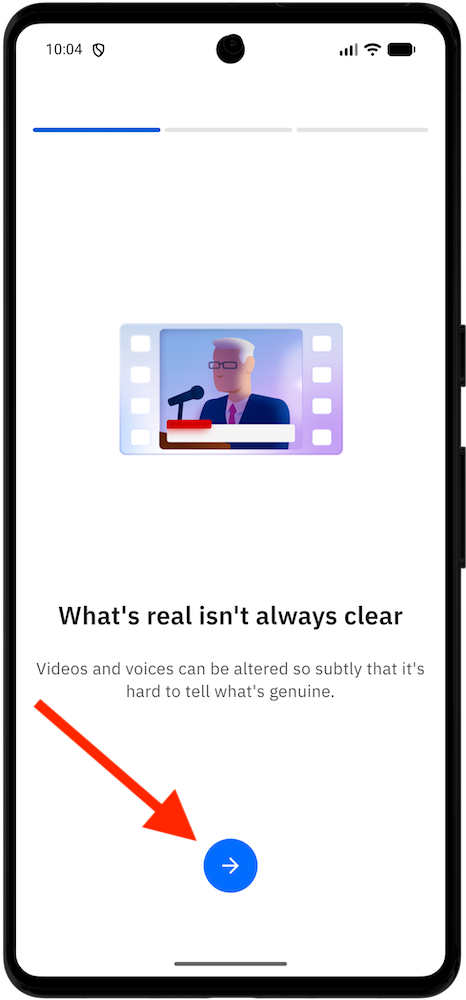
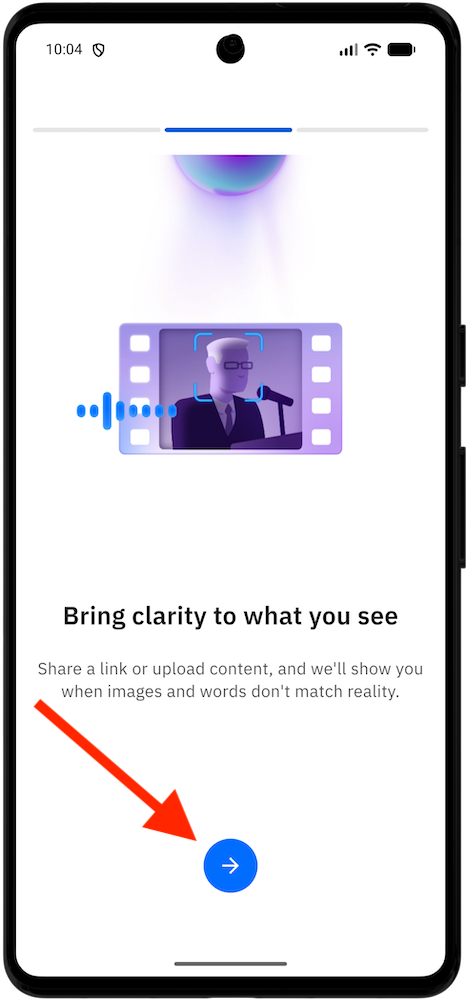
Tap the arrow shown at the bottom to go through the introduction screens and learn how Bitdefender RealCheck helps detect manipulated videos.
Step 4: Sign in or create a Bitdefender account
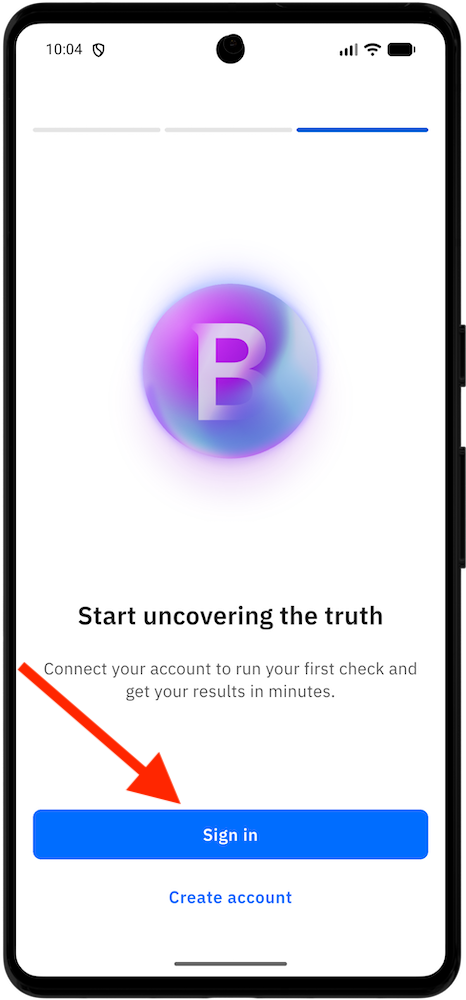
After the introduction, you will reach the account screen. If you already have a Bitdefender account, tap Sign in and enter your account credentials.
If you are new to Bitdefender, tap Create account and fill in the required details:
- Full name
- Email address
- Password
Step 5: Select your interests
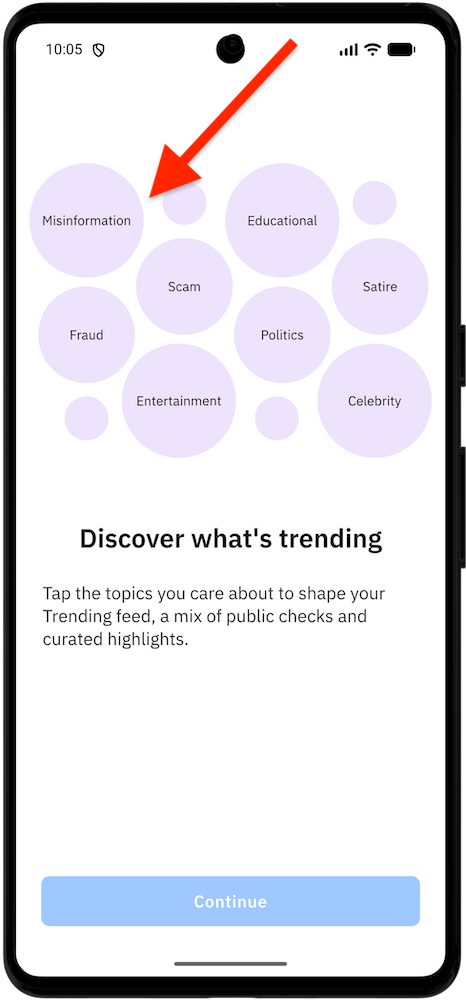
- Tap the topics you are interested in so the Bitdefender RealCheck app can personalize trending content. You may see categories such as:
- Misinformation
- Educational
- Scam
- Satire
- Fraud
- Politics
- Entertainment
- Celebrity
- Tap Continue after picking the subjects that are most relevant to you.
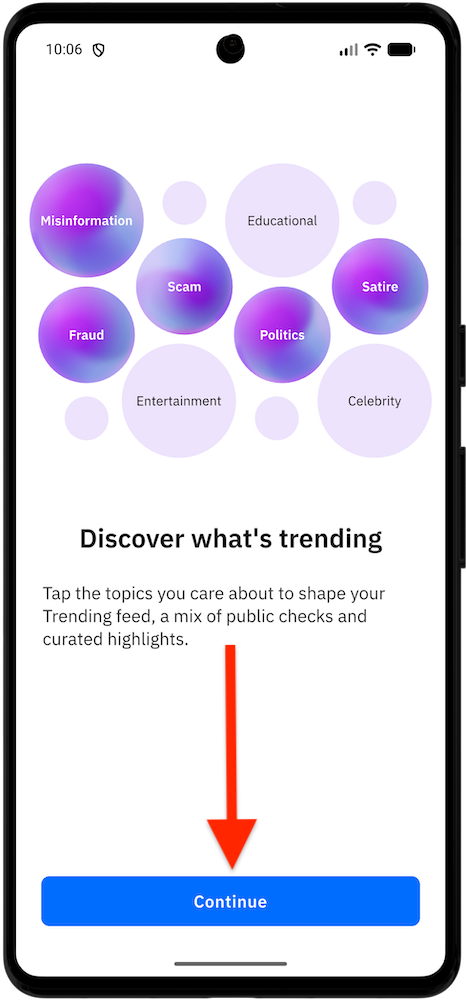
This step helps RealCheck show trending checks that better match the kinds of videos you are likely to encounter online.
Step 6: Start the 7-day free trial
After account setup, the app displays the trial screen. The trial period gives you full access to Bitdefender RealCheck for 7 days and up to 50 video checks.
- To continue, tap Start 7-day free trial.
- Your device will show the standard Google payment confirmation window. To confirm, follow the instructions on your device.
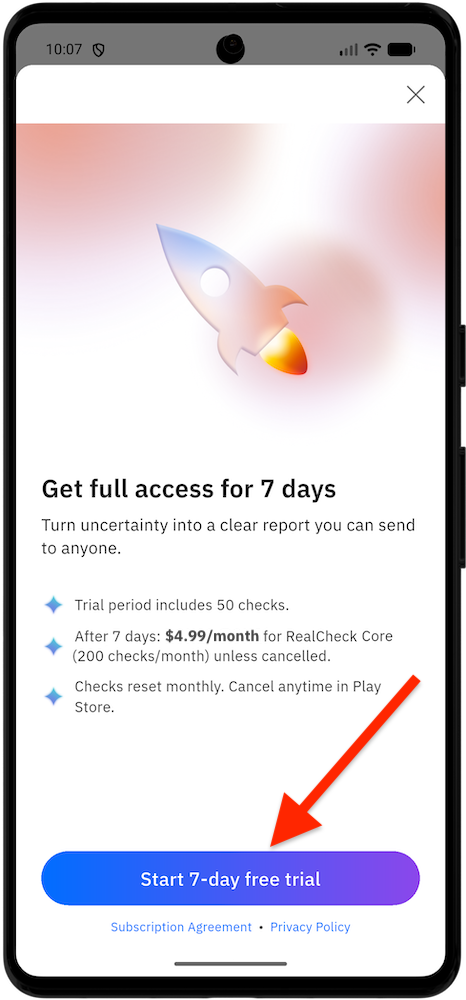
If you’re starting a free trial, you won’t be charged right away. However, unless you cancel before the trial period ends, the subscription will automatically renew and the applicable fee will be charged through Google Play. For detailed instructions on viewing, changing, or canceling your subscription, see – How to manage or cancel your Bitdefender RealCheck subscription.
Step 7: Start your first video check
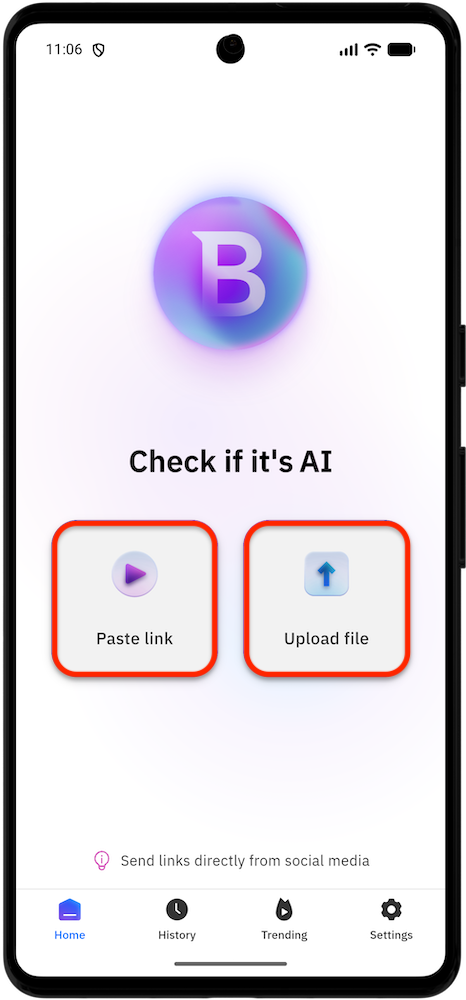
After the trial is activated, you will reach the Bitdefender RealCheck home screen.
To analyze a video, either:
- Tap Paste link and enter a public video URL, or
- Tap Upload file and select a video from your device.
You can also share videos directly to RealCheck from supported apps: TikTok, Instagram, Facebook, X, and YouTube.
Once submitted, RealCheck analyzes the video and generates a report that helps you better understand whether a video may be AI-generated, manipulated, or intended to deceive.