Bitdefender Hub for iOS allows you to choose the VPN protocol used to establish a secure connection between your iPhone or iPad and the VPN server. A VPN protocol is the technology that determines how your data is encrypted and transmitted across the internet.
In most situations, Bitdefender VPN automatically selects the most suitable protocol for your network environment. However, there may be times when you want to manually choose a different protocol to improve connection stability, compatibility, or performance.
This article explains how to change the VPN protocol in the Bitdefender Hub app for iOS.
1. Go to VPN Settings
- Open the Bitdefender app and tap your profile icon in the top-right corner.
- Tap VPN on the Account & Settings menu.
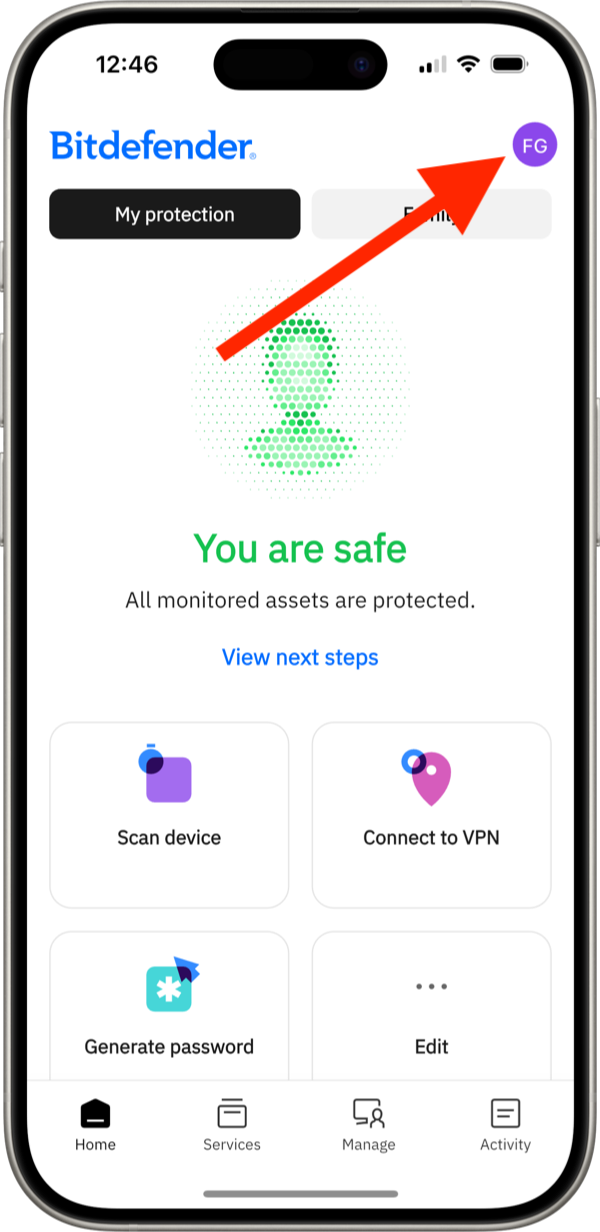
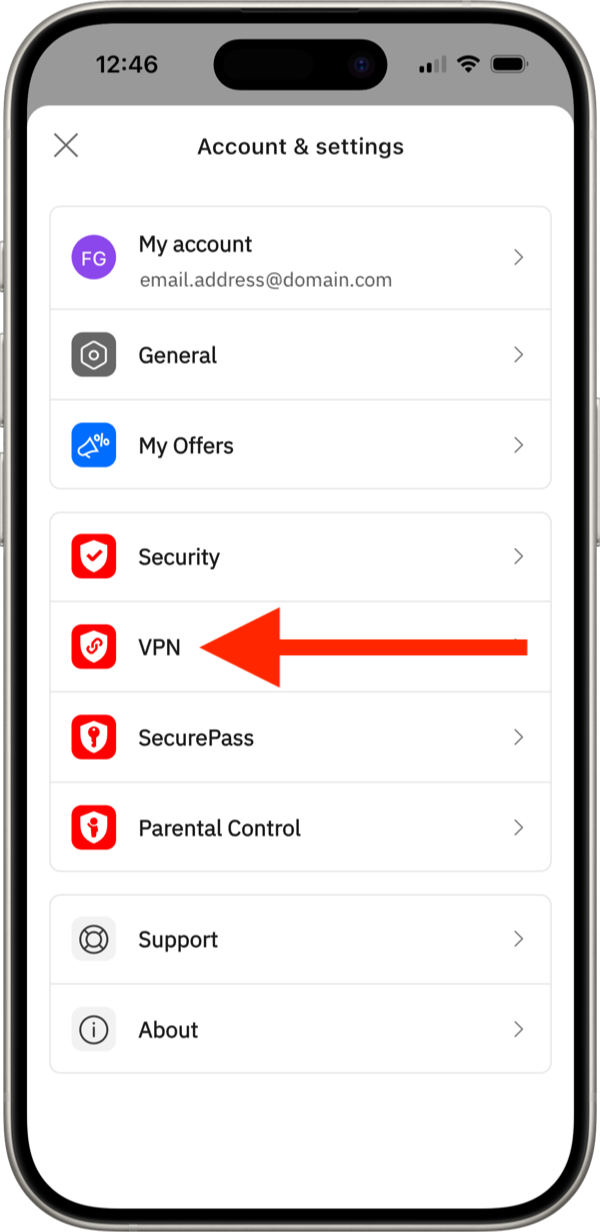
This opens the VPN settings section.
2. Open the Protocol menu
On the VPN settings panel, scroll down, then tap Protocol.
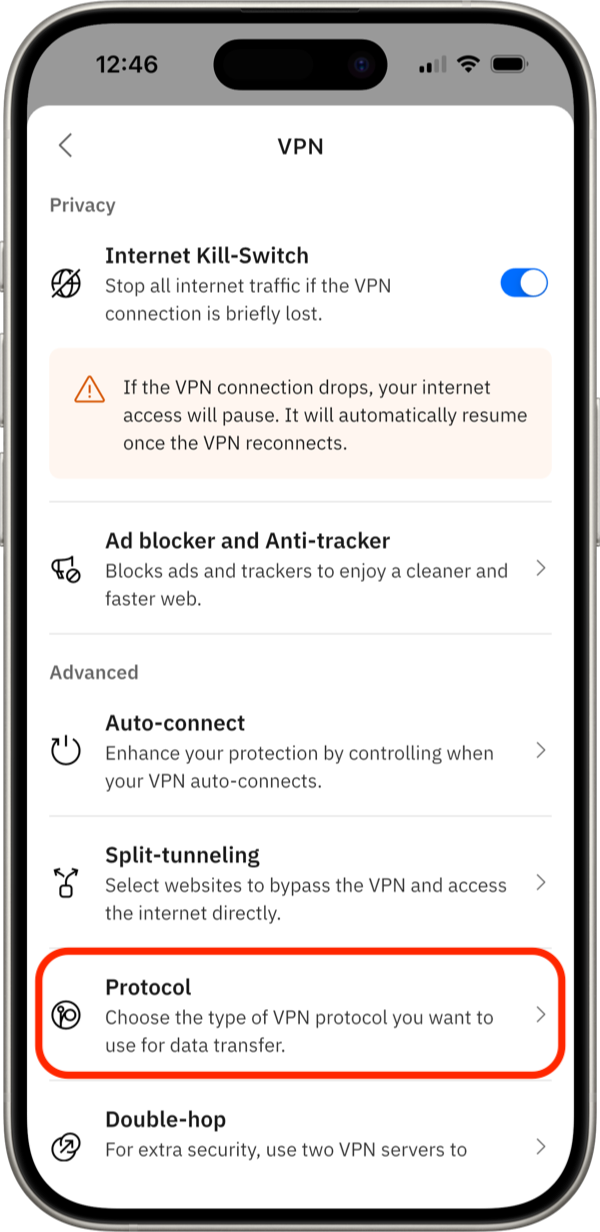
The Protocol screen opens. Here you can view all protocols available for iOS and select the one you want Bitdefender VPN to use.
3. Select a VPN Protocol
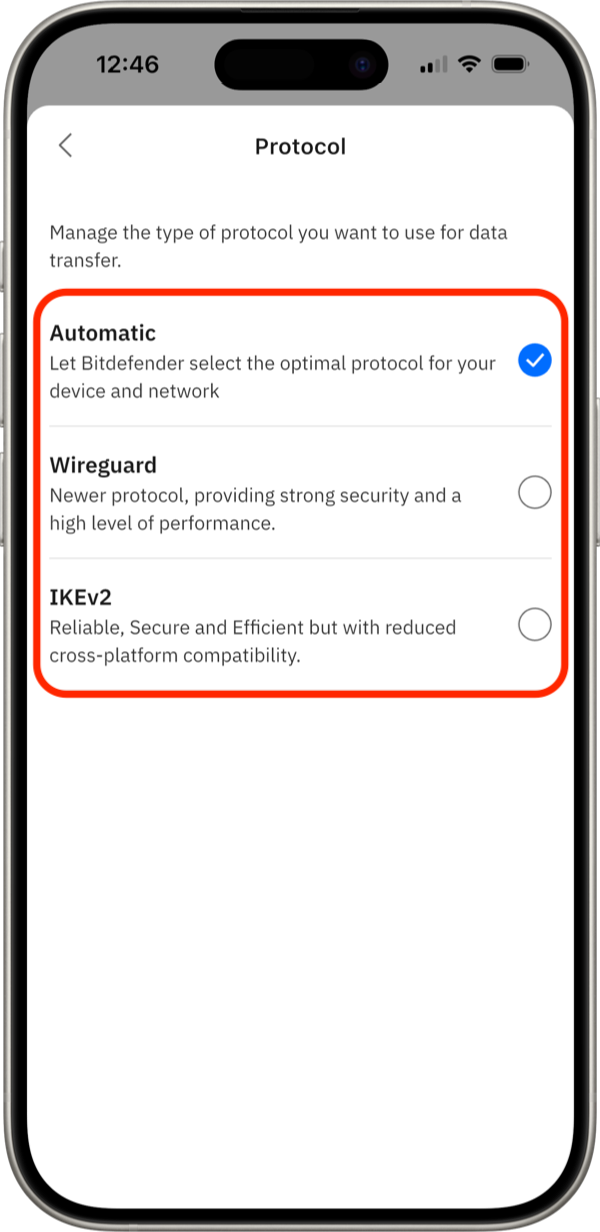 Tap the name of the protocol you want to use. The selection is applied when the check mark appears next to the chosen protocol.
The following protocols are available for iOS:
- Automatic – Automatic is the best starting point because Bitdefender selects the VPN protocol based on your device and network.
- WireGuard – Choose WireGuard if your priority is strong performance and speed.
- IKEv2 – Choose IKEv2 if you want a reliable and efficient protocol and do not need the additional OpenVPN customization options.
4. Reconnect to the VPN
If Bitdefender VPN was connected when the protocol was changed, disconnect and reconnect to ensure the new protocol is applied.
After reconnecting, Bitdefender VPN establishes a new secure tunnel using the selected protocol.
Once connected, you can continue browsing, streaming, working remotely, or accessing online services through the newly selected VPN protocol.
If the connection behaves unexpectedly after changing protocols, return to this same screen and select Automatic again.