Bitdefender Hub allows you to set a preferred location for your favorite standard VPN locations and Double-hop routes. Preferred locations are marked with a yellow star, making it easy to quickly find and connect to the servers you use most often.
This guide explains how to set a preferred location in the Bitdefender Hub app for Android and iOS (iPhone, iPad). For Windows and Mac computers, see – How to Set a Preferred Location in Bitdefender App (Windows & macOS).
Step 1: Open VPN
- Open Bitdefender Hub
 on your Android or iOS device.
 - In the bottom navigation bar, tap Services.
- Select VPN.
 on your Android or iOS device.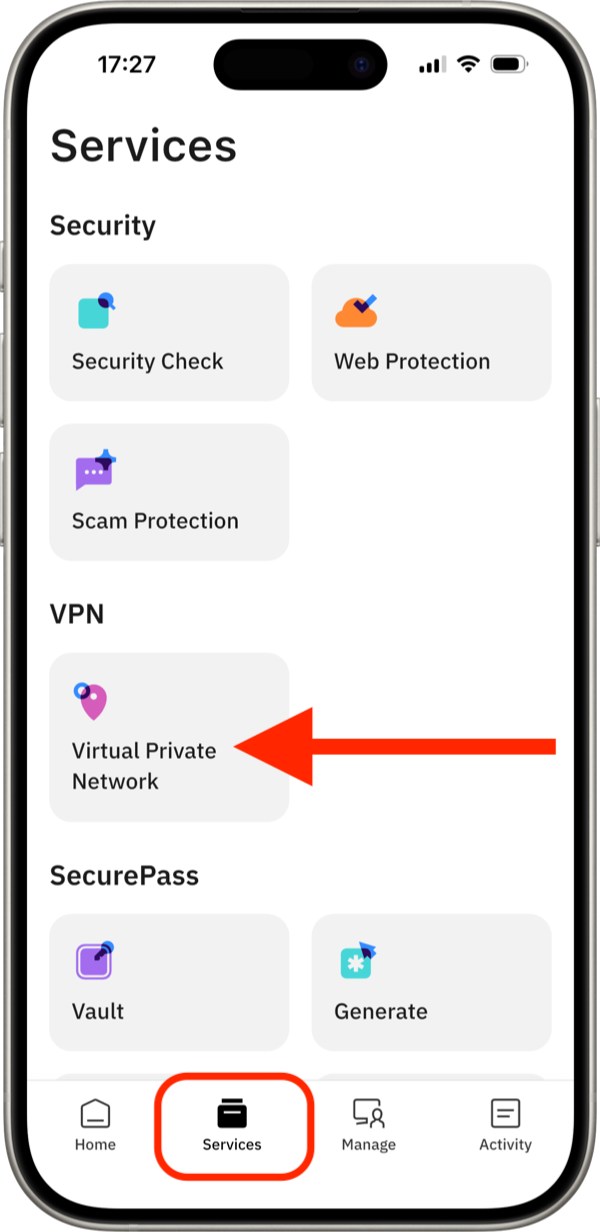
Step 2: Open the Locations List
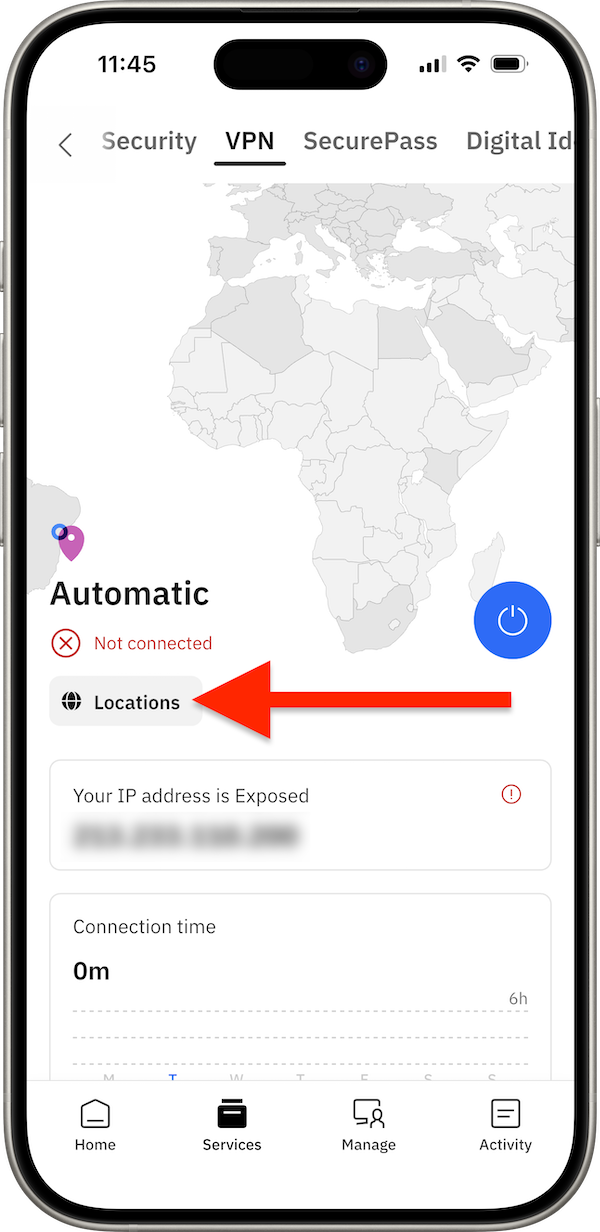
- On the VPN screen, tap Locations.
- The Locations screen opens, where you can browse or search for available VPN locations.
Step 3: Set a Preferred Location
- Choose the appropriate tab:
- Location: To set a specific country as your preferred location.
- Double-hop: To set a Double-hop route as your preferred location.
- Browse or search for the location or Double-hop route you want to mark as a favorite.
- Tap the ☆ (star) icon next to the location or route.
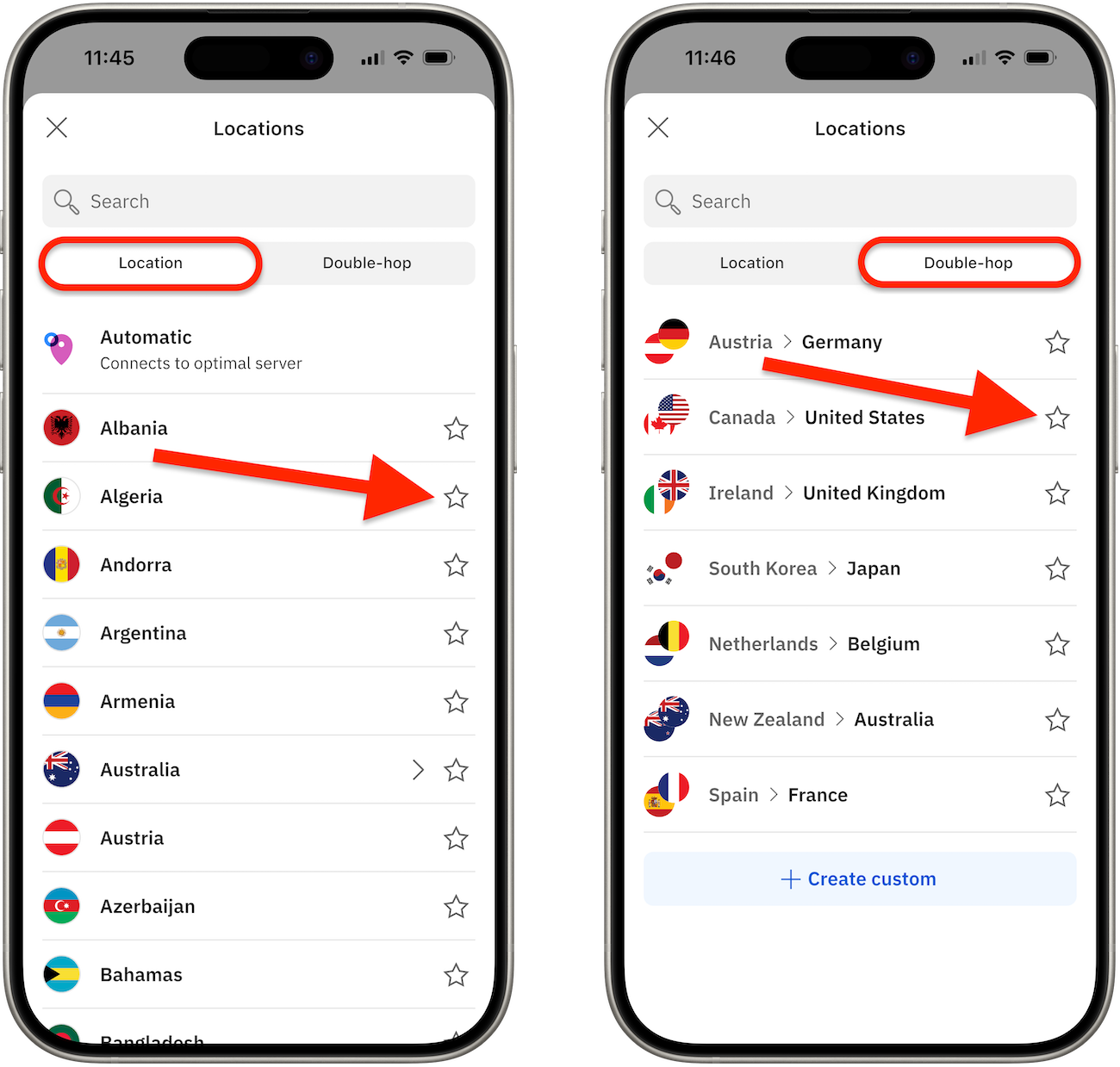
The selected VPN location or Double-hop route is marked with a yellow star, indicating it is your preferred location.
Note: You can have only one preferred location or Double-hop route at a time. Selecting a new favorite automatically replaces the previous one.
Step 4: Connect to a Preferred Location
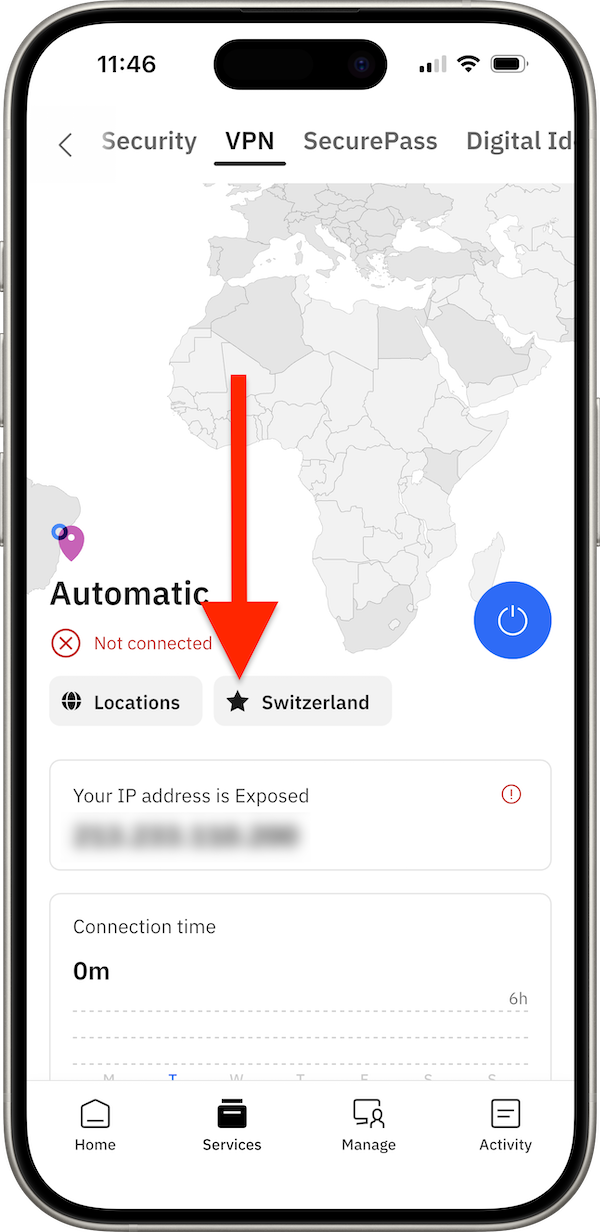
- After you set a preferred location, it appears as a shortcut on the VPN home screen, next to the Locations button.
- Simply tap the displayed favorite location to connect instantly.
Remove a Preferred Location
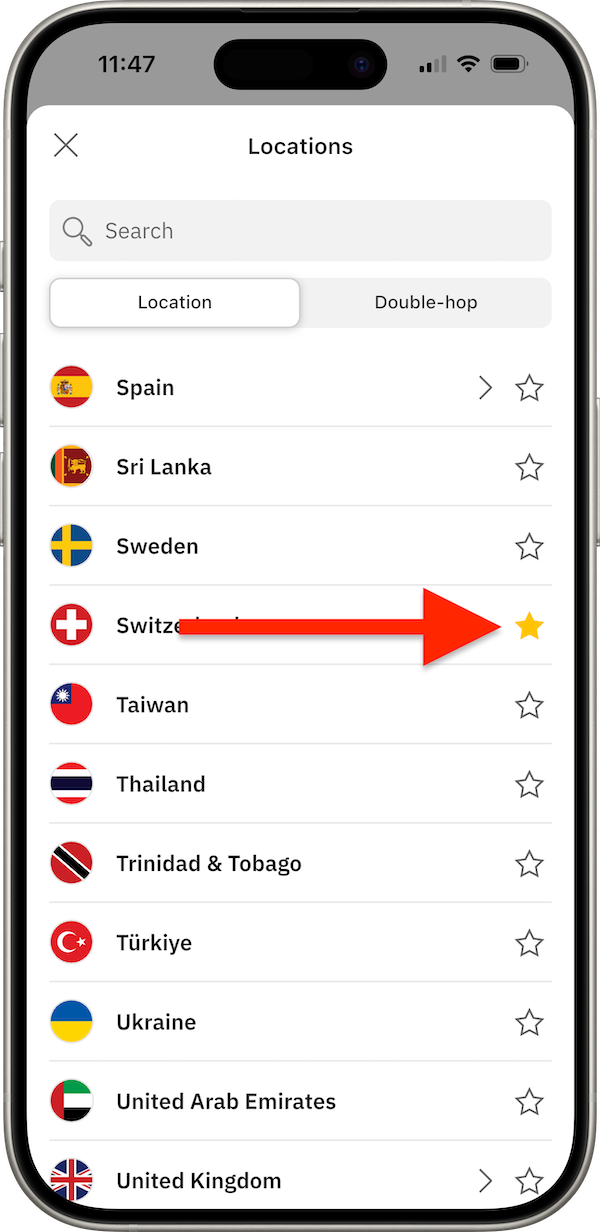
To remove a preferred location in Bitdefender Hub:
- Go to Services > VPN > Locations.
- Select the Location or Double-hop tab, depending on the favorite item you want to remove.
- Find the country or Double-hop route marked with a yellow star.
- Tap the filled star icon.
The item is removed from your favorite locations but remains available in the list, so you can select it again at any time.