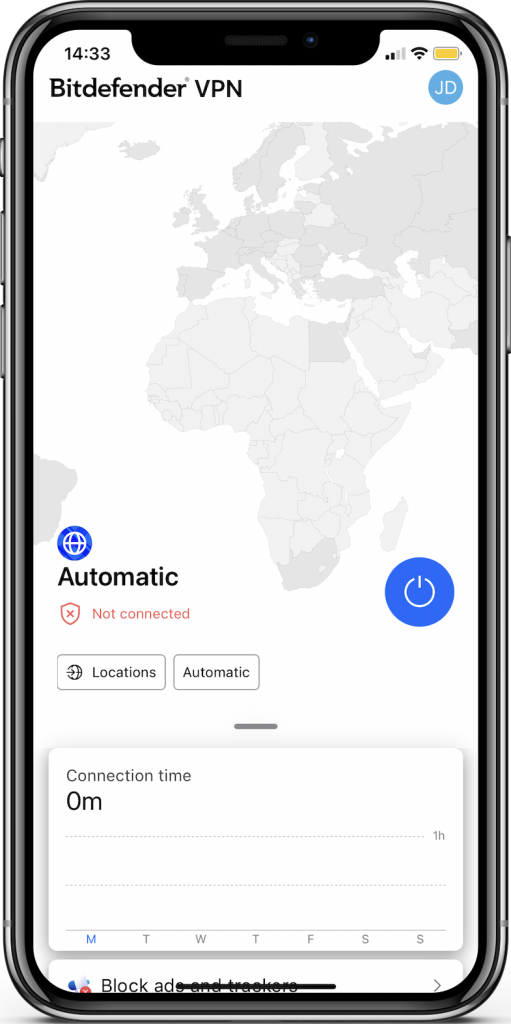
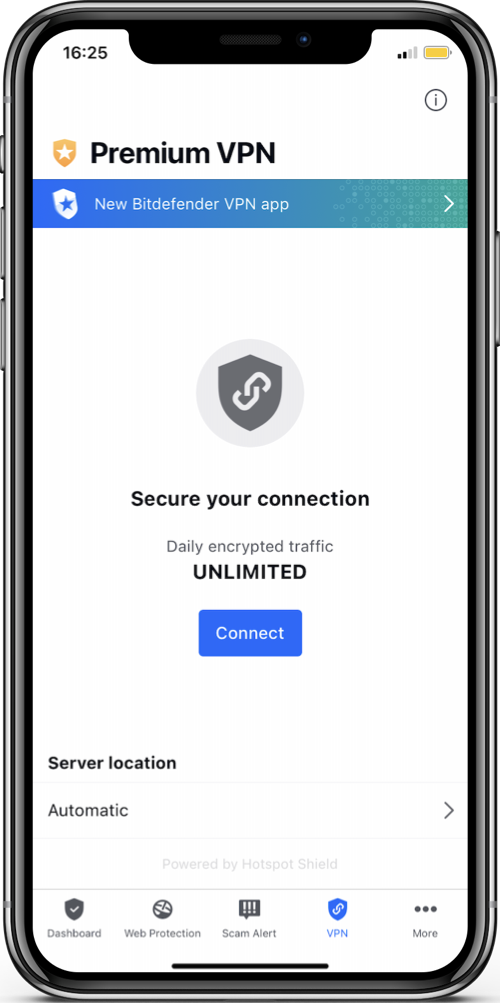
Bitdefender Hub for iOS includes a dedicated section where you can manage all VPN settings. You can control how the VPN behaves, improve your privacy, customize notifications, and fine-tune advanced networking features such as Auto-connect, Split-tunneling, and Double-hop connections.
This guide will walk you through all the VPN settings available in Bitdefender Hub for iOS. You will learn where the VPN settings are located, what each option does, and when you might want to use it on your iPhone or iPad.
Where are the VPN Settings in Bitdefender Hub for iOS?
To access the VPN settings in Bitdefender for iOS:
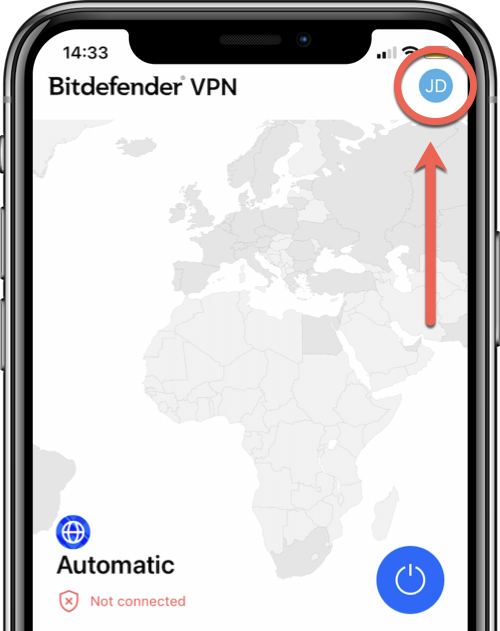
- Open the Bitdefender Hub app and tap your profile icon in the top-right corner.
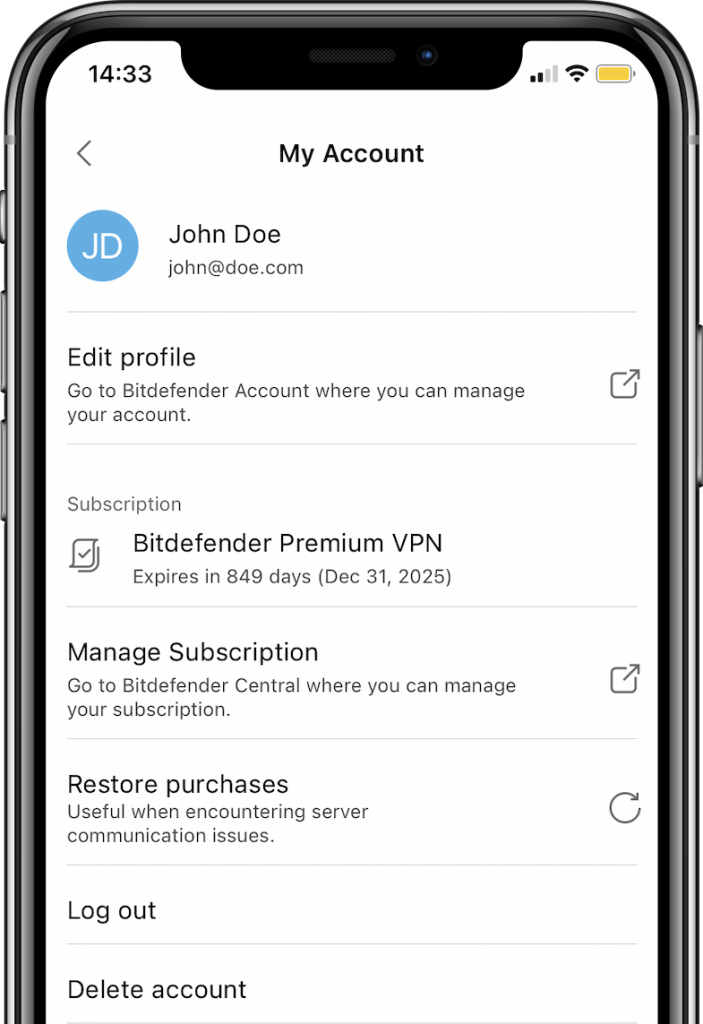
- In the menu that appears, select VPN.

The VPN Settings screen will open. You will see the VPN settings organized into three sections: General, Privacy, and Advanced. Each category contains tools that control different aspects of the VPN.
How to Configure VPN Settings in Bitdefender Hub for iOS
General VPN Settings
The General section contains controls that affect how the VPN interface behaves and how information is displayed inside the app. These options are designed to improve usability and personalize the VPN experience.
- Tap the General section in VPN Settings to explore the options below.

Show recent locations

The Show recent locations switch displays the VPN servers or countries you recently connected to directly on the VPN home screen.
For example, if you regularly connect to servers in the United States, Germany, or the United Kingdom, those locations will appear for quick access the next time you open the VPN.
This feature is especially useful for users who frequently switch between a small number of locations because it saves time and reduces the need to search through the full server list every time.
If privacy is your primary concern and you prefer not to keep a visible history of recently used locations, you can disable this option.
Show dashboard data
The Show dashboard data switch controls whether the VPN home screen displays statistics and usage information.
When enabled, Bitdefender VPN shows helpful metrics, such as:
- Connection time per day, week, month
- Number of blocked ads and trackers
- Amount of secured traffic
- Your IP address and and whether it is exposed or hidden
- Internet Kill-Switch status
- Current VPN protocol type
This can help you better understand how often the VPN is being used and provide a clearer overview of your protection status.
Users who prefer a cleaner, simpler VPN interface may choose to disable dashboard data to reduce visual clutter.
Clear dashboard data
The Clear dashboard data option removes stored VPN dashboard information from the application interface.
This does not uninstall the VPN or erase your account information. Instead, it clears historical dashboard-related data shown inside the app.
You may want to use this option if:
- You share your iPhone/iPad with another person
- You want to remove previous activity indicators
- You prefer resetting the dashboard to a clean state
Pressing the Clear data button removes the stored dashboard information.
Notifications
Notifications help keep you informed about VPN activity and security recommendations. The main Notifications switch enables or disables VPN notifications entirely.
When enabled, Bitdefender can send alerts such as:
- VPN connection confirmations
- Connection interruption warnings
- Recommendations to use VPN
For most users, keeping notifications enabled is recommended because they provide important awareness about your VPN status.
However, if you prefer fewer interruptions while working or watching media, you can disable notifications.
Reset VPN Profile
The Reset VPN profile option is a troubleshooting tool designed to help resolve VPN connection issues.
On iPhones and iPads, VPN apps use a special system configuration called a VPN profile to establish secure encrypted connections. Occasionally, this profile may become corrupted or improperly configured due to software updates, interrupted installations, or network changes.
Resetting the VPN profile can often help if you experience issues such as:
- Bitdefender VPN not connecting
- Frequent disconnections
- Endless “connecting” messages
- Slow or unstable VPN performance
When you tap Reset VPN profile, Bitdefender removes the existing VPN configuration and creates a new one automatically.
This option does not erase your Bitdefender account or subscription. Instead, it refreshes the secure connection setup used by the app.
For many common VPN issues, resetting the profile is one of the first recommended troubleshooting steps.
Agreement
The Agreement section provides access to Bitdefender’s VPN privacy policy.
Reset all settings
At the bottom of General VPN settings, you will find the Reset all settings option.
Pressing the Reset settings button restores VPN settings to their original default configuration without reinstalling the Bitdefender application.
Resetting settings can help if:
- You changed multiple settings and want a fresh start
- VPN features are not behaving as expected
After resetting, you may need to reconfigure preferences such as notifications, Auto-connect or Split-tunneling rules.
Privacy VPN Settings
The Privacy section focuses on protecting your internet activity and preventing accidental exposure if the VPN disconnects
Internet Kill-Switch

The Internet Kill-Switch automatically blocks internet traffic if the VPN connection unexpectedly drops.
Without a Kill-Switch, your iOS device could continue using the internet through your normal connection if the VPN disconnects, potentially exposing your real IP address and internet activity. With the kill-switch enabled, internet access pauses completely until the VPN reconnects securely.
This feature is especially useful when:
- Using public Wi-Fi
- Accessing sensitive information
- Downloading files privately
- Traveling in regions with network monitoring
Some users may notice temporary internet interruptions when the VPN reconnects. This behavior is normal because the app is intentionally blocking unsecured traffic.
For most users concerned about privacy and security, enabling the kill-switch is recommended.
Ad Blocker and Anti-tracker
The Ad blocker and Anti-tracker feature helps block ads, pop-ups, and online trackers.
Trackers are commonly used by websites and advertisers to monitor browsing behavior, collect analytics, and build advertising profiles based on your online activity.
When Ad blocker and Anti-tracker switches are enabled, Bitdefender VPN can:
- Reduce targeted advertising
- Improve privacy
- Speed up page loading
- Create a cleaner browsing experience
Because fewer tracking elements are loaded, some websites may also feel faster and less cluttered.
Advanced VPN Settings
The Advanced section gives you more control over how the VPN connects and routes internet traffic.
Auto-connect
The Auto-connect feature allows the VPN to start automatically under specific conditions.
- You can configure the VPN to connect when using public or unsecured Wi-Fi networks
This feature is particularly useful for people who frequently travel or connect to public hotspots in places like airports, hotels, cafés, or schools. Using auto-connect reduces the risk of forgetting to activate the VPN manually.
Split-tunneling
Split-tunneling allows you to choose which websites use the VPN connection and which ones access the internet directly.
Normally, when a VPN is active, all internet traffic goes through the encrypted VPN tunnel. Split-tunneling creates exceptions.
For example:
- You might use the VPN for browsing and privacy
- While allowing local websites to bypass the VPN
This can improve compatibility and performance in situations where certain websites work better without VPN routing.
However, it is important to remember that any website excluded from the VPN is no longer filtered by the VPN connection.
Protocol
The Protocol section determines the communication method used by the VPN connection.
VPN protocols affect:
- Connection speed
- Stability
- Security level
- Compatibility with networks
Bitdefender automatically selects the best protocol in most situations, which is usually the recommended approach for beginners. However, advanced users may occasionally switch protocols to troubleshoot connection issues or optimize performance on specific networks.
The following protocols are available on iOS:
- Automatic – Let Bitdefender VPN select the optimal protocol for your device and network
- Wireguard – Newer protocol, providing strong security and a high level of performance
- IKEv2 – Reliable, secure and efficient but with reduced cross-platform compatibility
If you are unsure which protocol to use, leaving the default automatic selection enabled is typically best.
Double-hop
The Double-hop feature routes your internet traffic through two VPN servers instead of one. This creates an additional layer of encryption and privacy because your internet activity becomes harder to trace.
For example:
- Your iPhone connects to one VPN server.
- Traffic is encrypted again and forwarded through a second VPN server.
- The final server sends the request to the website or service you are accessing.
This enhanced privacy comes with a trade-off:
- Increased security and anonymity
- Potentially slower connection speeds due to the extra routing
Double-hop is especially useful for users who prioritize privacy over speed.