This article is a step-by-step guide to help you access a safe website blocked by Bitdefender.
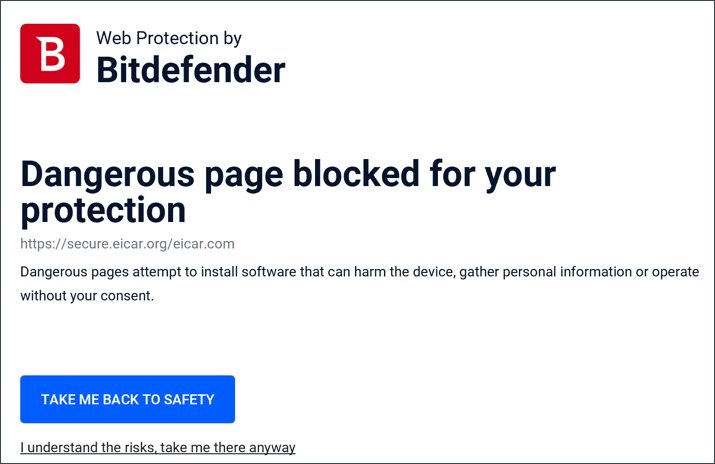
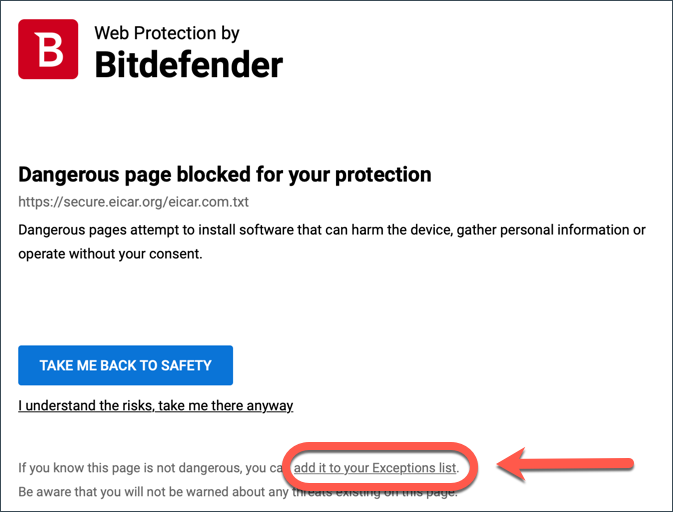
Dangerous page blocked for your protection
Bitdefender protects you against cyberattacks through a set of features that scan different areas of your device. One of the features, Web Protection (Online Threat Prevention), is designed to scan all web traffic and block any malicious content – infected URLs, untrusted web pages, fraudulent and phishing links.
Whenever you try to visit a website classified as unsafe, the website is blocked and a warning is displayed in your browser. The warning contains information such as the page URL and the detected threat.

Threat detected. Bitdefender blocked a threat.
In addition to webpages, Bitdefender can block online applications such as games, services, and tools if they access a harmful link or IP address in the background. You always get a pop-up notification “Threat detected” on your screen whenever Bitdefender blocks something.
On very rare occasions, Bitdefender may block a safe website if it exhibits suspicious behavior similar to real cyber threats. To bypass Bitdefender’s web protection and visit a blocked website that you know is not infected, you will need to choose one of the three methods listed below.
How to access a safe Website blocked by Bitdefender – 3 easy methods
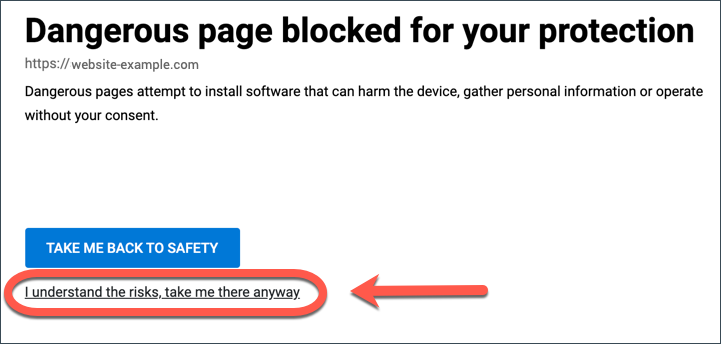
Method 1 – Click “I understand the risks, take me there anyway” at the bottom of the warning that appears on the blocked website. This action will allow you to access the site only once. If you revisit the website later, it will be blocked again by Bitdefender.
Method 2 – Submit a request to Bitdefender Labs to fix the incorrect blocking of the website. Once confirmed, false alarms are corrected within hours via automatic update of Bitdefender.
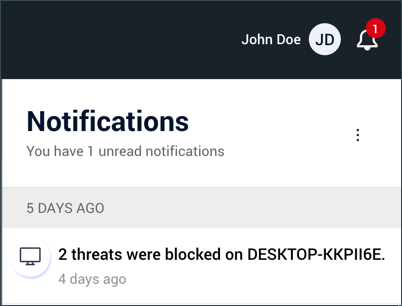
You can find the URL of the blocked website in the Notifications section of your Bitdefender Central account. Click the notification bell in the top right corner and then access the “A malicious URL was blocked” / “threats were blocked” entry to see the threat link.
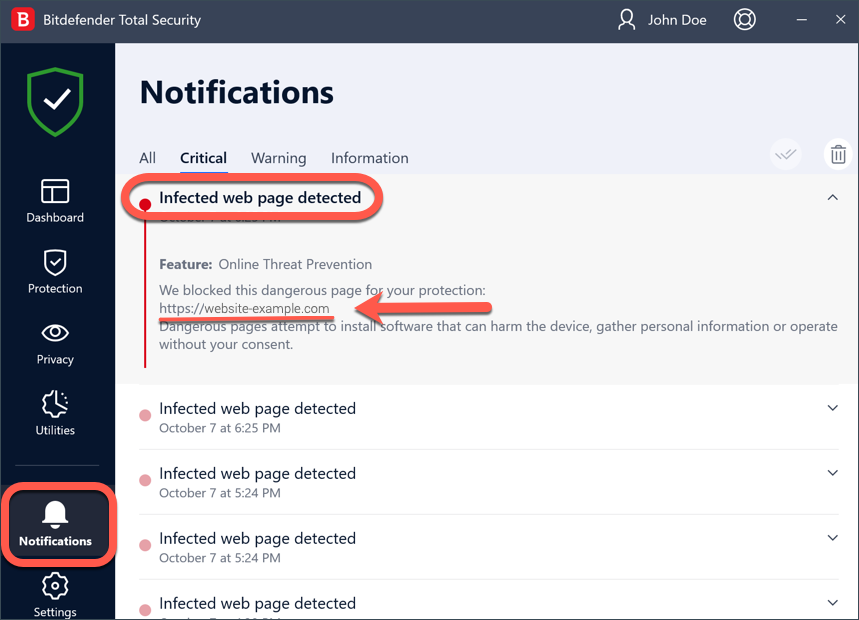
Alternatively, on Windows computers, you will also find the URL of the blocked website in the Notifications section of the Bitdefender security product installed on your device, under the Critical tab → Infected web page detected. Here’s an example:
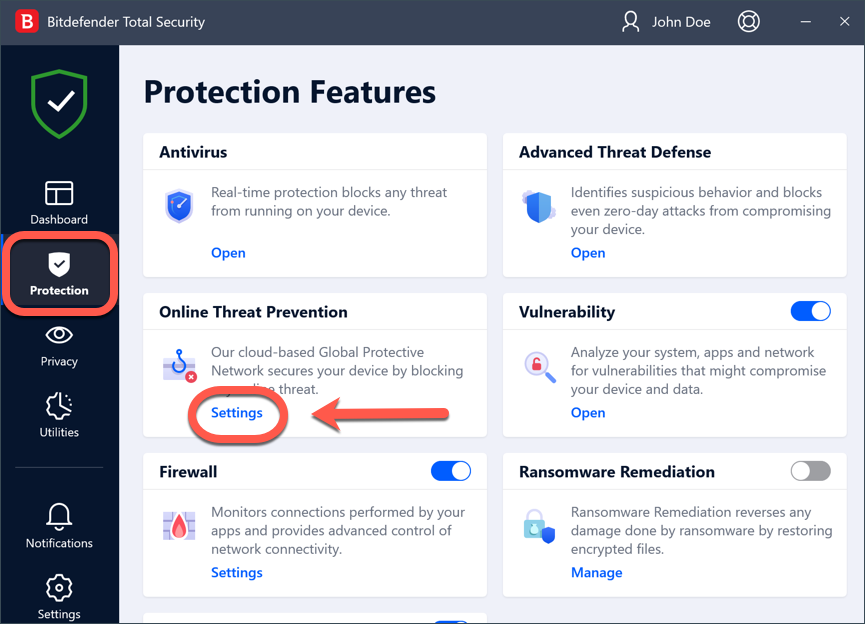
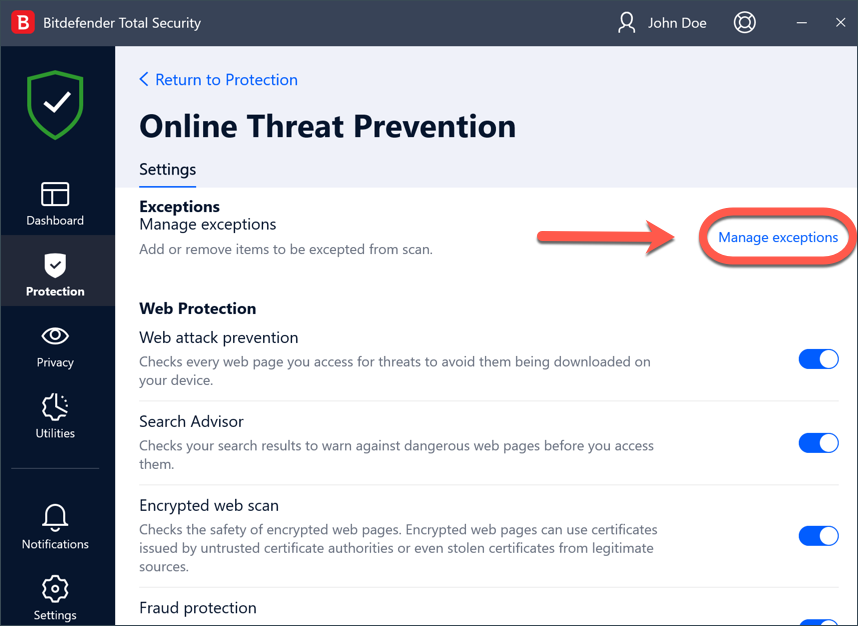
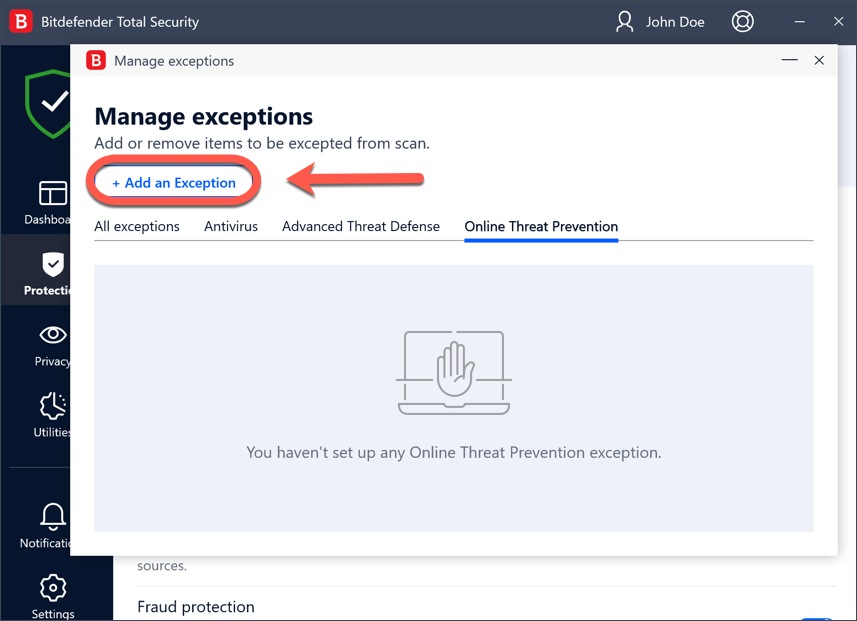
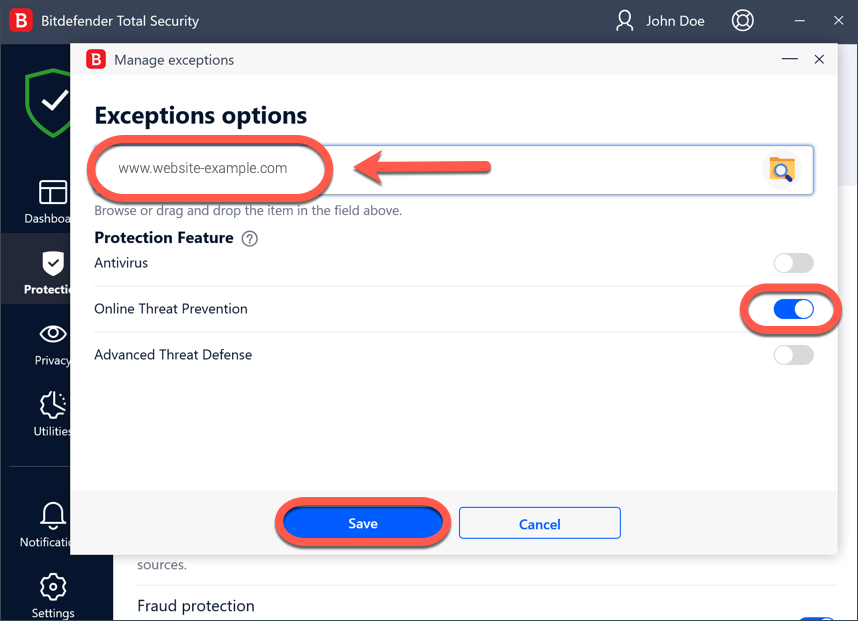
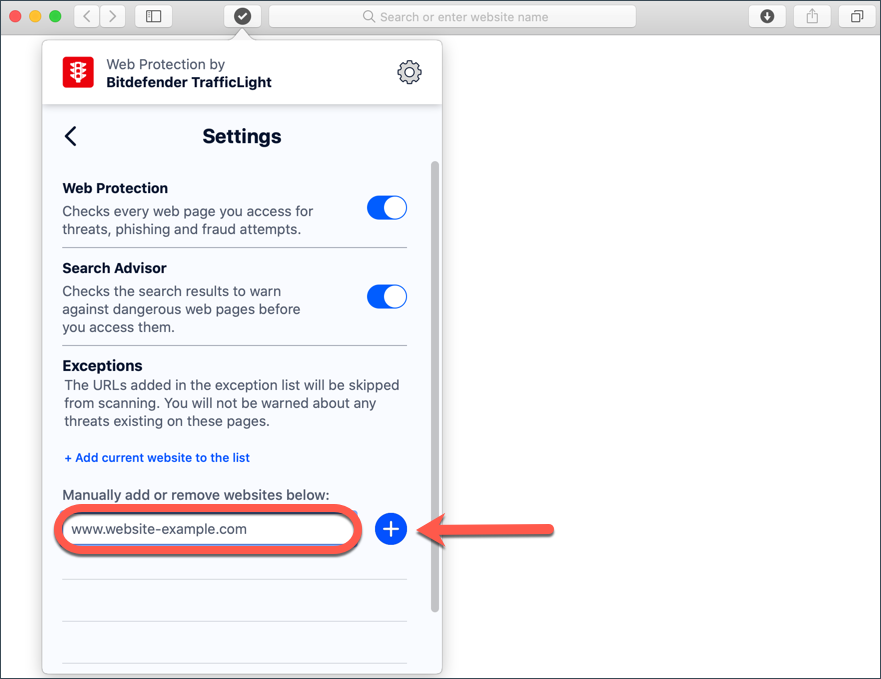
Method 3 – Add the legitimate website to the Exceptions list.
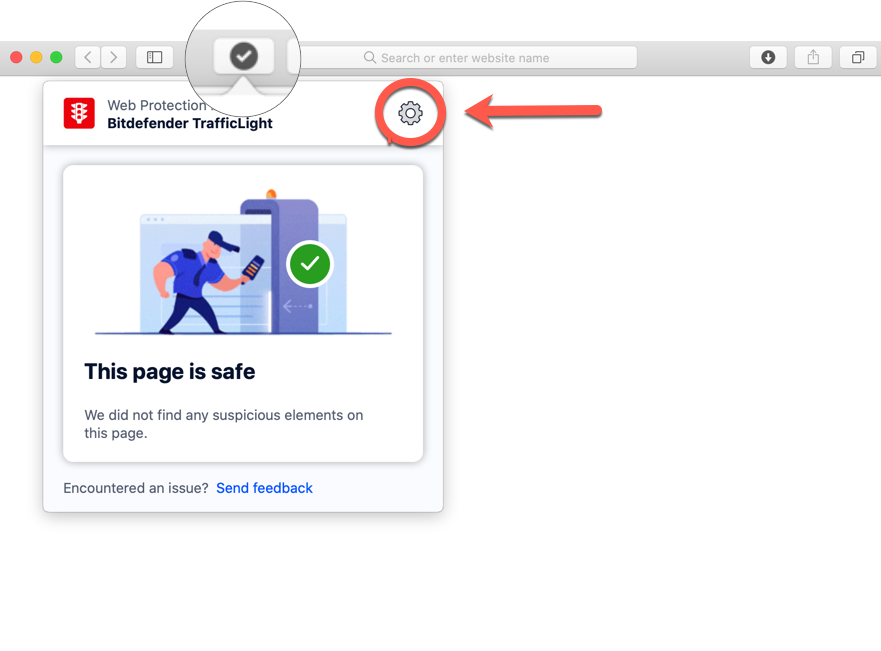
This option is available on Mac and Windows computers. Some websites can be dangerous, so only sites that you fully trust should be added to this list. To add a safe website to the Exceptions list, select one of the following:
Whitelist a safe website on Windows
Whitelist a safe website on Mac
If you managed to follow the steps provided in this guide, you should now have access to the website, IP, or online app.