This guide shows how to activate a new Bitdefender subscription using the activation code you receive after purchasing from the Bitdefender website or the code included in a retail box.
Step 1: Sign in to Bitdefender Central
- Go to https://central.bitdefender.com.
- Click the Sign In button, then enter your email address and Bitdefender account password.
- Don’t Have a Bitdefender Account? You’ll need to create one before activating your subscription. For step-by-step instructions, see the guide – How to Create a Bitdefender Central Account.
Step 2: Go to My Subscriptions
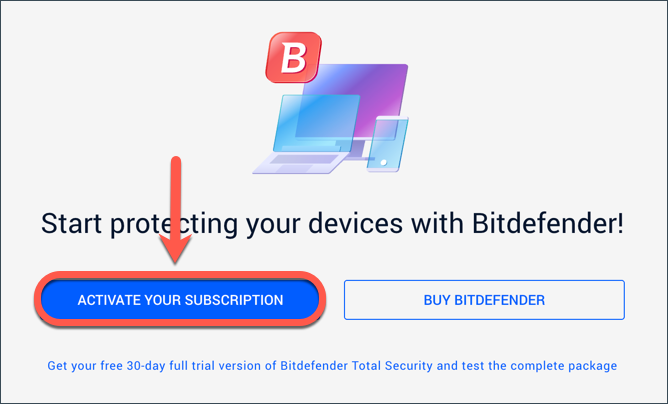
- After signing in, if you don’t have an active subscription, you’ll be prompted to activate your subscription or purchase Bitdefender.
- Click ACTIVATE YOUR SUBSCRIPTION.
-
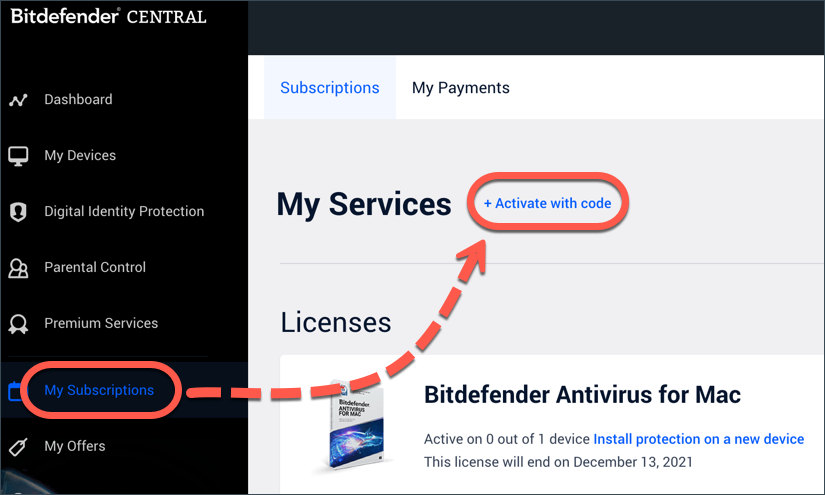
- No Activation Prompt? If you don’t see the prompt, go to My Subscriptions on the left-side menu, then click + Activate with code.
Step 3: Enter the Activation Code
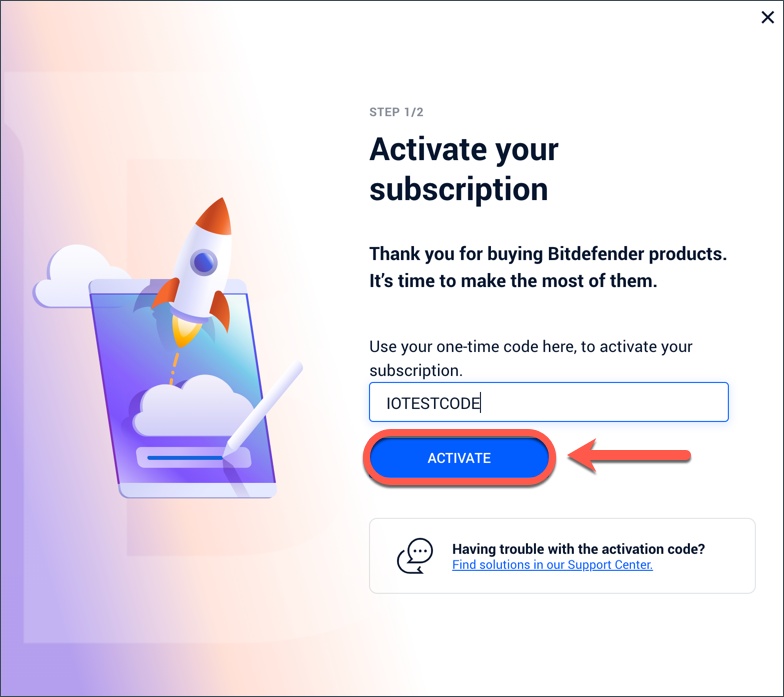
- Type your activation code in the provided field.
- After entering the code, click the ACTIVATE button.
- Need Help Finding Your Activation Code?
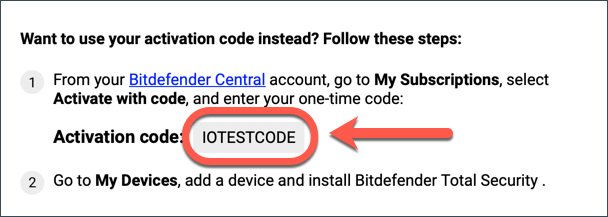
- Online purchase: Check your purchase confirmation email. The 10-digit activation code appears in the section titled “Want to use your activation code instead?”
-
- Retail purchase: The activation code is printed on a card inside the product box.
- Retail purchase: The activation code is printed on a card inside the product box.
Activation codes are only issued after purchase. If your Bitdefender subscription has expired, visit https://www.bitdefender.com/consumer/ to purchase a new one.
Step 4: Enter Billing Details (Retail or Third-Party Purchases Only)
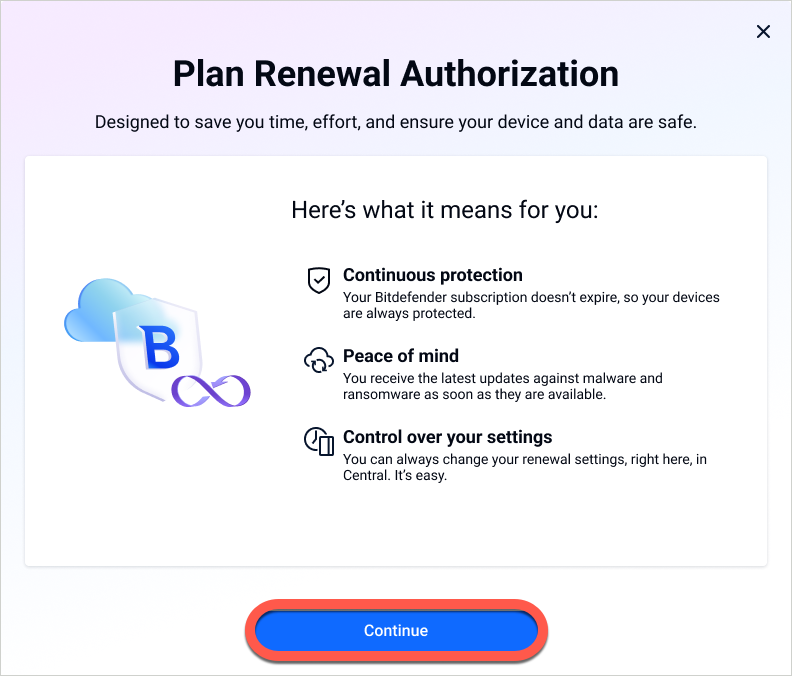
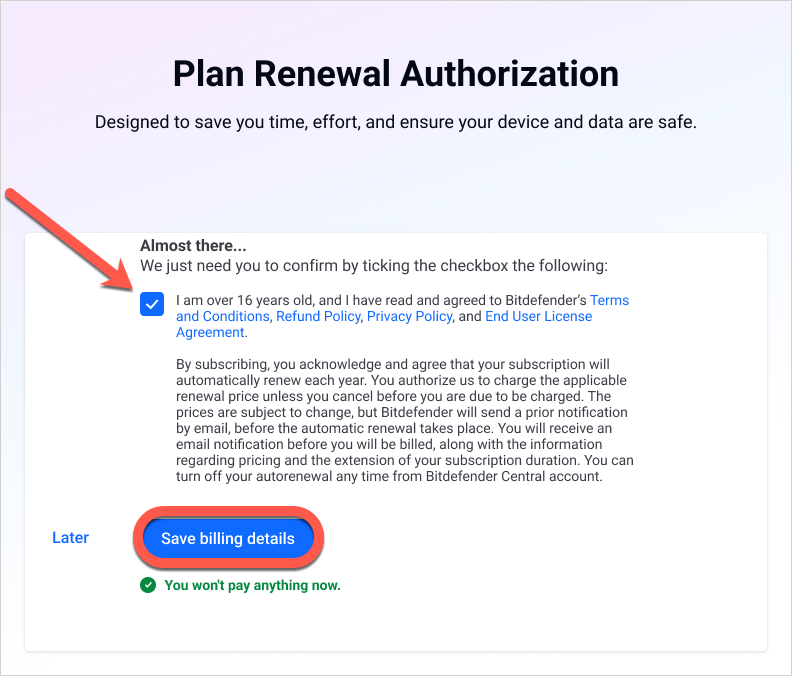
If your activation code was purchased from a retailer or third-party seller, you may be asked to provide billing information to enable automatic renewal. You won’t be billed right now; the charge won’t happen until your subscription expires.
If the option to close the window is available, this step is optional. Otherwise, it must be completed. To proceed:
- Click Continue on the Plan Renewal Authorization pop-up.

- Select the Personal tab (for individual use) or Company (for business use).
- Enter the requested details (email, name, address, payment method).
- Check the confirmation box, then click Save billing details.
Step 5: Confirm Activation
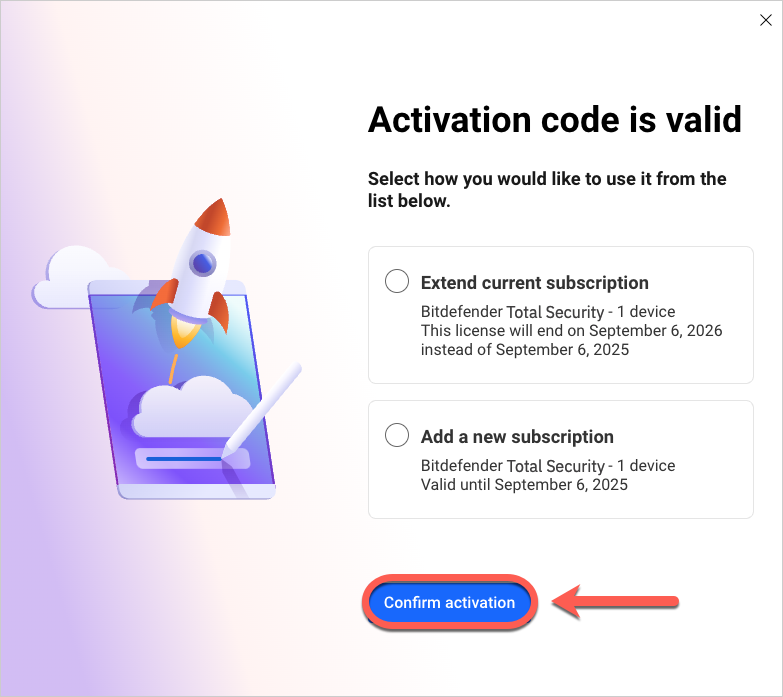
At this stage, you may be asked to choose how to use your new subscription and then click Confirm activation.
- Extend current subscription – Adds the new time to an existing subscription.
The Extend option will only appear if your new code matches an existing subscription and the total duration does not exceed 5 years. In some cases (especially for codes purchased from retailers or resellers), the system may automatically combine the subscriptions if they are identical.
- Add a new subscription – Creates a separate subscription in your account.
Your new Bitdefender subscription is now active! You can find it in the My Subscriptions section of your Bitdefender Central account. If the “Personal” and “Family group” tabs are displayed, select the tab that contains your subscription.
What’s next?
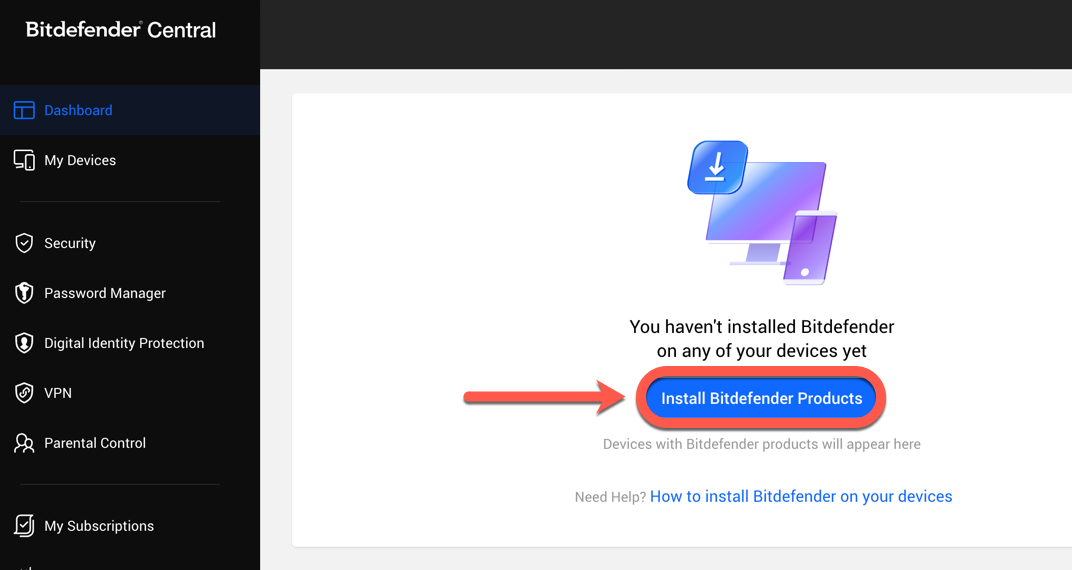
Now you can install Bitdefender on your devices. On the Bitdefender Central dashboard, click the Install Bitdefender Products button, and follow the on-screen steps to protect your devices.
Got questions? Check out our Frequently Asked Questions to learn more about the activation process and Bitdefender subscriptions.