If Bitdefender SecurePass isn’t autofilling your saved login information, follow the steps below based on your device and platform to enable autofill and resolve the issue.
Autofill issues on Windows or macOS
To autofill credentials using the SecurePass browser extension:
1. Ensure the Extension is Installed and Enabled:
- Install the SecurePass extension for your browser (Microsoft Edge, Google Chrome, Mozilla Firefox, or Safari) and enable it.
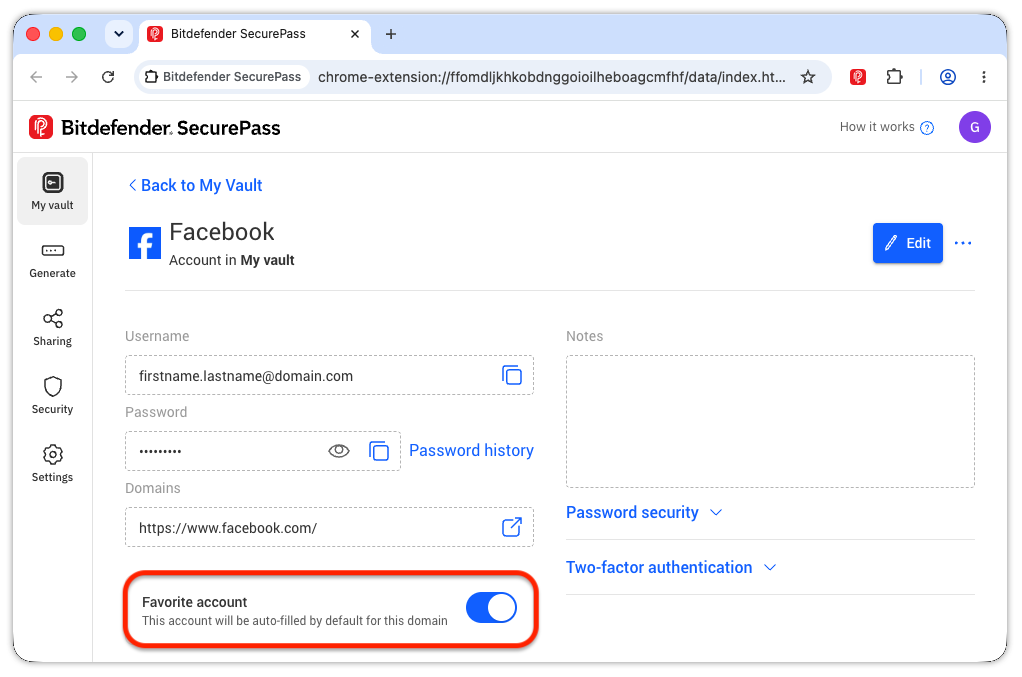
2. Enable Favorite account:
-
- Go to your vault, select the affected account, and turn on: Favorite account. The account credentials will then be auto-filled by default.

- Go to your vault, select the affected account, and turn on: Favorite account. The account credentials will then be auto-filled by default.
3. Use one of these two alternative autofill options:
- Autofill Using the SecurePass Icon in the Sign-in form:
- When you visit a login page, look for the SecurePass icon
 in the username and password fields.
 - Click the SecurePass icon, then select the account name from the menu. The saved login credentials will be filled in automatically.
- If you have multiple accounts saved for the site, select the correct one from the list.

- When you visit a login page, look for the SecurePass icon
 in the username and password fields.
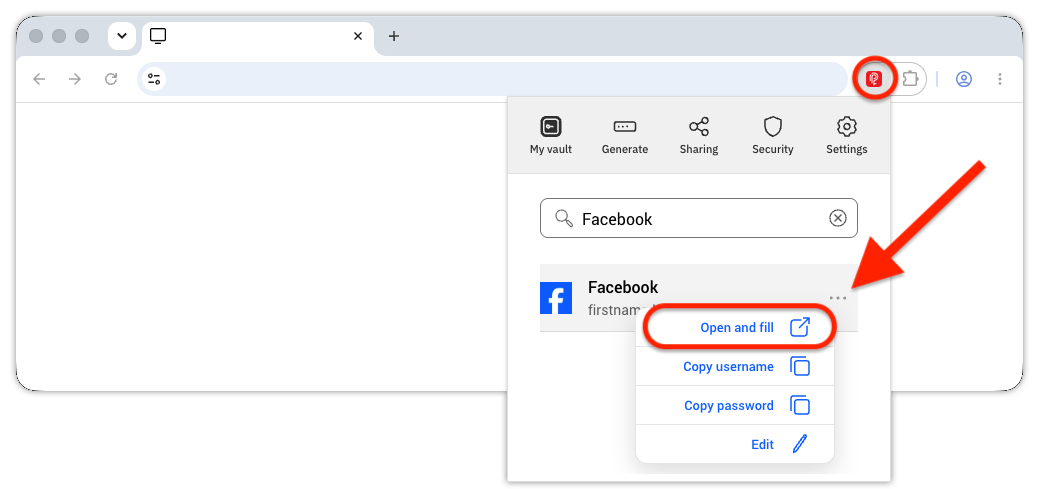
- Autofill Using the SecurePass Extension in the Browser Toolbar:
- Click the Bitdefender SecurePass extension at the top of your browser’s toolbar.
- Click the Bitdefender SecurePass extension
-
- Search for the account saved in your vault (e.g. “Facebook”) and click the three-dot menu (…) next to it.
- Choose the Open and fill option in the menu that appears.
- Your browser will open the website and automatically fill in your username and password.

Autofill issues on Android or iOS
To autofill using the Bitdefender SecurePass mobile app, ensure autofill is configured correctly.
On Android
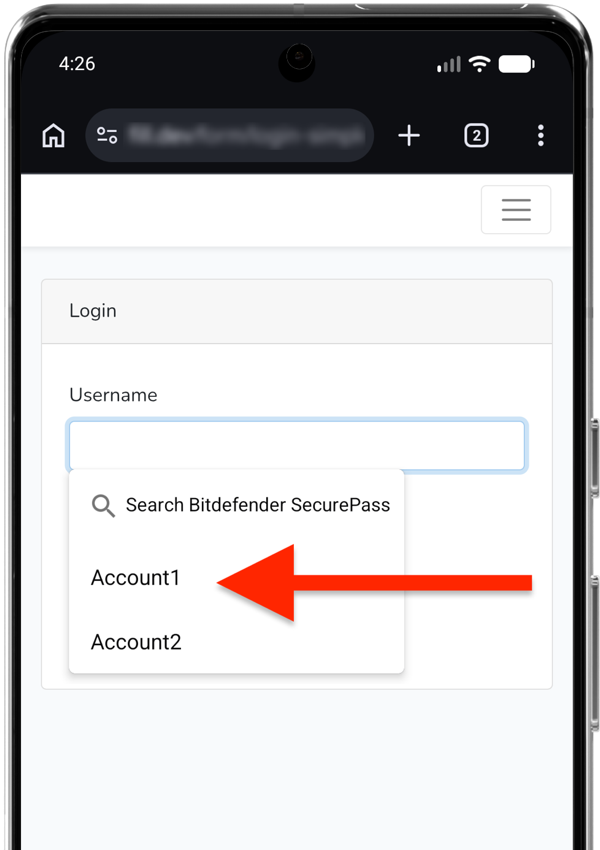
- Follow these steps to make Bitdefender SecurePass default Android password manager. Then, once SecurePass is set up on Android:
- When you visit a login page, tap the username or password fields.
- Select the account name from the menu. If you have multiple accounts saved for the site, select the correct one from the list.
- Unlock the vault using biometrics (fingerprint or face recognition) or your Android PIN, pattern, or password.
- The saved login credentials will be filled in automatically.
On iOS
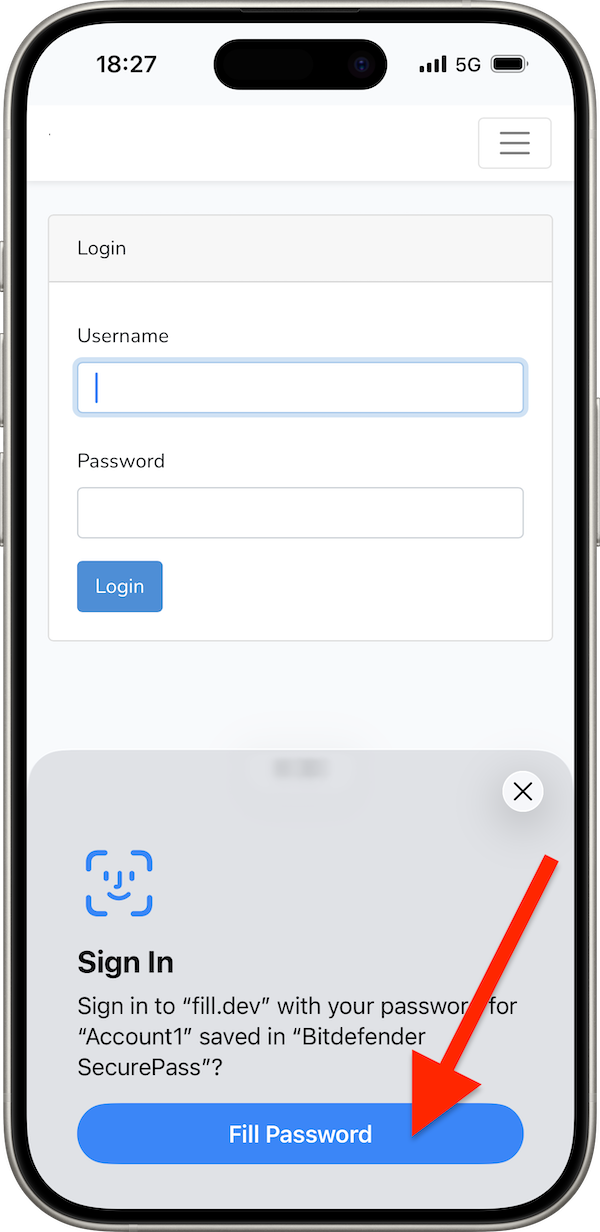
- Follow these steps to make Bitdefender SecurePass default iOS password manager. Then, once SecurePass is set up on your iPhone or iPad:
- When you visit a login page, tap the username or password fields.
- Tap Fill Password in the message that appears at the bottom of the screen.
- Unlock the SecurePass vault using biometrics (Face ID or Touch ID) or your iPhone/iPad passcode.
- The saved login credentials will be filled in automatically.
Autofill issues in the Web Client
The SecurePass web client at https://securepass.bitdefender.com does not support autofill.
- Manually copy the login credentials from your SecurePass vault and paste them into the website’s login fields.