This guide explains how to configure Bitdefender SecurePass to autofill passwords on your Android device. To use this feature, you must first set SecurePass as your default password manager in Android.
Before you begin
If you haven’t already set up SecurePass as your default password manager, follow the instructions in this guide:
Autofill Passwords with SecurePass on Android
Once Bitdefender SecurePass is your default password manager on Android:
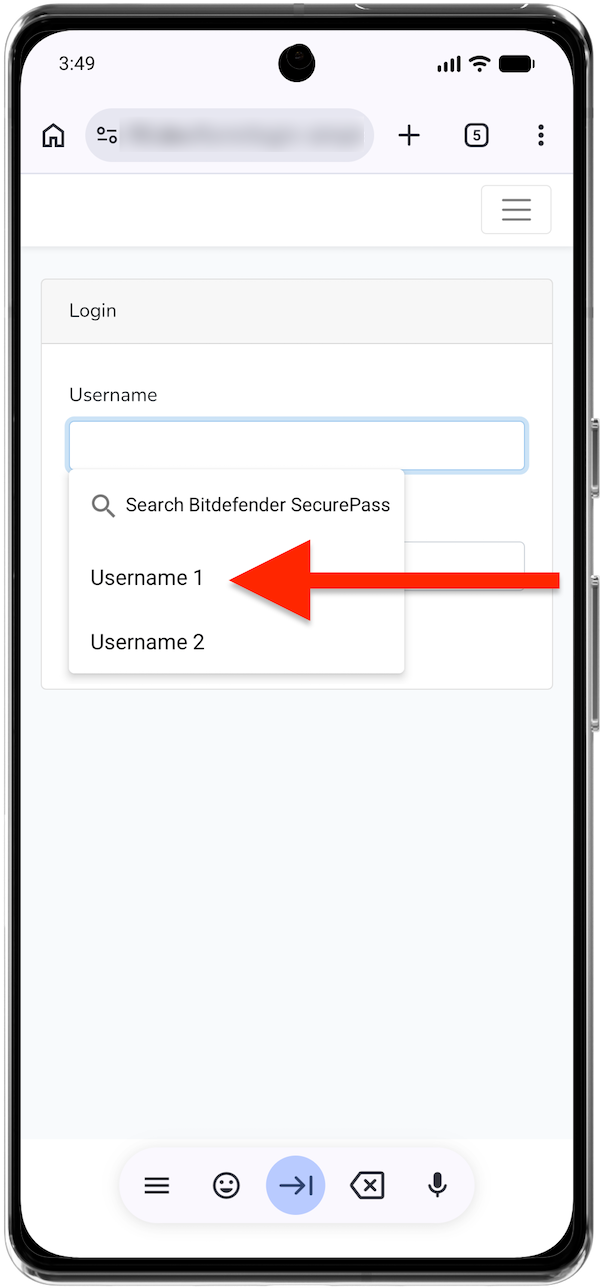
- Open an app or website, then tap the username or password field.
- When the Bitdefender SecurePass menu appears below the field, tap your account name. If multiple accounts are saved for the same login, select the one you want to use.

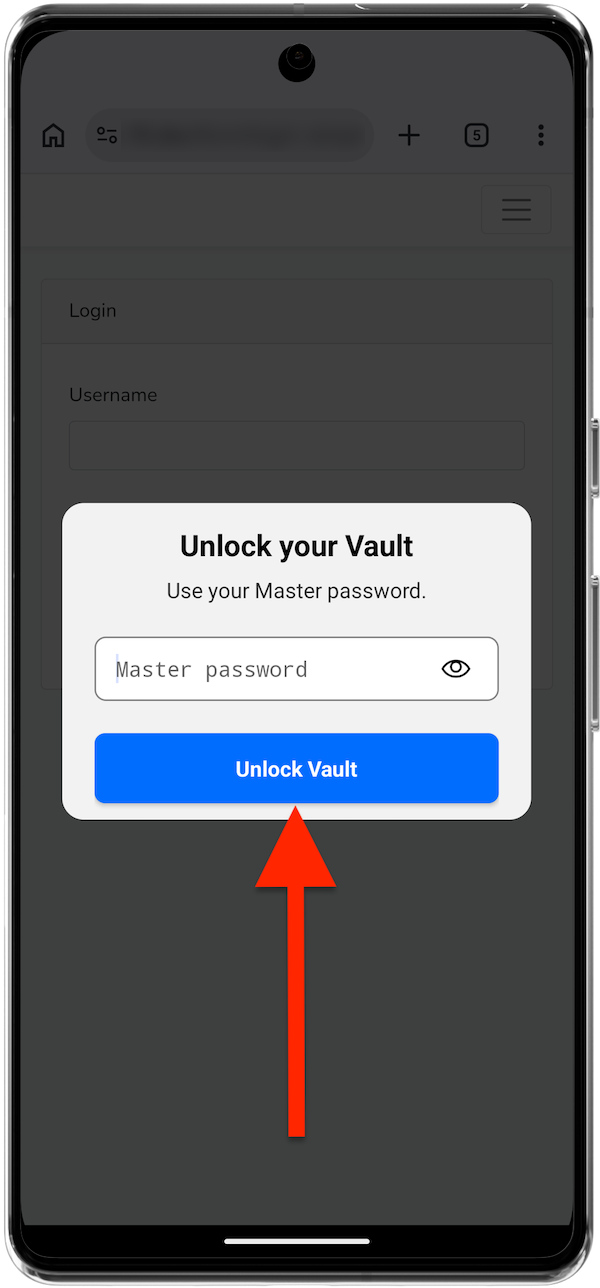
- If prompted, unlock your SecurePass vault using biometrics (fingerprint or face recognition) or your Android PIN, pattern, or password.
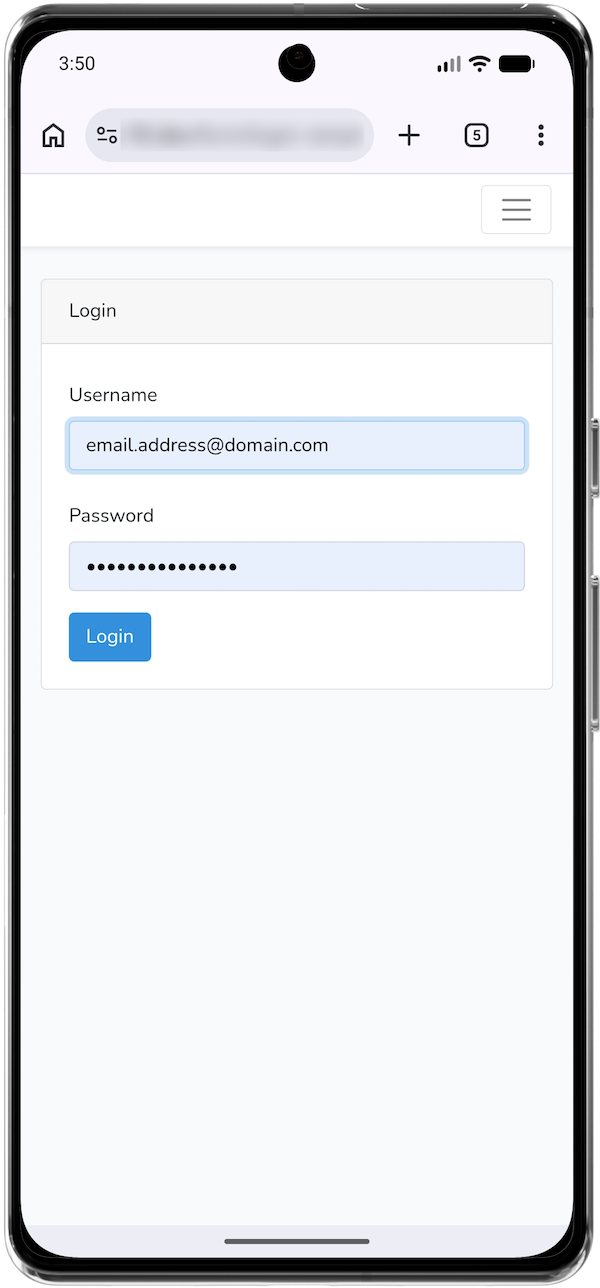
- Your saved username and password are filled in automatically.
Note: If the autofill prompt doesn’t appear, make sure Bitdefender SecurePass is set as your default password manager, autofill services are enabled in your Android settings, and that you have saved credentials for the website or app.
With this setup, Bitdefender SecurePass automatically fills your saved credentials, making it faster and more secure to sign in to apps and websites on your Android smartphone or tablet.