This guide shows how to set Bitdefender SecurePass as your default password manager on Android. After you set Bitdefender SecurePass as your default Android password manager, it can automatically save and autofill your usernames, passwords, and other login credentials across apps and web browsers.
Set SecurePass as Default Password Manager on Android
1. Open the Bitdefender SecurePass app  installed on your Android smartphone or tablet.
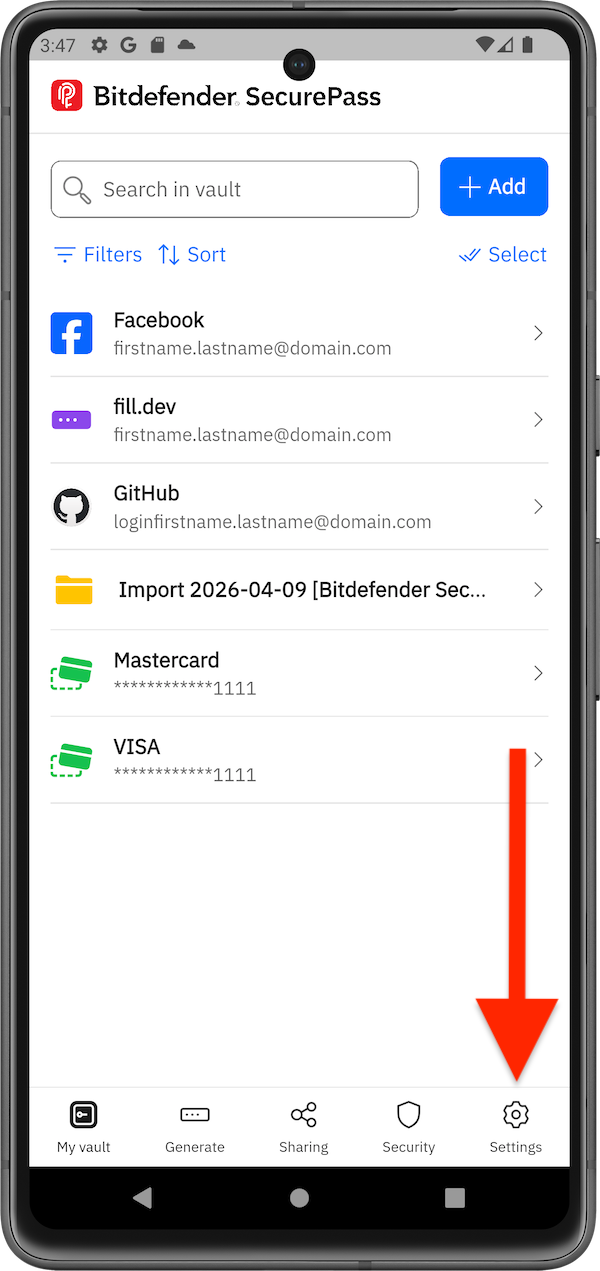
2. Tap the Settings icon (⚙︎) in the bottom navigation bar.
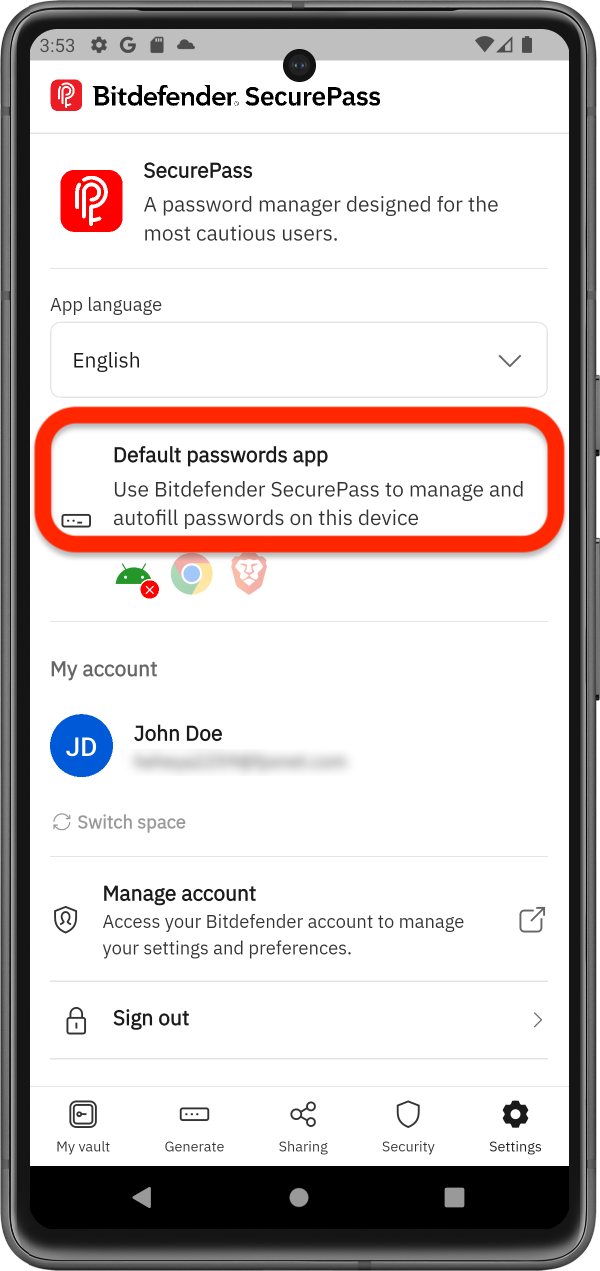
3. In SecurePass settings, either tap Default passwords app or the Android icon.
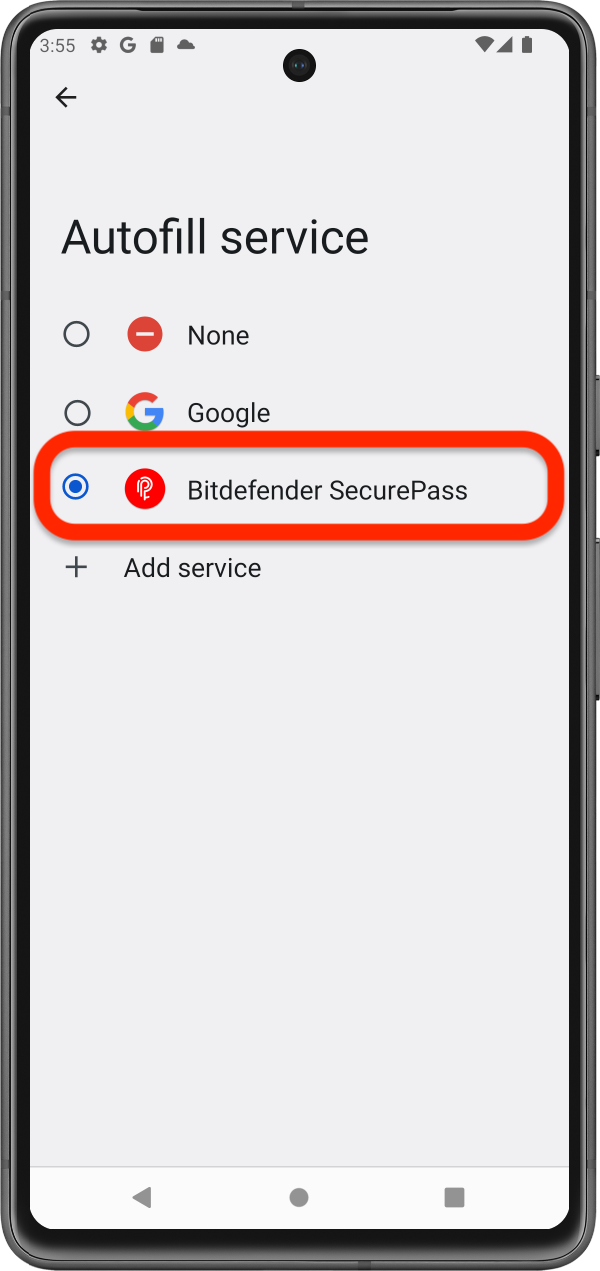
4. Set Bitdefender SecurePass as your default password manager in the Autofill service list, then confirm when asked.
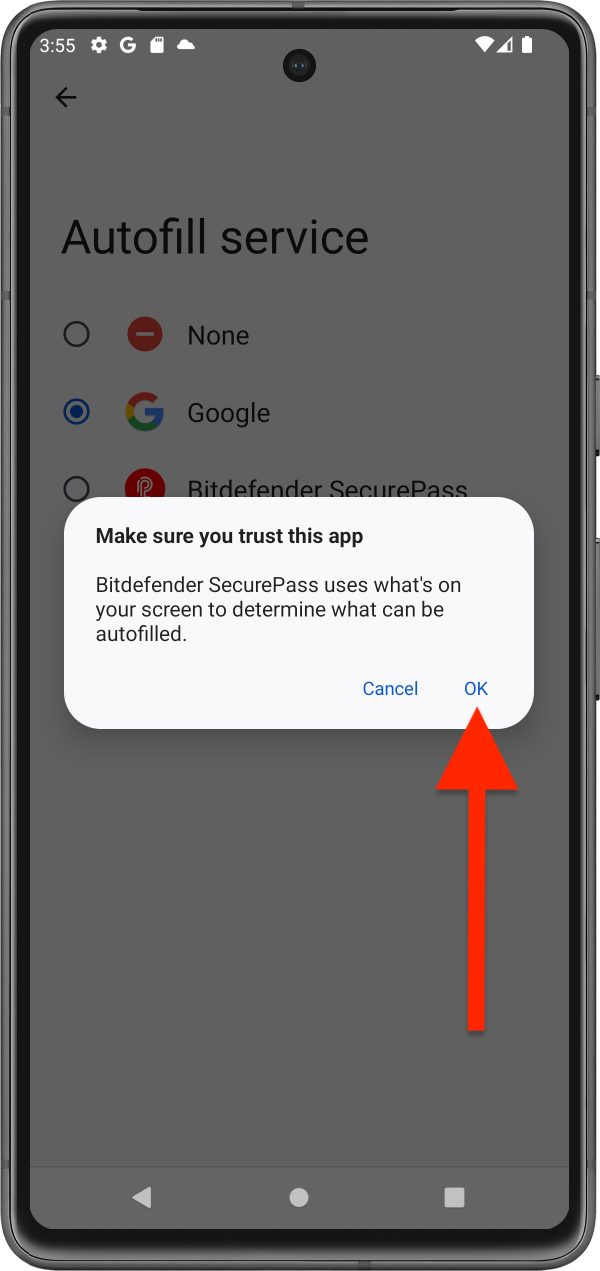
Bitdefender SecurePass is now the default password manager on Android.
Enable SecurePass Autofill in Chrome and Brave
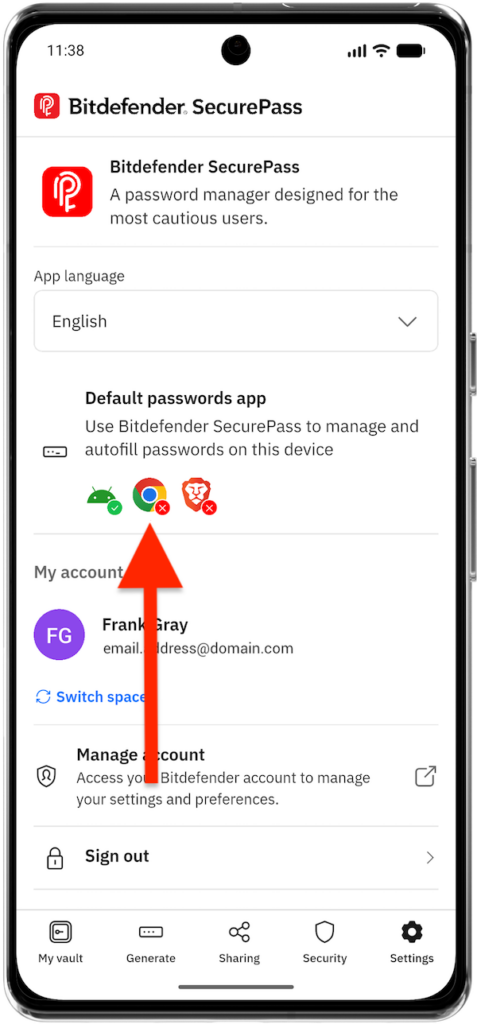
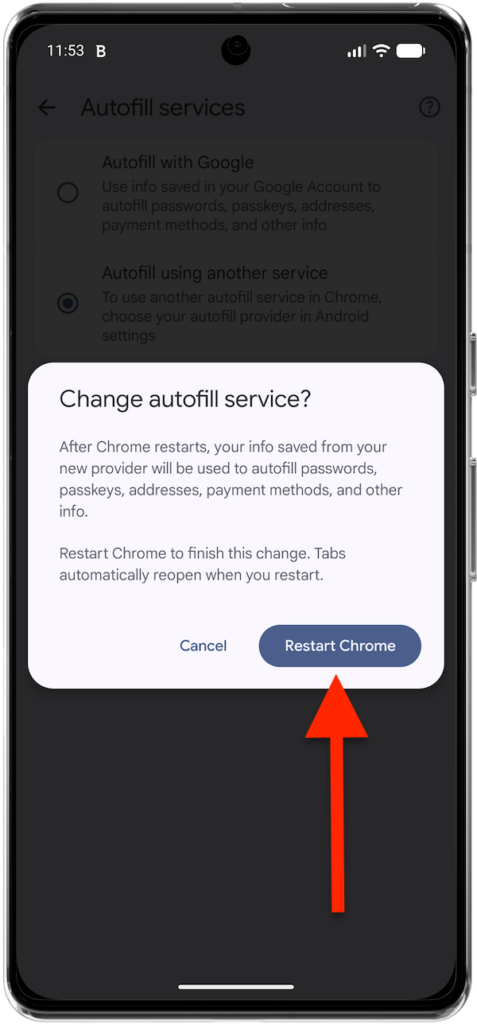
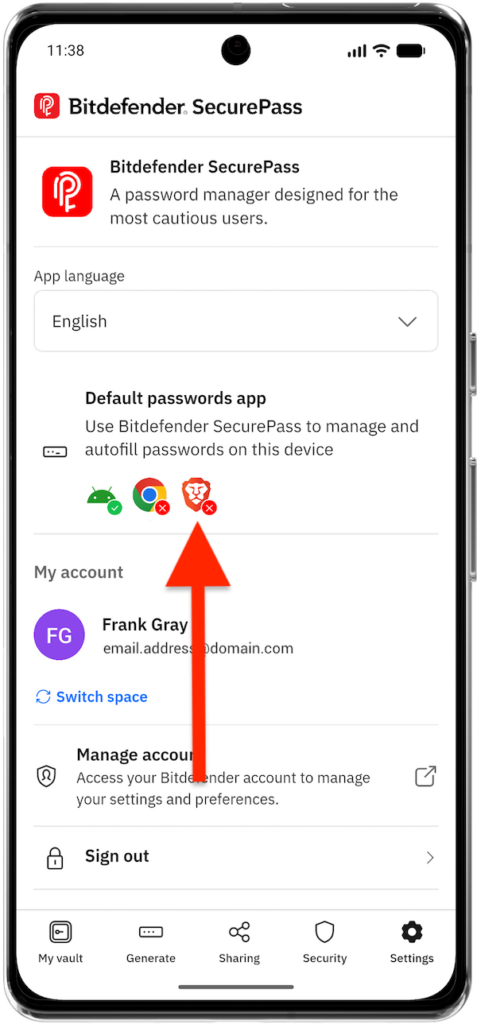
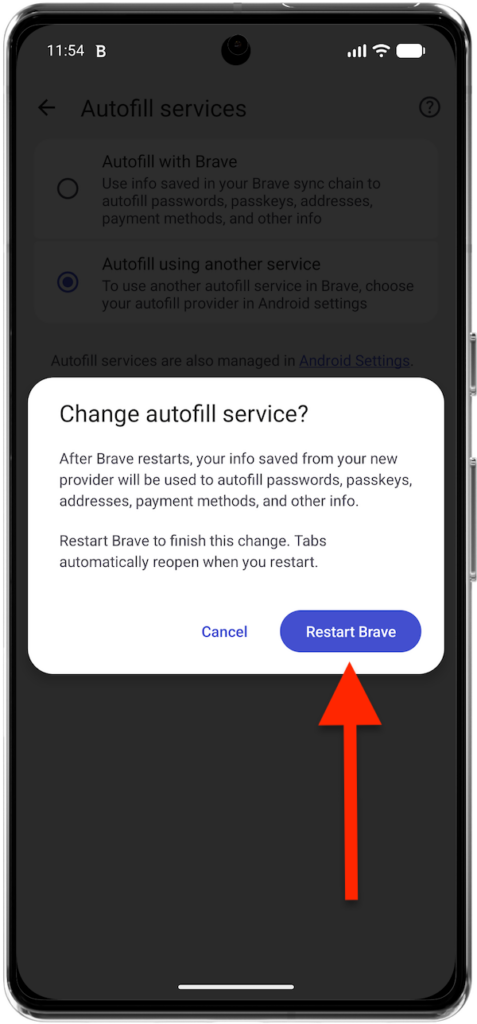
8. If you use Google Chrome 135 or later or Brave 1.79.119 or later, you’ll also need to modify each browser’s autofill settings. These new browser versions continue using Google/Brave autofill unless you manually switch them to use Android’s default autofill service. Follow the instructions below for your browser.
Google Chrome

Brave

Bitdefender SecurePass is now your default password manager on Android. If you use the latest version of Chrome or Brave, make sure you’ve also completed the additional browser-specific steps above.
The next time you tap a sign-in field, you’ll see the option to autofill your credentials easily with SecurePass. For more details, check this guide: