Bitdefender SecurePass lets you import passwords and other login information from supported password managers, browsers, and previously exported SecurePass files. Importing your existing credentials saves you time from having to add each account manually.
You can import passwords using:
- The Bitdefender SecurePass browser extension or web client on Windows and macOS.
- The Bitdefender SecurePass mobile app on Android and iOS.
The steps differ slightly depending on the device you are using. Expand the relevant section below and follow the instructions for your platform.
Browser (Windows and macOS)
Use these steps to import passwords through the Bitdefender SecurePass browser extension or web client.
Step 1. Open Bitdefender SecurePass
- Go to https://securepass.bitdefender.com/ or click the Bitdefender SecurePass extension icon
 from the browser toolbar. The icon is normally located near the address bar.
- If the icon is not visible, click the browser’s extensions menu (puzzle icon) and select Bitdefender SecurePass. You can also pin the extension to the toolbar for quick access.
- Unlock your vault if prompted.
 from the browser toolbar. The icon is normally located near the address bar.
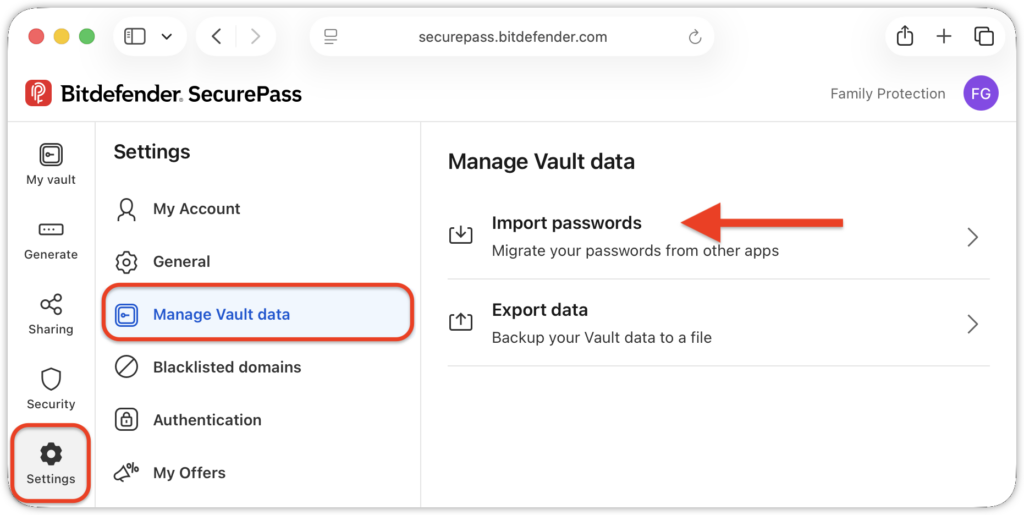
Step 2. Select the Import Passwords Option
- In the SecurePass window, go to Settings → Manage Vault data → Import passwords.
- This will open the import window.
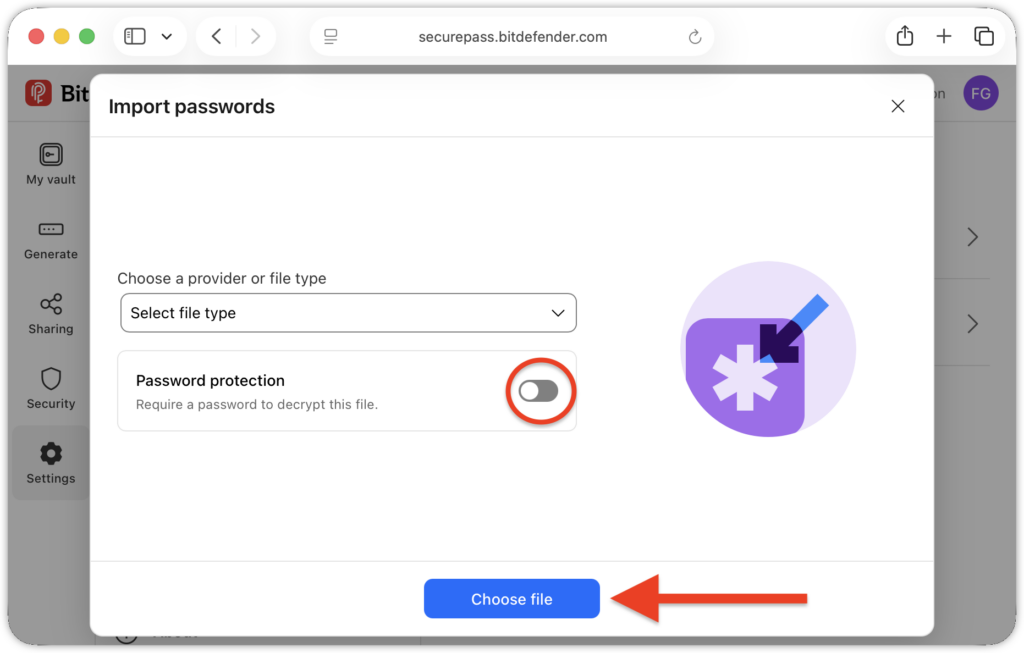
Step 3. Select the password manager’s name.
- Click the Select file type field.
- Use the drop-down menu to select the name of the password manager or web browser you’ve used before (e.g. 1Password, Firefox etc.).
- If a password was used to encrypt the file, turn on the Password protection switch and type the password; otherwise, leave it disabled.
- Click the Choose file button.
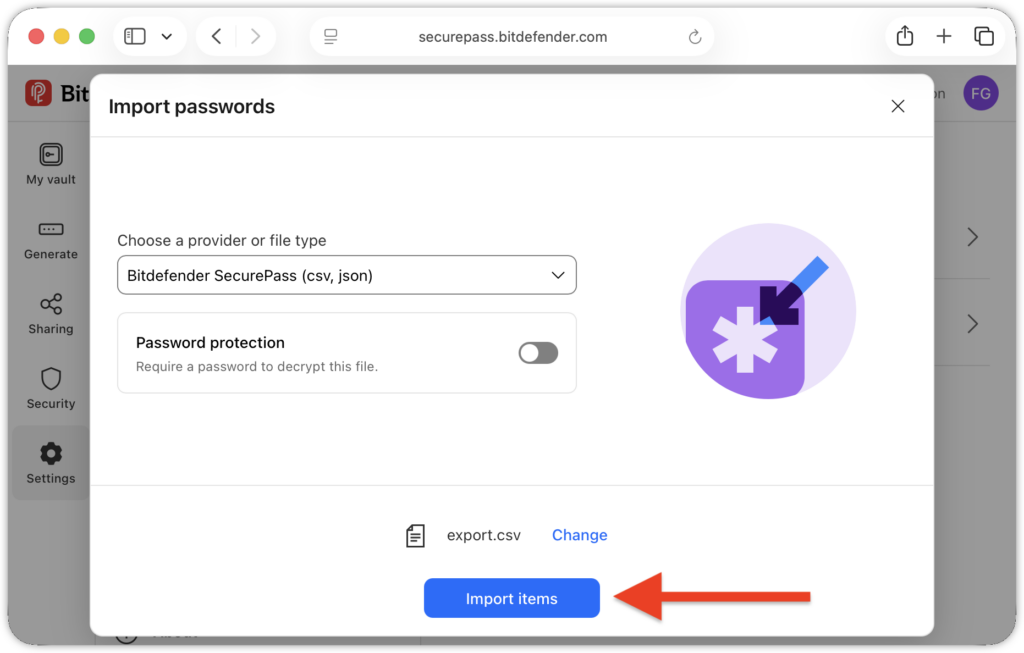
Step 4. Select the Exported File
- Navigate to the folder where you saved the exported data from your old password manager.
- Choose the file and click Upload.
Step 5. Start the Import Process
- After selecting the file, click Import items.
- The import will begin. A confirmation message will appear once the data has been imported successfully.
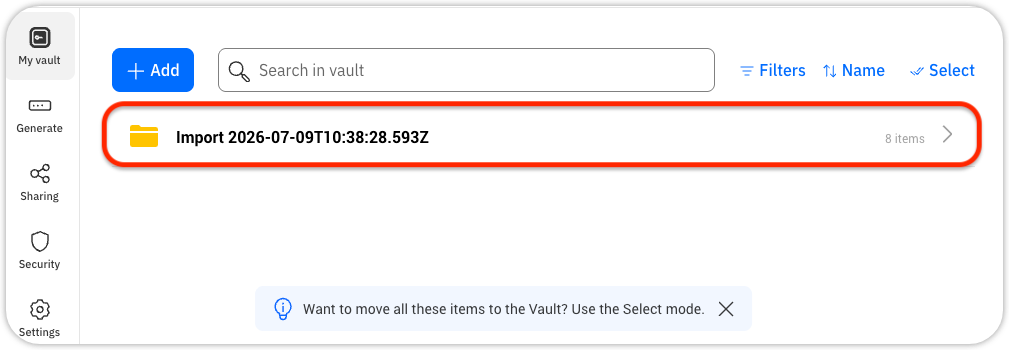
Step 6. Access the Imported Data
- Once the import is complete, a folder named Import will appear in your SecurePass vault containing your data from the previous password manager.
- To move these items to the vault, use the Select option in the top right corner.
- You can organize imported items later by creating new folders or rename existing ones. Learn how to organize passwords into folders in SecurePass.
Note:
- If you import data multiple times from different password managers, Bitdefender SecurePass will create a new Import folder for each instance.
- These folders can contain various types of data, depending on what was stored in your previous password manager.
Mobile app (Android and iOS)
Use these steps to import passwords with the Bitdefender SecurePass mobile app.
If your vault doesn’t contain any saved passwords, tap Import items when you open the SecurePass app, then continue with step 3 below.
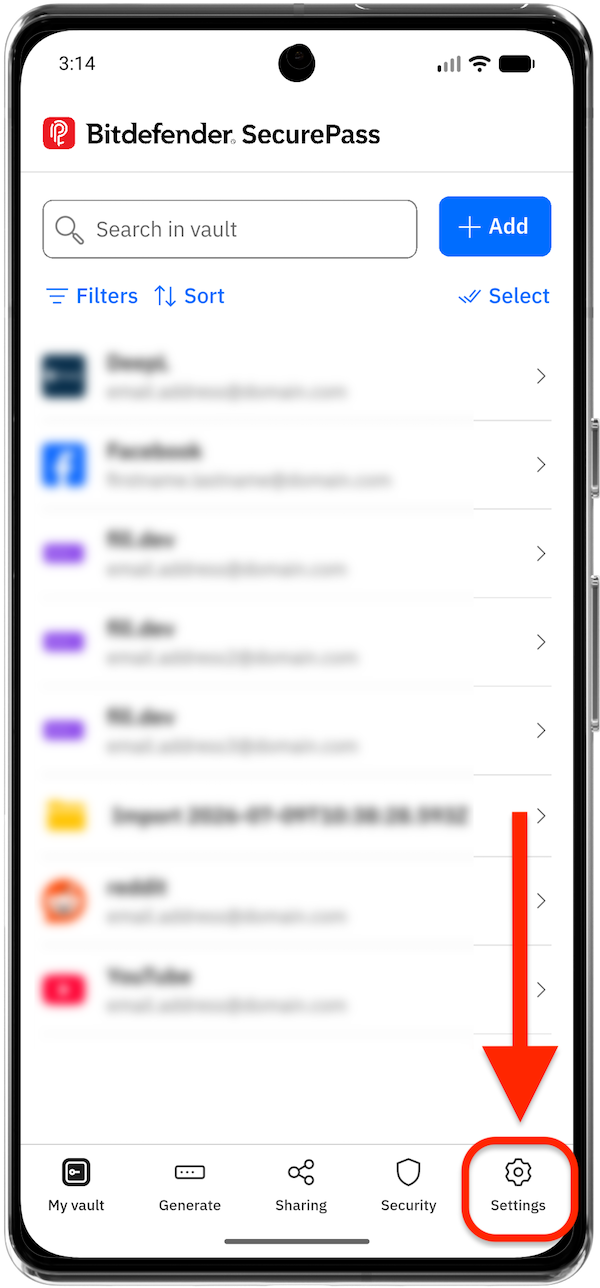
Step 1. Open Bitdefender SecurePass Settings
- Launch the Bitdefender SecurePass app
 and unlock your vault if prompted.
 - After the vault opens, tap Settings in the navigation bar at the bottom of the screen.
Step 2. Select Import passwords
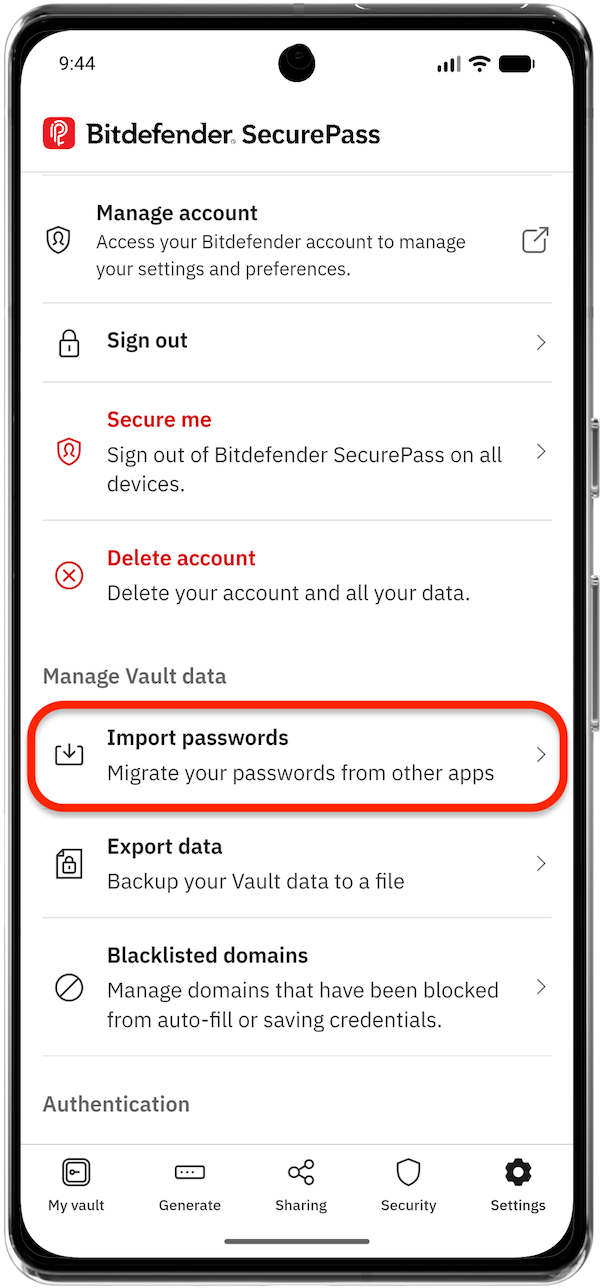
- Scroll down and tap Import passwords.
- The password-import screen opens.
Step 3. Select the password manager’s name
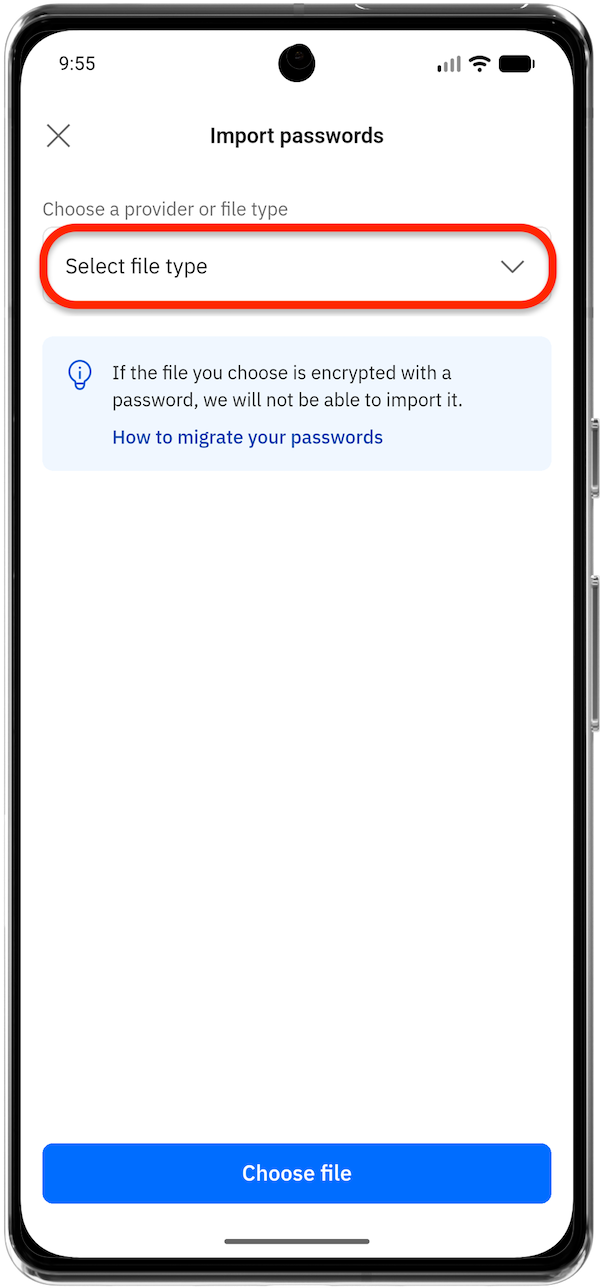
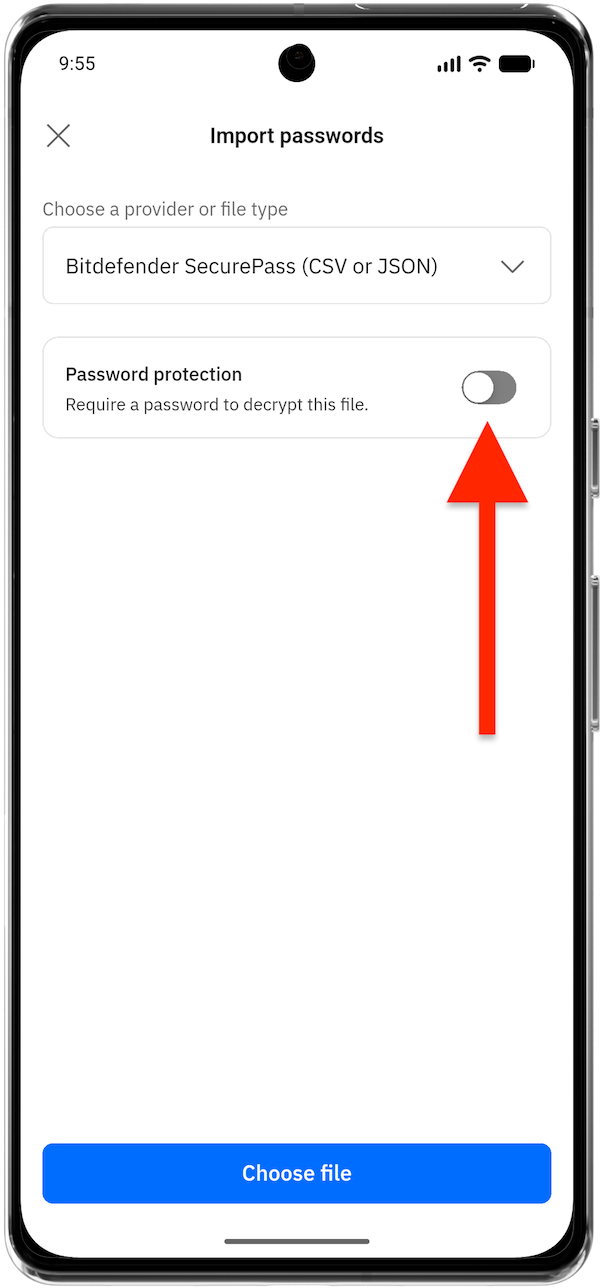
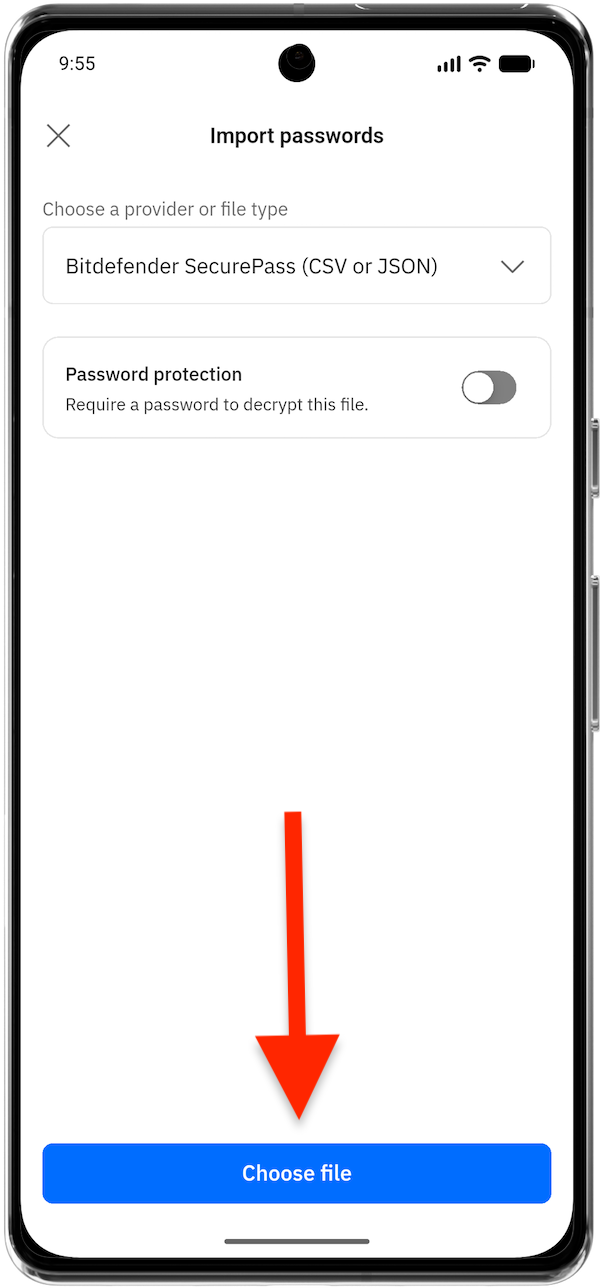
- Tap the drop-down menu and select the name of the password manager or web browser that you used to export your data (e.g. 1Password, Firefox etc.).
- If a password was used to encrypt the file, turn on the Password protection switch and enter the password; otherwise, leave it turned off.
Step 4. Select the Exported File
- Tap the Choose file button.
- Open the folder where you saved the exported file and select it.
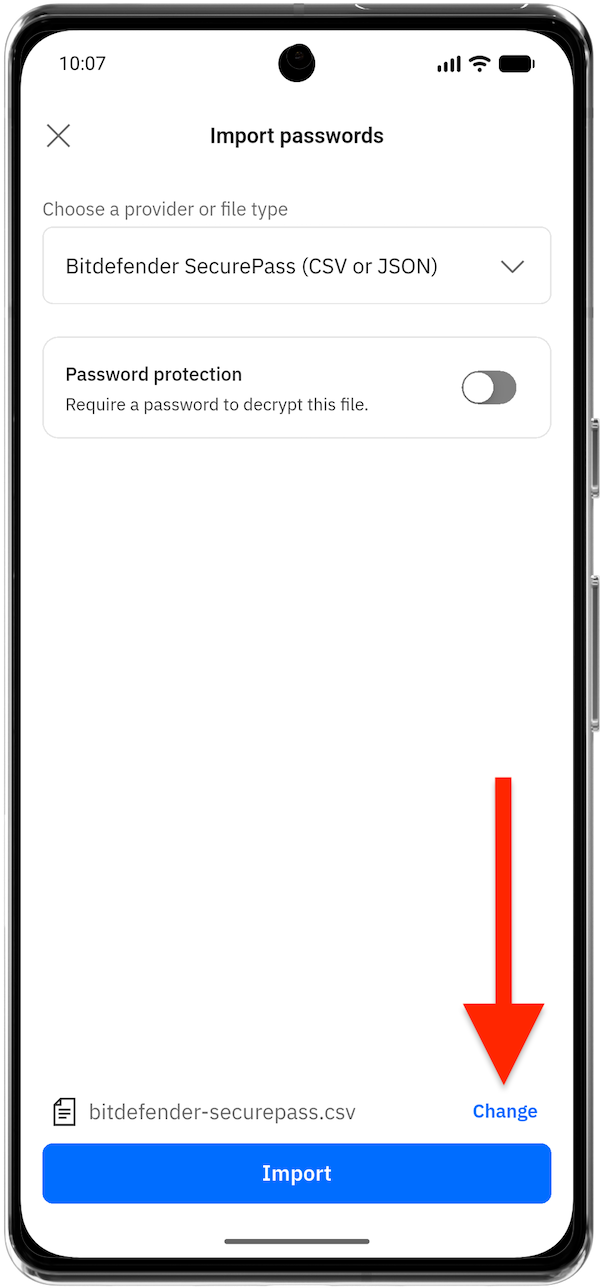
- After the file is attached, its name appears at the bottom of the screen. You can tap Change to select a different file.
Step 5. Import passwords into SecurePass
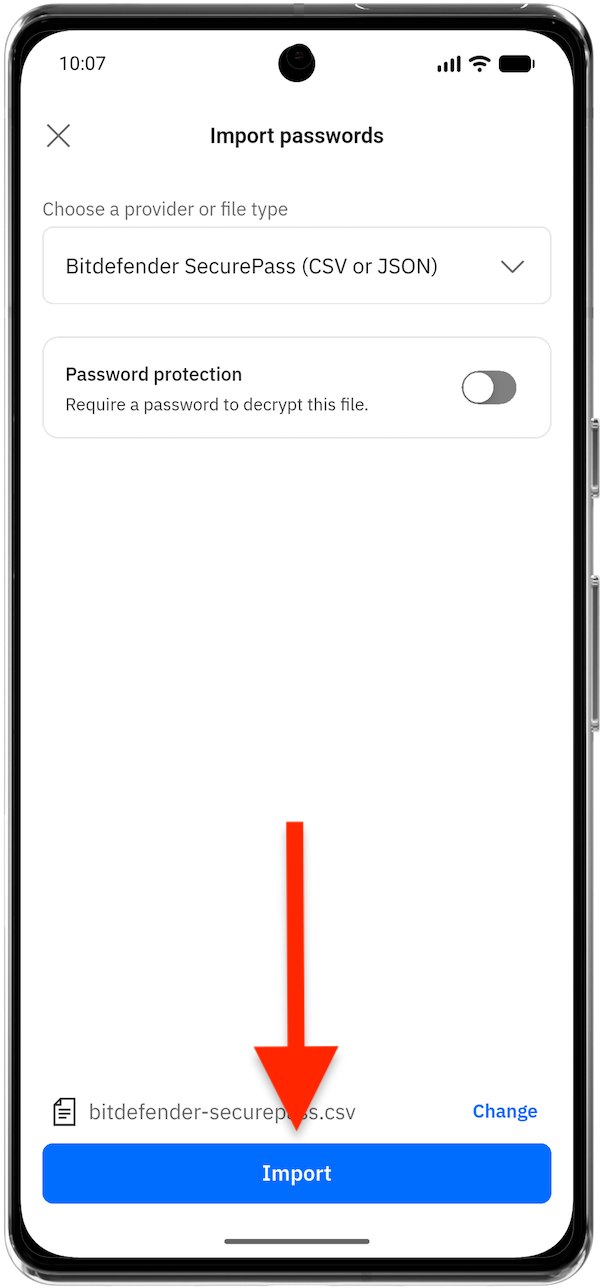
- Tap Import.
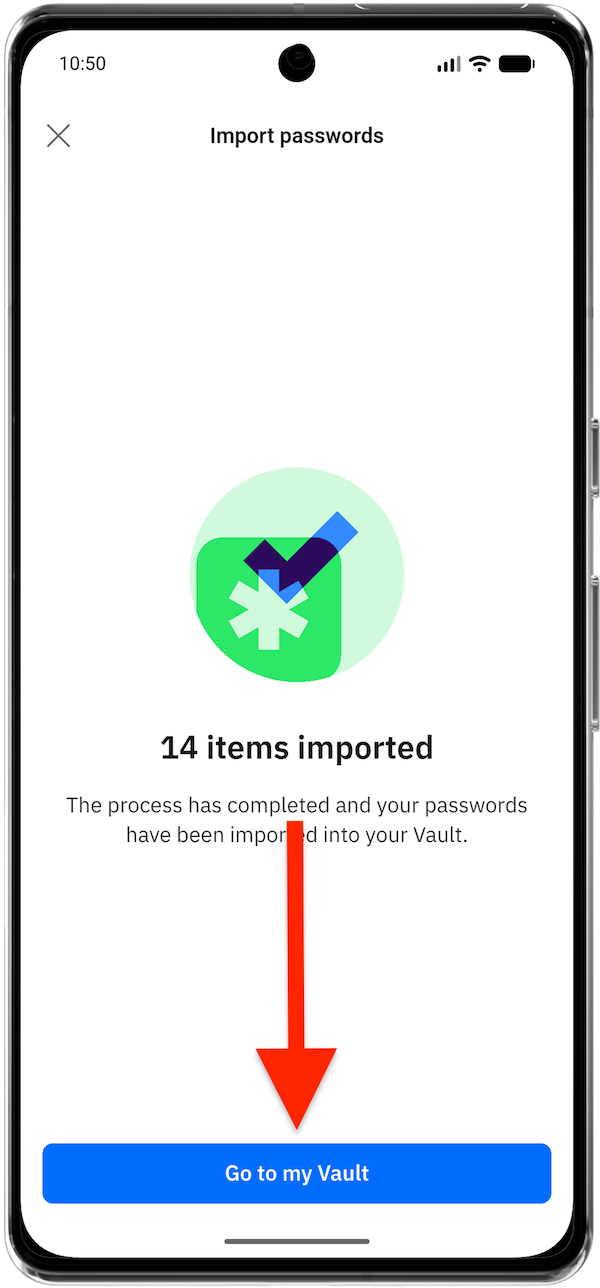
- When the import is complete, SecurePass displays a confirmation screen showing how many items were imported.
- Tap Go to my Vault to review them.
Step 6. Access the Imported Data
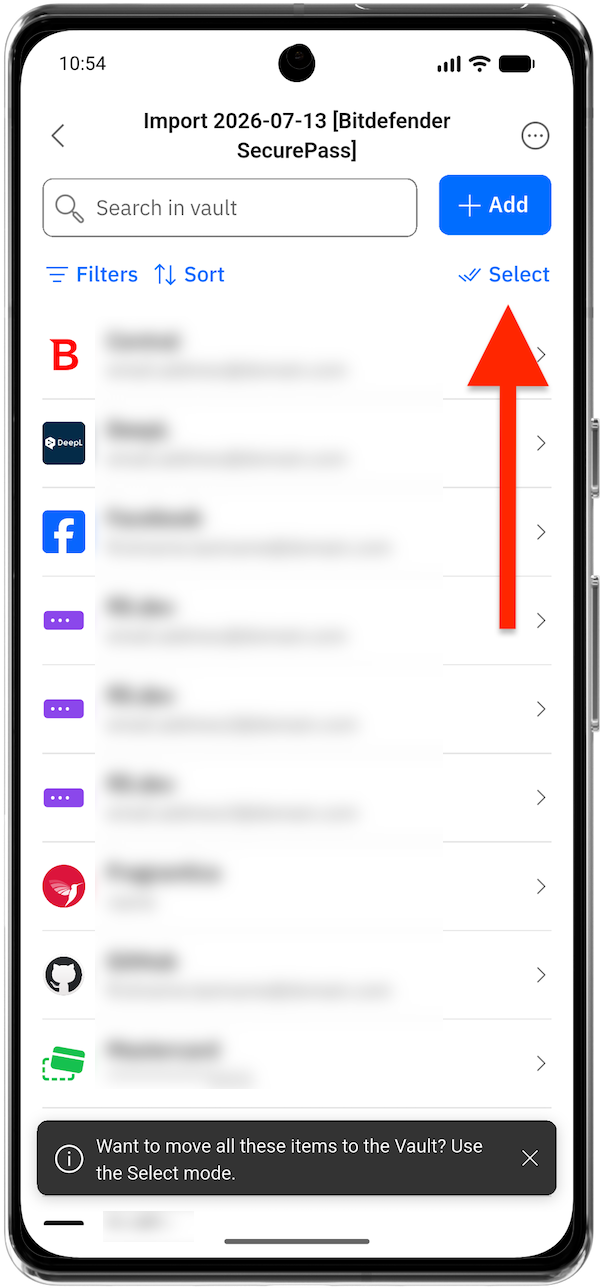
- Once the import is complete, a folder named Import will appear in your SecurePass vault containing your data from the previous password manager.
- To move these items to the vault, use the Select option in the top right corner.
- You can organize imported items later by creating new folders or rename existing ones. Learn How to organize passwords into folders in Bitdefender SecurePass.
Note:
- If you import data multiple times from different password managers, Bitdefender SecurePass will create a new Import folder for each instance.
- These folders can contain various types of data, depending on what was stored in your previous password manager.