Creating a strong password is important for protecting your online accounts. Bitdefender SecurePass offers a user-friendly password generator that helps you create secure passwords easily. Follow the steps below to generate a strong password using Bitdefender SecurePass.
Generate a Strong Password in SecurePass
- Open Bitdefender SecurePass:
- Launch the Bitdefender SecurePass app or web browser version.
- Access the Password Generator:
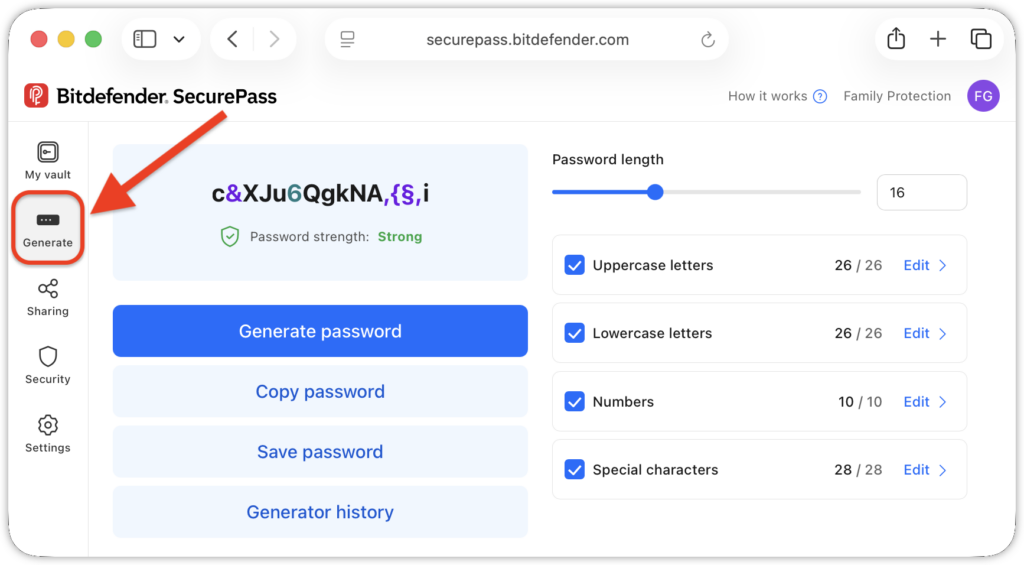
- Click on Generate in the navigation menu. This will open the password generation options and generate a unique, strong password ready to use.
- Click on Generate in the navigation menu. This will open the password generation options and generate a unique, strong password ready to use.
- Generate a New Password:
- To create a new password, click the Generate password button located beneath the current password. Each click generates a new password according to your specified settings.
- Copy or Save the Password:
- Once you are satisfied with the generated password, you can click Copy password to copy it to the clipboard or click the Save password button to add a new item to your vault with that password.
- Generator history:
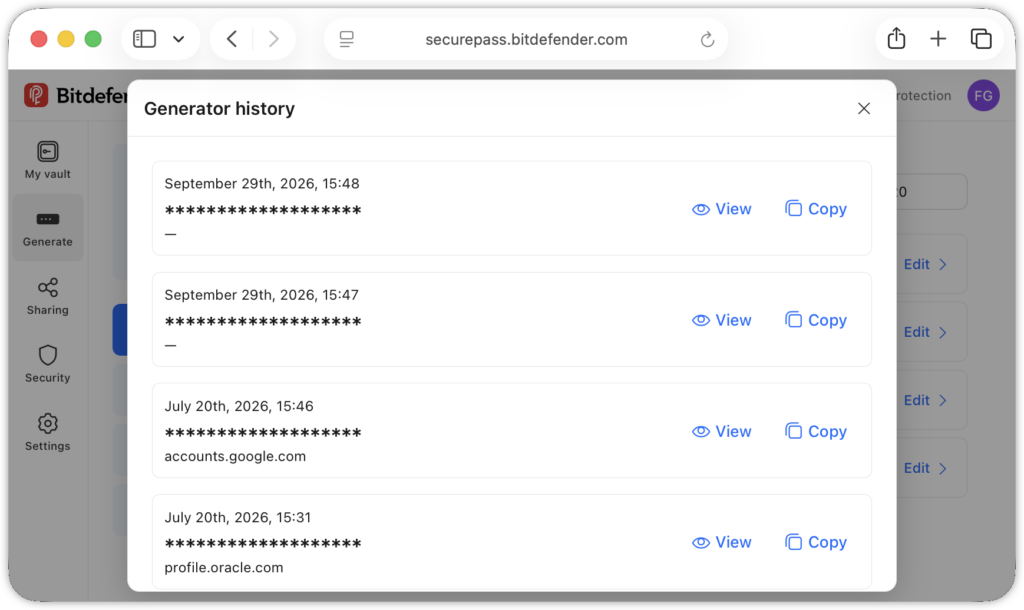
- Lists in reverse chronological order all passwords previously generated by the SecurePass generator, along with the associated accounts.
- Use the View or Copy options if needed.

- Adjust Password Settings:
- You can customize your password according to your preferences. Here are the settings you can adjust:
- Password length: Drag the slider left or right to choose a length between 8 and 32 characters.
- Uppercase and Lowercase letters: Select to include both types of letters for added complexity.
- Numbers: Enable this option to include numerical characters in your password.
- Special characters: Add symbols to your password for enhanced security.
- You can customize your password according to your preferences. Here are the settings you can adjust:
- Edit Character Set:
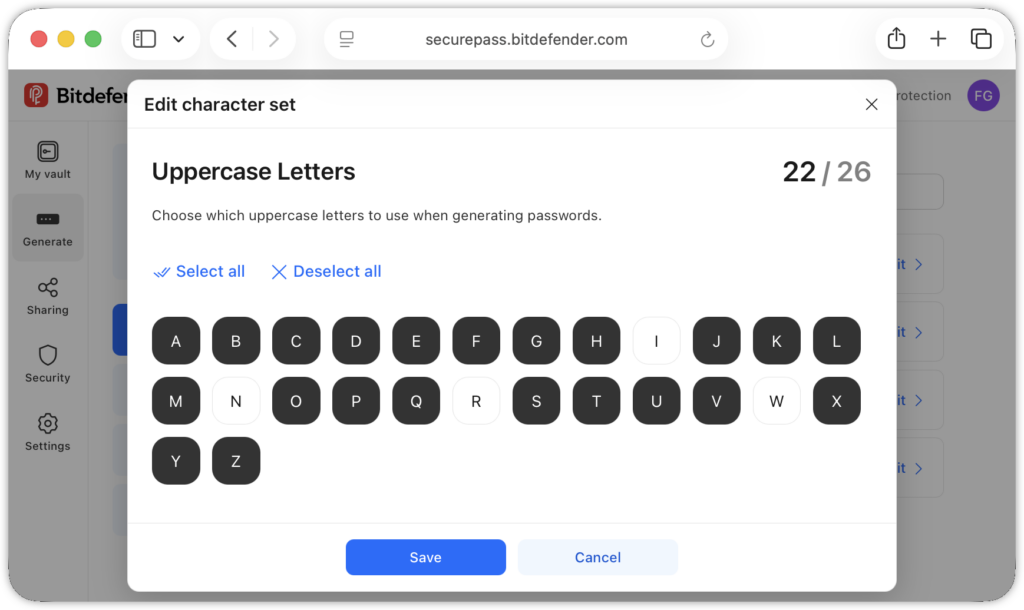
- Click Edit to choose exactly which letters, numbers, and special characters are used to generate passwords.
- Use the Select All or Deselect All options, or click the items you do not want SecurePass to use when generating passwords.
- After adjusting the settings to your liking, press the Save button. Bitdefender SecurePass will generate passwords based on your saved preferences.
Create a Password Directly from Sign-Up Forms
You can also generate a strong password while creating an account on a website using the SecurePass browser extension for Windows and macOS.
Here’s how:
- Visit the Sign-Up Page:
- Navigate to the website where you want to create an account.
- Access the Bitdefender SecurePass Icon:
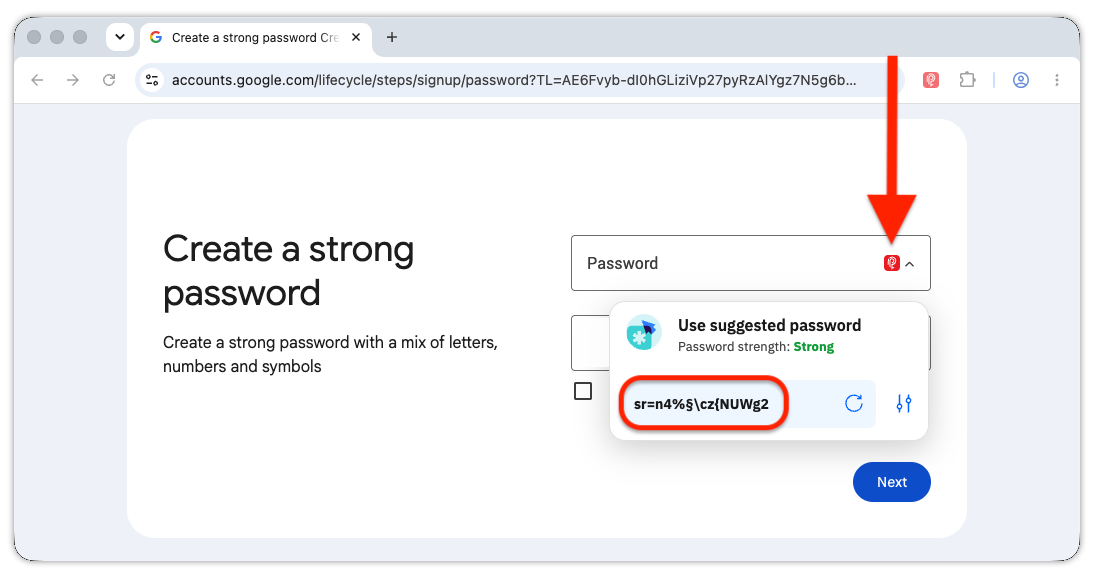
- Click on the Bitdefender SecurePass icon
 that appears in the password field of the sign-up form.
- Click on the Bitdefender SecurePass icon
- Use Suggested Password:
- Click the suggested password. A new strong password will be generated and automatically added to your vault, along with the username you provide.

- Click the suggested password. A new strong password will be generated and automatically added to your vault, along with the username you provide.
 that appears in the password field of the sign-up form.