Bitdefender SecurePass can automatically enter saved payment card information into online checkout and payment forms. This reduces manual typing and helps prevent mistakes when entering long card numbers or expiration dates. The autofill experience may differ slightly depending on whether you’re using a desktop or a mobile device, but the overall process is the same.
Before you begin
Make sure that:
- Bitdefender SecurePass is installed and enabled on your device.
- You are signed into SecurePass with your Bitdefender account.
- The payment card you want to use has already been saved in SecurePass.
Autofill your card details
- On the website where you want to make a payment, proceed to the checkout page containing a credit or debit card form.
- Tap or click inside one of the payment fields, such as Card number or Name on card.
- SecurePass displays your saved payment cards near the payment field, allowing you to choose one of your saved cards.
- Select the card you want to use if you have more than one.

 SecurePass automatically fills the supported payment fields, which may include:
- Card number
- Cardholder name
- Security code (CVV/CVC)
- Expiration month
- Expiration year
- Review the completed form before continuing. Depending on how the website is designed, some fields may require manual input. For example, you might need to manually select the card type or complete other unsupported fields.
- Verify that all payment information is correct, then complete your purchase.
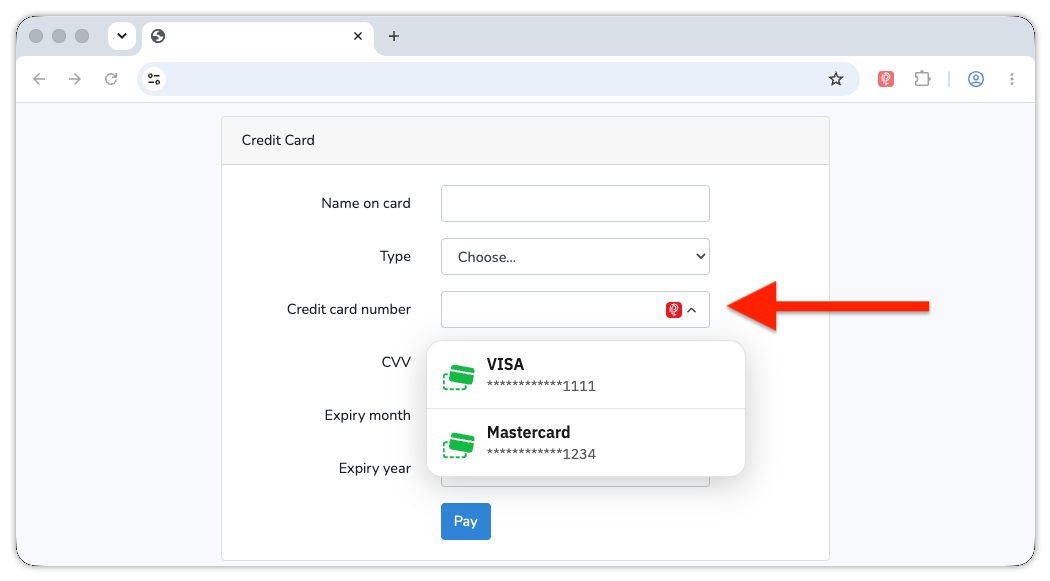
 SecurePass automatically fills the supported payment fields, which may include:
Note: SecurePass only fills the payment form. It never submits the payment automatically.